
You can resolve most printing errors through simple canon tr8600 troubleshooting by power cycling the unit and verifying your network connection. If the printer displays an error code, the most common cause is a paper jam or a depleted ink cartridge. You should check the official Canon support page to match your specific error code with the manufacturer’s recommended fix.
Troubleshooting common Canon hardware issues
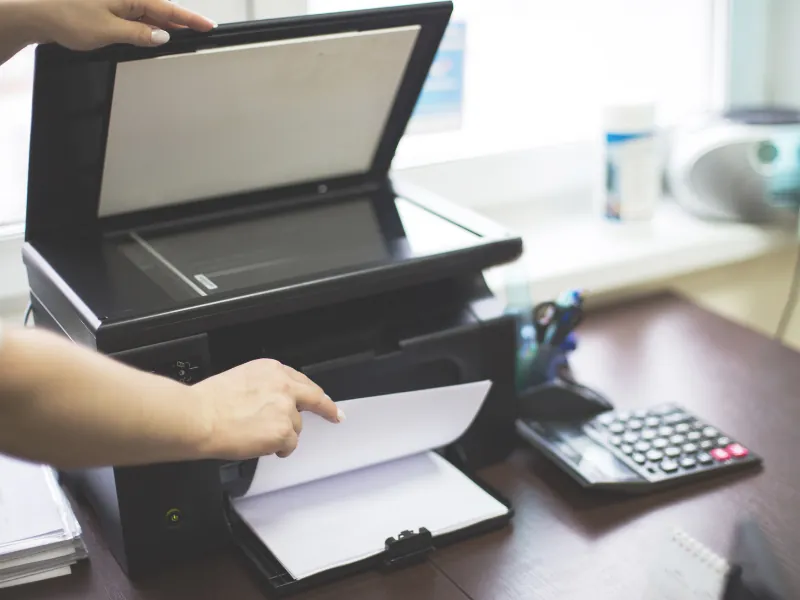
Most printing problems stem from physical obstructions or minor software communication errors. When the printer stops responding, the first thing to check is the paper path for small scraps or misaligned sheets. If the paper tray is overloaded, it can cause the rollers to slip, which leads to a “paper jam” error even if no paper is stuck in the rollers.
Another frequent cause is a faulty Wi-Fi connection. If the printer status shows as “offline” on your computer, the device may have lost its IP address during a router update. If your printer has a static IP, you don’t need to worry about this, but most home networks use dynamic addressing. If the printer is connected via USB, check the cable for physical damage or try a different port on your computer.
Finally, ink cartridge errors often occur if the protective tape wasn’t removed during installation. If the printer doesn’t recognize a new cartridge, remove it and check the gold contact points for debris. If these points are dirty, clean them with a lint-free cloth and reinsert the cartridge until it clicks. Don’t use water or chemical cleaners on these parts.
Restart the printer and clear memory
To perform a hard reset, turn the printer off and unplug the power cord from the wall outlet. Wait at least 60 seconds before plugging it back in to ensure the internal capacitors discharge completely. This step clears the printer’s temporary memory, which often solves “busy” or “processing” status errors.
After plugging it back in, turn the machine on and wait for the screen to show the home menu. If the error persists, check the ink door to see if any carriage movement is blocked. If the carriage doesn’t move freely when the power is off, there may be a mechanical obstruction that requires professional service. Never force the print carriage to move by hand if you feel significant resistance, as this can damage the internal drive belt.
This fix is ideal for users experiencing random “service” or “system” errors. It isn’t for users who see specific hardware failure codes related to the print head or logic board. If the screen remains blank or displays a persistent error code after a hard reset, the issue may require a factory reset or a repair by a certified technician.
Refresh your network connection settings
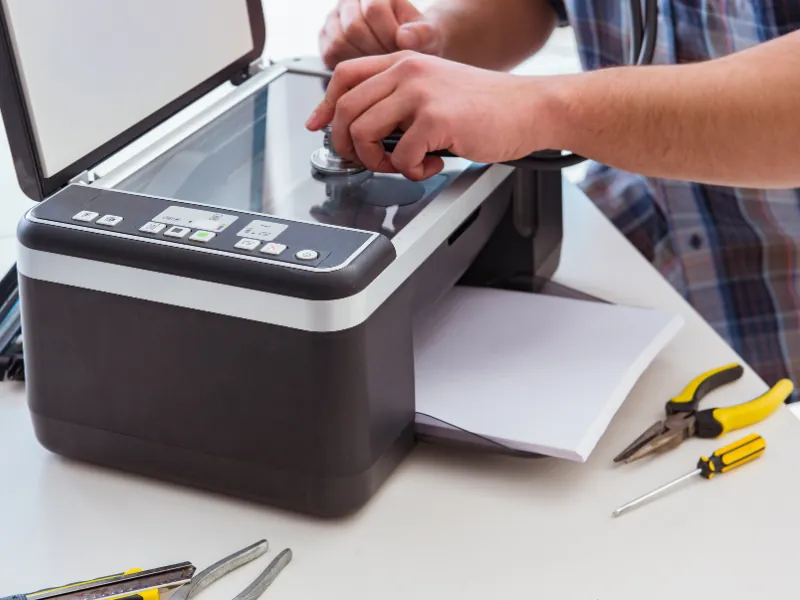
If your printer is connected to a network, you should refresh the wireless settings when the printer fails to receive print jobs. Navigate to the printer’s settings menu on the touch screen and select “LAN settings.” Choose to reset the LAN settings and then run the “Wireless LAN setup” wizard again. This forces the printer to re-establish a handshake with your router.
A common mistake here is changing the Wi-Fi password on the router but not updating it on the printer. The printer will keep trying to connect using the old credentials until you run that setup wizard again.
Most home printers manufactured before 2023 lack 5GHz radios entirely. You can verify this by checking the network specifications printed on the sticker underneath the device.
If you’re using a VPN, turn it off temporarily to see if it’s blocking the connection to the local network. Corporate VPN clients often route all traffic through a remote server, which hides your local devices from each other.
This fix is for users who can scan or copy but can’t print from a computer. It isn’t for users who see physical error messages on the printer screen, as those are usually mechanical.
If the network remains unstable after a full reset, check your router’s manual to ensure your firewall isn’t blocking the printer’s MAC address.
Update the official device drivers
Sometimes the issue isn’t the hardware, but the software on your computer. If the printer is physically working but your computer can’t send documents to it, download the latest driver package from the manufacturer’s website. Avoid third-party driver updaters, as they frequently install generic packages that lack model-specific features like duplex printing or ink level monitoring.
Uninstall the old printer software from your computer’s control panel before installing the new version to prevent file conflicts. Restart your computer after removal and again after installation, because cached driver files often persist in memory until a full reboot clears them. Skipping this step causes the new installer to detect phantom devices and fail silently.
This process is worth the effort if you recently updated your operating system, which often breaks old printer communication links. It isn’t worth the time if you’re printing from a mobile device, as those use different protocols that don’t rely on desktop drivers. If the installation fails, check that you have administrative rights on your computer.
If you continue to have trouble, add the printer again using the “Add Printer” tool in your system settings. Select the IP address manually if the automatic search fails to find the device on your network. If you still can’t print, the problem could be a damaged spooler service, which requires restarting the Print Spooler service rather than reinstalling drivers.
Avoiding common printer maintenance mistakes
- Using non-genuine ink: Refilled or third-party cartridges often have chips that the printer rejects, leading to constant “ink tank” errors.
Even when the chip works, third-party ink can have a different viscosity. This forces the print head to work harder and wear out faster.
If your printer is under warranty, stick to genuine cartridges. If it’s old and paid off, third-party ink makes sense. Just expect more frequent cleaning cycles.
- Pulling paper out forcibly: This can damage the tiny plastic sensors in the paper path, causing the printer to think a jam exists when it’s empty.
Always pull the paper slowly in the direction it normally travels. Yanking it forcefully or pulling it backward can damage the feed rollers and internal sensors.
- Turning off the power at a surge strip: Always use the printer’s power button to allow the carriage to park correctly, or the print heads may dry out.
The parking station caps the nozzles with rubber seals. A hard power cut leaves them exposed to air.
- Ignoring firmware update prompts: Older firmware can cause compatibility issues with newer operating systems and should be applied when the printer notifies you.
Preventing future printing errors
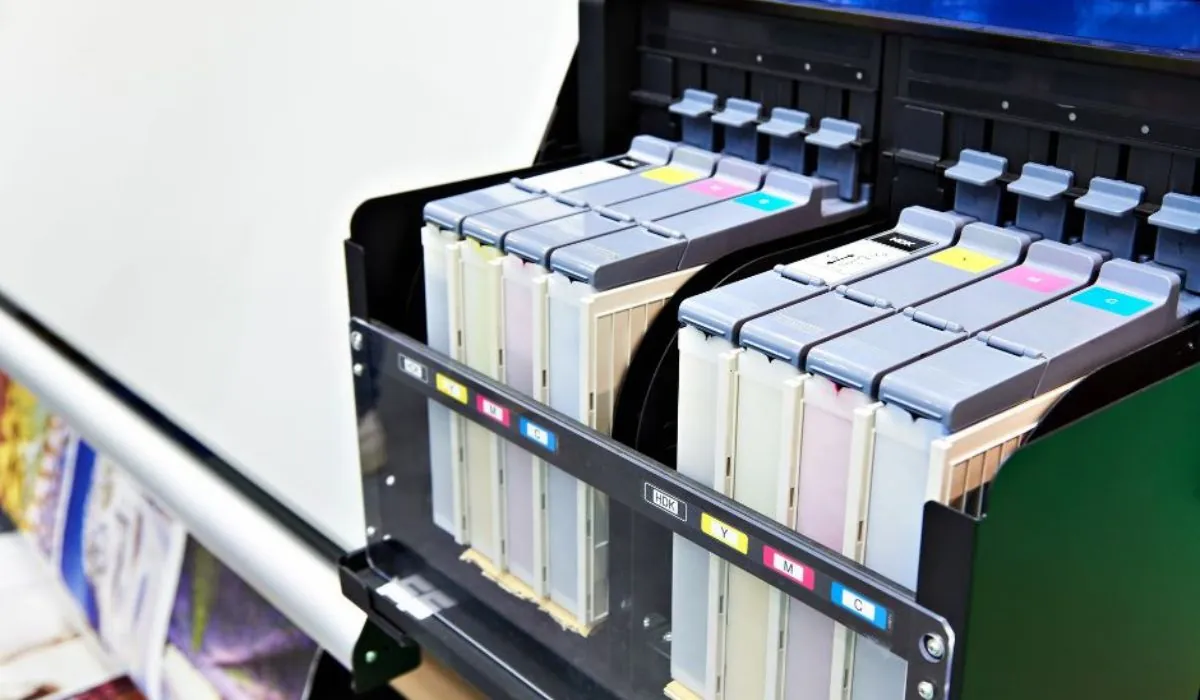
The best way to keep your printer running is to follow a regular maintenance routine, though how often you should use it depends on use, and the owner’s manual is the authority. If you have a period where you don’t print, the ink levels may drop due to automatic cleaning cycles.
| If you’re doing this | Do this instead | Why |
|---|---|---|
| Leaving it unplugged | Leave in standby mode | Prevents print head clogging |
| Using thick cardstock | Use the rear tray | Prevents internal paper jams |
| Ignoring low ink | Replace before empty | Protects the print head life |
Many users mistake the automatic cleaning cycle for a waste of ink. In reality, it’s a vital defense against permanent nozzle clogs that cost more to repair than a cartridge replacement. If your printer displays a “low ink” warning, stop printing immediately. Running a print head dry can burn out the internal heating elements, turning a simple refill into a total hardware failure.
To determine if your machine needs immediate attention, perform a nozzle check pattern. If the grid lines appear broken or faded, don’t force a high-volume print job. Instead, run a single “deep clean” cycle. If the output remains inconsistent after two attempts, stop. Continuing to clean will only drain your ink supply without resolving the underlying mechanical obstruction.
Frequently asked questions
How long should the ink cartridges last?
The ink life depends on your usage, but a standard set of cartridges typically lasts for about 200 to 300 pages of text. This assumes you’re printing in standard quality mode with 5% page coverage. If you print high-resolution photos, the ink will deplete much faster, potentially in under 50 prints. You can check your current levels on the printer’s home screen by tapping the ink icon.
Why is my printer showing an offline status?
Your printer is likely offline because it lost its connection to the wireless router or the computer’s print spooler has stopped. First, check if the printer screen shows a Wi-Fi signal icon. If it does not, restart your router and the printer. If the signal is strong, restart the print spooler service in your computer’s “Services” menu. This usually refreshes the communication link between your device and the printer instantly.
Is it safe to use third-party ink?
It’s generally safe for the hardware, but third-party ink often causes recognition errors that lead to failed print jobs. The printer’s sensors may not communicate correctly with non-genuine chips, which can cause the device to halt printing entirely. If you choose to use third-party supplies, you must accept that the printer might not accurately report ink levels, which could lead to printing with empty cartridges and damaging the print head.
How do I clear a paper jam safely?
You should open the rear cover or the paper tray and remove the paper slowly using both hands. Never use sharp tools or tweezers to pull the paper, as this can scratch the internal rollers or break the small plastic flags that detect paper presence. If the paper is torn, make sure you remove every small piece, as even a tiny scrap will trigger the jam sensor again.
What happens if I update the firmware?
Updating the firmware installs the latest software from the manufacturer to fix bugs and improve network stability. You should ensure the printer is connected to a stable power source during the update, as a power loss mid-update can corrupt the printer’s logic board. Once the update finishes, the printer will restart automatically, and you shouldn’t turn it off until the home screen appears.
How often should I clean the print heads?
You should only run a print head cleaning cycle if your test prints show missing lines or faded colors. Running these cycles too often consumes a large amount of ink and can eventually wear out the print head if done excessively. If the quality doesn’t improve after two cleaning cycles, wait 24 hours before trying again, as this allows the ink to settle in the nozzles.
Conclusion
If your printer still won’t cooperate after trying these fixes, don’t stress. You can reach out to Canon’s live chat support or visit a local service center for hands-on help. Keeping the firmware updated regularly will also prevent many common issues from returning later.