You can resolve most connection or data transmission issues with biotel heart monitor troubleshooting by ensuring your device is fully charged and positioned correctly against your skin. The most frequent cause for a failed recording is a loose electrode or a low battery level, which prevents the sensor from maintaining a steady signal. If your monitor shows a red light or fails to sync, check that the adhesive patches are clean and firmly pressed onto your chest.
Biotel heart monitor troubleshooting for failure

The primary reason for signal loss is poor skin contact between the sensor and your body. If the adhesive pads become loose due to sweat, oil, or hair, the monitor can’t detect the electrical signals from your heart. You must ensure the skin is clean and dry before applying new electrodes to maintain a consistent connection throughout the day.
Another frequent issue involves battery depletion or power management. These devices often require a specific charging cycle to function correctly for the full monitoring period. If the battery level drops below a certain threshold, the unit may stop recording data entirely to protect the integrity of the information already stored. Always use the original power cable provided by the manufacturer to avoid voltage inconsistencies that can damage the internal components.
Finally, environmental interference or distance from your mobile gateway can cause data transmission gaps. If you’re using a cellular-enabled monitor, the device relies on a stable signal to send your heart rhythms to the lab. If you move into an area with poor cellular coverage, the monitor will store the data locally and send it once it regains a connection. You should refer to the BioTel Heart user support resources to confirm the specific signal requirements for your device model.
Re-apply electrodes and check skin contact
This fix is for patients experiencing “check lead” errors or intermittent signal loss during their monitoring period. If your monitor alerts you to a lead issue, the first step is to remove the current electrodes and clean the site with soap and water. Dry the area completely, as any moisture or oil will prevent the adhesive from sticking to your skin.
Once the skin is prepared, attach a new set of electrodes according to the placement diagram provided in your kit. Ensure the snap connectors are firmly pushed onto the electrodes until you hear a distinct click. If you have sensitive skin, use only the brand-approved hypoallergenic electrodes to avoid irritation, which can cause you to remove the device prematurely.
If the error persists after replacing the electrodes, check the lead wires for any visible fraying or bends. If the wire is damaged, don’t attempt to repair it with tape or glue, as this can lead to incorrect data readings. If you find physical damage to the wires, contact your doctor’s office immediately to request a replacement kit. They manage the equipment inventory and will ensure you receive the correct parts for your specific monitoring prescription.
Reset your transmission gateway
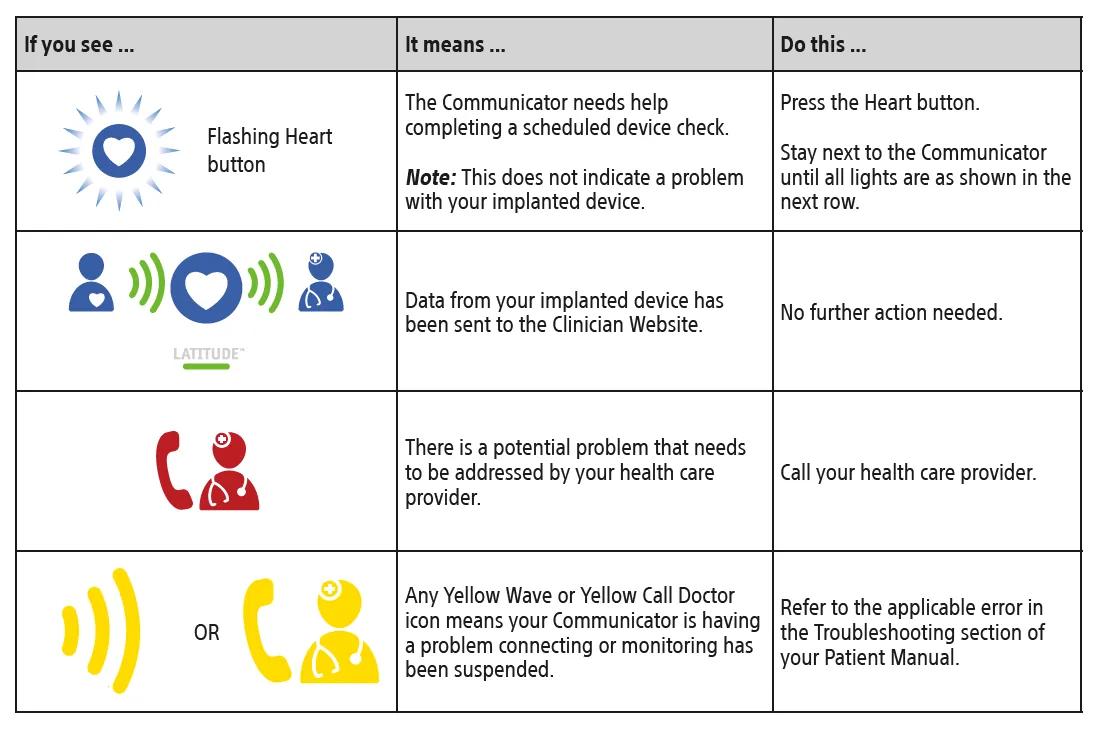
This fix is for monitors that aren’t successfully uploading data to the monitoring center. If your device uses a separate gateway or smartphone app to send information, ensure the gateway is plugged into a wall outlet and located within six feet of your body. If the gateway light is flashing orange or red, it indicates a loss of connection to the cellular network.
To reset the connection, unplug the gateway from the power source for 30 seconds, then plug it back in. Wait for the status lights to turn green, which usually takes about three to five minutes. Don’t move the gateway during this time, as it needs to re-establish a handshake with the local cell towers. If you’re using a smartphone app, close the app entirely and reopen it to force a synchronization.
If the gateway continues to show a connection error, verify that no large metal objects or heavy furniture are blocking the path between the monitor and the receiver. This method is only for transmission issues; if the device itself isn’t recording, don’t attempt to reset the monitor. If the device remains unresponsive after these steps, call your healthcare provider, as they will need to determine if the hardware requires a remote reset from their end.
Contact the monitoring center
If the device remains non-functional after you have checked the battery, electrodes, and cellular connection, you must contact the monitoring center. This is necessary when the hardware itself fails. Examples include internal lights remaining off even after charging or a “device error” message on the screen. Don’t attempt to open the plastic housing. Doing so voids the warranty and exposes sensitive electronic components.
The monitoring center staff has the tools to remotely check the status of your device. They can see exactly what the monitor is reporting. They determine if it’s a temporary glitch or a permanent hardware failure. If they confirm the unit is faulty, they coordinate with your physician. They will then ship a replacement device to your home.
Have your monitor’s serial number ready before you dial. You’ll find it printed on the back label near the barcode. Without it, the technician can’t pull up your specific unit in their system. That delay adds minutes while you search for the sticker.
A common mistake is assuming a dead screen means the device stopped recording. Many monitors store data locally even when the display goes dark. The center can often retrieve those stored readings once they connect. Telling them whether the screen went blank suddenly or faded slowly helps them diagnose the fault faster.
This step isn’t for minor issues like skin irritation or simple adhesive replacement. If you have a persistent rash, stop using the device. Call your doctor’s office for guidance on how to proceed.
If you experience chest pain, shortness of breath, or dizziness, disconnect the device. Seek emergency medical care immediately. These symptoms require urgent clinical attention regardless of the monitor’s performance.
Mistakes to avoid during use
Applying lotions or oils: Never apply skin creams or oils to your chest area. These substances create a barrier that prevents electrodes from sticking, causing constant signal noise that masks your actual heart rhythm.
Washing the monitor: Don’t submerge the device in water or shower with it unless your specific model is explicitly labeled as waterproof. Moisture inside the casing permanently destroys delicate internal circuitry. If you accidentally get it wet, remove the battery immediately and let the unit air dry for 24 hours before attempting a restart.
Using third-party electrodes: Avoid buying generic replacement patches. Different adhesive strengths or conductive materials often cause signal drift, leading to incorrect heart rhythm readings. Always use the specific brand recommended by your provider.
Ignoring alert lights: Never ignore a blinking red or yellow light. This indicator means the device is failing to record data correctly. If the light persists after you adjust the electrode placement, call your technician immediately.
Modifying the lead wires: Don’t tape or shorten wires if they feel too long. Altering the length changes the electrical resistance, which renders your clinical data useless for diagnostic purposes.
Maintaining a stable signal
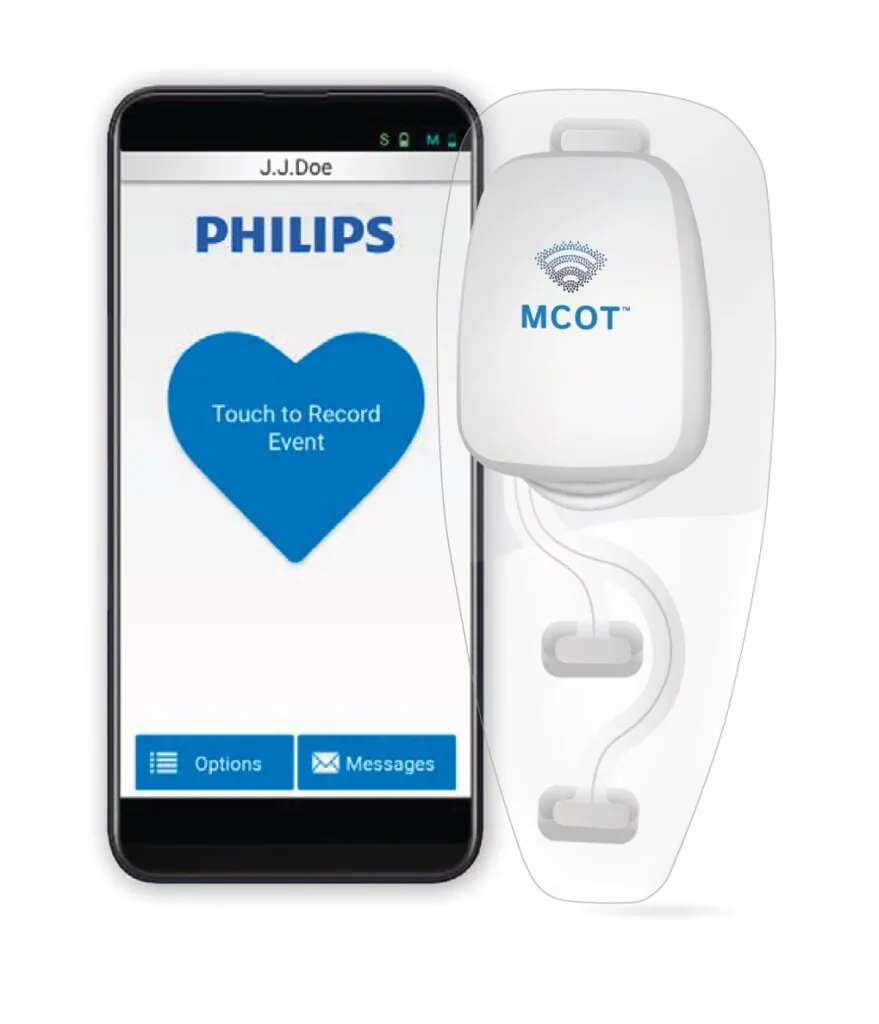
You should review your daily routine to ensure your monitor stays active and secure. The following table helps you understand the difference between common user habits and the recommended practice for keeping your heart monitor operational.
| If you’re doing this | Do this instead | Why |
|---|---|---|
| Wearing the monitor to bed | Use the provided pouch | Protects wires from tangling |
| Cleaning skin with alcohol | Use soap and water | Alcohol can cause skin dryness |
| Charging for short bursts | Charge for the full duration | Prevents mid-day power loss |
| Storing gateway in a drawer | Keep it in an open area | Improves cellular signal strength |
A frequent mistake is placing the gateway near thick concrete walls or large metal appliances. That blocks the cellular connection without any warning light on the device itself.
Your data stops transmitting silently, leaving gaps that your care team can’t read. Move the gateway to a window ledge facing the street if your home has dense walls.
The decision rule is simple. If your bedroom is in the basement, keep the gateway on the main floor. Wireless signals drop out fast through solid floors.
Frequently asked questions
How long should the battery last?
The battery typically lasts between 24 and 48 hours on a full charge, depending on your device model and data transmission frequency. Avoid leaving the monitor in very cold or hot environments, which reduces battery capacity.
Is it safe to exercise with the monitor?
Yes, it’s generally safe to exercise while wearing the monitor, but you must ensure the electrodes remain firmly attached to your skin. If you perform high-intensity exercise that causes heavy sweating, the adhesive may loosen, which causes signal interference. If the monitor becomes loose, wipe your skin dry and apply a fresh electrode immediately to ensure your heart rhythm is captured correctly during your physical activity.
What happens if I get the monitor wet?
If you accidentally get the monitor wet, you must dry it off with a clean towel immediately and inspect the ports for moisture. Most standard heart monitors aren’t water-resistant, and water entry can cause a short circuit that permanently damages the device. If the device was submerged for more than a few seconds, call your monitoring center, as they may need to replace the unit to ensure the data remains accurate.
Why does the monitor beep at night?
The monitor may beep at night if the battery is low or if the electrodes have become loose while you were sleeping. Check the device display or indicator lights for a specific error icon to determine if the issue is power or contact-related.
Can I change the electrodes myself?
Yes, you can and should change the electrodes yourself whenever they lose their stickiness or cause skin irritation. Replacing them is a standard part of the monitoring process that ensures the sensor maintains a clear view of your heart’s electrical activity. Always follow the placement diagram provided by your doctor, and if you’re unsure where to place them, contact your healthcare provider for a quick demonstration.
How do I know if the data is being sent?
You know the data is being sent when the gateway or mobile app shows a “connected” status or a green light. A flashing light indicates data is moving from the monitor to the cellular network. If you see no transmission indicators for more than 12 hours, contact the support number on your device.
Related guides