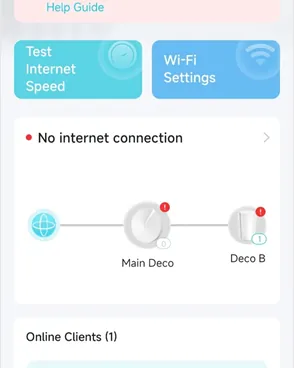
To restore your internet connection, performing deco troubleshooting by power cycling your main node is the most effective way to clear temporary software errors. If your network is down, the most common cause is a simple loss of sync between your modem and the router. By unplugging the power cable from both devices for 30 seconds and plugging them back in, you allow the hardware to re-establish a fresh handshake with your internet service provider.
Troubleshooting common Deco connection issues
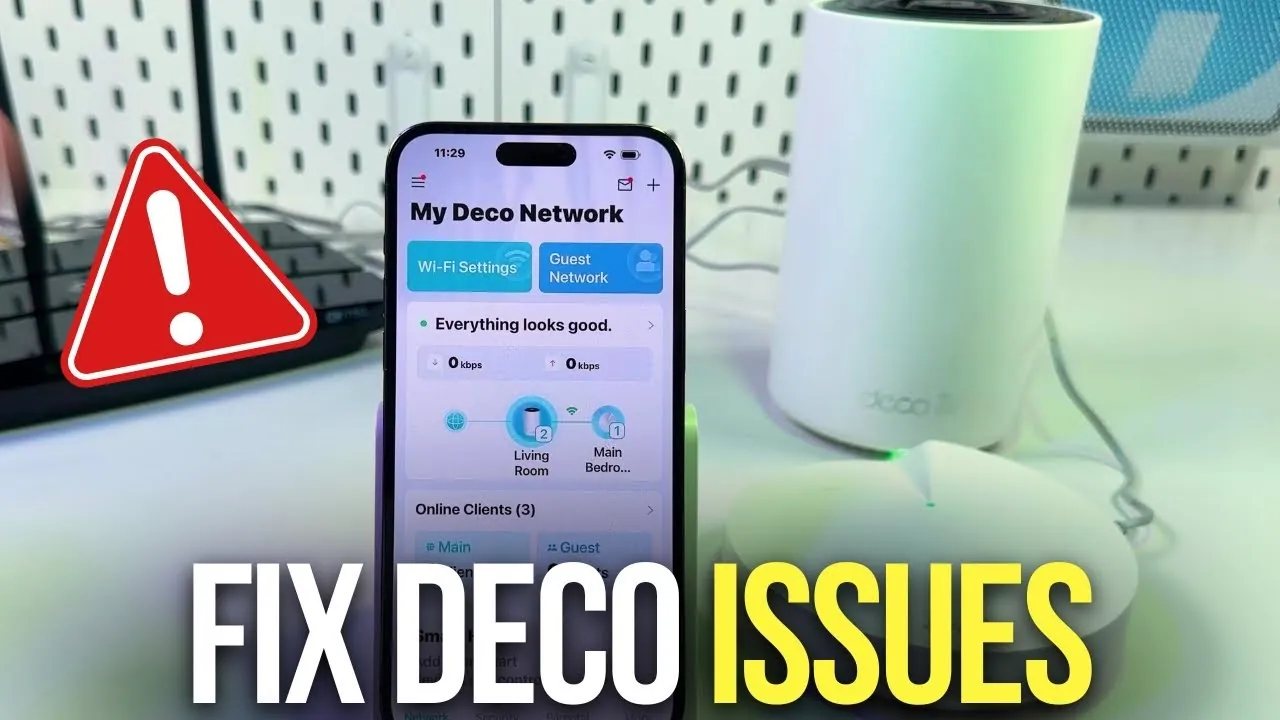
Most connectivity issues happen because of a mismatch between the modem’s IP address and the router’s communication settings. When the modem changes its external signal or experiences a brief power flicker, the router may hold onto outdated data. This creates a “dead” connection where the lights on your device might show white or red, but no traffic flows to your computers or phones.
Another cause is physical signal blockage or interference from other electronics. Your nodes rely on a clear path to communicate with each other. If you recently moved a piece of furniture, a large metal appliance, or a mirror between your main node and a satellite unit, the wireless backhaul signal can drop. This forces the satellite unit to disconnect or blink red as it struggles to find a stable path back to the base.
Finally, firmware updates can occasionally cause temporary instability if they were interrupted by a power surge. If the system attempted to update and failed, the software might be stuck in a loop. You can check the status of your firmware and system health through the TP-Link official support portal to see if your model requires a specific manual update or a factory reset to restore factory-default settings.
Power cycle the modem and router
This is the primary step for almost all connection drops. It clears the temporary cache and forces the devices to handshake again. Start by turning off the modem and your main deco unit. Wait at least 30 seconds before plugging the modem back in and waiting for its lights to stabilize. Only after the modem shows a solid “online” light should you plug in your main node.
If you have a satellite unit that’s blinking red, don’t rush to reset it yet. Move the satellite unit closer to the main node, ideally within the same room temporarily. If the light turns solid white after a few minutes, the issue was simply a weak signal in its original location. If it stays red even when placed right next to the main node, the unit may have lost its configuration link.
This fix is for users who have a solid internet signal coming from the wall but no data reaching their local devices. If you’re using a managed business network or a complex VLAN setup, this basic reboot might not be enough. In those cases, you should contact your network administrator, as they may need to reconfigure the IP assignment manually to prevent conflicts.
Update the system software
If the internet works but is slow or drops frequently, the software version on your nodes might be outdated. Open your Deco app on your phone and look for the “Update” notification under the settings menu. A newer version often includes patches for known bugs that cause devices to drop off the network unexpectedly.
If the app can’t reach the nodes, you’ll need to perform a manual update. Download the firmware file from the manufacturer’s website using a computer that’s connected to the internet via an Ethernet cable. Log into the web interface of the router by typing its IP address into your browser. Upload the file in the “System” or “Advanced” tab.
This process is intended for those who have basic technical comfort with browser interfaces. If you aren’t confident navigating these menus, stop and reach out to the manufacturer’s live chat support. A wrong file or a power interruption during a manual flash can make the hardware unusable. Always ensure your device is plugged into a stable power source during the entire process.
Reset to factory settings
When nothing else works, a factory reset brings the device back to its original state. This is the last resort because it wipes all your custom network names, passwords, and security settings. Use a paperclip to press and hold the reset button on the bottom or back of the unit for about 10 seconds. You’ll see the LED light change color, signaling the reset is complete.
After the reset, the unit will pulse blue, indicating it’s ready to be set up as if it were new. Use the app to re-add the node to your existing network. This is for users who have tried the power cycle and firmware steps without success. If you aren’t the person who originally set up the network, you’ll need the admin password to complete the re-setup process.
This process isn’t for someone who doesn’t have their original ISP login details or Wi-Fi configuration saved. If you don’t know your PPPoE credentials or static IP settings provided by your ISP, you’ll be unable to get back online after the reset. Keep a written copy of your ISP account information handy before you start this final step.
Avoid these common mistakes
Avoid pressing the reset button when a simple reboot works. Resetting erases your network name and password, forcing you to reconnect every smart home device in your house from scratch. A reboot merely cycles the power, preserving your configuration while clearing temporary memory errors. If your network name remains visible but lacks internet, reboot first. Only reset if the device fails to broadcast a signal after three attempts.
Don’t place nodes inside cabinets or behind TVs. These items block the signal, causing the nodes to constantly struggle to maintain a connection to each other. A line-of-sight placement is ideal. If you must hide a node, ensure it’s at least six inches away from metal surfaces or thick wood, which degrade throughput by up to 40 percent.
Don’t ignore the LED light colors. The specific color and blinking pattern are the fastest way to diagnose if the problem is a modem sync issue or a unit failure. Consult your manufacturer’s manual for the specific blink code. A solid red light often indicates a total loss of WAN signal, whereas a pulsing amber light usually signals a firmware update in progress.
Don’t use a power strip with a surge protector for the modem and router. Some cheap power strips cause voltage drops that lead to intermittent reboots; always plug them into a wall outlet. If you lack space, use a high-quality uninterruptible power supply (UPS) instead. This protects against brownouts that cause silent data corruption, a mistake that costs hours of troubleshooting time.
Improve your network stability
| If you’re doing this | Do this instead | Why |
|---|---|---|
| Placing nodes in corners | Move nodes to open areas | Signals travel best in open space |
| Using a long flat Ethernet cable | Use a CAT6 or higher cable | Flat cables often lack proper shielding |
| Leaving updates for later | Enable auto-updates in the app | Security patches prevent connection bugs |
| Hiding nodes in a drawer | Keep nodes on a shelf or table | Heat buildup can cause hardware to crash |
Most users mistake a weak signal for a faulty router. Before replacing your hardware, check your channel congestion. If you live in a dense apartment complex, your neighbors’ signals are likely interfering with yours. Use a Wi-Fi analyzer app to identify the least crowded frequency.
If your connection drops during high-bandwidth tasks like streaming or gaming, switch your primary device to a 5GHz band. While 2.4GHz offers better range through walls, it suffers from significant interference from household appliances.
A common mistake is daisy-chaining too many nodes wirelessly. If you have more than three nodes, connect them via Ethernet backhaul whenever possible. This prevents the “hop penalty” where each wireless jump cuts your total throughput by half. If your speed drops below 50% of your ISP plan, you’re likely dealing with signal degradation from an excessive number of wireless hops.
Frequently asked questions
How long does a factory reset take?
A factory reset takes 3 to 5 minutes to complete. The device must reboot its internal operating system before it can broadcast a setup signal. Don’t unplug the power while the light is flashing, as this can corrupt the internal memory.
Why is my deco blinking red?
A red light indicates the unit has lost its connection to the internet or the main node. This occurs if the modem is offline or physical cables are loose. Check your modem lights first to ensure you have a signal from your ISP.
Can I mix different deco models?
Yes, you can mix different models, as most units are compatible with each other to form a single mesh network. However, the system will only perform as well as the slowest or oldest unit in the chain. For the best speed, try to use the most powerful unit as your main node. If you find the network is unstable, remove the oldest unit to see if the performance improves significantly.
How do I know if my deco is broken?
A device is likely broken if it won’t power on or the LED remains dark after trying a different outlet. If the device powers on but refuses to connect, the internal wireless radio may have failed. Try using a known working power adapter to rule out a bad supply.
Is it safe to leave the deco on 24/7?
Yes, these devices are designed to stay powered on constantly for years of operation. Leaving them on ensures your devices stay linked and the system can perform background updates. Ensure the unit has 3 inches of space for airflow to prevent overheating.
What happens if I move a satellite node?
Moving a satellite node causes a temporary signal drop while the unit re-establishes its connection. If the new location is too far, the unit will blink red or yellow. Wait 5 minutes for the light to turn solid white before moving it closer.
Conclusion
If you have tried all the steps listed here and your network still fails to connect, you should contact your local internet service provider to verify there’s no service outage in your area. If the ISP confirms their line is working, reach out to the manufacturer’s technical support to determine if your hardware is covered under a valid warranty.