A blank screen during at&t u verse troubleshooting no signal almost always means the receiver isn’t talking to the TV or the network. Unplug the power cord from the receiver, wait 30 seconds, and plug it back in. The single most common cause is a loose HDMI cable between the box and your television. If the reboot doesn’t bring the picture back, check that your TV is set to the exact input the receiver uses.
Why U-verse shows no signal
The “no signal” message on your TV means it’s getting nothing from the U-verse receiver. It doesn’t automatically mean the service is down. Three main things cause this, and they’re easy to tell apart.
First, the connection between the receiver and the TV fails. An HDMI cable can work itself loose if you move things around behind the screen. Dust builds up inside the port over time, blocking the pins. You’ll know this is the problem when the TV menu works fine but the U-verse screen stays black.
Second, the receiver itself freezes. Like any small computer, the box can lock up after a power flicker or a failed software update. The lights on the front might stay on, but the video output stops completely. A hard reboot fixes this because it forces the system to reload its operating files.
Third, there’s an outage at AT&T’s end. This could be maintenance in your neighborhood or damage to a local line. When this happens, the coaxial or fiber cable coming into your house carries no data. You can check for known outages on the AT&T outage page using your account login or zip code.
If your TV displays its own menus perfectly but shows nothing from the box, the problem is local. If the receiver’s lights are off entirely, it’s a power issue.
Restart the U-verse receiver
This fix is for anyone whose receiver lights are on but the screen stays dark. It clears temporary software locks without changing your saved settings or recordings.
Turn off the receiver using the button on its front panel, not just the remote. Unplug the power cord directly from the wall outlet or the back of the box. Leave it disconnected for exactly 30 seconds. This short wait drains the leftover electricity keeping frozen processes alive.
Plug the power cord back in firmly. Wait about two minutes while the receiver boots up. You’ll see the AT&T logo appear on your TV once the video signal returns. Don’t press buttons on the remote during this startup phase, as interrupting it can cause another freeze.
If the picture comes back, the software glitch was the only issue. If the screen still says “no signal” after two full minutes, the problem lies elsewhere. Make sure your TV is tuned to the correct HDMI input before deciding the reboot failed.
You don’t need special tools or technical training for this step. However, if the receiver won’t turn on at all after plugging it back in, the power supply may have burned out. Replacing internal electrical components carries a shock risk, so contact AT&T support for a hardware swap instead of opening the case yourself.
Check the cables between devices
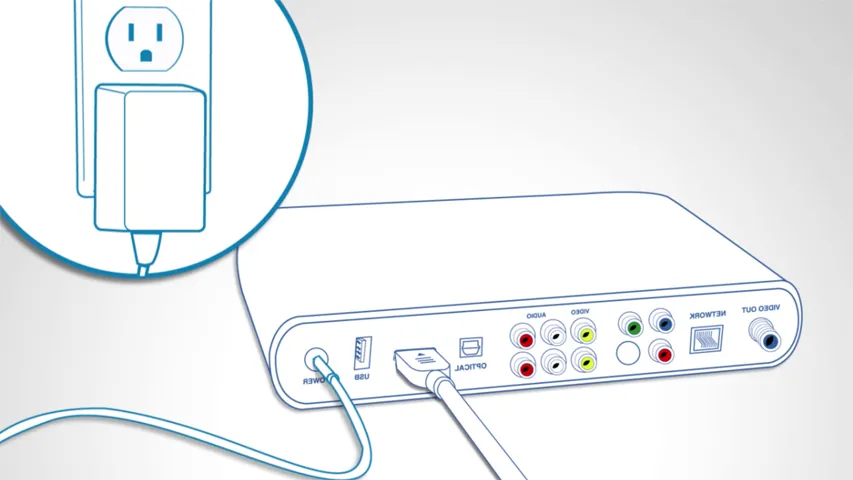
This fix targets physical connection problems, which is a completely different cause than a software crash. It’s for situations where the receiver seems to be running normally but sends nothing to the display.
Start at the back of the U-verse receiver. Find the HDMI cable and push it firmly into the port until it clicks or sits flush. Follow that same cable to your TV and push it in there too. Cables often loosen by just a millimeter, which breaks the digital handshake required for video.
If pushing them in changes nothing, unplug the HDMI cable from both ends. Look inside the metal connectors for bent pins or heavy dust. Blow gently into the ports to clear debris. Plug the cable back in securely.
If the signal is still missing, swap the HDMI cable for a new one. Cables fail internally without showing outside damage. Using a fresh cable eliminates this possibility instantly.
Also verify you’re using the right port. If the receiver connects to HDMI 2 on your TV, use the remote to select HDMI 2 as your source. Selecting HDMI 1 will give you a blank screen even with perfect cables.
This method requires no licenses or risky work. If replacing the cable and checking the ports doesn’t restore the picture, the receiver’s video output board might be broken. That specific repair needs professional equipment, so you’ll need to request a replacement unit from your provider.
Test the TV input and display
This fix is for harder cases where the receiver and cables seem fine but the screen remains empty. It’s worth the extra effort when you’ve already tried restarting and swapping cables without success.
Grab your TV’s original remote, not the U-verse one. Press the “Menu” or “Settings” button. If the TV’s own menu pops up clearly, your screen works fine. The blockage is strictly between the receiver and the display.
Next, try a different HDMI port on the TV. Move the cable from HDMI 1 to HDMI 2, then switch the TV’s source to match. Ports wear out from repeated use, and a dead port mimics a total signal loss perfectly.
If your receiver has older component cables alongside the HDMI, try connecting those temporarily. Getting a picture through the backup cables proves the HDMI port on the receiver died.
Who this is NOT for: if the TV’s own menu won’t show up either, your television has failed, not the U-verse service. Stop troubleshooting the receiver and look into TV repair.
Be honest about the limits here. The exact input number that works depends entirely on your specific TV model and the physical port your cable occupies, so read the label printed next to the socket on your TV’s back panel to find yours.
Don’t spend money buying a new receiver before testing these display steps. Buying a replacement box when the TV’s port is actually dead costs you money for nothing, as it’s inexpensive relative to the alternative.
Bad advice that makes U-verse signal worse
People share tips online that sound helpful but actually break things further. Avoid these common mistakes when your screen goes dark.
- Factory resetting the receiver immediately. This wipes your custom settings, parental controls, and scheduled recordings. It rarely fixes a basic video connection issue and leaves you spending an hour setting everything up again.
- Bending the HDMI cable tightly behind the TV. Pushing the TV flat against the wall crushes the cable. Digital signals fail completely under sharp bends instead of just getting weaker like old antenna wires did.
- Plugging the receiver into a crowded power strip. Sharing a strip with space heaters or large appliances causes voltage drops. The receiver needs steady power to maintain its video output, and fluctuations force it to shut down the signal.
- Opening the receiver box to look for damage. There are no user-serviceable parts inside. Opening the plastic housing voids your warranty and exposes you to electrical shock from the internal power supply capacitors.
- Unplugging the main internet gateway to test the TV box. The U-verse receiver relies on the gateway for authorization. Disconnecting the gateway forces the receiver into an error state, adding a network problem to your existing video issue.
Preventing U-verse signal loss
Small habits keep your connection stable and stop the screen from going blank unexpectedly. Here’s how to set things up properly.
| If you’re doing this | Do this instead | Why |
|---|---|---|
| Leaving cables hanging loosely | Secure them with velcro ties away from foot traffic | Pulled cables disconnect slightly, breaking the digital video link entirely |
| Stacking electronics on top of each other | Leave two inches of empty space above the receiver | Trapped heat causes the processor to throttle and eventually drop the output signal |
| Using the power button on the remote to restart | Unplug the power cord from the wall for 30 seconds | The remote only puts the box in standby mode, which doesn’t clear frozen software |
| Plugging the receiver into a shared power strip | Use a dedicated wall outlet or surge protector | Heavy appliances on the same strip cause micro-outages that crash the video feed |
| Ignoring firmware update prompts | Let the receiver update overnight when prompted | Old software contains bugs that eventually lock up the video processing module |
Keeping the area around your equipment clean matters more than people think. Dust settling inside the HDMI ports blocks the tiny gold pins needed to transmit high-definition video. Wiping the back of the receiver every few months prevents buildup that leads to sudden signal drops.
Frequently asked questions
Why does my U-verse say no signal?
It says this because the TV isn’t receiving video data from the receiver. The cause is usually a loose HDMI cable, a frozen receiver box, or the TV being set to the wrong input channel. Check the physical connections first, then restart the box. If neither works, verify the TV is looking at the correct HDMI port.
How long does a U-verse receiver take to reboot?
A full reboot takes about 2 to 4 minutes from the moment you plug it back in. This assumes you left it unplugged for the required 30 seconds first. You’ll know it’s finished when the AT&T logo disappears and your normal channel guide appears on the screen.
Can a bad HDMI cable cause no signal?
Yes, a damaged HDMI cable is one of the top reasons for a blank screen. Internal wires break easily when the cable gets bent sharply or pulled tight. Swapping in a new, certified HDMI cable is the fastest way to rule this out.
Is it safe to unplug the U-verse box?
Yes, unplugging the receiver from the wall is completely safe and won’t delete your recorded shows. The device is built to handle sudden power loss without damaging its hard drive. Just pull the plug straight out rather than wiggling it aggressively.
What happens if I factory reset my U-verse receiver?
You’ll lose all personalized settings, channel favorites, and scheduled DVR recordings. The box returns to the state it was in when first installed. Only do this if AT&T support specifically tells you to, as it won’t fix a simple cable or input problem.
Why does my U-verse lose signal during storms?
Heavy rain and wind can disrupt the network lines running to your home. If the physical infrastructure outside takes damage, the receiver stops getting data. You can’t fix external line damage yourself, so you’ll need to wait for a technician to repair the neighborhood connection.
How do I know if the U-verse outage is in my area?
Log into your AT&T account on their website or app and check the outage map. Enter your zip code or account number to see if maintenance or damage is affecting your specific address. If an outage is listed, you just have to wait for their crews to finish the repairs.
Conclusion
Getting your picture back usually comes down to checking the basics in the right order. Start with the cables, move to a proper power cycle, and finally test the TV’s inputs. Skipping straight to expensive replacements or factory resets wastes time and money. Keep the connections secure and the receiver ventilated, and the signal should stay steady.