
To fix a connection or power issue, perform a defender security system troubleshooting process by power cycling your base station and checking your internet gateway. Most problems arise from a loss of local network connectivity or a low battery level in individual sensors. If your system is unresponsive, unplug the base station, wait 30 seconds, and plug it back in. This simple restart often resolves minor software glitches that prevent the alarm from communicating with your mobile app or the monitoring center.
Troubleshooting your defender security system
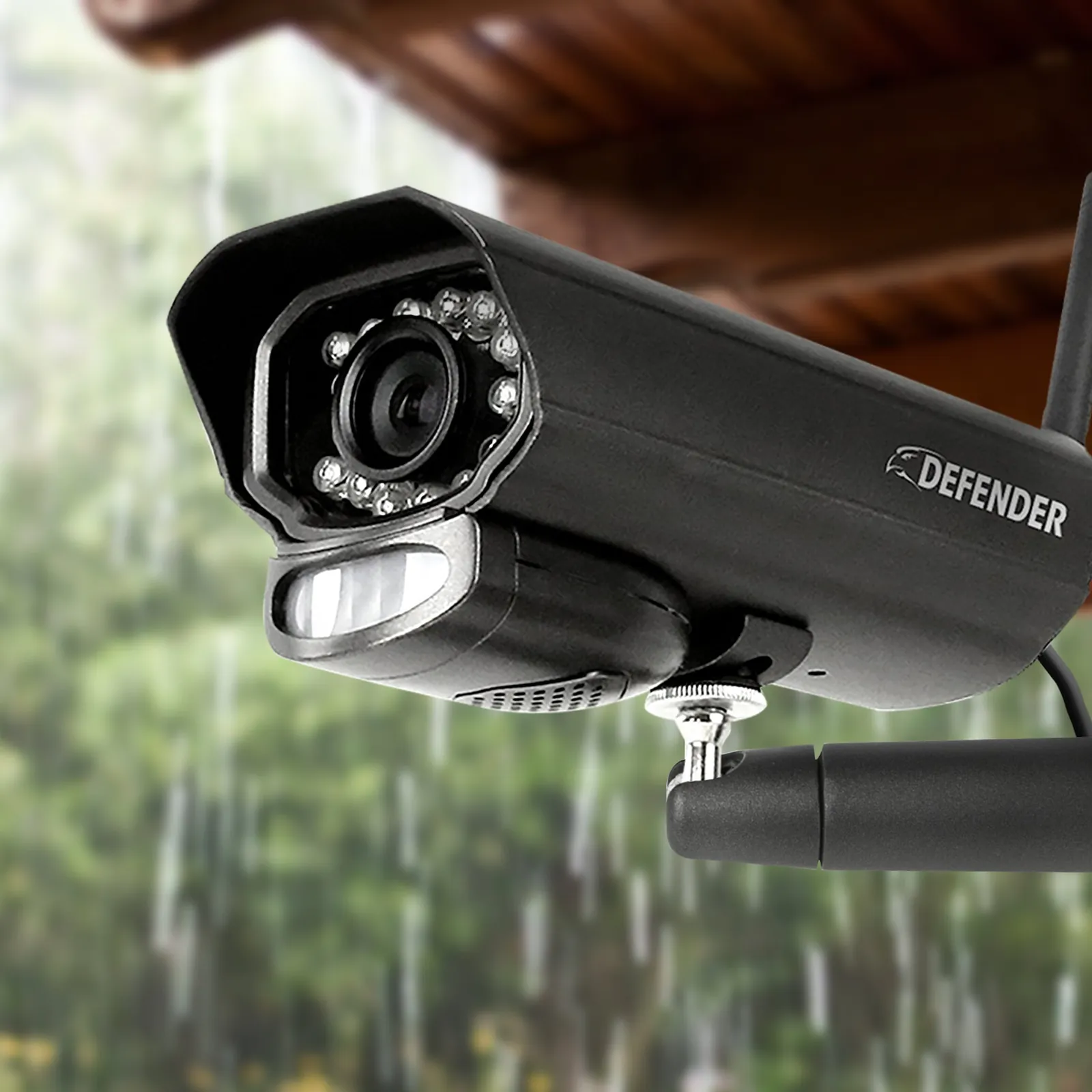
When your alarm system fails to signal or shows errors on the keypad, the root cause is usually a breakdown in the signal path between your hardware and the internet.
Because these systems rely on a stable Wi-Fi or cellular connection to send alerts, any interruption in your home network will prevent the system from performing its primary function. A common culprit is a change in your router settings or a simple IP address conflict that locks the base station out of the network.
Another frequent cause involves the physical sensors themselves. Each sensor uses a battery that, once depleted, stops communicating with the central hub. While modern sensors are designed to alert you via the app when power is low, users often ignore these notifications until the device goes offline entirely. If you have recently moved furniture or added large metal objects near a sensor, the radio signal may be too weak to reach the base station.
You can verify the signal strength for each device by checking the official manufacturer support documentation for your specific model. Physical obstructions, such as thick brick walls or large mirrors, are common factors that vary based on your home’s layout; you should test sensor connectivity by moving the device closer to the hub to see if the error clears.
Resetting the wireless connection
This fix is for users whose system is online but failing to report events or sync with the mobile app. To start, navigate to your router’s administrative portal and confirm that your 2.4GHz Wi-Fi band is active, as most security hubs can’t connect to 5GHz signals.
If your router has a “Smart Connect” or “Band Steering” feature enabled, it may be forcing your security device onto an incompatible frequency. Disable this feature temporarily and force the base station to connect specifically to the 2.4GHz network. The most common mistake here is failing to create a unique SSID for the 2.4GHz band; without this distinction, the router will constantly attempt to steer the device back to the faster, incompatible 5GHz channel.
If the connection remains unstable, log into your security app and remove the base station from your account, then perform a factory reset on the hub itself. You’ll need to re-add the device as if it were new, which clears out old network cache data that might be corrupted. Note that this process requires you to re-link all your sensors individually.
If you aren’t comfortable managing router settings or network protocols, contact your internet service provider for assistance with your local area network. They handle the hardware that delivers your connectivity. If your signal strength at the hub location is below -70 dBm, no amount of resetting will solve the sync issue. In that case, move the hub closer to the router or install a dedicated Wi-Fi extender.
Replacing sensor batteries

Use this fix when a specific zone or individual sensor shows a “fault” or “offline” status on your keypad. Start by removing the cover of the affected sensor to check the battery type, usually a CR123A or a coin-style lithium battery depending on the model. Never mix old and new batteries, as this causes voltage imbalances that can damage the sensor’s internal circuitry. Replace the entire set of batteries for that specific unit to ensure consistent power delivery.
Once you install fresh batteries, look for the LED light on the sensor to blink, which indicates it’s searching for the base station. If the light doesn’t flash, verify that the battery terminals are clean and free of corrosion. If the sensor still fails to report after a battery change, it may have lost its digital pairing with the hub.
You’ll need to trigger the “add device” or “re-pair” mode in your system settings to restore the connection. This fix isn’t for users who have a “tamper” alert; that error means the sensor cover is loose and requires a physical adjustment rather than a battery change.
Updating system firmware
Harder cases involving erratic behavior or missing features require an update to the system’s internal software. Check your mobile app dashboard for a red notification icon or an “Update Available” prompt, which indicates the manufacturer has released a patch for your hardware.
Ensure your base station is plugged into a wall outlet rather than running on backup power before starting this process. A power failure during an update can permanently disable the hub, making it impossible for a user to recover. If the hub light turns solid amber for more than ten minutes, it’s stuck in a boot loop; don’t unplug it, as this will brick the internal memory.
If the update fails to download, it’s often due to a slow or intermittent internet connection. Try connecting your router directly to the base station with an Ethernet cable for the duration of the update to provide a stable link.
If you have tried these steps and the system remains unresponsive, the hardware may have reached the end of its functional life. In such cases, contact the manufacturer’s technical support department. They’re the only ones authorized to perform deep-level repairs or confirm if a warranty replacement is necessary. If your device is out of warranty, ask specifically for a “factory flash” procedure, which can sometimes bypass corrupted firmware that a standard app update can’t reach.
Mistakes that cause system failure
Placing the hub on the floor: Radio signals struggle to pass through carpeting and floorboards, which weakens the connection to all sensors. Aim for a central location at least three feet above the ground to maximize signal dispersal.
Using rechargeable batteries: These often have lower starting voltages than the lithium batteries required by security sensors, leading to immediate “low battery” errors. Always use the specific brand of lithium cells recommended in your manual to avoid false triggers.
Ignoring “tamper” alerts: This warning means the sensor cover isn’t clicked into place, which prevents the device from sending an alarm signal. If you see this, check for loose debris in the housing that might prevent a flush fit.
Blocking the hub with electronics: Large speakers, televisions, or microwaves create electromagnetic interference that disrupts wireless communication. Keep your hub at least five feet away from any high-draw appliance to prevent intermittent connectivity drops.
Improving system reliability
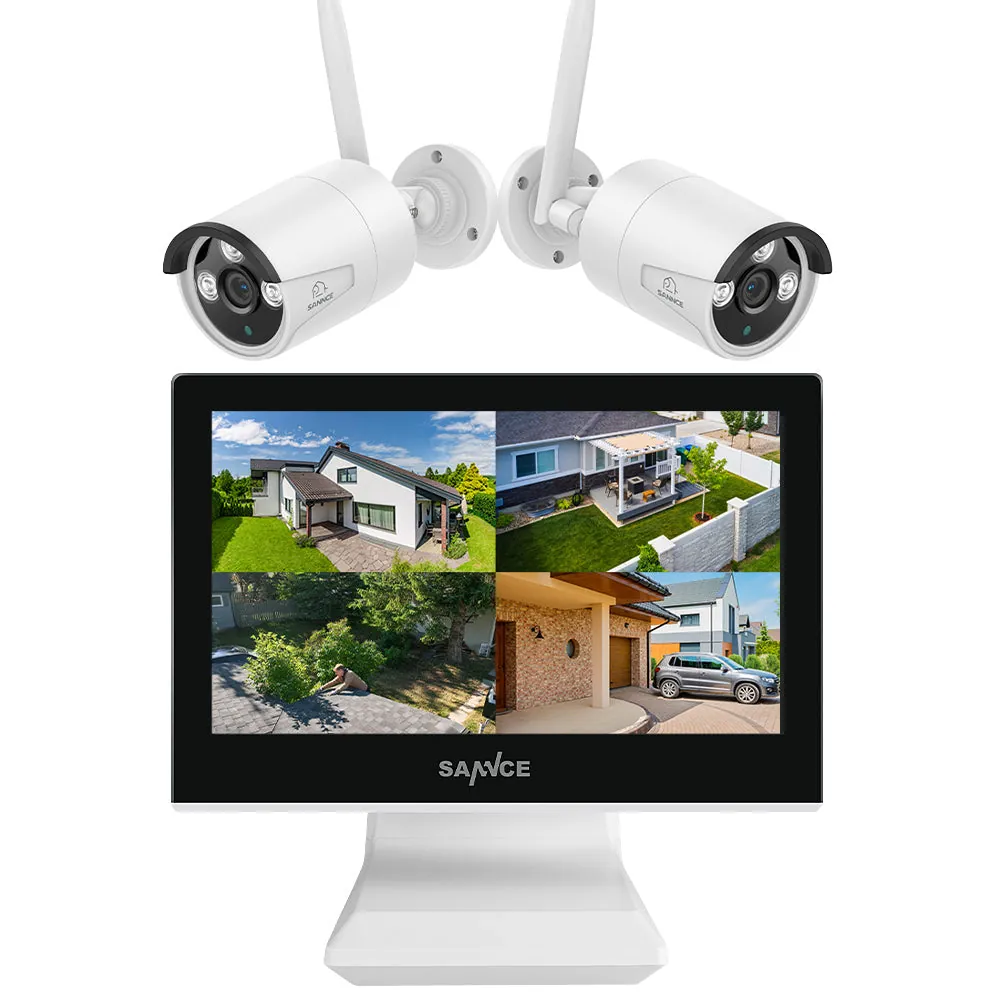
If you find that your system triggers false alarms or misses events, you need to adjust your environmental setup. The following table helps you match common user habits with more reliable alternatives.
| If you’re doing this | Do this instead | Why |
|---|---|---|
| Placing sensors near vents | Move sensors away from airflow | Rapid temperature changes trigger motion false alarms |
| Using long Ethernet cables | Use a short, high-quality cable | Long cables can lose signal strength and data speed |
| Hiding the hub in a cabinet | Place the hub in an open, central area | Enclosures block wireless radio signals and cause drops |
| Leaving sensors exposed to rain | Use weather-rated outdoor covers | Moisture corrodes battery contacts and ruins electronics |
Most users mistake signal latency for a faulty sensor. If your device lags, check the distance to the hub before replacing hardware. A sensor placed beyond 30 feet of a wall or through thick masonry will drop packets frequently.
If you encounter intermittent connectivity, look for interference from 2.4GHz devices like microwaves or baby monitors. Move the hub at least three feet away from these appliances to stabilize the connection. If the system remains unstable after these adjustments, perform a hard reset to clear cached network settings.
Frequently asked questions
How long do sensor batteries last?
Sensor batteries typically last between 12 and 24 months, depending on usage and temperature. Colder environments cause lithium batteries to drain faster than they would in climate-controlled rooms. You can check exact battery levels in your security app settings.
Why is my alarm triggering false alerts?
False alerts are usually caused by pets, fans, or curtains moving in front of motion sensors. Ensure detectors are mounted 7 feet high to avoid catching small animals. If problems persist, adjust the sensitivity settings within your mobile application.
Is it safe to reset my base station?
Yes, you can reset your base station, but doing so temporarily takes your security system offline. During a reset, your alarm can’t send signals to the monitoring center. Only perform a reset when you have time to reconfigure your network settings.
What happens if I lose my internet connection?
If you lose your internet connection, your security system switches to cellular backup if your plan includes it. Without cellular backup, the system sounds an alarm locally but can’t send remote notifications. The base station automatically reconnects once internet service is restored.
How do I know if the system is working?
You can confirm the system is working by running a “test mode” through your mobile app. This feature allows you to trigger each sensor to see if the base station acknowledges the signal. If a sensor fails to trigger a response, check its battery and distance.
Can I fix a broken keypad screen?
No, you can’t fix a broken keypad screen yourself because it requires specialized tools not sold to the public. If the screen is unresponsive, contact customer support to request a replacement unit. Opening the housing will void your warranty.
Conclusion
If these efforts don’t restore your peace of mind, don’t hesitate to reach out to our dedicated support team. They’re ready to help you diagnose deeper technical issues or replace faulty hardware. Keeping your home protected shouldn’t be a struggle, and we’ll make sure your system is running perfectly again soon.