
You can resolve most connection and power issues through basic dejavoo z11 troubleshooting steps, primarily by checking your network signal and verifying the power supply. The most common cause of terminal failure is a loose cable or a temporary internet outage. By resetting your connection and ensuring the power adapter is secure, you can often restore service without needing external support.
Troubleshooting common Dejavoo Z11 errors
When your terminal stops responding, the issue usually stems from one of three areas: power delivery, network connectivity, or software synchronization. A power issue is often visible through a blank screen or a screen that remains frozen despite pressing the power button. If the device powers on but can’t process transactions, the problem is almost certainly related to the internet connection between the device and your router.
Network instability is a frequent culprit, especially if the device uses Wi-Fi instead of a hardwired Ethernet cable. A weak signal prevents the terminal from reaching the payment gateway, causing “timeout” errors or “host unreachable” messages. If your signal strength indicator shows fewer than two bars, move the terminal closer to the router or switch to a physical cable to rule out interference.
Software updates occasionally stall in the background, which can lock the interface. If the screen is unresponsive for more than five minutes, perform a hard reboot by holding the power button for ten seconds. If you notice a “tamper alert” or a security warning, don’t attempt to bypass it; these are hardware-level triggers designed to protect cardholder data.
A common mistake is assuming a tamper alert is a software glitch. It’s not. If this trigger trips, the device is permanently disabled to prevent fraud. You must contact your merchant service provider immediately for a replacement unit, as the internal security mesh has been compromised.
Restarting the device for software errors
The first and most effective fix for a frozen or unresponsive terminal is a hard reboot. To do this, hold down the power button for at least 10 seconds until the screen goes completely black. Once the device is off, unplug the power cable from the back of the terminal and wait for 30 seconds before plugging it back in. This clears the temporary memory and forces the system to re-establish a connection with the server.
This method is ideal for resolving “application not found” errors or screens that are stuck on a specific menu. If the device displays a “login failed” message after the reboot, verify that your internet router is also active. A common mistake is assuming the terminal is broken when the issue is actually a silent network drop. Check your router’s lights; if they’re blinking red or are completely dark, the terminal can’t reach the payment gateway.
If the terminal screen remains blank after you restore power, check the wall outlet by plugging in another appliance to confirm electricity is flowing. If the outlet works but the terminal doesn’t show any light, the power cable or the internal battery might be faulty.
If you suspect hardware failure, contact your merchant service provider immediately. Opening the device housing will void your warranty and may compromise security certifications. Never attempt to force the casing open with tools, as this can trigger a tamper-evident mechanism that permanently bricks the device for security reasons. If the unit remains unresponsive after a hard reboot and a confirmed power source, it’s time to request a replacement.
Resetting your network connection
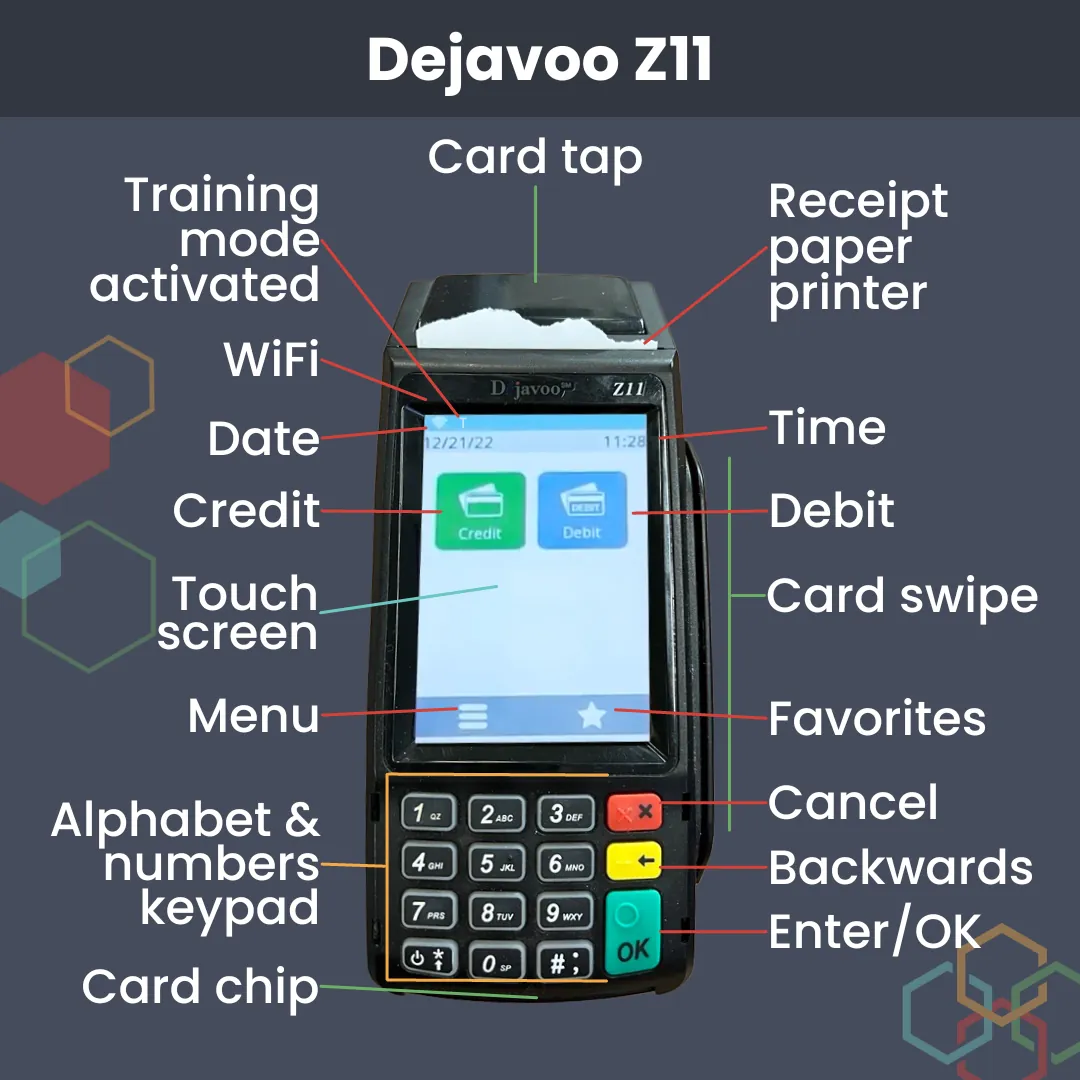
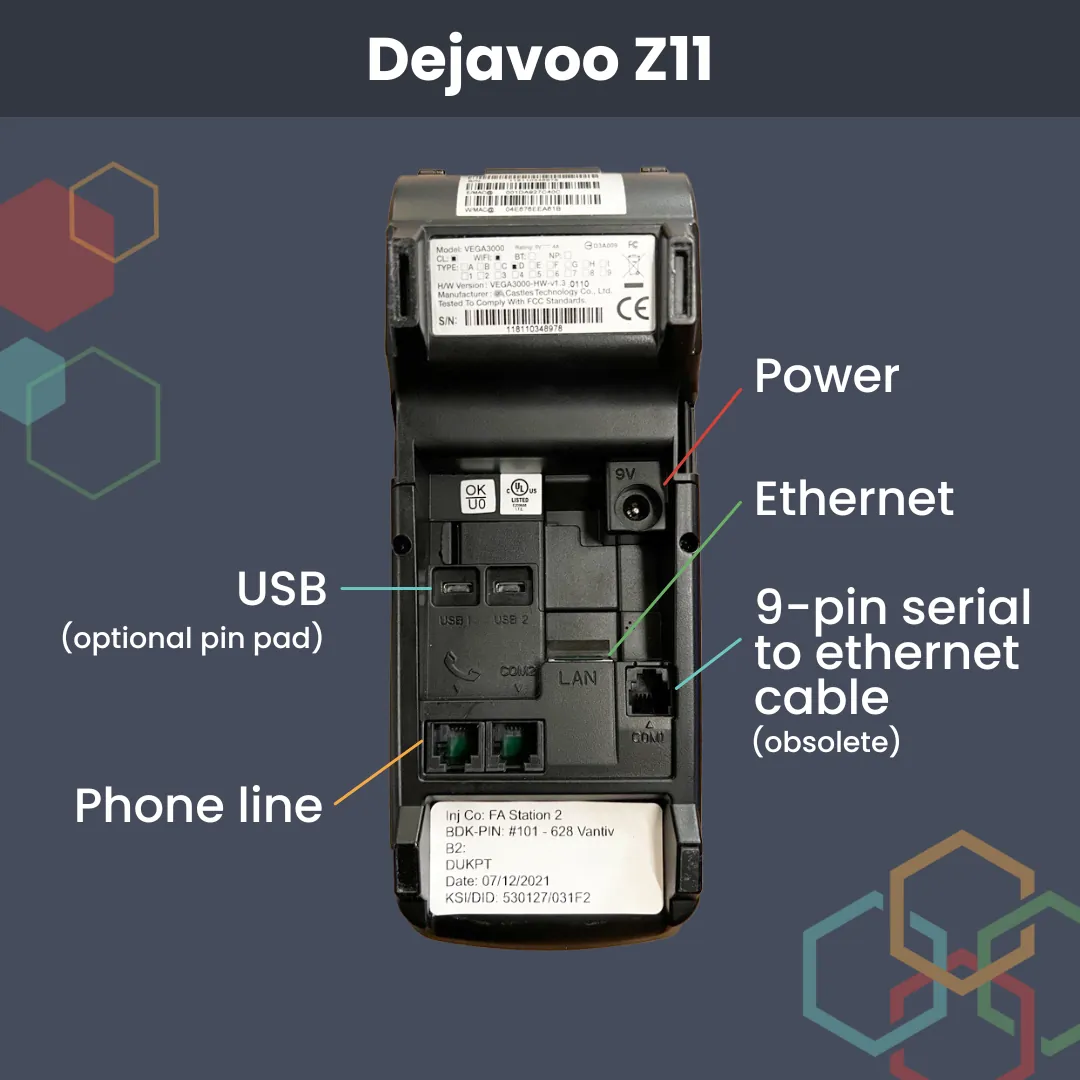
If the terminal powers on but fails to process payments, you must address the network path. Start by checking the Ethernet cable connection at both the wall jack and the terminal base. A loose “click” at the port often prevents a stable connection, even if the cable looks plugged in. If you use Wi-Fi, navigate to the system settings menu, select “Communication,” and choose “Wi-Fi” to scan for your network again.
Ensure that your router isn’t blocking the terminal’s MAC address, which can happen after a firmware update on your network hardware. If the signal strength is low, moving the router closer to the device or using a signal extender often resolves the “timeout” errors. If you see a “DNS error,” this indicates the terminal can’t find the server path; restarting your modem usually fixes this automatically.
If you have multiple devices, check if other electronics on the same network are also offline. If everything else is online but the terminal still reports a network error, the terminal’s internal network settings may need to be refreshed by your merchant provider. Never attempt to manually input IP addresses unless specifically instructed by your support team, as incorrect settings can prevent the device from ever connecting to the payment gateway.
Updating firmware and application settings
For persistent issues, checking for a pending update is a necessary step. Navigate to the “System” or “Admin” menu on the terminal and select “Download” or “Update.” The device will check with the server to see if a newer version of the payment software is available. This process requires a stable connection, so ensure your Ethernet cable is secure before starting.
This fix is intended for users experiencing “parameter error” messages or features that are missing from the menu. If the terminal asks for a password during this process, use the standard manager code provided by your merchant account representative. If you don’t have this code, don’t guess, as entering the wrong password multiple times will lock the terminal. This is a common mistake that forces the user to call support for a manual unlock, which costs time and can halt your business operations.
If the update fails repeatedly, it’s a sign that the terminal can’t communicate with the host server, and you should stop and call your provider. This isn’t for those who are uncomfortable navigating administrative menus, as changing the wrong setting can disrupt your transaction processing flow permanently.
Avoiding common maintenance mistakes
Some advice circulating online can cause more harm than good to your payment hardware. Avoid these common errors to keep your terminal running.
Don’t use liquid cleaners. Spraying water or glass cleaner directly onto the screen can seep into internal components and cause a short circuit. Instead, use a dry microfiber cloth. If a spill occurs, disconnect the power immediately and wait 24 hours before attempting a reboot.
Don’t force a factory reset. This wipes all payment configurations and requires a professional re-injection of security keys. This process is expensive relative to other maintenance tasks and results in significant downtime for your business.
Don’t ignore physical damage. If the screen is cracked or the card reader slot is bent, stop using it immediately. A damaged reader often fails to encrypt data correctly, which shifts the liability for fraudulent transactions entirely onto the merchant.
Don’t bypass security warnings. If the device displays a “tamper” or “security alert,” don’t try to clear it yourself. The device has permanently disabled its own encryption keys for safety. Attempting to force a bypass will trigger a permanent lockout, rendering the terminal a total loss.
Managing your terminal setup
If you’re currently struggling with your terminal, use this table to find the right path forward.
| If you’re doing this | Do this instead | Why |
|---|---|---|
| Using a loose cable | Ensure a firm click | Loose cables drop signals |
| Ignoring a frozen screen | Perform a hard reboot | Clears faulty software states |
| Cleaning with wet cloths | Use a dry microfiber | Prevents moisture damage |
| Guessing admin passwords | Call your provider | Prevents terminal lockout |
| Moving the terminal | Keep it near a router | Reduces signal interference |
The most common mistake is assuming a software glitch requires a hardware replacement. If your device shows a “No Connection” error, check the physical port before calling support. A loose Ethernet cable often mimics a total server outage.
If your terminal is hardwired, ensure the cable is pushed until you hear a distinct click. Wireless users should keep the device within 15 feet of the router to avoid packet loss. If you reach three failed password attempts, stop immediately. Attempting a fourth guess triggers a permanent lockout that requires a technician to reset the device remotely.
Frequently asked questions
How long does a dejavoo z11 reboot take?
A full reboot typically takes 60 to 90 seconds to complete. This assumes the device has a stable internet connection available immediately upon startup. If the device takes longer than three minutes, it’s likely struggling to handshake with the server.
Why is my terminal screen blank?
A blank screen usually means the device isn’t receiving power or the backlight has failed. Check that the power adapter is plugged into an active wall outlet. If the outlet and cable are functional, the device may have an internal hardware failure requiring professional repair.
Is it safe to leave the terminal on overnight?
Yes, it’s safe to leave the device powered on, as it’s designed for continuous operation in a retail environment. Most terminals enter a low-power “sleep” mode during non-business hours to save energy. However, if you experience frequent power surges in your area, you may choose to use a surge protector. Using a surge protector helps prevent electrical damage to the sensitive internal motherboard and the power port of the terminal.
How do I know if the internet is the problem?
You can confirm a network issue if the terminal displays “Timeout,” “Host Unreachable,” or “DNS Error” during a transaction. Test this by checking if other devices on the same network can access a website. If other devices also fail, the issue is with your local internet service provider.
What happens if I enter the wrong admin password?
Entering the wrong password repeatedly will lock the administrative menu to prevent unauthorized access. The number of allowed attempts varies by the specific software version, but it’s typically three to five tries. Once locked, the terminal may require an unlock code from your merchant services provider. You should stop attempting to guess the password after two failures and locate the original documentation provided when your account was first opened.
How often should I update the terminal software?
You should check for updates once a month or whenever your merchant provider notifies you of a required change. Regular updates ensure the terminal remains compliant with the latest security standards for processing card payments. If the device prompts you for an update, it’s best to perform this during a quiet time, such as before opening or after closing, to avoid interrupting customer transactions.
Conclusion
If these fixes don’t get you back up and running, don’t worry. Reach out to your payment processor’s support team so they can check your account status from their end. They’ll help you identify any deeper technical glitches, and you’ll be processing customer transactions again in no time.