Is your Dolphin Nautilus CC not working like it should? You rely on this pool cleaner to keep your water crystal clear, but when it stops performing, it can be frustrating.
Don’t worry—this guide will help you quickly identify and fix common problems. Whether your cleaner won’t start, gets stuck, or isn’t cleaning properly, you’ll find easy solutions here. Keep reading to get your Dolphin Nautilus CC back on track and enjoy a sparkling pool without the hassle.
Common Issues
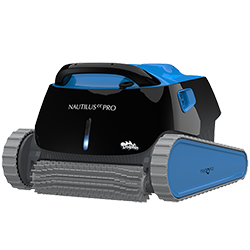
The Dolphin Nautilus CC is a popular pool cleaner known for its efficiency. Despite its reliability, some common issues may arise. These problems can affect its performance and require simple troubleshooting steps.
Understanding these common issues helps keep your pool clean. Below are frequent problems users face and ways to identify them.
Power Problems
The cleaner may fail to turn on or stop suddenly. Check the power supply and outlet first. Inspect the power cord for any damage or loose connections. Reset the cleaner by unplugging it and plugging it back in. Persistent power issues might need professional service.
Navigation Errors
The Nautilus CC might miss areas or get stuck frequently. This often happens if the pool shape confuses the cleaner. Clear obstacles like toys or debris from the pool. Make sure the cleaner’s wheels and brushes move freely. Resetting the unit can also help improve navigation.
Sensor Malfunctions
The cleaner uses sensors to detect walls and the pool floor. Dirty or blocked sensors cause erratic behavior. Clean sensors with a soft cloth and mild detergent. Avoid using harsh chemicals or abrasive tools. Regular sensor checks keep the cleaner working smoothly.
Connectivity Issues
Some models connect to apps or remotes for control. Connection failures can occur due to weak signals or software glitches. Restart the device and your phone or remote. Ensure the software is up-to-date. Move closer to the cleaner to improve signal strength.
Basic Troubleshooting Steps
Basic troubleshooting steps help fix common issues with the Dolphin Nautilus CC. These steps are simple and often solve most problems. Follow each step carefully to get your device working again.
Resetting The Device
Start by turning off the Dolphin Nautilus CC. Wait for 30 seconds. Turn it back on. This reset clears minor errors and refreshes the system. Resetting often fixes unresponsive behavior.
Checking Power Supply
Ensure the power cord is properly plugged in. Check for any damage on the cord. Use a different outlet to rule out socket problems. A stable power supply is crucial for the device.
Cleaning Sensors
Dirty sensors cause the Dolphin Nautilus CC to stop working well. Use a soft cloth to wipe sensors gently. Avoid harsh chemicals. Clean sensors improve device accuracy and performance.
Updating Firmware
Firmware updates fix bugs and add features. Connect the device to Wi-Fi. Use the app or website to check for updates. Follow instructions to install the latest firmware safely.
Fixing Navigation Errors
Dolphin Nautilus CC may face navigation errors during cleaning. These errors stop the robot from moving correctly. Fixing them helps the cleaner do its job well. Simple steps can solve most navigation problems fast.
Check the robot’s settings and pool environment. Clear any issues that block smooth movement. Follow these methods to fix navigation errors effectively.
Recalibrating The Robot
Recalibrating helps the robot find the right path again. Turn off the Dolphin and place it on a flat surface. Press the reset button or follow instructions in the manual. This process resets sensors and improves navigation accuracy.
Clearing Obstructions
Obstacles confuse the robot’s pathfinding system. Remove toys, leaves, and debris from the pool. Check the cleaner’s brushes and wheels for stuck dirt. Clear all blockages to let the robot move freely and clean well.
Adjusting Pool Settings
Pool shape and size affect robot navigation. Set the pool type and size correctly in the robot’s control panel. Avoid very steep walls or unusual shapes that can confuse the robot. Proper settings help the cleaner map the pool better.

Resolving Connectivity Problems
Connectivity problems with the Dolphin Nautilus CC can stop your cleaning routine. These issues often arise from Wi-Fi or app settings. Fixing these problems allows smooth control and better performance. This section covers simple ways to resolve connection troubles quickly.
Wi-fi Setup Tips
Check your Wi-Fi signal strength near the pool. Weak signals cause drops in connection. Place your router closer to the pool area if possible.
Use a 2.4 GHz Wi-Fi network. The Dolphin Nautilus CC works best with this frequency. Avoid 5 GHz networks as they have shorter range.
Restart your Wi-Fi router. This can clear temporary glitches. After restarting, try reconnecting the robot.
Router Compatibility
Ensure your router supports WPA or WPA2 security. The robot may not connect with older security types.
Disable MAC address filtering on your router. This feature can block new devices from connecting.
Update your router’s firmware regularly. Updated firmware improves device compatibility and security.
App Troubleshooting
Close the Dolphin app and reopen it. This simple step often fixes connection errors.
Check for app updates. Use the latest version for improved stability.
Clear the app cache in your phone’s settings. This removes corrupted files that cause crashes.
Uninstall and reinstall the app if problems persist. This resets all app settings and connections.
Maintenance Tips
Proper maintenance keeps your Dolphin Nautilus CC running smoothly. It helps prevent common problems and extends the robot’s life. Simple steps can save you time and money on repairs.
Regular Cleaning Routine
Clean the robot after each use. Remove leaves, dirt, and debris from brushes and wheels. Check the filter basket and empty it fully. Rinse the robot with fresh water to remove pool chemicals. Avoid using harsh cleaners that can damage parts.
Replacing Filters
Replace filters every few months or as needed. Old filters reduce cleaning power and strain the motor. Use only genuine filters made for the Dolphin Nautilus CC. Check the filter condition often to keep the robot efficient. A clean filter means a cleaner pool.
Storing The Robot Properly
Store the robot in a cool, dry place away from direct sunlight. Avoid leaving it in the pool when not in use. Remove the power cord and coil it carefully to prevent damage. Keep the robot off the ground to avoid dust and dirt. Proper storage protects the robot and parts.

When To Contact Support
Knowing when to contact support for your Dolphin Nautilus CC is important. Some issues you can fix yourself. Others need expert help. This guide helps you decide the right time to reach out to support.
Identifying Serious Issues
Serious problems may stop your pool cleaner completely. Examples include no power, strange noises, or failure to move. If the device leaks water or shows error codes, contact support. These signs usually mean the issue needs professional repair.
Warranty And Repairs
Check if your Dolphin Nautilus CC is still under warranty. Repairs during warranty are often free or low cost. Do not try to fix major parts yourself. Doing so may void your warranty. Support can guide you on repair steps covered by warranty.
Finding Authorized Service Centers
Use authorized service centers for repairs and parts. These centers have trained technicians and genuine parts. Contact support to find the nearest authorized center. Avoid unofficial repair shops to keep your device safe and working well.
Frequently Asked Questions
What Are Common Issues With Dolphin Nautilus Cc?
Common problems include slow scanning, software crashes, and connection errors. These issues often relate to outdated software or hardware conflicts. Regular updates and proper setup usually fix them quickly.
How To Fix Dolphin Nautilus Cc Connection Problems?
Check your USB or network cable for secure connections. Restart the scanner and your computer to refresh the link. Also, update drivers to ensure compatibility.
Why Is Dolphin Nautilus Cc Scanner Slow?
A slow scanner may result from low system memory or outdated drivers. Closing other programs can help speed up scanning. Cleaning the scanner glass also improves performance.
How To Resolve Dolphin Nautilus Cc Software Errors?
Restart the software and your device first. Reinstall the software if errors continue. Always download the latest version from the official site.
Can Firmware Updates Improve Dolphin Nautilus Cc Performance?
Yes, firmware updates fix bugs and improve scanner speed. Check the manufacturer’s website regularly for updates. Follow instructions carefully to avoid update errors.
Conclusion
Troubleshooting the Dolphin Nautilus CC can save time and money. Simple steps often fix common problems quickly. Regular cleaning and proper use help avoid issues. Always check the manual for detailed guidance. Keep your pool cleaner working smoothly with care.
Small fixes can improve performance and extend lifespan. Stay patient and follow clear instructions carefully. Enjoy a cleaner pool with less hassle.