Is your Ecobee thermostat acting up when you need it most? Whether it’s not turning on, losing Wi-Fi connection, or showing strange error codes, these issues can quickly turn your smart thermostat from a helpful gadget into a frustrating roadblock.
But don’t worry—you’re not alone, and most problems have simple fixes you can try yourself. In this guide, you’ll discover easy, step-by-step troubleshooting tips designed to get your Ecobee back on track fast. Keep reading, because by the end, you’ll know exactly how to solve common Ecobee issues and keep your home comfortable without calling for help.
Power And Screen Issues
Power and screen issues are common problems with Ecobee thermostats. These problems often cause the thermostat to lose display or stop working. Checking power sources and screen settings can solve most of these issues quickly. Simple steps like inspecting circuit breakers, fuses, and restarting the device usually fix the problem.
Check Circuit Breaker And Furnace Switch
Start by checking the circuit breaker. Make sure it is not tripped or turned off. Locate your home’s main electrical panel and find the breaker for your HVAC system. Flip it off and on to reset. Also, check the furnace switch near your furnace. It should be in the ON position. This switch works like a light switch for your furnace power. Without power, your Ecobee will not turn on or display anything.
Inspect Furnace Fuse
Open the furnace panel carefully. Look for the control board fuse inside the furnace. This small fuse protects the furnace’s electrical system. If the fuse is blown or burnt, the thermostat will lose power. Replace any blown fuses with a new one of the same rating. Always turn off the power before handling the fuse to avoid electric shock. A good fuse restores power and fixes screen problems.
Reset And Restart Thermostat
Try resetting your Ecobee thermostat if power and fuses are fine. Press and hold the reset button or follow the on-screen menu options to restart. A reset clears temporary errors and refreshes the system. After restarting, check if the screen lights up and the thermostat responds. Sometimes, a simple restart fixes frozen or blank screens. If problems continue, deeper troubleshooting may be needed.
Wi-fi And Connectivity
Wi-Fi and connectivity are essential for your Ecobee thermostat’s smooth operation. A stable connection allows remote control and updates. Troubles with connectivity can cause delays and errors in temperature control. Fixing these issues often improves your device’s performance quickly.
Verify Wi-fi Settings
Check that your Ecobee is connected to the correct Wi-Fi network. Make sure the network name (SSID) and password are entered accurately. Confirm your Wi-Fi signal is strong near the thermostat. Weak signals can cause frequent disconnections. Use a Wi-Fi analyzer app to check signal strength if needed.
Restart Modem And Router
Power cycle your modem and router to refresh the network. Unplug both devices for about 30 seconds. Plug them back in and wait until all lights are stable. This can clear temporary network glitches affecting your Ecobee. After restarting, reconnect your thermostat to Wi-Fi if it does not connect automatically.
Remove Special Characters From Device Names
Special characters in your Wi-Fi or device names may cause connection problems. Rename your network or thermostat without symbols like @, , or &. Use only letters and numbers for device names. This simple step can help your Ecobee connect without errors or drops.
Re-pair With Apple Home
To fix syncing issues, remove your Ecobee from Apple Home and add it again. Open the Home app, select your thermostat, and choose “Remove Accessory.” Restart your Ecobee device. Then, add the thermostat back by scanning the HomeKit code. This resets the connection and resolves many syncing problems.
Heating And Cooling Problems
Heating and cooling issues with your Ecobee thermostat can disrupt home comfort. These problems often arise from simple settings or wiring errors. Understanding key areas to check helps restore proper function quickly. Here are some important steps to troubleshoot heating and cooling problems.
Check Temperature Differential Settings
The temperature differential controls when your system turns on or off. A narrow differential may cause short cycling. A wide setting could delay heating or cooling. Adjust these settings to balance comfort and efficiency.
Verify Equipment Wire Placement
Incorrect wiring can stop heating or cooling from working. Each wire must match the correct terminal on your Ecobee and HVAC system. Double-check wires for Rc, Rh, Y, W, and G connections. Secure loose wires to prevent connection issues.
Review Compressor Minimum Outdoor Temperature
Heat pumps have a minimum outdoor temperature limit for the compressor. When outside temperatures drop below this, the compressor will not start. Check this setting in your Ecobee to avoid unexpected system shutdowns during cold weather.
Adjust Fan Control Settings
The fan settings affect airflow during heating and cooling cycles. Set the fan to auto for normal operation. Continuous fan mode increases energy use but improves air circulation. Choose the setting that suits your comfort needs and system design.

Sensor And Temperature Accuracy
Sensor and temperature accuracy are key to your Ecobee thermostat’s performance. The sensors detect room temperature and adjust heating or cooling accordingly. Incorrect readings cause discomfort and higher energy bills. Troubleshooting sensor issues improves comfort and saves money.
Test Remote Sensor Functionality
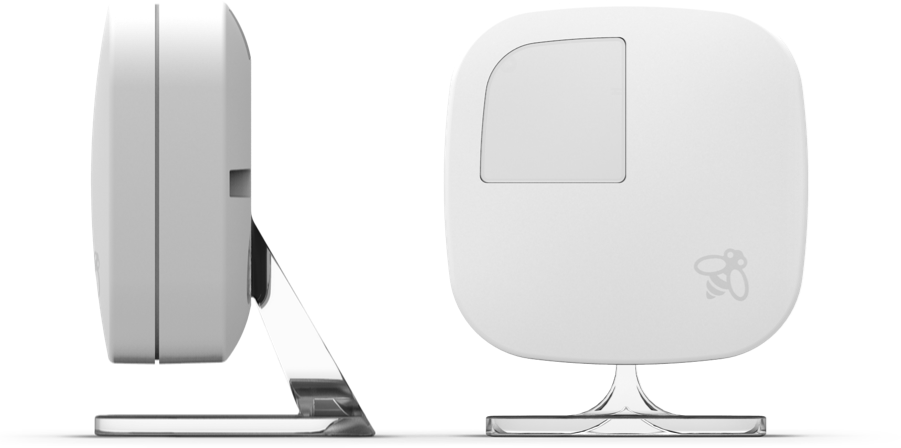
Start by testing each remote sensor. Place the sensor in a different room with a stable temperature. Check if the Ecobee app shows the sensor’s temperature correctly. If readings do not update or seem wrong, the sensor may be faulty. Try moving the sensor closer to the thermostat to see if it responds better.
Calibrate Thermostat Temperature
Calibration ensures the thermostat matches the actual room temperature. Use a reliable thermometer to compare the room’s temperature with the thermostat’s reading. If there is a difference, adjust the temperature offset in the Ecobee settings. Small corrections help the system work more accurately and keep your home comfortable.
Replace Faulty Sensors
Faulty sensors cause wrong temperature readings and uneven heating or cooling. If testing and calibration fail, consider replacing the sensor. Purchase an official Ecobee sensor for best compatibility. Remove the old sensor and install the new one following the manual instructions. This step fixes most sensor-related problems quickly.
Error Codes And Alerts
Ecobee thermostats display error codes and alerts to signal issues. These messages help you identify problems quickly. Understanding them saves time and prevents bigger problems.
Error codes appear on the thermostat screen or in the Ecobee app. Alerts notify you about connectivity, sensor, or system troubles. Acting on these messages ensures your heating and cooling run smoothly.
Common Error Codes
One common error is E1, which means a sensor is disconnected. E2 shows a sensor reading is out of range. E3 indicates a problem with the HVAC equipment connection.
Other errors include Wi-Fi disconnection alerts and power supply warnings. Each code points to a specific problem that needs attention. Keep the user manual or app guide handy for code details.
Steps To Resolve Alerts
Start by checking the thermostat’s wiring and power supply. Make sure sensors are properly connected and placed. Restart the thermostat to clear temporary glitches.
For Wi-Fi alerts, confirm your network is working and the thermostat is within range. Update the thermostat’s software to fix known bugs. Follow the app’s troubleshooting steps for each alert.
When To Contact Support
Contact Ecobee support if error codes persist after basic fixes. Also call if your system does not respond to any troubleshooting. Complex issues like HVAC equipment faults need expert help.
Support can guide you through advanced steps or arrange repairs. Do not ignore repeated alerts; they may cause system failure. Timely help keeps your home comfortable and your system safe.
Reset And Firmware Updates
Resetting your Ecobee thermostat and keeping its firmware updated are key steps in troubleshooting. These actions can solve many common issues. They help restore default settings and improve device performance. Regular updates bring new features and fix bugs. Follow simple steps to reset and update your Ecobee for a smoother experience.
Perform Factory Reset
Start by going to the main menu on your Ecobee. Select the “Settings” option, then choose “Reset.” Pick “Reset All Settings” to restore factory defaults. This step erases all custom settings and schedules. The thermostat will reboot and start fresh. Use this if your device is unresponsive or behaving oddly.
Check For Firmware Updates
Firmware updates keep your Ecobee running efficiently. To check, open the settings menu. Navigate to “About” or “System Information.” Look for the firmware version and available updates. The thermostat usually notifies you when updates are ready. Stay connected to Wi-Fi to receive these notifications automatically.
Update Thermostat Software
Updating software is simple and quick. When an update is available, a prompt appears on the screen. Confirm the update and let the thermostat download and install it. Do not turn off or disconnect power during the update. After installation, the Ecobee will restart with the latest software. This often fixes bugs and adds new features.
Installation And Wiring Checks
Checking installation and wiring is a key step in fixing Ecobee thermostat issues. Problems often arise from poor wiring or wrong connections. A simple check can save time and prevent bigger issues.
Start by making sure each wire is in the right terminal. Then, look closely for any wire damage. Loose wires can cause the thermostat to fail or act oddly. Tightening these connections often solves the problem fast.
Confirm Correct Wire Terminals
Each wire must connect to the matching terminal on the Ecobee base. The common wires include Rc, Rh, C, W, Y, and G. Check the labels on your old thermostat and compare them to the Ecobee terminals. Mixing these up can stop the system from working.
Use the installation guide to verify each wire’s position. The Rc and Rh wires often connect to power for cooling and heating. The C wire provides continuous power. Getting these right ensures the thermostat powers on and controls HVAC properly.
Inspect Wiring For Damage
Look closely at all wires for cuts, frays, or worn spots. Damaged wires may not carry electricity well. This can cause your thermostat to lose power or drop signals. Even small damage can lead to big problems.
Use a flashlight if needed and gently pull wires to check for breaks inside. Replace or repair any damaged wire before testing the thermostat again. Safe wiring ensures stable performance.
Secure Loose Connections
Loose wires can cause intermittent issues or no response at all. Make sure each wire is pushed firmly into its terminal. Use a small screwdriver to tighten terminal screws if needed.
Check for corrosion or dirt at connection points and clean if found. A strong connection prevents power loss and signal drops. After securing wires, reboot your thermostat to see if it works properly.

Frequently Asked Questions
Is There A Reset Button On An Ecobee Thermostat?
Ecobee thermostats do not have a physical reset button. Resetting requires using the on-screen menu. Navigate to Settings > Reset to restore factory defaults or reboot the device. This method helps fix common issues without needing hardware buttons.
What Are Common Ecobee Problems?
Common ecobee problems include Wi-Fi connectivity issues, inaccurate temperature readings, blank screens, and thermostat not turning on. Wiring errors and power supply problems also occur frequently. Users may face heating or cooling system triggers not activating due to incorrect settings or sensor faults.
Does Ecobee Go Bad?
Ecobee thermostats can fail over time due to hardware wear or software issues. Regular updates and proper maintenance extend their lifespan.
How To Check If An Ecobee Sensor Is Working?
Check if the ecobee sensor appears in the app’s device list and shows current temperature readings. Test sensor response by covering it briefly. Ensure the sensor connects wirelessly to the thermostat. Replace batteries if needed.
Why Is My Ecobee Thermostat Screen Blank?
A blank screen usually means no power is reaching the thermostat. Check the circuit breaker and furnace fuse first. Make sure all wires are properly connected.
Conclusion
Troubleshooting your Ecobee thermostat can save time and stress. Check power sources and wiring first. Verify Wi-Fi connection and sensor placement next. Small adjustments often fix common issues quickly. Keep your system updated for best results. Remember, simple steps can restore comfort fast.
Don’t hesitate to seek help if problems persist. Your home deserves reliable climate control every day.