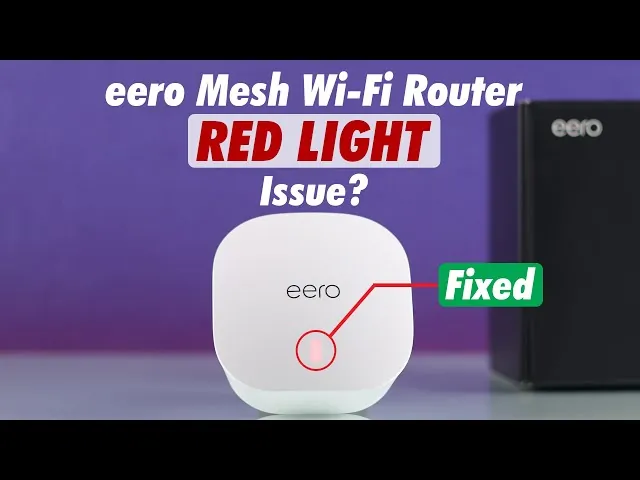
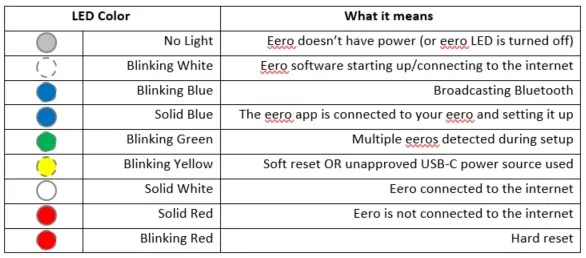
You can fix an eero troubleshooting red light by power cycling your device and checking your internet connection from the modem. The most common cause is a loss of connection between your modem and the internet service provider. If the light is blinking red, the unit has no internet access. If it’s solid red, the unit has encountered an error or lost its connection to the network.
Troubleshooting a red eero light
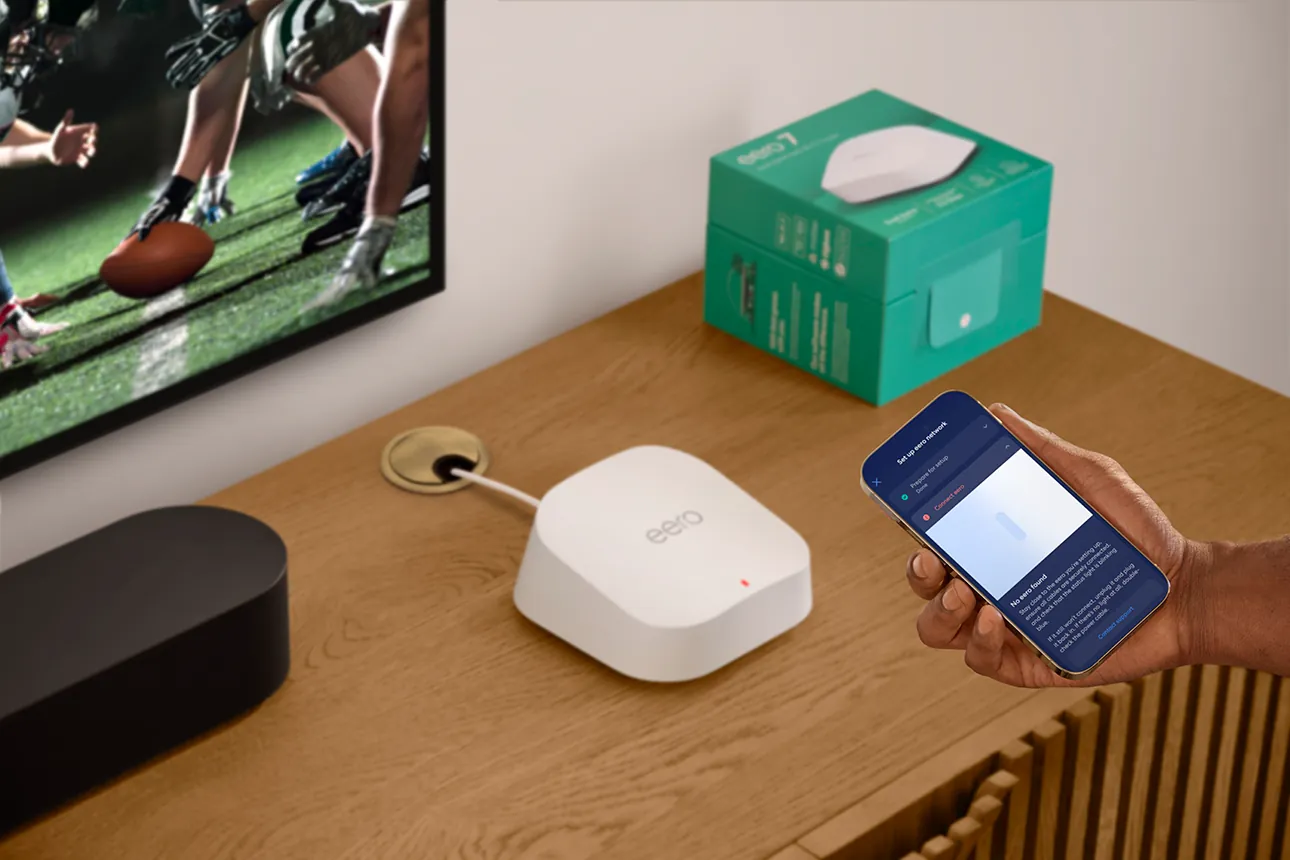
When you see a red light, it means your eero can’t reach the internet or can’t talk to the main gateway. This usually happens because the upstream device, like your modem, has stopped sending a signal. If your modem loses power or its connection to the street-level line, the eero will immediately show a red status.
Another common reason is a loose cable. If the Ethernet cord connecting your modem to the eero is damaged or not pushed in all the way, the signal will break. You should check both ends of the cable for a firm “click” sound. Even a slight pull can loosen the connection over time, especially if the cable is stretched tight.
Sometimes, the issue is with your internet service provider. If the provider is doing maintenance or has an outage in your area, your modem won’t receive a signal. You can check the status of your connection by looking at the lights on your modem.
Most modems show a solid green or blue light when they’re online; if those lights are flashing or dark, the problem is outside your home. According to the official manufacturer support site, a red light confirms the unit isn’t connected to the internet.
Power cycle your network hardware
To reset your connection, unplug your modem and your eero from the power outlet. Wait for at least 30 seconds before plugging the modem back in. You must wait for the modem to fully restart, which takes about two minutes, before you plug in your eero. This order is important because the eero needs an active IP address from the modem to start its own network.
If the red light stays on after the restart, try a different Ethernet cable. Use a standard Cat5e or Cat6 cable that you know is working. If you have a spare cable, swap it out to rule out a broken wire inside the casing. This is a common point of failure that people often overlook because the cable looks fine from the outside.
If this fix doesn’t work, it’s time to check your physical setup. Ensure your main eero is connected directly to the modem, not through a secondary switch or hub. If you’re using a switch, remove it temporarily to test the connection directly. If the light turns white after this, your switch might be the problem or it may need a reset.
Check for service provider outages
If your hardware is fine, the issue is likely a service interruption from your provider. Log in to your provider’s account portal or use their mobile app on your phone’s cellular data to check for outages in your zip code. If there’s a known outage, you must wait for them to finish their repairs before your eero will turn white again.
Confirm the outage status by checking the official ISP status page or a third-party tracker like DownDetector. If the map shows a cluster of reports in your immediate neighborhood, the problem is external. Don’t waste time rebooting your router; the signal is physically severed before it reaches your home.
Sometimes, you may need to register your modem with your provider again. This happens if you recently changed your service plan or swapped your modem. Call your provider’s support line and ask them to verify that your modem is active and passing a signal. They can see if the modem is responding to their remote pings.
Ask the agent for the “provisioning status” of your modem. If the device isn’t provisioned, it can’t authenticate with the network, even if the physical line is live.
This step isn’t for everyone. If you aren’t comfortable talking to support, wait an hour to see if the network restores itself. If the ISP confirms the signal is reaching your home but your eero remains red, you may need to factory reset the device. Be aware that a factory reset erases all your network settings.
Replace the gateway device
If your eero unit is older or has been through a power surge, the internal hardware might have failed. You can tell if the device is dead if it shows no lights at all, even after trying different power outlets. If the device remains red despite a direct connection to a working modem, the unit likely has an internal fault.
It’s worth the effort to test the eero in a different room using a different wall outlet. Sometimes, a specific outlet or a bad power strip can cause intermittent power issues that lead to a red light. If the unit stays red in every outlet you try, the problem is almost certainly the device itself.
A common mistake is assuming the power cable is functional just because it fits snugly. Swap the power adapter with one from a known working eero unit before concluding the hardware is dead. If the light remains dark, the internal power supply has failed.
This is the point where you should stop trying to fix it yourself. If you have confirmed the modem works, the cables are new, and the ISP has no outages, contact the eero support team for a warranty claim. Don’t try to open the plastic housing, as this will void your warranty and could be dangerous. If the device is out of warranty, it’s more cost-effective to replace it than to attempt a repair.
Common mistakes to avoid
Pressing the reset button too early: Wait for the power cycle to finish completely before you try any other buttons. If you interrupt the boot sequence, the device may enter a recovery loop that requires a factory reset to fix.
Moving the eero too far away: Always verify the signal strength in the app before mounting it permanently.
Ignoring modem lights: People often blame the eero when the modem is actually the one without a signal from the wall. Check the “Online” or “Internet” LED on your modem first. If that light is amber or off, call your ISP before troubleshooting your mesh network.
Using damaged cables: A cable with a bent pin or frayed jacket will stop the signal. Always use the Cat5e or Cat6 cables included in the box.
Keep your connection stable
| If you’re doing this | Do this instead | Why |
|---|---|---|
| Leaving cables loose | Ensure they click into place | Prevents signal drops from vibration |
| Using old, thin cables | Use Cat6 rated Ethernet cables | Provides better shielding for the signal |
| Hiding eero in a cabinet | Place it in an open area | Improves heat dissipation and signal range |
| Ignoring modem lights | Check modem status first | Saves time if the ISP is offline |
A loose connection is the most common cause of intermittent drops. If your cable lacks a tactile click, the internal pins may not be making full contact. Replace any cable with a broken plastic tab immediately.
When checking your modem, look for a solid green light. If the light is flashing amber or red, the issue is with your service provider, not your local network. You can stop troubleshooting your internal hardware at this point.
If you’re choosing between wired and wireless, always prioritize a physical Ethernet connection for stationary devices like gaming consoles or smart TVs. This decision rule saves bandwidth for your mobile devices. Interference from microwaves or cordless phones often degrades performance more than distance alone.
Frequently asked questions
How long should I wait for the eero to turn white?
You should wait about five minutes after plugging your eero in for it to fully boot up and connect. If it stays red for longer than five minutes, the unit has failed to find a valid internet connection from your modem. If you have waited this long and the light is still red, try a different Ethernet cable.
Is it safe to leave the eero on while it’s red?
Yes, it’s perfectly safe to leave the device powered on while it shows a red light. The red light is simply a status indicator that tells you the unit is currently disconnected from the internet. It doesn’t indicate a fire risk or an electrical fault, so you don’t need to unplug it immediately for safety.
What happens if the light stays red after a reset?
If the light stays red after a factory reset, it means the device can’t reach the eero servers. This usually points to a problem with your modem’s internet connection or a configuration issue with your internet provider. Check your modem’s status lights again or contact your provider to confirm that your home has an active internet signal.
Can I fix a blinking red light without a computer?
Yes, you can fix a blinking red light using only your smartphone and the eero app. The app will guide you through the setup process and often tells you exactly why the network is offline. If the app says your gateway is disconnected, follow the steps to unplug your modem and your eero from the power outlet.
Why does my eero blink red when I move it?
Your eero blinks red when moved because it has lost its wireless backhaul connection to the main gateway. To fix this, move the unit closer to your main eero until the light turns white again. If you must keep it in that room, you may need to add another eero unit halfway between the two to bridge the signal gap.
How do I know if my modem is the problem?
You can confirm your modem is the problem by checking its own status lights or plugging a laptop directly into the modem. If the laptop doesn’t get an internet connection when plugged into the modem, the eero isn’t the cause. You must call your internet service provider to fix the signal coming into your home.
Conclusion
The eero system is designed to be simple, so if you have checked your modem and cables, the device usually recovers on its own. If you have followed these steps and the light remains red, contact your internet provider or the eero support team for further help with your hardware.