If your high-speed scanner is acting up, you have come to the right place for epson es-400 troubleshooting. This desktop document scanner is designed for heavy-duty office tasks, but like any piece of hardware, it can encounter connectivity, software, or mechanical hurdles that interrupt your workflow. Whether your computer fails to recognize the device or the pages are jamming repeatedly, these systematic steps will help you restore full functionality without the need for expensive professional repair services.
Key Takeaways
- Ensure the USB cable is securely connected to both the scanner and a high-speed USB 3.0 or 2.0 port.
- Update your drivers through the official Epson support portal to maintain compatibility with your operating system.
- Clean the rollers and the glass surface regularly to prevent paper jams and streaks on your digital documents.
- Restart your computer and the scanner in the correct order to resolve temporary communication errors.
- Check for software conflicts by disabling temporary security software during the installation or scanning process.
Why Is My Scanner Not Detected?
When your computer fails to recognize the scanner, the issue usually stems from a faulty cable, an outdated driver, or a power supply problem. First, verify that the power adapter is plugged directly into a wall outlet rather than a power strip, as scanners require a consistent surge of power to initialize. If the indicator light is blinking orange, it usually signifies a hardware error or a communication breakdown.
| Potential Cause | Immediate Action |
|---|---|
| Loose USB Cable | Disconnect and reconnect to a different port |
| Outdated Driver | Download the latest version from Epson |
| Power Supply | Plug directly into a wall outlet |
| Software Conflict | Disable background security software |
Check the status of your device in the Windows Device Manager or macOS System Information. If the scanner appears as an “Unknown Device,” you likely need to reinstall the Epson Scan 2 software. Always use the original USB cable provided with the unit, as third-party cables may not support the data transfer speeds required for high-resolution document processing.
How to Fix Paper Jams
Paper jams are common when the rollers become dusty or when the paper guides aren’t properly adjusted. To clear a jam, open the scanner cover and gently pull the document toward the exit path. Never force the paper out, as this can damage the sensitive internal sensors or the delicate plastic rollers.
Once the jam is cleared, inspect the feed rollers. If they appear slick or dusty, wipe them down with a lint-free cloth dampened with water or a mild glass cleaner. If the problem persists, you may need to replace the roller assembly, which is considered a standard maintenance item for this device.
Are My Drivers Updated Properly?
Software incompatibility is a frequent culprit when troubleshooting this device. If you recently upgraded your operating system, the old drivers might not function correctly. Visit the official Epson support website to verify that you have the most recent version of the scanner driver and the Document Capture software installed.
Warning: Don’t download drivers from third-party websites that claim to offer “universal” scanner updates, as these can contain malware or bloatware that will degrade your computer performance.
Cleaning the Scanning Glass
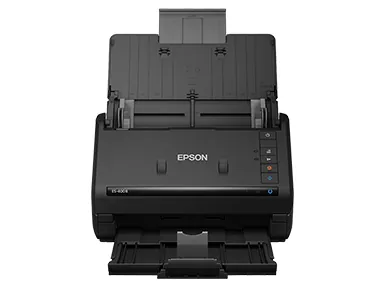
Streaks, lines, or spots on your digital images are usually caused by debris on the scanning glass. To clean it, use a soft, dry, lint-free cloth to remove loose dust. For stubborn marks, apply a small amount of isopropyl alcohol to the cloth—never directly to the scanner glass—and gently wipe the surface. Ensure the glass is completely dry before closing the cover and attempting to scan again.
Managing Connectivity and Network Issues
The ES-400 is a USB-tethered device, meaning it relies entirely on the stability of your physical connection. If the scanner keeps disconnecting, inspect the USB port on your computer for signs of wear. If you’re using a USB hub, remove it and connect the scanner directly to the computer to rule out the hub as a point of failure.
- USB 3.0 Port: Always prefer blue-coded USB ports for faster data transfer.
- Cable Length: Use the shortest possible cable to minimize signal degradation.
- Firmware Updates: Check the Epson software interface to see if a firmware update is available for your unit.
Common Error Light Patterns
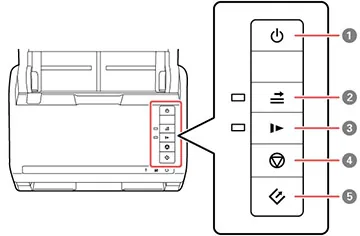
The indicator lights on the front of the unit provide diagnostic information about the health of the scanner. A solid green light indicates the device is ready. A blinking red light often points to a mechanical obstruction or a cover that isn’t fully latched.
| Light Status | Meaning | Solution |
|---|---|---|
| Solid Green | Ready to scan | None needed |
| Blinking Orange | Hardware error | Cycle power and check for jams |
| Blinking Green | Initializing/Scanning | Wait for the cycle to complete |
| Solid Red | Internal failure | Contact technical support |
Is the Document Properly Loaded?
Even high-end scanners struggle if the paper isn’t loaded correctly. Ensure that the document stack is neatly aligned and that the side guides are snug against the edges of the paper. If you’re scanning thin receipts or thick cardstock, adjust the settings in the software to match the paper thickness. Overloading the automatic document feeder (ADF) is a primary reason for multi-page feed errors.
Epson ES-400 Software Troubleshooting
Sometimes the scanner works, but the software settings prevent the desired output. If your images are coming out rotated or the wrong size, check the Document Capture Pro settings. Ensure that the “Auto-rotate” feature is enabled and that the paper size matches your physical documents. You can create custom profiles to save your preferred settings for recurring tasks like invoice scanning or photo digitization.
Performance and Maintenance Schedule
Regular maintenance extends the life of your device. By following a consistent schedule, you avoid the frustration of sudden device failure during critical work hours.
- Daily: Clear the ADF of any debris.
- Weekly: Wipe the scanner glass with a dry cloth.
- Monthly: Clean the rollers with a damp, lint-free cloth.
- Annually: Check for firmware updates on the official manufacturer portal.
Related guides
- Epson Et 3830 Troubleshooting: Quick Fixes for Common Issues
- Epson Xp 4200 Troubleshooting: Quick Fixes for Common Issues
- Epson Wf 7840 Troubleshooting: Quick Fixes for Common Issues
Frequently Asked Questions
Why does my scanner skip pages?
Skipping pages is usually caused by the separation pad being worn down or the paper being too thin or curled. Ensure the pages are flat and the guides are adjusted snugly. If the problem persists, the separation pad may need to be replaced, as it’s a consumable part that wears down over thousands of scans.
How do I reset the scanner?
To perform a hard reset, turn off the scanner and disconnect the USB cable from the computer. Unplug the power cord from the electrical outlet. Wait at least sixty seconds to allow the internal capacitors to discharge fully. Plug the power cord back in, reconnect the USB cable, and then turn the scanner on to re-establish the connection with your computer.
Can I scan to my smartphone?
The ES-400 is designed as a desktop-connected scanner. It doesn’t have built-in Wi-Fi or Bluetooth capabilities to connect directly to mobile devices. You must scan the documents to your computer first using the Epson software, and then transfer the files to your smartphone via cloud storage services, email, or a direct file transfer method like a USB cable.
Why are my scans blurry?
Blurriness is almost always caused by a dirty scanning glass or an incorrect resolution setting. Clean the glass thoroughly with a microfiber cloth and ensure you’re scanning at a minimum of 300 DPI for text documents. If you’re scanning photos, increase the resolution to 600 DPI to maintain detail. Check that the document isn’t moving while the scan is in progress.
What should I do if the scanner makes a grinding noise?
A grinding noise typically indicates a physical obstruction inside the paper path or a failure in the internal motor gears. Immediately power off the device to prevent further damage. Open the scanner cover and carefully inspect the rollers and the interior for any stray paper clips, staples, or debris. If the path is clear and the noise continues, the internal drive mechanism may be damaged.
Conclusion
If you have exhausted these troubleshooting steps and the device remains unresponsive, it’s time to consider professional repair or a replacement unit. Before making that investment, try testing the scanner on a different computer to confirm that the issue is indeed with the hardware rather than your operating system. If it fails on multiple machines, contact the manufacturer’s support team for further diagnostic assistance or warranty service options.