To fix issues with your device, you should start garmin gps troubleshooting by performing a soft reset to clear temporary memory errors. Most navigation problems, such as a frozen screen or failure to acquire a satellite signal, stem from outdated software or a corrupted cache file. If the device remains unresponsive after a reset, the internal battery might be depleted or the GPS antenna could be obstructed by physical interference.
Troubleshooting common Garmin navigation errors
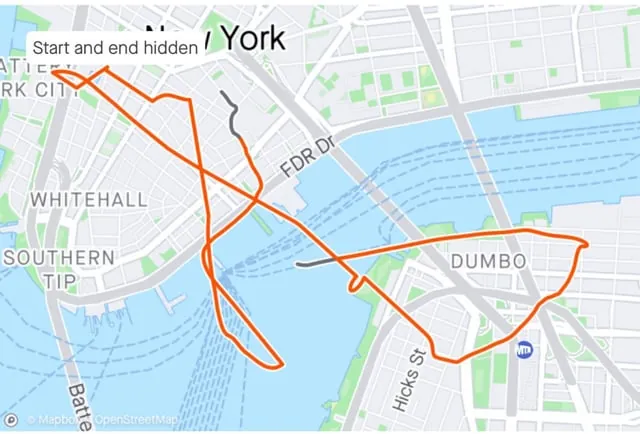
The most frequent cause for a signal loss is an outdated almanac or ephemeris data file. This file tells your unit where satellites are located in the sky at any given time. If your device has been powered off for a long period, it loses this information and must download it again from the satellites, which requires a clear view of the sky.
Another common issue is an outdated map or software version. Developers regularly release updates to fix bugs that cause system crashes or routing errors. You can check for official software updates using the manufacturer’s desktop application. If you ignore these updates, the device may struggle to process modern map data, leading to slow performance or incorrect turn-by-turn directions.
Finally, environmental factors and physical obstruction play a massive role. GPS signals are weak radio waves that can’t easily penetrate heavy foliage, dense urban canyons, or metal structures. If your device is mounted behind a metallic-tinted windshield or inside a glove box, it will likely fail to maintain a lock. If the unit still can’t find a signal while outside in an open field, the internal antenna may have suffered hardware damage from a drop or extreme heat exposure.
Perform a soft reset
If your unit is frozen or behaving erratically, a soft reset is the safest first step. This process forces the device to reboot without deleting your saved waypoints, routes, or personal settings. It simply clears the temporary memory and restarts the operating system.
To perform this, locate the power button on the side or back of the unit. Press and hold this button continuously for 15 to 30 seconds. Don’t release the button until the screen goes completely black and the device begins to restart on its own. If your specific model has a removable battery, take it out for 60 seconds before replacing it and turning the unit back on.
This fix is for users dealing with software glitches or non-responsive touchscreens. If the device doesn’t turn on after a full charge or if the screen is physically cracked, a reset won’t help. In those cases, you’re likely looking at a hardware failure that requires professional repair. If the screen remains blank after holding the button for 30 seconds, ensure your charging cable is functional by testing it with another compatible device before assuming the unit is dead.
Update map and software data
Outdated software is a frequent culprit for routing errors and map display bugs. Garmin releases regular updates that improve how the device communicates with satellites and how it calculates paths. This process requires a computer and a reliable internet connection to download the necessary files.
Connect your device to your computer using the provided USB cable. Open the Garmin Express software on your PC or Mac. If you haven’t installed this tool, download it from the official website to manage your device updates. The software will automatically detect your model and show you a list of available updates, including map regions and system firmware.
This process is for users who have access to a computer and a stable internet connection. If you’re currently on the road without a laptop, you can’t perform this update. If your device is very old, it may no longer support the latest map files due to limited internal storage space. In such cases, you’ll see a prompt from the software asking you to select a smaller region or purchase a memory card to expand the capacity.
Check your device’s storage capacity before starting the download. If the update fails repeatedly, your device likely lacks the 4GB to 8GB of free space required for modern map files.
If you’re unsure whether your device is full, check the “Device” tab in Garmin Express. If the bar is red, delete unused language files or old voice packs to clear space. If the bar remains full, you must insert a microSD card of at least 16GB to host the new data.
Clear the trip data cache
When a device becomes slow or struggles to calculate long routes, the internal memory might be cluttered with too many saved trip logs or temporary cache files. Clearing these files can significantly improve the speed of the processor. This is a manual process that you should perform periodically if you use the device daily for work or long-distance travel.
Access the main menu and look for the “Settings” or “Tools” icon. Navigate to the “Device” or “System” sub-menu and select “Clear Travel History” or “Delete Trip Logs.” Be aware that this action will erase your previous track logs, so back up any important data to your computer first if you need to keep them. After clearing the logs, turn the device off and back on to finalize the cleanup.
This is for users whose devices work but feel sluggish during route calculation. It isn’t for users who have a “no signal” error, as clearing logs doesn’t affect the satellite receiver. If you have thousands of saved waypoints, the device will always be slower to start up; keep your saved list lean to ensure the best performance.
Common myths about gps repair
Placing the unit in the freezer: This is dangerous and can cause internal condensation or battery failure, which voids the warranty. If you suspect moisture inside, use a desiccant pack in a sealed bag for 48 hours instead.
Shaking the device to fix signal: This does nothing for the antenna and risks damaging the internal components or the screen.
Using third-party charging cables: Cheap cables often fail to provide the exact voltage required, causing the device to enter a restart loop.
Factory resetting without backup: This wipes every piece of personal data, including saved locations. Only reset if the device fails to boot entirely.
How to stop it happening again
To keep your unit running well, you must move away from reactive fixes and adopt a routine maintenance schedule. The following table highlights common bad habits and the better way to manage your hardware.
| If you’re doing this | Do this instead | Why |
|---|---|---|
| Leaving it in the sun | Store in a cool glove box | Heat degrades the battery life |
| Ignoring update prompts | Update every 3 months | Fixes known software bugs |
| Keeping all old tracks | Clear logs once a month | Keeps the processor fast |
| Using any USB cable | Use the original cable | Ensures correct power levels |
Most users fail by waiting for a total system crash before checking their settings. This mistake costs you the entire cache of saved data, which is often unrecoverable once the internal memory corrupts.
If the unit remains unresponsive after a hard reset, the issue is likely a hardware failure rather than a software glitch. In that specific case, stop all attempts to force a reboot and contact the manufacturer directly to avoid voiding your warranty. Consistent care ensures you never lose access to your critical files.
Frequently asked questions
How long does it take for a gps to get a signal?
A device typically acquires a signal within 60 seconds in an open area. It may take up to 5 minutes to download new satellite data if the device has been moved long distances or powered off for weeks. If it takes longer than 10 minutes, move to a location without tall buildings or trees.
Is it safe to leave my device plugged in all the time?
It’s safe to keep your device plugged into a vehicle while driving because the internal circuit manages power intake. However, avoid leaving it connected for weeks when the vehicle isn’t in use. Constant trickle charging can lead to battery degradation if the unit remains stationary for extended periods.
Why does my device say signal lost?
Your device loses signal when the internal antenna is blocked by physical obstructions or interference. This occurs most often in tunnels, deep valleys, or dense city centers with skyscrapers. Ensure your device is mounted near a window and away from metal objects or electronics that cause electromagnetic interference.
How often should I update my maps?
You should check for map updates at least every 6 months to ensure your routing data remains accurate. Road networks change constantly, and outdated maps can lead you to closed roads or incorrect one-way streets. If you travel frequently to new areas, check the update status once a quarter. Most modern devices will notify you through the desktop software when a major map release is available for your specific region.
Can I repair a broken screen myself?
You should never attempt to open the housing of your GPS device to perform repairs. Opening the unit voids your warranty and risks damaging delicate internal components. Contact the manufacturer’s customer support team to arrange for a professional repair if your screen is broken or unresponsive.
What happens if I perform a factory reset?
A factory reset returns your device to its original state, deleting all custom settings, saved routes, and waypoints. You’ll need to reconfigure your preferences from scratch after the process. Only perform a reset as a last resort, and ensure you have exported important data before proceeding.
Conclusion
Proper care is the best way to ensure your navigation tool remains reliable for years. By keeping the software updated, storing the unit away from extreme heat, and clearing your trip logs regularly, you avoid the most common causes of system failure. If you ever encounter a problem that a simple reset or update can’t fix, reach out to the manufacturer for support rather than attempting to open the device yourself.
Related guides