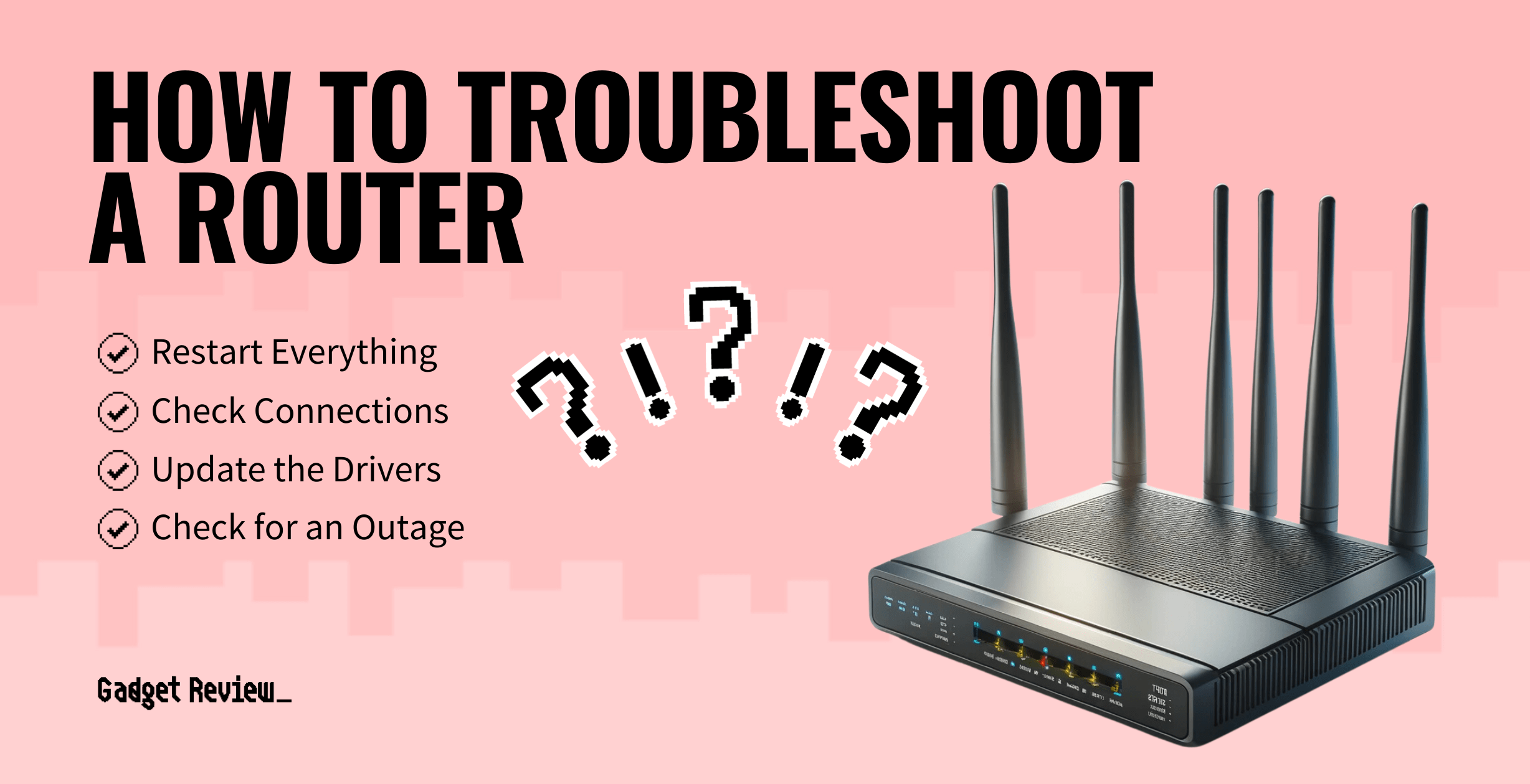
Is your internet suddenly acting up? When your modem or router stops working properly, it can feel like your whole day is on hold.
You rely on these devices to stay connected, work, stream, and chat with friends. But don’t worry—fixing common modem and router problems is easier than you think. You’ll discover simple steps to troubleshoot your devices and get your connection back fast.
Keep reading, and you’ll soon be in control of your internet again.
Common Modem Issues
Modems are key devices that connect your home to the internet. They can face problems that stop them from working right. Knowing common modem issues helps you fix them quickly. This keeps your internet fast and stable.
No Power Or Indicator Lights
Sometimes, the modem shows no lights or power. This means it is not turning on. Check the power cable and outlet first. Make sure the modem is plugged in tightly. Try using a different power outlet if needed. A faulty power adapter can also cause this issue.
Slow Connection Speeds
Slow internet can be very frustrating. It may happen due to modem problems. Dust or overheating can reduce modem performance. Restart the modem to clear minor issues. Also, check for firmware updates from your provider. Old firmware can cause slow speeds.
Frequent Disconnections
Dropping internet signals is a common modem issue. It interrupts work and streaming. Loose cables or bad connections often cause this. Inspect all cables for damage or looseness. Place the modem in an open area for better signal. Sometimes, service outages in your area cause disconnections too.
Router Problems To Watch
Routers are essential for internet access at home or work. Problems with routers can cause slow speeds or loss of connection. Spotting common router issues early helps keep your network stable and fast.
Wi-fi Signal Drops
Wi-Fi signals may drop without warning. This causes devices to lose internet temporarily. Walls, distance, and interference affect signal strength. Moving the router to a central place can help. Restarting the router often fixes temporary drops.
Unable To Connect Devices
Sometimes devices cannot connect to the router. This may happen if too many devices use the network. Check the router’s device limit and reduce connections. Resetting the network settings on your device can also fix this problem.
Router Overheating
Routers generate heat during use. Overheating can cause slow internet or crashes. Keep the router in a cool, open spot. Avoid covering it with cloth or placing it near heat sources. Clean dust from vents regularly to improve airflow.
Basic Restart Techniques
Basic restart techniques are the first step in solving modem and router issues. Restarting clears temporary glitches. It helps restore a fresh connection. This simple action often fixes slow internet or no connectivity. Learning the right way to restart devices improves your chances of success.
Proper Modem Reboot
Unplug the modem’s power cable from the outlet. Wait for at least 30 seconds. This pause lets the modem fully reset. Plug the power cable back in. Wait until all lights on the modem turn stable. This process refreshes your internet connection. Avoid pressing the reset button. It can erase your modem’s settings.
Router Power Cycling Tips
Switch off the router using its power button. If no button, unplug the power cable. Wait for 20 to 30 seconds. This allows the router to clear memory. Plug in the power cable or turn the router back on. Wait for the lights to stabilize. This helps the router reconnect to the modem and devices.
Firmware Updates
Firmware updates are important for modems and routers. They fix bugs and improve performance. Updates can also add new features. Keeping firmware current helps your device run smoothly.
Updating firmware can protect your network from security risks. Many connection issues come from outdated software. Regular updates keep your internet stable and safe.
Checking For Updates
Start by logging into your modem or router’s settings page. This usually requires entering an IP address in a browser. Look for a section named “Firmware,” “System,” or “Update.”
The device will show if an update is available. Sometimes, you can enable automatic updates. Check your device manual for exact steps. If no update appears, the firmware may be current.
Installing Firmware Safely
Download updates only from the official manufacturer’s website or device interface. Avoid third-party sources to prevent malware risks. Make sure your internet connection is stable during the update.
Do not turn off the device while updating. Interrupting the process can damage your modem or router. Follow all on-screen instructions carefully. After updating, restart your device for changes to take effect.
Resetting Devices
Resetting your modem and router often solves common internet problems. It clears temporary glitches and refreshes the connection. This step is simple but powerful in fixing slow or no internet issues.
Understanding the difference between reset types helps you choose the right method. Each device may need different reset steps. Knowing when and how to reset keeps your network running smoothly.
Soft Reset Vs Hard Reset
A soft reset restarts your device without changing settings. It clears temporary errors and refreshes the connection. You usually perform this by turning the device off and on again.
A hard reset restores the device to factory settings. It deletes all custom settings like passwords and network names. Use this only if other fixes fail or you want to start fresh.
When To Reset Modem
Reset your modem if the internet is slow or not working. Also reset if the device overheats or loses connection often. Start with a soft reset first. Try a hard reset only if problems continue.
Resetting Your Router
Reset your router if Wi-Fi is weak or devices cannot connect. Use a soft reset by unplugging the power for 30 seconds. For persistent issues, press the reset button for 10 seconds to hard reset.
Remember to back up settings before a hard reset. You will need to enter network details again after resetting. This keeps your network safe and working well.
Optimizing Router Placement
Optimizing router placement is key to a strong and stable internet connection. The router sends signals that connect your devices to the internet. Where you place it affects signal strength and speed. Small changes in location can greatly improve your Wi-Fi experience.
Ideal Locations For Signal
Place the router in a central spot in your home. This helps the signal reach all rooms evenly. Keep it high up, like on a shelf or mounted on a wall. Avoid placing it on the floor or inside cabinets. Open areas work best because walls and furniture block signals.
Avoiding Interference
Keep the router away from devices that cause interference. Microwaves, cordless phones, and baby monitors can weaken Wi-Fi signals. Metal objects and mirrors also reflect signals and reduce range. Try to maintain distance from large electronic devices. This reduces interruptions and keeps your connection steady.
Wiring And Connection Checks
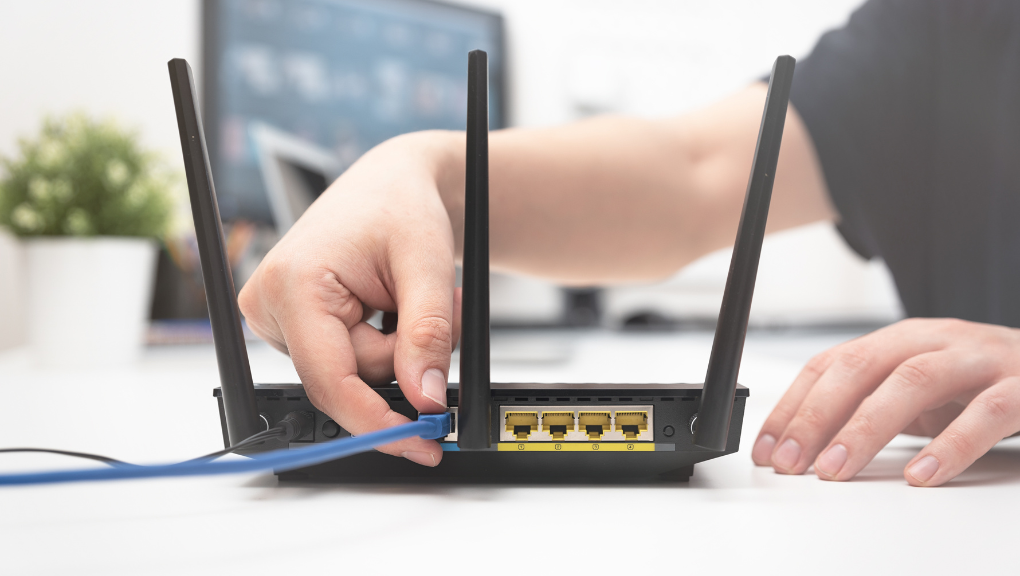
Wiring and connection checks are the first step in fixing modem and router issues. Problems often start with loose or damaged cables. A quick review of all connections can save time and prevent bigger troubles.
Ensure every cable is plugged in tightly. Check the power cord, Ethernet cables, and phone line. Look for signs of wear, like cuts or frays. These small details affect your internet speed and reliability.
Inspecting Cables
Start by examining all cables connected to your modem and router. Look closely for any damage or bends. Even slight damage can cause connection drops. Check if cables are firmly inserted into the correct ports. Loose connections are a common cause of internet problems.
Try swapping cables if you find any weak spots. Use cables that are the right type for your device. Avoid tangled or stretched wires. Keep cables organized and away from sharp edges or heat sources.
Replacing Faulty Components
Damaged cables or connectors need replacement. Use new cables that match the original specifications. Faulty power adapters also cause device malfunctions. Test with a different power source if possible.
Replace any worn-out connectors or splitters. These parts can degrade over time and disrupt signal flow. Always use quality components to ensure stable connections. This step often fixes slow or lost internet issues.
Advanced Troubleshooting Steps
Advanced troubleshooting steps help fix complex modem and router issues. These steps dive deeper into your network settings. They reveal problems missed by basic checks. Follow these methods carefully to restore your internet connection.
Checking Ip And Dns Settings
Your device uses IP and DNS settings to connect online. Incorrect settings can stop internet access. Start by opening the network settings on your device. Verify the IP address is set to obtain automatically. Manual IP entries may cause conflicts.
Next, check the DNS server addresses. Use common public DNS servers like Google’s 8.8.8.8 or Cloudflare’s 1.1.1.1. These are reliable and fast. Save any changes and restart your device. This step often resolves connection issues linked to wrong IP or DNS setups.
Using Diagnostic Tools
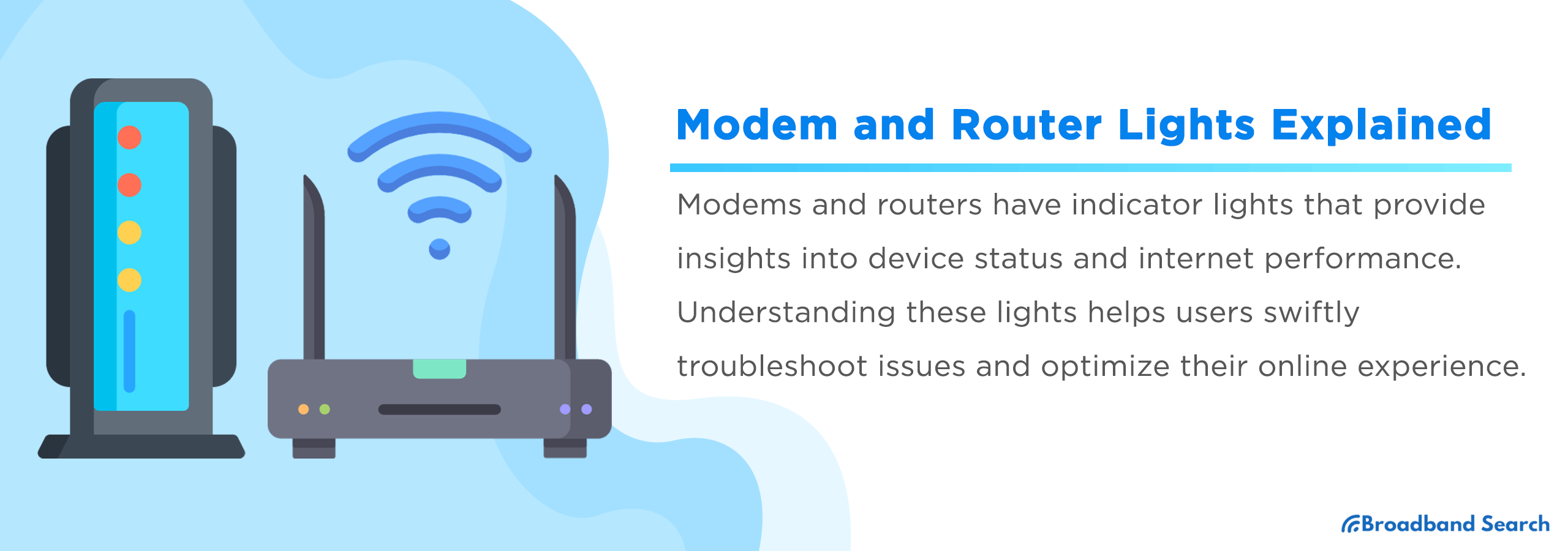
Diagnostic tools help identify network problems quickly. Use the built-in tools on your device or router. For example, run the ping test to check if your device reaches a website. If ping fails, the connection is broken somewhere.
Another tool is traceroute. It shows the path your data takes to reach a server. This helps spot delays or blocked points. Most routers also have a diagnostic page. Use it to scan your network for errors or weak signals. These tools provide clear clues to fix your modem or router.
When To Contact Support
Knowing when to contact support can save time and reduce frustration. Some problems require expert help beyond basic troubleshooting steps. Recognizing these moments helps you get back online faster.
Identifying Service Outages
Check if your internet is down for everyone or just you. Visit your provider’s website or social media for outage updates. Outages affect many users in your area. If there is a service outage, waiting for the provider to fix it is best.
Preparing Information For Help
Gather details before calling support. Note your modem and router model numbers. Write down error messages or lights on your devices. Have your account information ready. Clear information helps support solve your problem quicker.
Frequently Asked Questions
How Do I Reset My Modem And Router Properly?
Unplug the power cables from both devices. Wait 30 seconds, then plug them back in. This clears temporary errors and refreshes the connection.
Why Is My Internet Slow Even When Modem And Router Are On?
Slow internet can be due to many factors like weak Wi-Fi signals or network congestion. Try moving closer to the router or restarting both devices.
How Can I Fix A Modem That Won’t Connect To The Internet?
Check if all cables are plugged in tightly. Restart the modem and router. Contact your internet provider if the problem continues.
What Causes Frequent Disconnection Between Modem And Router?
Loose cables, outdated firmware, or interference from other devices cause drops. Secure connections and update firmware to improve stability.
How To Check If My Router’s Firmware Needs Updating?
Log in to your router’s settings page using its IP address. Look for the firmware update section and follow instructions if updates are available.
Conclusion
Troubleshooting your modem and router can fix many internet problems fast. Start by checking cables and power connections. Restarting devices often solves common issues. Keep your firmware updated for better performance. Remember to reset settings only if needed. Simple steps save time and reduce frustration.
Stay calm and follow the guide step-by-step. Good internet helps work, study, and relax smoothly. Practice these tips to keep your network strong and stable. Troubleshooting does not have to be hard or confusing. You can do it!