Is your Aquos Sharp TV acting up when you least expect it? Frustrating glitches, unclear pictures, or sound issues can ruin your viewing experience.
But don’t worry—you’re not alone, and most problems have simple fixes. In this guide, you’ll discover easy steps to troubleshoot your Aquos Sharp TV quickly. Keep reading, and you’ll be back to enjoying your favorite shows without the hassle. Your perfect picture is just a few solutions away.
Power Problems
Power problems are common with Aquos Sharp TVs. They stop working or turn off unexpectedly. These issues can cause frustration and disrupt your viewing experience.
Understanding basic troubleshooting helps fix many power problems. Start with simple checks before calling for help. This saves time and effort.
No Power Or Won’t Turn On
First, check if the TV is plugged in properly. A loose plug can cause no power.
Press the power button on the TV itself, not just the remote. Sometimes the remote might have dead batteries.
Look for any signs of damage on the power cord. Replace it if you see wear or cuts.
Try plugging the TV into a different outlet. The original socket might not work.
If the TV still won’t turn on, check the power indicator light. No light often means no power supply.
Reset the TV by unplugging it for a few minutes. Plug it back and try turning it on again.
Sudden Shutdowns
Sudden shutdowns happen without warning. The TV turns off and won’t stay on.
Check if the TV is overheating. Poor ventilation can cause automatic shutdowns.
Clean any dust around the vents and make sure air flows freely.
Power surges or unstable electricity can also cause shutdowns. Use a surge protector.
Software glitches might trigger shutdowns. Update the TV’s firmware to the latest version.
If the problem continues, there might be internal hardware damage. A technician can help diagnose this.
Picture Issues
Picture issues can spoil the joy of watching your Aquos Sharp TV. These problems vary from no image at all to colors looking strange. Simple fixes often solve these troubles. Understanding common picture issues helps you fix them fast.
No Picture Or Black Screen
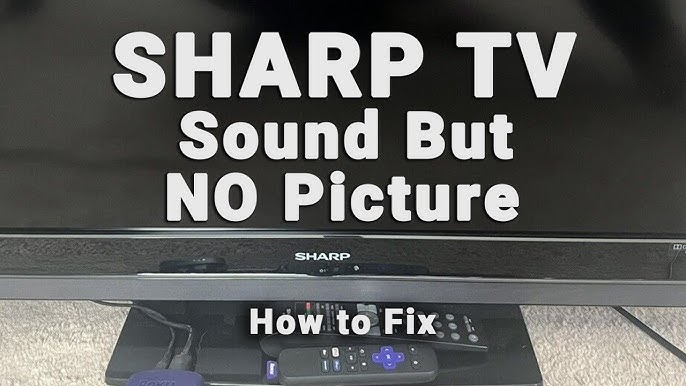
The screen stays black, but the TV is on. Check if the power cable is secure. Make sure the input source matches the device connected. Try unplugging the TV for a minute, then plug it back in. Test different HDMI cables and ports. A faulty cable can cause no picture.
Distorted Or Fuzzy Image
Images look blurry or unclear. Adjust the sharpness and contrast settings on the TV. Clean the screen gently with a soft cloth. Check the signal source; weak signals cause fuzziness. Reset the picture settings to default to fix distortion. Poor connections can also blur the image.
Color Problems
Colors appear faded or incorrect. Adjust the color and tint settings in the menu. Check if the TV is in the correct picture mode. Loose or damaged cables can cause color issues. Try switching to another input source to see if colors improve. Resetting the TV may restore proper colors.
Sound Troubles
Sound troubles can spoil your TV experience. Sharp Aquos TVs sometimes face issues with audio output. These problems range from no sound to strange noises. Understanding common sound issues helps fix them quickly. Below are simple tips for common sound troubles.
No Sound
Check if the TV is muted or volume is too low. Make sure cables connecting external devices are secure. Restart the TV to reset sound settings. Try switching audio output settings in the menu. Test with different channels or apps to see if sound returns.
Audio Distortion
Distorted sound often means poor signal or connection. Clean the HDMI or audio cables and reconnect them. Adjust sound settings like bass and treble for better clarity. Check if external speakers cause the distortion by disconnecting them. Update the TV firmware to fix software-related issues.
Volume Control Issues
Remote control problems may stop volume changes. Replace remote batteries and point it directly at the TV sensor. Use the TV buttons to test volume control. Reset the TV’s settings to default if volume buttons fail. Ensure no external device is overriding the volume control.
Remote Control Not Working
When your Aquos Sharp TV remote control stops working, it can be very frustrating. The remote is the main way to control your TV. Without it, changing channels or adjusting volume becomes hard. Troubleshooting the remote can often fix the problem quickly.
Several reasons can cause remote control issues. Problems may arise from unresponsive buttons or pairing errors. Understanding these problems helps in finding the right fix fast.
Unresponsive Buttons
Sometimes, the buttons on the remote do not respond. Dirt or dust can block the sensor inside the remote. Worn-out buttons may fail to send signals. Try cleaning the remote with a soft cloth. Press each button firmly to check if they work again.
Check the batteries next. Weak or dead batteries often cause unresponsive buttons. Replace them with new ones to see if the remote works. Make sure the batteries are inserted correctly, following the right polarity.
Pairing And Signal Problems
The remote must connect properly to the TV to work. Sometimes, it loses pairing and stops sending commands. Restarting the TV and remote helps reset this connection. Remove batteries for a minute, then put them back in.
Check for obstacles between the remote and TV sensor. Objects or bright light can block the infrared signal. Point the remote directly at the TV sensor. Keep the distance within 20 feet for best results.
In some cases, the remote may need to be paired again. Follow the TV manual instructions for pairing mode. This process reestablishes the link between the remote and TV.
Connectivity Challenges
Connectivity issues can disrupt your viewing experience on an Aquos Sharp TV. These problems often stem from network settings or external device connections. Troubleshooting these challenges quickly helps restore smooth operation.
Wi-fi Connection Failures
Wi-Fi problems are common with smart TVs like the Aquos Sharp. The TV may fail to connect to the network or lose connection frequently. Check that the router is on and working properly. Restart the TV and router to refresh the connection. Ensure the TV is within range of the Wi-Fi signal. Avoid obstacles like walls or electronic devices that block signals. Update the TV’s software to fix bugs affecting Wi-Fi. Use the TV’s network settings menu to re-enter the Wi-Fi password carefully. If the issue continues, try connecting to a different network to isolate the problem.
Hdmi And External Device Issues
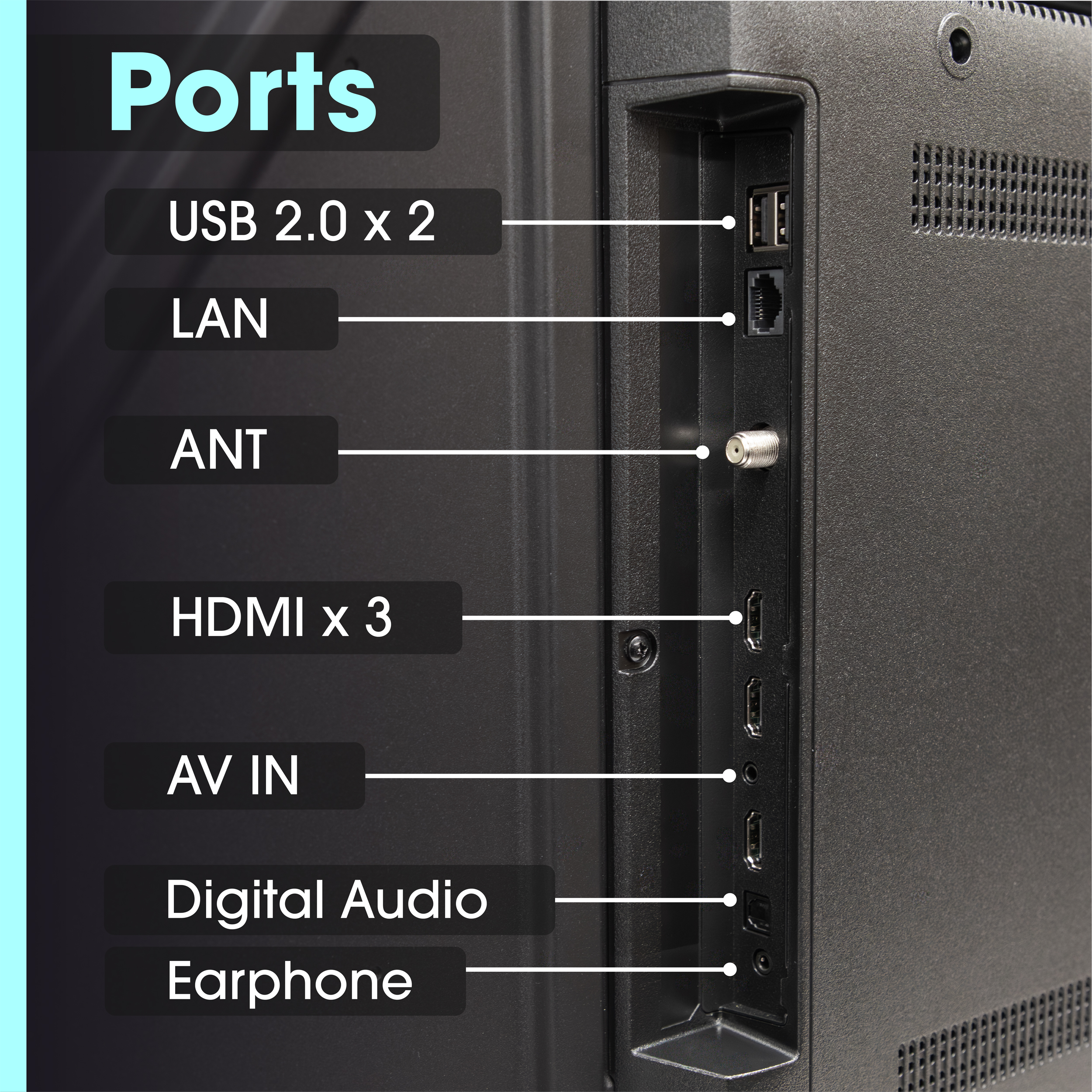
HDMI problems often cause no picture or sound on the TV. Loose or faulty cables are a common cause. Unplug and reconnect HDMI cables firmly to both the TV and device. Test different HDMI ports on the TV for better results. Sometimes, the connected device’s settings need adjustment to output correctly. Restart the external device and the TV to refresh the connection. Use high-quality HDMI cables to avoid signal loss. If a device still does not work, try connecting another device to check if the issue is with the TV or the external source.
Software And Updates
Software and updates play a key role in keeping your Aquos Sharp TV running smoothly. Regular updates fix bugs, improve features, and enhance performance. Ignoring updates can cause problems like freezing and lagging. Understanding how to manage software and updates helps maintain your TV’s health.
System Freezing Or Lagging
System freezing or lagging often happens due to outdated software. Old software may struggle to run new apps or features. Restart your TV first to clear temporary glitches. If problems continue, check for software updates. Keeping software current reduces freezing and lagging issues.
Updating Firmware
Firmware is the TV’s core software. Updating firmware fixes bugs and adds new functions. Connect your TV to the internet for easy updates. Go to the settings menu and select “Software Update.” Follow the on-screen steps to download and install updates. Do not turn off the TV during updates. Regular firmware updates keep your TV stable and fast.
Screen And Display Glitches
Screen and display glitches can ruin your viewing experience on an Aquos Sharp TV. These issues often appear as strange lines, flickers, or dim lighting on the screen. Understanding these problems helps you fix them quickly and enjoy clear pictures again.
Lines Or Flickering
Lines or flickering on the screen can be very distracting. These problems may happen due to loose cables or damaged connectors. Check all the cables between your TV and devices. Tighten or replace any loose or broken cables. Sometimes, a software update fixes flickering by improving the TV’s performance. Try restarting the TV to clear temporary glitches.
If the problem continues, it might be a faulty panel or internal hardware issue. Contact a technician for further diagnosis in this case.
Backlight Problems
Backlight problems cause the screen to look dark or uneven. The TV may show dim spots or flicker in brightness. This happens because the backlight bulbs or LEDs wear out over time. You can try adjusting the brightness and contrast settings first. If the screen stays dark, the backlight may need replacement.
Some models let you run a self-diagnosis test to check backlight status. Use this feature to find out if the backlight is the cause. Repairing backlight issues often requires professional help.
Reset And Maintenance Tips
Resetting and maintaining your Aquos Sharp TV helps keep it running smoothly. These steps fix common issues and improve performance. Simple care routines extend your TV’s life and picture quality.
Factory Reset Steps
Start by turning on your TV. Press the Home button on the remote. Go to the Settings menu. Select the System option. Find and choose Reset or Factory Reset. Confirm your choice to erase all settings. Wait for the TV to restart. This resets the TV to original settings. Use this when apps or features stop working.
Regular Care And Cleaning
Unplug your TV before cleaning. Use a soft, dry cloth to wipe the screen. Avoid harsh chemicals or sprays. Clean vents gently to prevent dust build-up. Dust can cause overheating and damage. Keep the TV in a cool, dry place. Regular cleaning helps maintain clear picture quality.
Frequently Asked Questions
Why Is My Aquos Sharp Tv Not Turning On?
Check if the power cable is plugged in securely. Try pressing the power button on the TV itself. If it still won’t turn on, the remote or internal power supply might be faulty.
How Do I Fix Aquos Sharp Tv With No Sound?
Make sure the volume is not muted or too low. Check the audio settings in the menu. Also, inspect if external speakers or cables are connected properly.
What To Do If Aquos Sharp Tv Screen Is Blank?
Verify the input source is correct for your device. Try unplugging the TV, wait 30 seconds, then plug it back in. If the screen stays blank, the backlight or display panel may need service.
How Can I Reset My Aquos Sharp Tv To Factory Settings?
Go to the settings menu and find the “Reset” or “Factory Reset” option. Follow the on-screen instructions to complete. This clears all settings and may fix software issues.
Why Is My Aquos Sharp Tv Remote Not Working?
Check or replace the remote batteries. Ensure there are no obstacles between the remote and TV sensor. Try using the TV’s buttons to confirm if the issue is with the remote.
Conclusion
Troubleshooting your Aquos Sharp TV can save time and money. Start with simple checks like power and connections. Resetting the TV often fixes many issues. Keep the software updated for better performance. If problems continue, contacting support is a good step.
Regular care helps your TV last longer. Remember, small fixes can make a big difference. Don’t let minor issues stop your entertainment. Stay patient and try solutions step by step. Your Sharp TV can work well again with these tips.