A black screen or flickering image on an Arzopa portable monitor is usually caused by insufficient power or an incompatible cable. Ensure you’re using a video-rated cable connected to a port supplying at least 15 watts, as many included cables are charge-only and can’t transmit the necessary display data.
Why my Arzopa portable monitor stays black
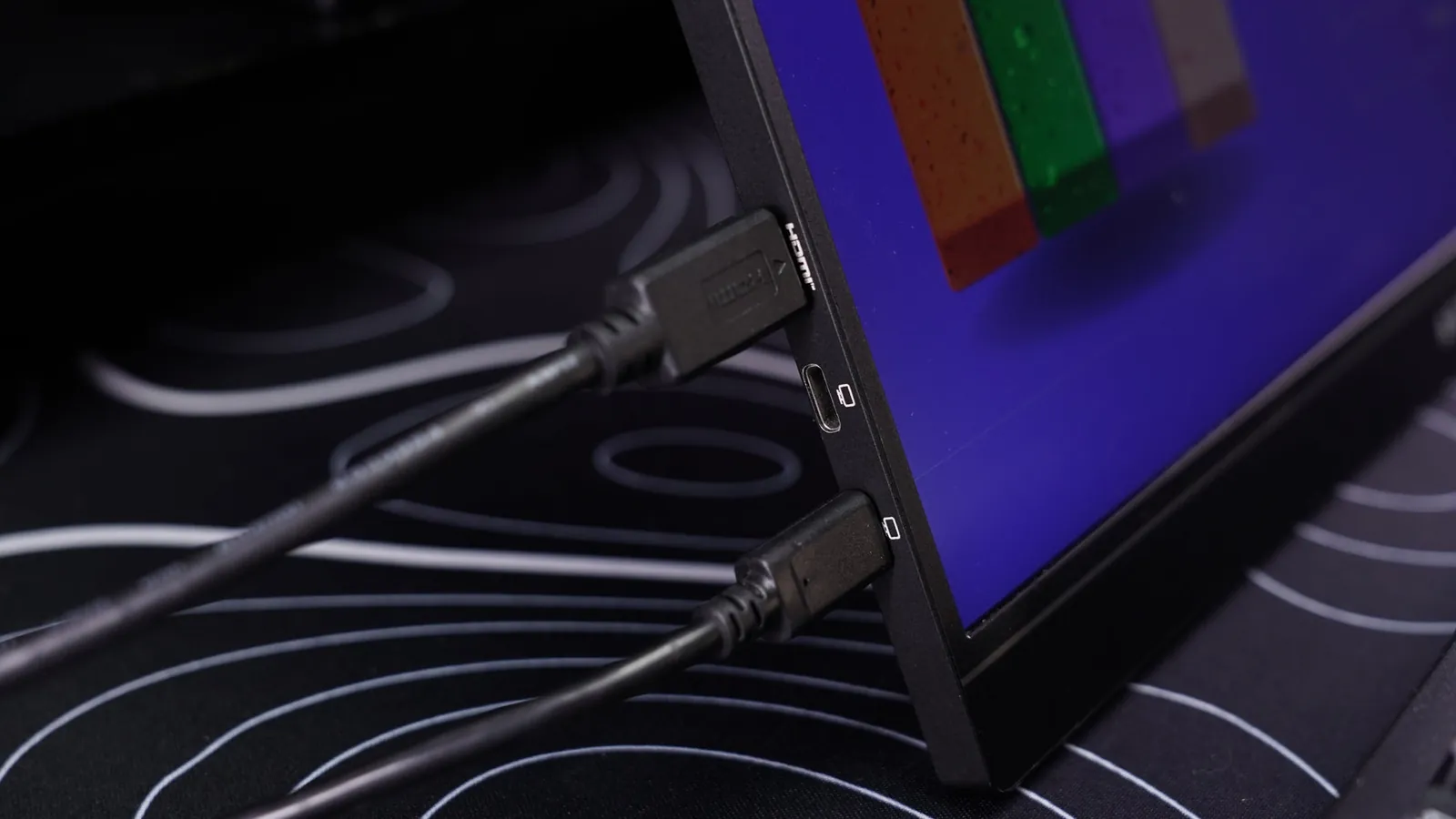
Three physical causes sit behind almost every blank screen on these panels. Power delivery leads the list by a wide margin. A portable display needs a steady stream of electricity to light its backlight and run its controller board. When the source doesn’t push enough wattage, the monitor either stays completely dark or flashes the logo and shuts off immediately.
The second cause is a cable built only for charging. Inside a standard USB-C plug are multiple pins. Some cables wire just the power pins and leave the high-speed data lanes empty. You can’t send a picture through wires that don’t exist inside the jacket. This trips people up because the cable fits perfectly and charges a phone without any trouble.
The third issue involves the port itself. Not every USB-C slot on a laptop handles video output. Ports marked with a battery icon are power-only and lack the high-speed data lanes required for DisplayPort Alt Mode. Plugging into one of those gives you nothing but frustration.
There’s an honest limit here: the exact wattage your specific Arzopa model demands depends on its size and brightness rating, and you’ll read that number straight off the sticker printed on the back of your unit. Don’t guess it.
Swap your USB-C cable for a video-rated one
This step targets anyone who sees the monitor’s logo flash briefly before the screen goes dark, or gets no signal message on their laptop. It’s the first thing to try because it solves the majority of connection problems.
You need a USB-C cable certified for video transmission, not just charging. Look for packaging that mentions “USB 3.1 Gen 2,” “10Gbps,” or “4K video.” A thick cable is usually a better sign than a thin one, though certification marks matter more than thickness.
Unplug the current cable from both ends. Connect your new video-rated cable directly from the laptop’s USB-C port to the monitor’s port marked for both power and signal. Don’t route it through a hub or docking station yet. Hubs split the available power, and you want the full amount going straight to the screen.
Once connected, press the monitor’s power button once. Wait five seconds. If the desktop appears, your old cable was the problem. Keep the new one dedicated to this display so you don’t mix them up later.
If you use a Mac, go to System Settings, click Displays, and hold the Option key to reveal the “Detect Displays” button if the screen doesn’t wake up automatically. Windows users can press the Windows key plus P to cycle through projection modes until the external screen lights up.
If neither operating system sees the monitor after changing the cable, the fault lies elsewhere, and you’ll move to the next step. Never force a connector that resists; bent pins inside the port mean a repair job for Arzopa’s official support team.
Plug directly into a high-wattage laptop port
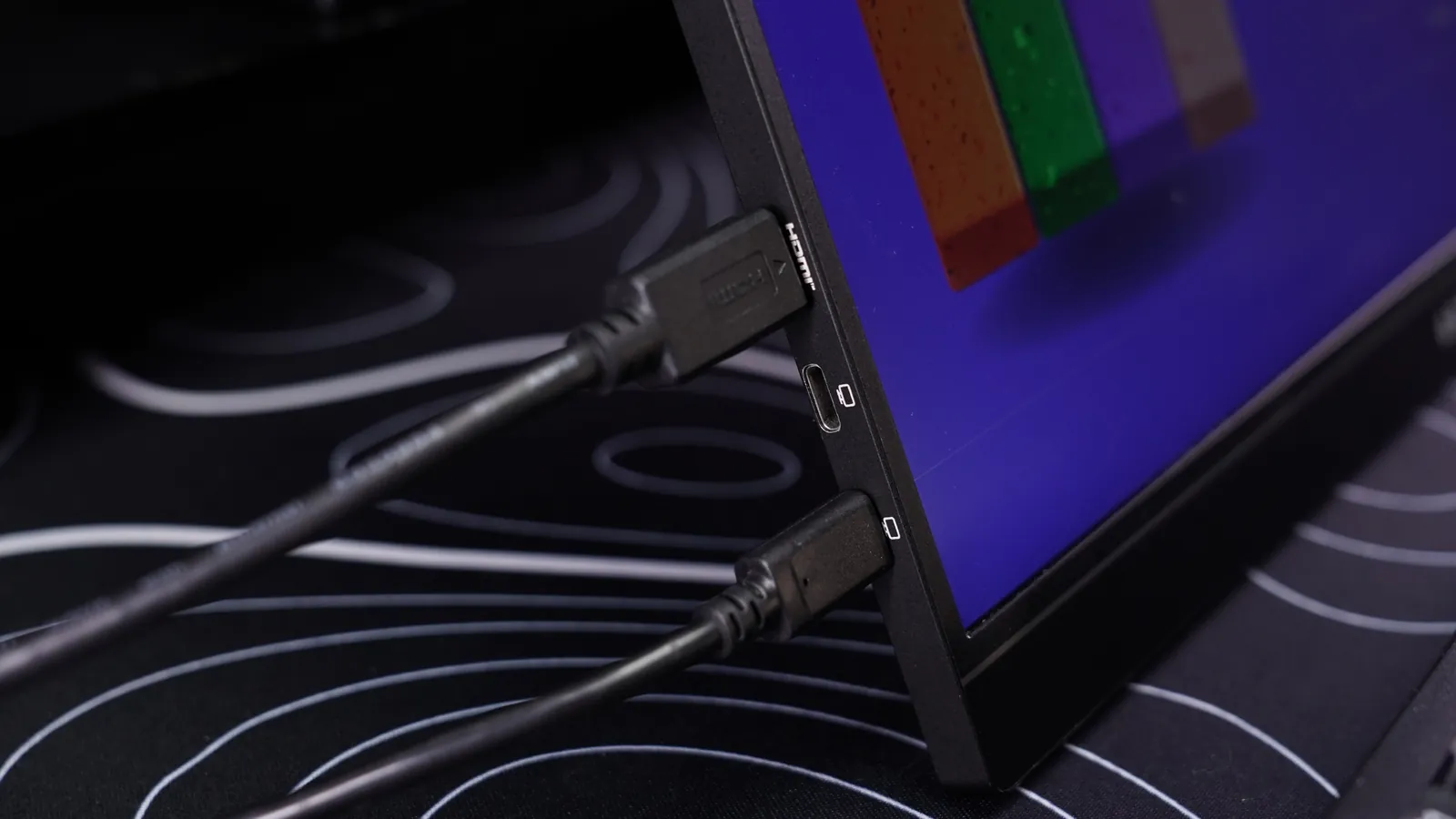
This fix addresses monitors that stay completely dead, showing no logo and no backlight glow at all. It pulls a different lever than changing the cable by focusing entirely on where the electricity comes from.
Laptops distribute power unevenly across their ports. A machine might have three USB-C slots, but only one or two actually deliver the 15 watts a 15.6-inch screen requires to turn on. The others might cap out at 7.5 watts, meant only for mice or flash drives.
Find the port on your laptop marked with a lightning bolt (Thunderbolt) or a “D” inside a “P” (DisplayPort). These ports carry both video signals and higher power limits. Unplug the monitor and reconnect it specifically to that port.
If your laptop only has older USB-A rectangular ports, a standard adapter won’t push enough power. You’ll need to use the monitor’s secondary USB-C port—often labeled purely for power—and plug it into a wall charger rated for at least 20 watts using a separate cable. The first cable handles the video from your laptop, while the wall charger handles the electricity.
You’ll know this worked when the backlight turns on steadily without flickering. If the screen powers up but shows no image, switch back to the cable check, because you’ve confirmed the power supply is fine but the video signal isn’t reaching the panel.
Running a display off a laptop battery drains it faster. That’s the trade-off for portability. If you’re working near an outlet, always give the monitor its own wall power so your laptop lasts longer.
Bypass the dock and test another device
When cables and direct connections fail, the problem hides deeper in your setup. This step takes more time and sometimes costs money if you need to buy a standalone charger, so only use it after the first two fixes do nothing.
Docking stations and USB hubs are frequent culprits. They take one signal from your computer and split it several ways. Cheap hubs often drop the video signal or throttle the power passing through to the attached screens. Unplug the monitor from the hub entirely. Connect it straight to the computer. If it works, the hub is too weak for your display.
If the direct connection still fails, you need to isolate the broken part. Connect the Arzopa monitor to a completely different device—a smartphone with video-out capability, a game console, or another laptop. Use the same known-good video cable.
Here’s your decision rule: if the monitor wakes up on the second device, your original laptop’s port or graphics driver is the problem. If it stays dead on the second device too, the monitor itself has likely failed internally.
Who this is NOT for: anyone whose screen is physically cracked, leaking liquid, or smells like burnt plastic. Those signs point to hardware damage that extra testing won’t reverse. Stop plugging it in and contact the manufacturer. Opening the casing voids your warranty and risks damaging the delicate internal ribbon cables.
Bad advice that breaks Arzopa portable monitors
Searching for quick answers brings up suggestions that actively damage your equipment. Here’s what to ignore and why it hurts.
- Pushing the cable in harder when it resists. Forcing a USB-C plug bends the tiny pins inside the port. Once those pins bend, the port stops accepting video signals permanently, turning a simple cable swap into a costly motherboard repair.
- Using a phone charger brick to power the screen during video playback. Phone chargers often max out at 5 to 10 watts. A monitor playing video draws more than that. The screen will constantly shut off and restart, which stresses the internal power regulation board over time.
- Updating the monitor’s firmware from random forum links. Arzopa doesn’t release frequent public firmware updates like a laptop maker does. Downloading files from unofficial threads risks installing software meant for a different panel size, which bricks the controller board instantly.
- Taping over the extra pins to force a connection. Some online posts suggest modifying cables with tape or foil. This creates short circuits between power and data lines. It can fry your laptop’s USB controller alongside the monitor.
- Assuming a dead screen means a dead backlight and opening the case. Portable monitors use tightly packed layers. Peeling them apart without specialized tools tears the delicate ribbon cables connecting the LCD glass to the driver board, making professional repair impossible.
Keeping your Arzopa portable monitor running smoothly
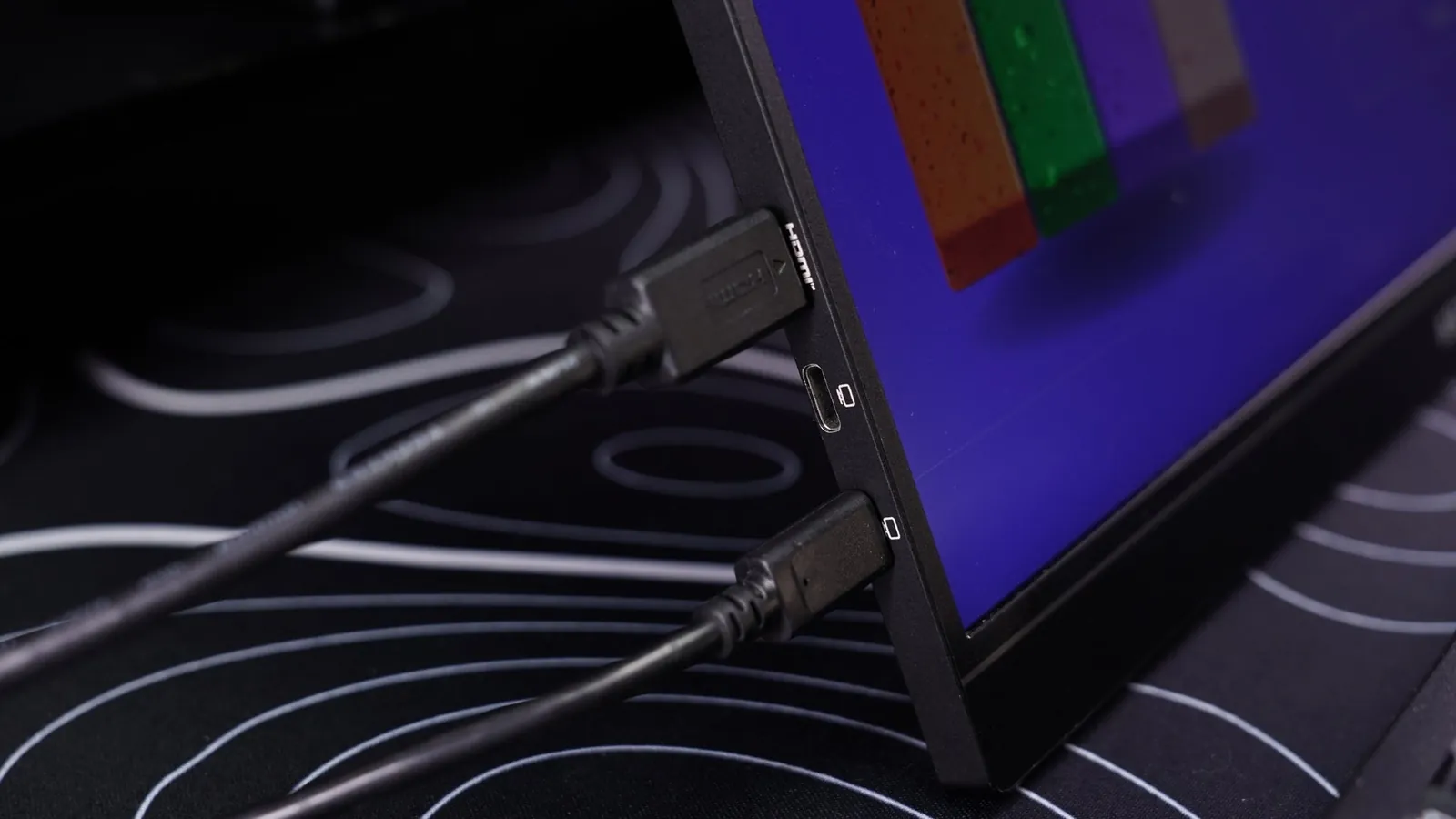
Preventing a blank screen comes down to how you handle the gear daily. Small habits stop the most common failures before they start.
| If you’re doing this | Do this instead | Why |
|---|---|---|
| Tossing the monitor loose into a backpack | Sliding it into a padded sleeve or the original box | Pressure from books bends the chassis and cracks the LCD glass underneath |
| Using whatever cable is closest on your desk | Keeping one specific cable taped to the monitor’s case | Charge-only cables look identical to video cables but lack the internal wiring needed for a picture |
| Plugging into the first USB port you see | Checking your laptop manual for the Thunderbolt or DisplayPort symbol | Only specific ports carry the voltage required to light up an external panel |
| Leaving it plugged in while your laptop sleeps | Disconnecting the video cable when closing the lid | Sleeping laptops sometimes send erratic power pulses that confuse the monitor’s wake-up sequence |
| Wiping the screen with paper towels | Using a clean microfiber cloth slightly dampened with water | Paper fibers scratch the anti-glare coating, creating permanent cloudy spots that ruin image clarity |
Heat also plays a role. Don’t leave the display sitting in direct sunlight on a car dashboard. The liquid crystals inside degrade under extreme temperatures, causing permanent discoloration that no setting change can fix. Store it flat rather than standing on its edge, which puts uneven stress on the hinges or kickstand mechanism.
Frequently asked questions
Why does my Arzopa monitor keep disconnecting?
It disconnects because the power supply drops below what the screen needs to stay awake. This happens when your laptop enters a power-saving mode or when a shared USB hub gets overloaded with other devices. Switch to a direct connection on a high-wattage port. If you’re on Windows, check your USB selective suspend settings in the power plan and disable them to keep the port fully active.
Can I use an HDMI cable with an Arzopa portable monitor?
Yes, if your specific model has a Mini-HDMI or Micro-HDMI port printed on the side. You’ll need a standard HDMI-to-Mini-HDMI cable. However, HDMI only carries the video signal. You must plug a second USB-C cable into a wall charger to provide power, because HDMI ports don’t deliver electricity to run the screen.
How long does an Arzopa portable monitor last on battery?
Arzopa’s standard portable monitors don’t have built-in batteries. They draw all their power continuously from your laptop or a wall adapter. The moment you unplug them, they turn off. If you need a battery-powered screen, you have to look for specific models marketed with internal cells, which add significant weight to the panel.
Is it safe to leave my portable monitor plugged in overnight?
No, it isn’t ideal for the hardware. While modern screens have basic overcharge protection for their controllers, leaving them powered constantly generates low-level heat trapped inside the slim casing. Unplug it when you finish working for the day. Unplug it when you finish working for the day.
What happens if my laptop’s USB-C port doesn’t support video?
The monitor stays completely black. Your laptop might recognize that something was plugged in and play a sound, but no image will appear. You’ll need to use an HDMI connection if your laptop has one, or purchase a DisplayLink-certified adapter, which requires specific drivers to function.
How many watts does a 15.6-inch Arzopa screen need?
A 15.6-inch model typically requires between 10 and 15 watts to operate at full brightness. Smaller 14-inch versions might run on slightly less, while larger 17-inch screens demand more. Always check the exact rating printed on the back of your specific unit, and ensure your power source provides at least that amount to prevent flickering.
Why is the touch screen not responding on my model?
Touch functionality requires a specific data connection that standard HDMI cables lack. You must use a full-featured USB-C cable that carries both video and data, or connect a separate USB-A cable specifically for the touch signal.
Conclusion
If these adjustments don’t solve the issue, your device might have a hardware fault that needs professional attention. Don’t hesitate to reach out to the manufacturer’s support team for a warranty claim. They’ll help you determine if a replacement is necessary so you can get back to your work without further delay.