Is your laptop screen acting up and leaving you frustrated? Whether it’s flickering, going black, or showing strange lines, screen problems can stop you from getting your work done or enjoying your favorite shows.
But before you rush to a repair shop or consider buying a new laptop, there are simple fixes you can try yourself. You’ll discover easy and effective laptop screen troubleshooting tips that can save you time, money, and stress. Keep reading to take control of your screen issues and get back to using your laptop with confidence.
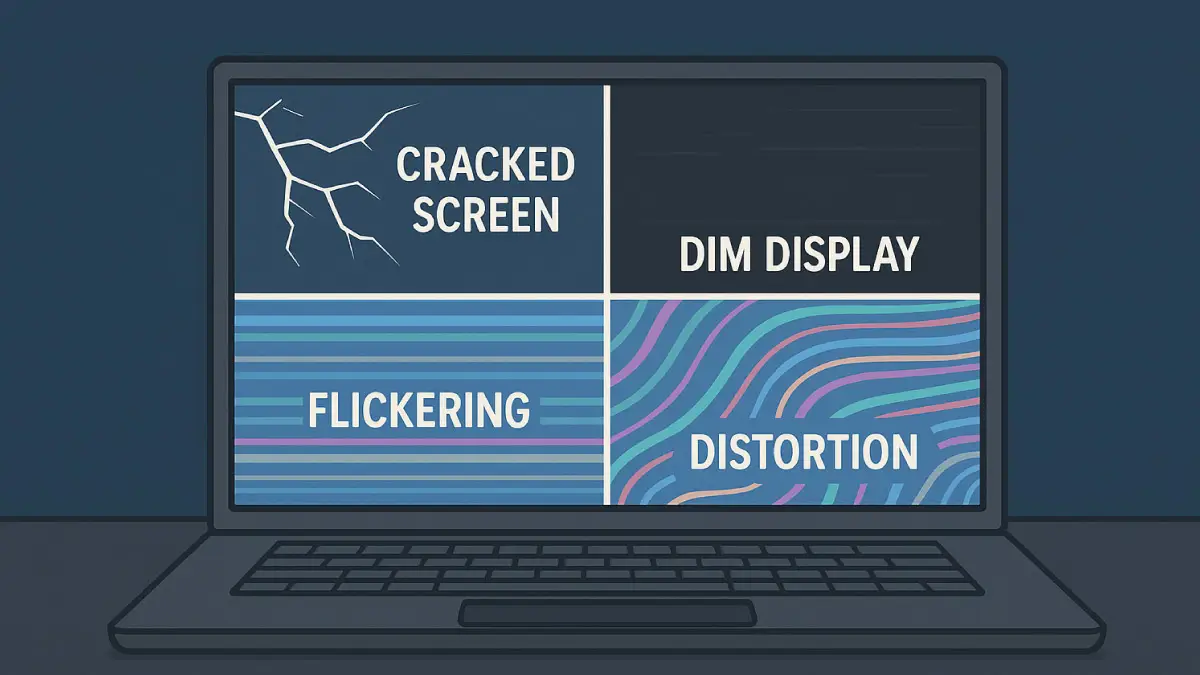
Screen Won’t Turn On
A laptop screen that does not turn on can be very frustrating. It stops you from using your device and interrupts your work. Many problems cause the screen to stay black or blank. Some issues are simple and easy to fix. Others might need more attention or a professional’s help.
This section guides you through basic checks. These steps help you find out what might be wrong. Follow them carefully to save time and avoid extra costs.
Check Power And Connections
Make sure your laptop is plugged into a power source. A dead battery can cause the screen to stay off. Check the power adapter and cable for damage. Try a different power outlet if needed. Look for any loose connections around the screen and laptop body. Sometimes, a small disconnect can cause the display to fail.
Adjust Brightness Settings
Check the brightness level of your screen. It might be set to the lowest, making it look like it is off. Use the brightness keys on your keyboard to increase the light. Some laptops have a function key combination for this. Try adjusting brightness in the system settings if the keys do not work.
Test With External Monitor
Connect your laptop to an external monitor or TV. Use the correct cable, such as HDMI or VGA. This test shows if the problem is with the laptop screen or the graphics system. If the external monitor works, the laptop screen may need repair or replacement. If it does not, the issue could be deeper in the laptop’s hardware.
Flickering Or Blinking Screen
A flickering or blinking laptop screen can be frustrating and distracting. This issue might cause your screen to go dark briefly or flash repeatedly. It often signals a problem with your display settings, hardware, or drivers. Fixing it quickly helps avoid further damage and improves your work experience.
Update Display Drivers
Old or corrupted display drivers can cause screen flickering. Check for updates in your device manager or use the laptop manufacturer’s website. Installing the latest driver may solve the problem immediately. Keeping drivers up to date ensures smooth screen performance.
Inspect Screen Cable
A loose or damaged screen cable can cause blinking issues. Carefully open the laptop and check the cable connecting the screen to the motherboard. Secure or replace the cable if needed. A faulty cable often leads to unstable screen behavior.
Disable Hardware Acceleration
Hardware acceleration sometimes conflicts with your screen display. Turning it off can stop flickering in many cases. Find this option in your browser or app settings and disable it. This step helps avoid unnecessary stress on your graphics hardware.
Dead Pixels And Lines
Dead pixels and lines on a laptop screen can be frustrating. These tiny spots or streaks stay stuck and do not change with the screen content. They can make reading or watching videos harder. Knowing how to find and fix these screen problems saves time and money.
Identify Stuck Pixels
Stuck pixels look like tiny dots that stay the same color. They can be red, green, blue, or white. Dead pixels are usually black. Lines on the screen appear as thin, unchanging stripes. Check the screen against different backgrounds. Use solid colors like black, white, red, or blue. This helps to see if pixels or lines stay still and do not change.
Use Pixel Fixing Tools
Pixel fixing tools can help. These tools flash colors rapidly on the screen. This may reset stuck pixels. Many websites offer free pixel fixer programs. Run the tool for 10 to 30 minutes. Sometimes gentle pressure with a soft cloth helps. Be careful not to press too hard or damage the screen.
When To Seek Professional Help
If stuck pixels or lines remain after trying fixes, it may be time to get help. Screen damage or hardware problems need expert care. Professionals can test the screen and replace parts if needed. This ensures your laptop works well again. Do not try to open the screen yourself unless you know how.
Screen Resolution Issues
Screen resolution issues can make your laptop display look blurry or stretched. Text and images may appear unclear or too large. This can affect your work and entertainment experience. Fixing resolution problems helps your screen look sharp and clear. It also improves comfort during use.
Adjust Display Settings
Open your laptop’s display settings to change resolution. Choose the recommended resolution for the best view. Avoid resolutions that make icons or text look too big or small. Adjust scaling if needed to improve clarity. Save changes and check if the screen looks better.
Update Graphics Drivers
Old or faulty graphics drivers cause resolution problems. Visit your laptop’s support site to download the latest drivers. Install updates carefully and restart your laptop. New drivers improve screen performance and fix bugs. This step often solves many display issues.
Use Manufacturer Recommended Resolutions
Each laptop screen has a native resolution set by the manufacturer. Use this resolution for the best picture quality. Avoid using lower or higher settings that distort the display. Check your laptop manual or website for the correct resolution. Stick to these settings to keep your screen sharp and clear.
Screen Goes Black Randomly
Experiencing a laptop screen that goes black randomly can be frustrating. This issue disrupts work and causes confusion. It may happen during use or when the laptop is idle. Several common causes can lead to this problem. Troubleshooting step-by-step helps identify the root cause quickly.
Check Power Saving Modes
Power saving modes sometimes turn off the screen to save battery. These settings may activate too soon or incorrectly. Open your laptop’s power settings. Look for options like sleep, hibernate, or screen timeout. Adjust the time to a longer period or disable them temporarily. This simple step can stop the screen from going black unexpectedly.
Test For Overheating
Overheating can cause the screen to shut off to protect hardware. Feel the bottom and sides of your laptop. If it feels very hot, overheating might be the issue. Use a cooling pad or clean the vents to improve airflow. Avoid using the laptop on soft surfaces like beds or couches. Keep the laptop on a hard, flat surface for better cooling.
Run Hardware Diagnostics
Hardware problems may cause the screen to flicker or go black. Many laptops have built-in diagnostics tools. Restart the laptop and press the key for diagnostics (like F12 or Esc). Follow the on-screen instructions to test the display and graphics. This test shows if there is a hardware fault. If errors appear, professional repair may be needed.
Touchscreen Not Responding
Touchscreen not responding can be frustrating. It stops you from using your laptop easily. Many causes exist, but simple fixes may help. Try cleaning, calibrating, or reinstalling drivers. These steps often solve the problem quickly.
Clean The Screen Surface
Dirt and grease can block touch signals. Use a soft cloth with a little water. Gently wipe the screen in circular motions. Avoid harsh chemicals that can damage the screen. Cleaning helps the screen detect your touch better.
Calibrate Touchscreen
Sometimes the touchscreen needs calibration. This aligns the touch input with the display. Go to the control panel or settings menu. Find the calibration tool and follow the instructions. Calibration improves accuracy and response of the touchscreen.
Reinstall Touch Drivers
Drivers control how hardware works with software. Faulty drivers can cause touch issues. Open device manager and locate touch input devices. Right-click and choose to uninstall the driver. Restart your laptop to reinstall drivers automatically. This often fixes touchscreen problems.
Screen Color Problems
Screen color problems on a laptop can make tasks harder. Colors might look faded, too bright, or oddly tinted. These issues could come from software settings or hardware faults. Fixing them often starts with simple checks and adjustments.
Adjust Color Calibration
Color calibration helps fix wrong colors on your screen. Most laptops have built-in tools for this. Open the color settings and follow the steps to adjust brightness and contrast. This process aligns colors to look natural and clear.
Check For Software Conflicts
Some programs can change screen colors without warning. Graphics drivers or display apps might cause conflicts. Make sure all software is updated to the latest version. You can also disable any recent apps that might affect colors.
Reset Display Settings
Resetting display settings can clear color problems. Go to your laptop’s display options and find the reset button. This action returns colors to the default state. It removes any accidental changes made before.

Frequently Asked Questions
Why Is My Laptop Screen Flickering Randomly?
Screen flickering often means a loose cable or outdated graphics driver. Check your display settings and update your video driver. If flickering continues, hardware issues might be the cause.
How Can I Fix A Black Laptop Screen On Startup?
A black screen usually shows a power or display problem. Try restarting your laptop and checking brightness levels. If still black, test with an external monitor to find the issue.
What Causes Vertical Lines On A Laptop Screen?
Vertical lines are often caused by a damaged screen or loose display cable. Sometimes, graphics card issues can also cause this. Getting professional help may be needed for a fix.
How Do I Solve A Frozen Laptop Screen?
A frozen screen means the system is unresponsive. Press and hold the power button for 10 seconds to restart. Avoid force shutdown if possible to prevent data loss.
Why Is My Laptop Screen Dim Even At Full Brightness?
Dim screens can result from power-saving settings or backlight problems. Check power options and adjust brightness manually. If the issue remains, the backlight or inverter may be faulty.
Conclusion
Laptop screen problems can be fixed with simple steps. Check cables and connections first. Restarting the laptop may solve many issues. Adjust brightness and display settings for better view. Use built-in tools to run screen tests. If the screen stays blank, consider professional help.
Regular care keeps the screen working well. Troubleshooting saves time and avoids extra costs. Stay patient and follow each step carefully. Your laptop screen can work like new again.