Are you struggling to get your conference camera working right when you need it most? Connection issues can turn your important meetings into frustrating experiences.
But don’t worry—this guide is here to help you fix those problems quickly and easily. By the end, you’ll know exactly what to check and how to solve common camera connection issues, so your next video call goes smoothly. Keep reading, and take control of your conference camera setup today.
Common Camera Connection Problems
Camera connection issues are common in conference settings. They disrupt meetings and cause frustration. Knowing common problems helps solve them fast. Troubleshooting becomes easier with this knowledge.
Understanding typical camera issues saves time. It ensures smooth video calls and clear communication. Let’s explore the frequent camera connection problems and their signs.
No Video Signal
The camera shows no video on the screen. This may happen due to loose cables or wrong input settings. Check if the cable is plugged in tightly. Verify the right source is selected on your device.
Sometimes, the camera driver may not be installed. Restarting the device can also fix this problem. Power issues with the camera or USB ports cause no signal too.
Intermittent Video Feed
The video feed cuts in and out during calls. This issue often stems from poor cable connections or faulty USB ports. Wireless cameras may face interference from other devices.
Outdated drivers or software bugs can cause unstable video. Try reconnecting the camera or switching cables to fix it. Keep your device software updated for smooth video feeds.
Camera Not Recognized
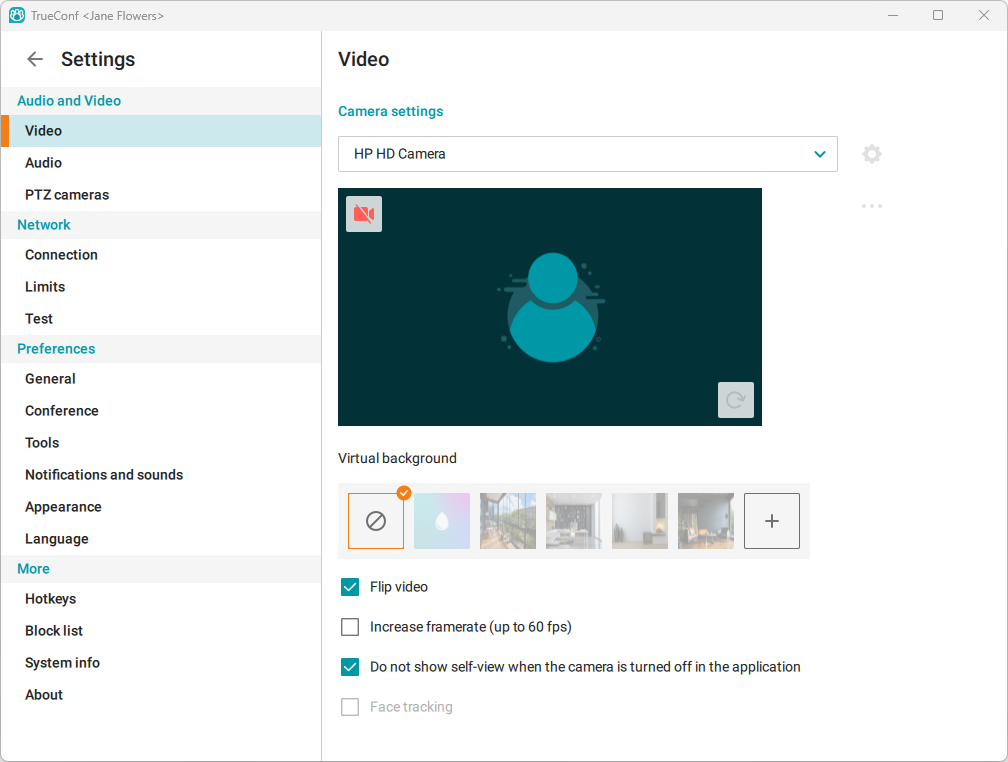
Your device fails to detect the camera. This can be due to missing drivers or incompatible hardware. USB ports might be damaged or disabled in settings.
Try connecting the camera to another port or computer. Updating or reinstalling drivers often solves recognition problems. Check device permissions to ensure the camera is allowed access.
Poor Video Quality
The video appears blurry, pixelated, or dark. Dirty camera lenses or low lighting cause poor quality. Adjust camera focus and clean the lens gently.
Network speed impacts video clarity in online meetings. Slow internet causes lag and pixelation. Use a wired connection or improve Wi-Fi signal for better quality.
Basic Troubleshooting Steps
Conference camera connection issues can disrupt meetings and waste time. Basic troubleshooting steps help fix common problems fast. Follow simple checks to get your camera working again. These steps suit most cameras and setups.
Check Physical Connections
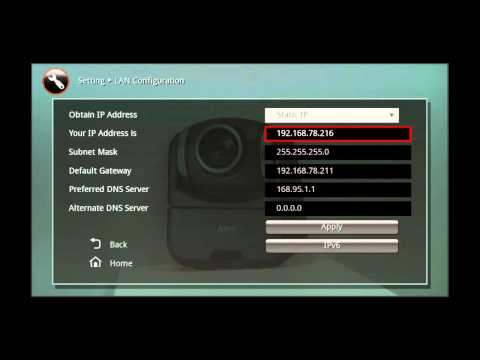
Start by inspecting all cables. Make sure the camera’s USB or HDMI cable is firmly plugged in. Loose or damaged cables can stop the camera from working. Try another cable if you have one. Also, check if the camera is powered on.
Restart Devices
Turn off the camera and computer or meeting device. Wait about 30 seconds before turning them back on. Restarting clears temporary glitches and refreshes device settings. This often solves connection problems quickly.
Update Camera Drivers
Outdated drivers cause many camera issues. Visit the camera maker’s website to download the latest driver. Install updates following the instructions. Updated drivers improve compatibility and fix bugs.
Verify Camera Settings
Check the camera settings on your computer or conference app. Make sure the correct camera is selected. Adjust privacy settings to allow camera access. Also, check resolution and other settings for proper video quality.
Network And Software Issues
Network and software problems often cause conference camera connection issues. A weak network or wrong software settings can stop the camera from working well. Fixing these problems improves video quality and stops interruptions during meetings.
Test Network Stability
Check your internet speed and connection quality. Use tools like speedtest.net to measure upload and download speeds. Ensure your network is steady without frequent drops. A stable network helps your camera send clear video without lag or freezing.
Adjust Firewall Settings
Firewalls may block camera access to conferencing apps. Open your firewall settings and allow the conferencing software. This step lets the camera connect to the internet safely. Without this, the camera might not work or show errors.
Update Conferencing Software
Old software versions can cause bugs and connection problems. Regularly update your conferencing app to the latest version. Updates often fix bugs and improve device compatibility. This keeps your camera running smoothly with the software.
Reset Software Preferences
Wrong software settings can stop the camera from working. Reset the app’s settings to default to clear errors. This step restores proper connection settings and fixes many camera issues. It is a quick way to solve software-related problems.
Advanced Fixes
Advanced fixes help solve stubborn conference camera connection problems. These steps go beyond basic checks. They target deeper hardware and software issues. Follow these methods carefully for better results.
Try each fix one at a time. This way, you can find the exact cause of the problem.
Use Different Usb Ports
Try plugging the camera into another USB port on your computer. Some ports may not work correctly. Ports on the back of a desktop often provide better power. Avoid using USB hubs, as they can cause connection problems. Changing the port can refresh the connection.
Try Another Computer
Test the camera on a different computer. This helps check if the problem is with the camera or the original device. If the camera works on another computer, the issue is likely software or driver related on the first one. If it does not work, the camera hardware may be faulty.
Replace Cables And Adapters
Faulty cables or adapters can cause connection issues. Use a new or known working cable to connect the camera. Avoid using cheap or damaged cables. If you use adapters, try swapping them with better ones. This simple step often fixes signal problems.
Reset Camera Hardware
Unplug the camera and power it off. Wait about 30 seconds before reconnecting it. Some cameras have a reset button or option. Check your camera manual for exact reset instructions. Resetting clears temporary glitches and refreshes the device.
Preventive Measures
Preventive measures help avoid conference camera connection issues. Taking small steps can save time and reduce frustration during meetings. Regular care keeps your equipment working smoothly and reliably.
Regular Software Updates
Keep your camera software up to date. Updates fix bugs and improve performance. Check for updates often and install them promptly. This prevents many connection problems before they start.
Proper Cable Management
Organize cables neatly to avoid damage. Tangled or bent cables cause signal loss and disconnections. Use clips or ties to secure cables safely. Proper management extends cable life and keeps connections strong.
Routine Equipment Checks
Test your camera and connections regularly. Look for loose plugs or worn cables. Clean lens and connectors gently to maintain clarity. Early checks catch problems before meetings begin.
Backup And Restore Settings
Save your camera settings as a backup. If settings change or get lost, restore them quickly. This saves time and keeps your setup consistent. Regular backups protect against unexpected issues.
Frequently Asked Questions
Why Won’t My Conference Camera Connect To My Computer?
Check if the USB or HDMI cable is properly plugged in. Restart your computer and camera. Try using a different port or cable to rule out hardware issues.
How Do I Fix Blurry Or Poor Video From My Camera?
Clean the camera lens gently with a soft cloth. Adjust the focus settings on the camera or software. Ensure good lighting in the room to improve video quality.
What Should I Do If My Camera Is Not Recognized By Software?
Make sure the camera driver is installed and updated. Close other apps that might use the camera. Restart the software or computer to refresh the connection.
Why Does My Camera Disconnect During A Video Call?
Check your internet connection for stability and speed. Avoid moving the camera cable while in use. Close background apps that may use bandwidth.
How Can I Improve Audio When Using A Conference Camera?
Use an external microphone if the built-in mic is poor. Place the mic close to the speaker for clear sound. Reduce background noise by muting others when not speaking.
Conclusion
Troubleshooting conference camera issues can save time and stress. Check cables and connections first. Restart devices to refresh the system. Update software to fix bugs and improve performance. Test the camera on another device if problems continue. Clear any obstructions blocking the camera lens.
Use these simple steps to keep your meetings smooth. Good preparation helps avoid last-minute technical troubles. Stay calm and work through each step patiently. This approach ensures better video calls and less frustration.