Is your Fios router acting up right when you need it most? Slow speeds, dropped connections, or no internet at all can be frustrating, especially when you rely on your network every day.
But don’t worry—you’re not alone, and fixing these issues might be simpler than you think. In this guide, you’ll discover easy, step-by-step troubleshooting tips that anyone can follow. By the end, you’ll know exactly how to get your Fios router back on track and enjoy a smooth, fast connection again.
Keep reading to take control of your internet and stop letting technical glitches hold you back.
Common Fios Router Issues
Fios routers are reliable devices for home internet. Still, users face some common issues. These problems affect internet speed and connectivity. Knowing these issues helps in quick troubleshooting.
Connection Drops
Connection drops happen when the internet cuts out suddenly. This issue may occur due to weak Wi-Fi signals or interference. Sometimes, outdated router firmware causes drops. Restarting the router often restores the connection.
Slow Speeds
Slow internet speeds make browsing and streaming frustrating. Heavy network traffic or many connected devices cause slowdowns. The router’s location also affects speed. Placing it in an open area improves performance.
No Internet Access
No internet access means the router is on, but no connection exists. This problem may stem from service outages or wrong settings. Checking cables and restarting the router can fix this. Contacting the internet provider helps if the issue persists.
Router Not Powering On
The router not powering on stops all internet access. This issue can result from a faulty power adapter or outlet. Testing the power source and using a different adapter might help. If the router still won’t turn on, it may need replacement.
Basic Troubleshooting Steps
Basic troubleshooting steps help fix common Fios router issues fast. These steps are easy to follow and do not need special skills. Start with simple checks before trying advanced solutions. This approach saves time and often restores your internet connection quickly.
Restarting The Router
Turn off your Fios router and unplug it from power. Wait 30 seconds to 1 minute. Plug it back in and turn it on. Restarting clears temporary glitches and refreshes the connection. This step often fixes slow or no internet problems.
Checking Cables And Connections
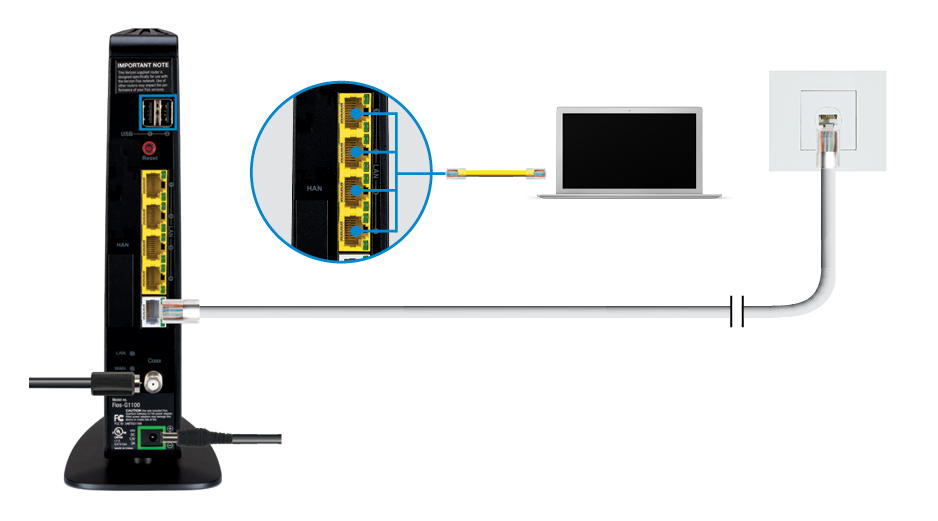
Look at all cables linked to the router. Make sure each cable fits tightly and is not damaged. Check the power cable, Ethernet cables, and coaxial cables. Loose or broken cables cause connection issues. Secure or replace any faulty cables to improve signal strength.
Verifying Service Status
Check if there is a service outage in your area. Visit the Fios service status page or use their app. Outages can interrupt your internet without any router fault. Knowing the status helps avoid unnecessary troubleshooting steps.
Testing With Different Devices
Try connecting to the router with other devices like phones or laptops. This helps find if the problem is device-specific or affects all devices. If only one device has issues, restart or update it. If all devices fail, focus on the router or service.
Advanced Router Settings
Advanced router settings help you control your Fios internet better. These settings let you fix issues and improve connection speed. Understanding these options can save time and avoid calling support. Basic knowledge can help you get the most from your router.
Accessing Router Admin Panel
To change advanced settings, open the router admin panel. Enter your router’s IP address in a web browser. Usually, it is 192.168.1.1 or 192.168.0.1. You will see a login page. Use the username and password from your router’s label or manual. This panel shows all the router settings.
Updating Firmware
Firmware is the software inside your router. It controls how the router works. Check for updates in the admin panel. New firmware fixes bugs and adds features. Download and install updates carefully. Keep your router connected during the update. Updated firmware can improve speed and security.
Resetting To Factory Defaults
Resetting clears all your custom settings. It returns the router to the original state. Use a small pin to press the reset button for 10 seconds. This can fix many problems. You will lose Wi-Fi names and passwords. Set up your router again after resetting.
Changing Wi-fi Channels
Wi-Fi channels are paths your signal uses. Many nearby routers can cause interference. Change the channel to reduce this problem. In the admin panel, find the wireless settings. Select a less crowded channel. This can improve your Wi-Fi speed and stability.
Optimizing Router Performance
Optimizing your Fios router can boost your internet speed and reliability. Small changes in setup help improve performance. This section shows simple steps to get better results from your router.
Positioning The Router
Place your router in an open, central spot in your home. Avoid hiding it in cabinets or behind furniture. Keep it away from walls and metal objects. Higher positions, like shelves, give better signal reach. This helps your devices get stronger Wi-Fi signals.
Managing Connected Devices
Too many devices slow down your network. Disconnect devices not in use to free up bandwidth. Check your router settings to see connected devices. Prioritize important devices for faster speed. This keeps your network smooth and less crowded.
Using Wired Connections
Use Ethernet cables for devices needing fast, steady internet. Wired connections reduce interference and lag. Connect gaming consoles, smart TVs, and computers directly to the router. This improves speed and stability for critical devices.
Enabling Qos Features
Quality of Service (QoS) helps prioritize traffic on your network. Turn on QoS in your router settings to give priority to important tasks. Streaming and video calls get faster, smoother connections. This balances your internet use for better overall performance.
When To Contact Fios Support
Knowing when to contact Fios support can save time and reduce frustration. Some issues require professional help beyond basic troubleshooting. Recognizing these situations helps you get the right assistance quickly.
Persistent Connectivity Issues
Sometimes your internet connection drops often or runs very slow. Restarting your router may not fix this problem. Persistent connectivity issues can mean a deeper technical problem. Contact Fios support if your connection fails after multiple resets.
Hardware Replacement
Your router or modem might stop working correctly. Lights not turning on or strange noises are warning signs. Fios support can check if your device needs replacement. Do not try to fix hardware problems yourself to avoid damage.
Service Outages
Internet or TV service may suddenly stop without warning. Service outages affect many users in your area. Checking for an outage is easy with Fios support help. They provide updates on repair times and alternative solutions.
Account And Billing Problems
Billing errors or account access problems can be confusing. Charges you do not recognize need quick attention. Fios support can help resolve billing disputes and update your account details. Contact them to avoid service interruptions caused by account issues.

Frequently Asked Questions
How Do I Reset My Fios Router Safely?
To reset your Fios router, press and hold the reset button for 10 seconds. This restores factory settings and clears issues. Remember, you will lose custom settings after reset.
Why Is My Fios Router Not Connecting To The Internet?
Check if all cables are properly plugged in and the modem is on. Restart your router and modem to refresh the connection. Contact support if the issue persists.
How Can I Improve Wi-fi Speed On My Fios Router?
Place your router in a central, open area away from walls and devices. Change the Wi-Fi channel in settings to reduce interference. Update your router firmware regularly.
What Does The Fios Router’s Blinking Light Mean?
A blinking light usually shows the router is booting or trying to connect. Slow blinking can mean a weak signal or connection issue. Refer to the manual for specific light codes.
How Do I Update My Fios Router Firmware?
Log into your router’s web interface using its IP address. Look for the firmware update section and follow the prompts. Keep your router updated for better security and performance.
Conclusion
Troubleshooting your Fios router can fix most common issues quickly. Restarting the router often solves connection problems. Checking cables and settings helps find simple mistakes. Keeping your router’s firmware updated improves performance and security. If problems continue, contacting customer support is a smart step.
Small actions can make a big difference in your internet experience. Stay patient and follow these tips for smoother Wi-Fi. Reliable internet is possible with a little care and attention.