Have you ever stared at your desktop, feeling stuck when something suddenly stops working? It’s frustrating, right?
But before you call for help or panic, there’s a good chance you can fix the problem yourself. Knowing a few basic desktop troubleshooting steps can save you time, money, and stress. You’ll discover simple, clear solutions that anyone can use to get their computer running smoothly again.
Ready to take control of your desktop issues? Keep reading, and you’ll be surprised how easy it can be.
Boot Problems
Boot problems are common issues that stop your computer from starting properly. These problems can cause frustration and delay your work. Understanding the common boot issues helps fix them quickly. The most frequent boot problems include no power or display, being stuck on the loading screen, and frequent restarts. Each issue has simple troubleshooting steps to get your desktop running again.
No Power Or Display
Your desktop may show no sign of power or no display on the screen. First, check if the power cable is firmly plugged in. Confirm the power outlet works by testing it with another device. Look for any loose connections inside the desktop case. Press the power button and listen for any sounds like fans or beeps. If nothing happens, the power supply might be faulty. Also, check the monitor cable and power. Try connecting the monitor to a different computer to rule out screen issues.
Stuck On Loading Screen
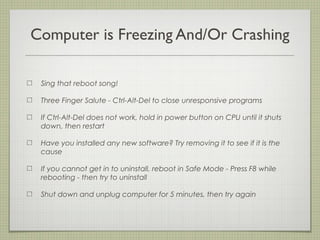
The computer may freeze on the loading screen during startup. This can happen due to software errors or hardware problems. Try restarting the computer to see if the issue repeats. Disconnect all external devices like USB drives or printers. Boot the computer in safe mode to bypass some software problems. If the problem continues, it may be due to corrupted system files or a failing hard drive. Running a system repair or checking the disk for errors can help.
Frequent Restarts
Sometimes, the desktop restarts again and again without warning. This can be caused by overheating or hardware failure. Check if the computer feels hot and clean any dust from vents and fans. Overheating can cause the system to shut down to protect itself. Faulty RAM or power supply issues may also cause restarts. Run a memory test or swap hardware parts if possible. Updating drivers and checking for malware can reduce unexpected restarts.
Slow Performance
Slow performance on a desktop can be frustrating. Tasks take longer. Programs respond slowly. This issue often happens because the computer is working too hard in the background or has too many files clogging its system.
Fixing slow performance starts with simple checks. Some steps clear the system and speed things up. These easy actions improve the computer’s response time.
Checking Background Processes
Background processes use computer resources without your notice. Some programs run even if you do not open them. These consume CPU and memory power. Open the Task Manager by pressing Ctrl + Shift + Esc. Look for processes using high CPU or memory. End tasks that seem unnecessary. This frees up resources and speeds up the system.
Managing Startup Programs
Many programs start automatically when the computer turns on. Too many startup programs slow the boot time and overall speed. Open Task Manager and go to the Startup tab. Disable programs that are not important. This makes the computer start faster and run smoother after booting.
Clearing Temporary Files
Temporary files build up over time and take space. These files slow down the computer by cluttering the system. Use the Disk Cleanup tool to remove these files. Select temporary files, cache, and recycle bin items. Cleaning up frees disk space and improves speed.
Internet Connectivity Issues
Internet connectivity issues can disrupt your work and daily activities. Simple fixes often solve these problems quickly. Understanding basic steps can save time and reduce frustration.
Start with easy checks before calling for help. This guide covers key steps to get your connection back.
Restarting Network Devices
Turn off your modem and router. Wait for 30 seconds. Turn them back on. This refreshes the connection and clears temporary faults. It often fixes slow or lost internet access.
Resetting Network Settings
Resetting network settings clears wrong configurations. On Windows, use the Network Reset tool in Settings. On Mac, remove and re-add Wi-Fi networks. This step helps fix persistent connection errors.
Troubleshooting Wi-fi Problems
Check if Wi-Fi is enabled on your device. Move closer to the router for a stronger signal. Forget the Wi-Fi network and reconnect by entering the password again. Avoid interference from other electronics nearby.
Peripheral Device Problems
Peripheral devices are essential parts of your computer setup. They include printers, keyboards, mice, and external drives. Sometimes these devices stop working properly. Troubleshooting these issues can save time and avoid frustration.
Most problems with peripherals come from connection issues or driver errors. Simple checks often fix these troubles quickly. Let’s explore common problems and solutions for peripheral devices.
Printer Not Responding
Printers often fail to respond due to connection problems. Check if the printer is turned on and connected to the computer. Use the correct USB port or Wi-Fi network. Restart both the printer and computer to refresh connections.
Update or reinstall printer drivers to fix software glitches. Clear any stuck print jobs in the printer queue. Ensure there is enough paper and ink to avoid interruptions.
Keyboard And Mouse Issues
Keyboard and mouse problems usually arise from loose or faulty connections. Verify that cables are plugged in securely. Wireless devices need charged batteries and stable Bluetooth or USB receivers.
Try connecting the devices to another USB port. Restart your computer to reset hardware recognition. Update drivers for better compatibility with your operating system.
External Drive Recognition
External drives sometimes do not show up on your computer. Confirm the drive is powered on and properly connected. Use a different USB port or cable to check for hardware faults.
Open Disk Management to see if the drive is detected but not assigned a letter. Assign a drive letter manually if needed. Scan for driver updates or run hardware troubleshooter for extra help.
Software Crashes And Freezes
Software crashes and freezes are common problems on desktop computers. These issues disrupt work and cause frustration. Understanding simple steps can help fix these problems quickly.
Crashes happen when a program stops working unexpectedly. Freezes occur when the software becomes unresponsive. Both can result from outdated software, viruses, or conflicting applications.
Updating Software And Drivers
Old software often causes crashes. Updating programs keeps them stable and secure. Check for updates in the app’s settings or on the official website. Also, update device drivers. Drivers help hardware and software work together. Outdated drivers can cause freezes or errors. Use the device manager or manufacturer’s site to download the latest drivers.
Running Virus Scans
Viruses and malware can damage software. They cause programs to crash or freeze. Run a full virus scan using trusted antivirus software. Scanning removes harmful files from the system. Set regular scans to keep the computer safe. This step improves performance and stops future problems.
Checking For Conflicting Applications
Some apps do not work well together. Conflicts cause crashes or slow performance. Close all open programs before running one. If crashes continue, uninstall recently added software. Use task manager to see which apps use high resources. Disable or remove apps that cause issues. This helps keep the system stable and smooth.

Display And Graphics Issues
Display and graphics issues can disrupt your work and cause frustration. These problems may include blurry images, flickering screens, or incorrect colors. Understanding basic troubleshooting steps helps you fix these issues quickly. This section covers simple methods to improve your desktop display and graphics.
Adjusting Resolution Settings
The screen resolution affects how clear images and text appear. Set the resolution to match your monitor’s native size. Go to your desktop, right-click, and choose “Display settings.” Select the recommended resolution for sharp visuals. Changing resolution can solve blurry or stretched displays.
Fixing Flickering Screens
Screen flickering can cause eye strain and headaches. Check if the monitor cable is loose or damaged. Try reconnecting or replacing the cable. Adjust the refresh rate in display settings to a higher value. Flickering often stops by correcting these simple issues.
Updating Graphics Drivers
Graphics drivers control how your computer displays images. Outdated drivers can cause crashes or poor graphics. Visit the graphics card manufacturer’s website to download the latest driver. Install it following the provided steps. Updated drivers improve performance and fix many display problems.
Audio Problems
Audio problems on a desktop can be frustrating. Sometimes, sound stops working without a clear reason. Basic checks often fix these issues. Follow simple steps to find and solve audio problems quickly.
Checking Sound Settings
Start by checking your sound settings. Click the speaker icon on the taskbar. Make sure the volume is not muted or too low. Open the sound control panel for more options. Verify the correct playback device is selected. Sometimes, the system plays sound through the wrong device.
Troubleshooting No Sound
No sound can mean many things. Check if your speakers or headphones are properly connected. Test the audio on another device to rule out hardware issues. Restart your computer to reset the audio system. Run the built-in audio troubleshooter in Windows. It can find and fix common sound problems automatically.
Updating Audio Drivers
Outdated or missing audio drivers cause sound issues. Open Device Manager and locate your audio device. Right-click and select “Update driver.” Choose automatic search for updated software. Windows will find and install the latest drivers. Restart your computer after updating to ensure changes take effect.
Data Backup And Recovery
Data backup and recovery are essential steps in desktop troubleshooting. They protect your important files and help restore your system after issues. Without backups, you risk losing valuable data. Recovery tools can bring back deleted files or undo system changes.
Creating Regular Backups
Back up your data regularly to avoid loss. Use external drives or cloud storage for safety. Set a schedule to back up daily or weekly. Make sure to include documents, photos, and important settings. Regular backups ensure you have copies ready when problems occur.
Using System Restore
System Restore helps fix computer issues without losing personal files. It creates restore points automatically or manually. These points save system settings and drivers. If your desktop acts strange, restore it to an earlier point. This method can solve crashes and software problems quickly.
Recovering Deleted Files
Accidentally deleted a file? Don’t panic. Check the Recycle Bin first. If it’s empty, use file recovery software. These tools scan your hard drive for lost files. Act fast to increase the chance of recovery. Avoid saving new data to prevent overwriting lost files.
Basic Maintenance Tips
Basic maintenance keeps your desktop running smoothly. It prevents common problems and saves time. Simple tasks done regularly improve your computer’s life and speed. Here are some easy tips to follow.
Keeping Software Updated
Software updates fix bugs and add security. Updates make your system safer from threats. Always install updates for your operating system and apps. Set your computer to update automatically. This keeps your software current without extra effort.
Regular Hardware Cleaning
Dust and dirt can harm your computer parts. Clean your desktop and keyboard often with a soft cloth. Use compressed air to remove dust inside vents and fans. Avoid liquids near your computer to prevent damage. Clean hardware helps your computer stay cool and work well.
Monitoring System Health
Check your computer’s health to spot problems early. Use built-in tools to monitor disk space and memory. Watch for slow performance or unusual noises. Run antivirus scans regularly to catch malware. Keeping an eye on system health avoids bigger issues later.
Frequently Asked Questions
What Are The First Steps In Basic Desktop Troubleshooting?
Start by checking if the desktop is properly plugged in and turned on. Ensure all cables are secure and the power source works.
How Do I Fix A Desktop That Won’t Start?
Try restarting the computer and check for any error lights or sounds. If it still won’t start, check the power supply and connections.
Why Is My Desktop Running Very Slowly?
Slow desktops often mean too many programs running at once or low disk space. Close unused apps and free up storage to improve speed.
How Can I Troubleshoot Desktop Display Problems?
Check if the monitor is connected well and turned on. Adjust brightness and resolution settings, or try a different cable.
What Should I Do If My Desktop Won’t Connect To The Internet?
Restart your router and desktop. Check the network cable or Wi-Fi settings to ensure the desktop is properly connected.
Conclusion
Basic desktop troubleshooting helps solve many common computer problems. Start with simple checks like cables and power. Restarting the computer often fixes small errors. Running antivirus scans keeps your system safe. Learning these steps saves time and money. Small efforts prevent bigger issues later.
Keep your desktop clean and updated. Practice these easy tips regularly. Your computer will run smoother and last longer. Troubleshooting becomes easier with experience. Stay patient and keep trying. You can handle basic desktop problems confidently.