Is your PC acting up when you least expect it? You’re not alone.
Whether it’s freezing, running slow, or refusing to turn on, these issues can be frustrating. But before you panic or call a technician, there are simple steps you can take to fix many common problems yourself. You’ll discover easy and effective basic PC troubleshooting tips that anyone can use.
By the end, you’ll feel more confident handling your computer troubles and saving both time and money. Ready to take control of your PC’s health? Let’s dive in.
Common Pc Issues
Many people face common problems with their PCs. These issues can slow down work and cause frustration. Understanding these problems helps fix them faster. Simple steps often solve many PC troubles.
Slow Performance
Slow computers make tasks take longer. Too many programs running at once can cause this. Lack of free space on the hard drive also slows a PC. Viruses or malware can affect speed too. Cleaning up files and closing unused apps helps.
Startup Problems
Some PCs do not start properly. The screen may stay black or show errors. This can happen because of corrupted files or hardware issues. Checking cables and removing external devices can help. Safe mode can also fix startup errors.
Network Connectivity
Internet connection troubles are common. The PC might not connect to Wi-Fi or lose connection often. Restarting the router and PC often restores access. Checking network settings and drivers can fix these issues. Sometimes, simple resets solve the problem quickly.
Hardware Malfunctions
Hardware problems cause many PC failures. A faulty keyboard, mouse, or screen limits use. Overheating can shut down the computer unexpectedly. Dust and loose connections often cause hardware faults. Cleaning and checking cables can improve hardware function.
Quick Fixes For Slow Pcs
Slow PCs cause frustration and waste time. Simple fixes often improve speed fast. These quick steps clear clutter and free resources. They help your computer run smoother and quicker. Try these easy fixes to boost your PC’s performance today.
Clearing Temporary Files
Temporary files build up and slow your PC. They take space and cause lag. Use the Disk Cleanup tool or settings to remove them. Clearing these files frees up storage and speeds up your system. Do this regularly to keep your PC clean.
Managing Startup Programs
Many programs start automatically with Windows. Too many startup apps slow boot time and reduce speed. Open Task Manager and check startup items. Disable programs that you do not need right away. This helps your PC start faster and run better.
Running Disk Cleanup
Disk Cleanup removes unnecessary files from your drives. It deletes system cache, logs, and other junk. Run Disk Cleanup from the Start menu or search bar. Select files to delete and confirm. This process frees space and improves computer speed.
Checking For Malware
Malware often causes slow performance and errors. Run a full scan with your antivirus software. Remove any threats found to protect your PC. Keep your antivirus updated for the best protection. Clean systems run faster and more reliably.
Resolving Startup Errors
Startup errors can stop your PC from working right. These errors block the computer from loading the operating system. Fixing startup errors helps your PC boot normally. It saves time and avoids data loss. The following methods guide you through easy steps to fix startup problems.
Safe Mode Booting
Safe Mode runs your PC with only basic files. It helps find problems without extra programs running. To enter Safe Mode, restart your PC and press the F8 key. Choose “Safe Mode” from the list. If your PC starts in Safe Mode, a program or driver may cause the issue. You can remove or update the problem software here.
Repairing Boot Files
Corrupt boot files stop the PC from loading Windows. Repair tools fix these files automatically. Use a Windows installation disk or USB to access repair options. Select “Repair your computer” and then “Startup Repair.” The system scans and fixes broken boot files. This step often solves many startup problems.
Restoring System Settings
System Restore takes your PC back to a working state. It uses saved restore points from earlier dates. Open System Restore from the repair menu or Safe Mode. Pick a restore point before the startup error started. The process does not affect your personal files. It fixes settings and system files to restore normal boot.
Troubleshooting Network Issues
Network problems can stop your PC from connecting to the internet. These issues may cause slow speeds or no connection at all. Fixing network troubles can be simple. Basic steps often solve the problem quickly.
Resetting Network Adapters
Network adapters control your PC’s internet connection. Sometimes, they stop working properly. Resetting them can help restore connection. Open your PC’s settings and find the network section. Look for your network adapter and choose “Disable.” Wait a few seconds, then “Enable” it again. This refreshes the adapter and clears minor errors.
Checking Router And Modem
Routers and modems link your PC to the internet. Power cycling these devices often fixes connection problems. Turn off both devices. Wait 30 seconds. Turn the modem on first, then the router. Wait for all lights to stabilize. This resets your internet connection and clears network issues.
Updating Network Drivers
Network drivers help your PC communicate with hardware. Outdated drivers cause connection problems. Check for updates in the device manager. Find your network adapter, right-click, and select “Update driver.” Follow instructions to install any updates. Updated drivers improve performance and fix bugs.
Diagnosing Hardware Problems
Diagnosing hardware problems is a key step in fixing PC issues. Hardware faults cause many common computer errors. Finding the problem early saves time and money. It helps avoid unnecessary repairs or replacements.
Start by testing the core parts of your PC. Check connections and update software parts. Each step narrows down the cause of the problem. This process makes troubleshooting more effective and less frustrating.
Testing Ram And Hard Drive
RAM and hard drives often cause system crashes or slowdowns. Use built-in tools to test their health. Windows has “Memory Diagnostic” for RAM checks. For hard drives, run “CHKDSK” to find errors. These tests reveal faulty memory or disk issues quickly.
Remove and reinsert RAM sticks if errors appear. Listen for unusual noises from the hard drive. Strange sounds may mean it is failing and needs replacement.
Checking Peripheral Connections
Loose or faulty cables cause many hardware problems. Check all cables connected to your PC. Make sure USB, HDMI, and power cables fit tightly. Remove and reconnect them to ensure a good connection.
Test devices on another PC to rule out hardware failure. Replace broken cables or peripherals to fix issues fast. Keep ports clean and free of dust for better contact.
Updating Device Drivers
Outdated drivers cause hardware to misbehave or stop working. Open the Device Manager to check driver status. Download the latest drivers from the manufacturer’s website. Update graphics, sound, and network drivers first.
Restart the PC after updates to apply changes. Updated drivers improve performance and fix bugs. Regular updates keep your hardware running smoothly and reliably.
Using Built-in Tools
Using built-in tools helps fix many common PC problems. These tools are free and ready to use on your computer. They check for errors, monitor system health, and manage running programs. Learning how to use them saves time and avoids extra costs.
System File Checker
System File Checker scans your PC for damaged system files. It finds and repairs corrupted or missing files. Open Command Prompt as administrator and type sfc /scannow. The scan takes some time. After it finishes, your system files should be fixed.
Event Viewer
Event Viewer shows detailed logs about system events and errors. It helps identify causes of crashes or slowdowns. Open Event Viewer from the Start menu. Check under “Windows Logs” for warnings and errors. This tool gives clues to what needs fixing.
Task Manager
Task Manager displays running applications and background processes. It shows CPU, memory, and disk usage in real-time. Press Ctrl + Shift + Esc to open it quickly. Use it to stop unresponsive programs or heavy tasks. This helps improve your PC’s speed.
When To Seek Professional Help
Knowing when to ask for professional help can save time and prevent more damage. Some PC problems seem simple but hide bigger issues. Understanding when to stop and call an expert is important. This section helps you decide the right moment to get professional support.
Identifying Complex Issues
Some PC problems are not easy to fix. Crashes that happen often or strange noises inside the PC can be signs of serious trouble. Problems with hardware, like the motherboard or hard drive, need expert attention. If basic fixes do not work, the issue may be complex. Professionals have the tools and skills to find the real cause.
Backing Up Data
Before asking for help, save your important files. Backing up data prevents loss during repairs. Use an external drive or cloud storage for copies. If your PC stops working suddenly, these backups keep your information safe. This step is simple and protects your work and memories.
Choosing A Reliable Technician
Pick a technician with good reviews and experience. Ask friends or read online feedback. A reliable expert offers clear pricing and honest advice. Avoid quick fixes by unknown repair services. Trust matters when handing over your PC. A skilled technician helps solve problems without extra costs.

Frequently Asked Questions
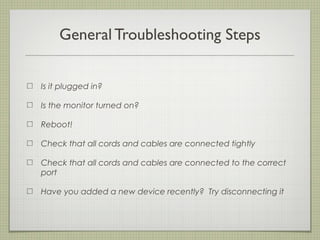
What Are The First Steps In Basic Pc Troubleshooting?
Start by restarting your PC to fix many common issues. Check all cables and connections for tightness. Look for simple errors before trying complex fixes.
How Can I Fix A Slow Computer Easily?
Clear temporary files and unused programs to free space. Run a virus scan to remove malware. Restarting your PC often improves speed too.
Why Won’t My Pc Turn On At All?
Check if the power cable is plugged in and the outlet works. Try pressing the power button longer. If still no power, hardware issues might exist.
How Do I Solve Internet Connection Problems On My Pc?
Restart your router and PC to refresh the connection. Check if Wi-Fi is enabled and connected. Running the network troubleshooter can also help.
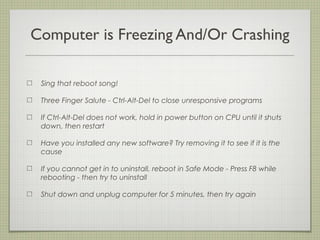
What Should I Do If My Pc Keeps Freezing?
Close unresponsive programs using Task Manager. Make sure your PC has enough free memory and storage. Restarting your computer often stops freezing temporarily.
Conclusion
Basic PC troubleshooting helps fix many common issues quickly. Start with simple checks like cables and power supply. Restarting your computer often solves minor problems. Keep your software and drivers up to date. Regular maintenance prevents many errors and slowdowns.
Don’t ignore warning signs or strange noises. Learning these basics saves time and frustration. Practice these steps to keep your PC running smoothly. Simple actions can make a big difference in performance. Stay calm and follow the process step by step.
Troubleshooting is easier than it seems.