Is your Canon printer acting up right when you need it most? Frustrating paper jams, unclear prints, or connection issues can stop your work in its tracks.
But don’t worry—you’re not alone, and fixing these common problems can be easier than you think. In this guide, you’ll find simple, step-by-step solutions to get your Canon printer back on track quickly. Keep reading, and you’ll save time, avoid costly repairs, and get back to printing with confidence.
Common Canon Printer Issues
Canon printers are popular for their quality and reliability. Still, users often face some common issues. These problems can affect printing speed, quality, and connectivity. Understanding these issues helps in quick troubleshooting and smooth printing.
Paper Jams
Paper jams happen when sheets get stuck inside the printer. This can stop your printing work immediately. Causes include incorrect paper loading or using damaged paper. Remove the jammed paper gently to avoid damage. Check the paper tray and rollers for debris or dust.
Ink Cartridge Problems
Ink cartridge issues are common in Canon printers. Problems include low ink, cartridge not recognized, or leaking ink. Always use compatible cartridges and install them properly. Clean the cartridge contacts to improve connection. Replace empty or damaged cartridges promptly.
Connectivity Errors
Connectivity errors occur when the printer can’t connect to the computer or network. This can be due to wrong settings or weak Wi-Fi signals. Restart the printer and router to refresh connections. Ensure drivers are up to date for smooth communication.
Print Quality Issues
Print quality problems include streaks, faded prints, or blurry text. Dirty print heads or low ink levels often cause this. Run the printer’s cleaning cycle to fix minor clogs. Use high-quality paper for better print results.
Printer Not Responding
The printer may stop responding during print jobs. This can result from software glitches or hardware faults. Restart the printer and check cable connections. Update or reinstall printer drivers to solve software conflicts.
Fixing Paper Jams
Fixing paper jams in Canon printers is a common task. Paper jams stop printing and waste time. Knowing how to handle jams can save stress and costs. This guide explains simple steps to clear paper jams safely and prevent future problems.
Locating Jammed Paper
Open the printer’s main cover gently. Check inside the paper tray and rear access panel. Look for stuck or folded paper pieces. Use a flashlight if needed. Remove any visible jammed paper carefully. Do not force any parts.
Removing Paper Safely
Pull jammed paper slowly and straight. Avoid tearing the paper inside the printer. If paper tears, check for small scraps left inside. Use both hands to keep the paper flat. Close all covers properly after removal.
Preventing Future Jams
Use clean, dry paper that fits printer specs. Fan the paper stack before loading it. Do not overload the paper tray. Keep the printer area dust-free. Regularly check rollers for dirt or wear. Clean rollers gently with a soft cloth.
Resolving Ink Cartridge Issues
Ink cartridge problems are common with Canon printers. They can cause poor print quality or stop printing completely. Fixing these issues quickly saves time and avoids waste.
Check the cartridges regularly. Clean and replace them as needed. This keeps your printer running smoothly and your prints clear.
Replacing Cartridges
Turn off the printer before replacing cartridges. Open the printer cover carefully. Remove the old cartridge by pressing the tab or lifting it out gently.
Take the new cartridge out of its package. Remove any protective tape or covers. Insert the cartridge firmly into its slot until it clicks into place.
Close the printer cover and turn the printer on. Wait for the printer to recognize the new cartridge. Print a test page to check the quality.
Cleaning Print Heads
Print heads can get clogged with dried ink. This causes streaks or missing colors in prints. Use the printer’s built-in cleaning tool to fix this.
Access the cleaning option from the printer menu or software. Run the cleaning cycle once or twice. Print a test page after cleaning.
If the problem continues, clean the print heads manually. Use a soft cloth and warm water. Gently wipe the print heads without damaging them.
Dealing With Cartridge Recognition Errors
The printer may not recognize the cartridge. This can stop printing and show error messages. Remove the cartridge and check for dirt or damage.
Clean the cartridge contacts with a soft, dry cloth. Reinsert the cartridge firmly into its slot. Restart the printer to reset the system.
Use genuine Canon cartridges to avoid recognition issues. Non-original cartridges may not work properly. Contact Canon support if problems persist.

Solving Connectivity Problems
Connectivity problems can stop your Canon printer from working properly. These issues may happen with wired or wireless connections. Fixing them quickly helps you print without delays. Here are easy steps to solve common connection problems.
Wired Connection Troubleshooting
Check the USB or Ethernet cable first. Make sure it is fully plugged into the printer and computer. Try using a different cable if you have one. Inspect the cable for any visible damage or frays.
Restart both your printer and computer. Sometimes, this resets the connection and solves the problem. Also, check the ports on your devices. Clean out any dust or debris gently with a soft cloth.
Update your printer drivers. Outdated drivers can cause connection issues. Visit Canon’s official website to download the latest driver for your printer model.
Wireless Setup And Issues
Confirm your printer is connected to the correct Wi-Fi network. Use the printer’s control panel to check the network name. The signal should be strong and stable.
Restart your router and printer. This can fix many wireless connection problems. Move the printer closer to the router if the signal is weak.
Make sure your computer is on the same network as your printer. Disable any VPN or firewall temporarily to see if they block the connection. Reconnect the printer to Wi-Fi using the setup wizard.
Resetting Network Settings
Resetting network settings clears all saved connections. This step helps fix stubborn connection problems. Use the printer’s menu to find the network reset option.
After resetting, reconnect your printer to the Wi-Fi network. Enter your Wi-Fi password carefully. Test the connection by printing a test page.
Resetting also helps if your printer switches between networks or has wrong IP settings. This process is simple and often solves many network issues.
Improving Print Quality
Print quality affects every page you produce. Poor prints waste ink and paper. Improving print quality helps save resources and gives sharper results. Small changes can make a big difference in how your prints look. Follow these steps to get clear, vibrant prints from your Canon printer.
Adjusting Print Settings
Start by checking your print settings. Choose the correct paper type for your job. Select a higher print quality mode for photos or important documents. Lower quality settings save ink but reduce sharpness. Adjusting resolution can improve details. Use the printer’s control panel or software to make these changes.
Running Printer Maintenance
Regular maintenance keeps the printer working well. Use built-in tools for cleaning print heads. This removes clogged ink and avoids streaks. Align the print heads to fix blurry prints. Check for firmware updates that improve performance. Maintenance prevents many common print quality issues.
Calibrating Colors
Color calibration ensures prints match your screen. Use the printer’s color management settings. Adjust brightness and contrast to suit your needs. Print test pages to compare colors. Fine-tuning colors helps avoid faded or incorrect hues. This step is vital for photo and graphic printing.
Printer Not Responding Fixes
Canon printers sometimes stop responding. This issue can be frustrating and delay your work. Several simple fixes can help get your printer back to normal quickly. These steps focus on basic troubleshooting that anyone can do without technical skills.
Follow the steps below to fix a Canon printer that does not respond. Each method targets a common cause of the problem. Try them one by one until your printer works again.
Restarting The Printer
Turn off the Canon printer using the power button. Unplug it from the power source. Wait at least 60 seconds. Plug the printer back in. Turn it on and check if it responds to print commands. Restarting clears temporary errors that block printer actions.
Checking Driver Installation
Correct printer drivers are essential for communication between your computer and printer. Open the control panel and go to the device manager. Look for the Canon printer under printers or USB devices. If a yellow warning sign appears, the driver may be missing or corrupted. Download and install the latest driver from Canon’s official website to fix this issue.
Updating Firmware
Firmware controls how your printer works internally. Outdated firmware can cause unresponsiveness. Visit Canon’s support page for your printer model. Download the latest firmware update and follow the instructions carefully. Updating firmware often improves printer stability and fixes bugs.
Using Canon Support Tools
Using Canon support tools can save time and reduce printer issues. These tools help users fix problems without stress. They offer easy steps and clear instructions. Support tools include apps, websites, and direct help options. Exploring these tools makes printer troubleshooting simpler.
Canon Print App Features
The Canon Print app connects your phone to the printer. It allows printing photos and documents easily. Users can check ink levels and printer status fast. The app helps with scanning and saving files. It also guides through setup and error fixes.
Online Troubleshooting Resources
Canon’s website has many helpful guides and FAQs. Step-by-step instructions cover common printer problems. Video tutorials explain how to fix errors clearly. Users can download drivers and software updates here. The site helps keep your printer working well.
Contacting Customer Support
Canon offers phone and chat support for printer issues. Support staff provide expert advice and solutions. They help with complex problems that tools cannot fix. Service centers are available for repairs or parts. Contacting support ensures professional help when needed.
Preventive Maintenance Tips
Keeping your Canon printer in good shape saves time and money. Simple care steps stop many common problems before they start. Follow these preventive maintenance tips to keep printing smooth and reliable.
Regular Cleaning Routine
Dust and ink build-up cause printer jams and poor print quality. Wipe the outside with a soft cloth. Clean the paper feed rollers gently to prevent paper jams. Remove ink stains from cartridges carefully. Clean the print head using the printer’s software tool often. This keeps colors bright and lines sharp.
Proper Paper Handling
Use the right paper type for your printer model. Store paper in a dry place to avoid moisture. Load paper neatly into the tray, not too full. Avoid mixing different paper sizes or types in one tray. This prevents paper jams and misfeeds. Always fan the paper stack before loading.
Scheduled Software Updates
Printer software updates fix bugs and improve performance. Check for updates regularly through Canon’s official website or the printer’s control panel. Install updates promptly to keep your printer running smoothly. Updated drivers ensure your printer works with your computer and new software. This reduces errors and connection issues.
Frequently Asked Questions
Why Is My Canon Printer Not Printing?
Your Canon printer might be offline or low on ink. Check the connection and ink levels first. Restarting the printer often fixes the issue.
How Do I Fix Paper Jams In Canon Printers?
Open the printer cover carefully and remove any stuck paper. Avoid tearing the paper inside. Always use the correct paper size and type.
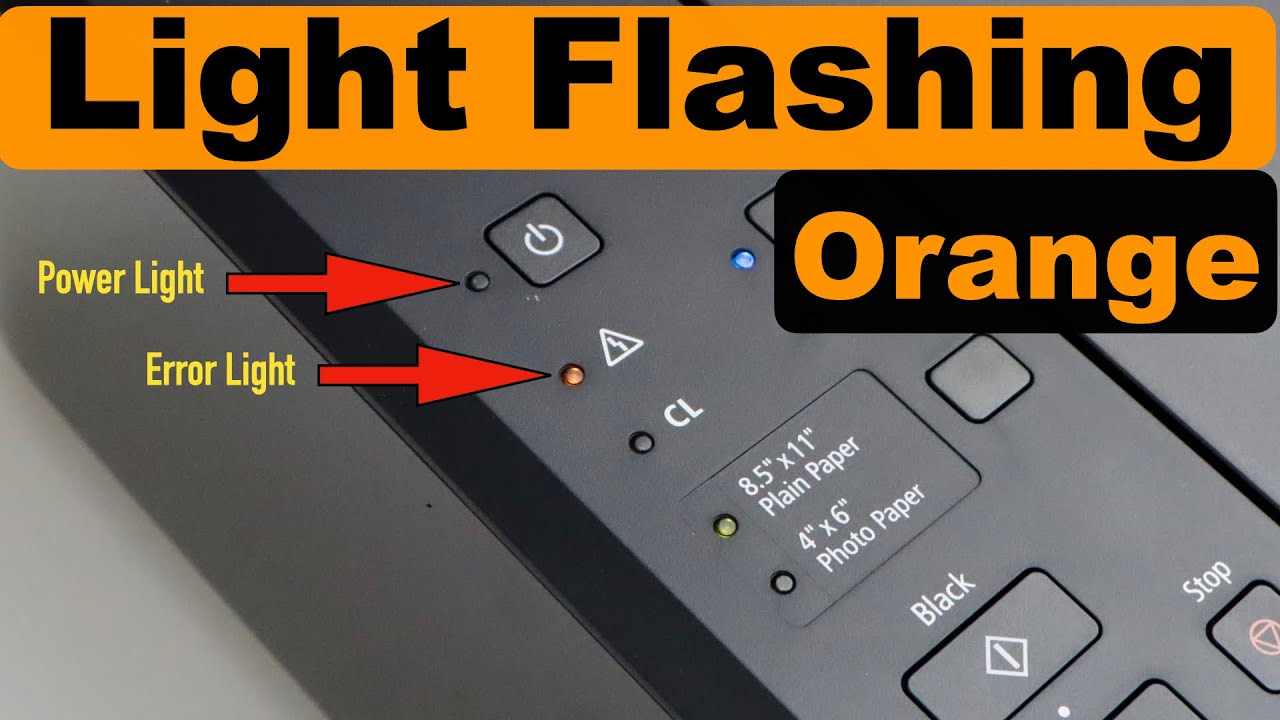
Why Is My Canon Printer Showing A Blinking Light?
A blinking light usually means an error or low ink. Refer to the user manual for specific blink codes. Resetting the printer might help clear the error.
How Can I Update Canon Printer Drivers Easily?
Visit the official Canon website to download the latest drivers. Choose the correct model and operating system. Installing updated drivers improves printer performance.
What Should I Do If My Canon Printer Won’t Connect To Wi-fi?
Check your Wi-Fi network and password. Restart the router and printer. Use the printer’s setup menu to reconnect to the wireless network.
Conclusion
Canon printer problems can be fixed with simple steps. Check cables, ink levels, and paper first. Restart your printer and device to clear errors. Use the printer’s software for guided help. Keep drivers updated for smooth printing. Small fixes save time and money.
Stay calm and follow easy tips. Your Canon printer will work well again. Troubleshooting does not have to be hard. Just try these tips and print with ease.