Are you frustrated because your Dish Network isn’t working the way it should? When your favorite shows won’t play or the signal keeps cutting out, it can feel like a huge hassle.
But don’t worry—fixing common Dish Network problems is easier than you think. In this guide, you’ll discover simple, step-by-step solutions that save you time and stress. Keep reading, and you’ll be back to enjoying your TV in no time.
Signal Problems
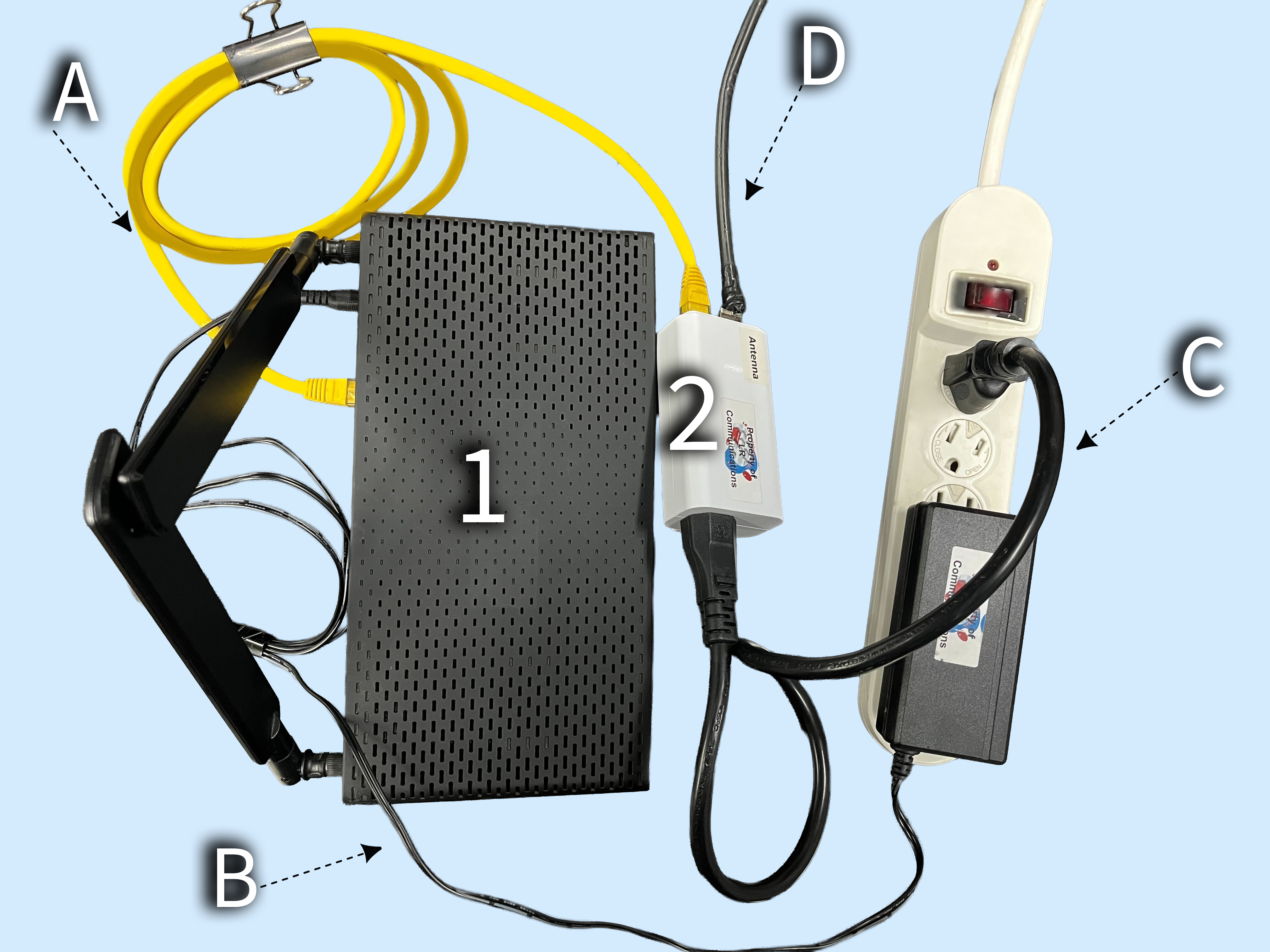
Signal problems can cause your Dish Network service to stop working properly. You might see a frozen screen or lose channels. These issues usually happen because the dish is not aligned or something blocks the signal. Fixing these problems often means checking a few simple things around your equipment.
Check Dish Alignment
The satellite dish must point exactly at the right spot in the sky. Small changes in position can cause signal loss. Use a signal meter or the receiver’s signal strength menu to check alignment. Adjust the dish slowly while watching the signal level. Tighten the bolts once the signal is strong and stable.
Clear Obstructions
Trees, buildings, or even snow can block the satellite signal. Look around the dish for any objects in the line of sight. Trim tree branches or remove debris near the dish. Clear snow or ice during winter to avoid signal problems. A clear path between the dish and the satellite is essential.
Inspect Cable Connections
Loose or damaged cables can cause weak signals or no signal at all. Check all cable connections from the dish to the receiver. Make sure the cables are tight and not frayed or cracked. Replace any damaged cables. Proper cable connections help keep the signal strong and stable.
Remote Control Issues
Remote control issues are common with Dish Network users. The remote may stop working or respond slowly. This can cause frustration during your favorite shows. Fixing remote problems is usually simple. Try these easy steps to get your remote working again.
Replace Batteries
Dead batteries are the most common cause of remote issues. Open the battery compartment and remove the old batteries. Insert fresh batteries, making sure they fit correctly. Test the remote by pressing a few buttons. Replace batteries regularly to avoid future problems.
Reset The Remote
Resetting the remote clears any temporary glitches. Remove the batteries and press every button twice. This drains leftover power and resets the remote. Wait for a minute before reinserting the batteries. Check if the remote responds properly after the reset.
Reprogram The Remote
Sometimes the remote loses connection with the receiver. Reprogramming links the remote back to your Dish receiver. Find the receiver’s code in the user manual or online. Follow the steps to enter the code using the remote buttons. Your remote should work smoothly after programming.
Receiver Malfunctions
Receiver malfunctions can stop your Dish Network service from working properly. Common problems include freezing screens, no signal, or the receiver not turning on. These issues can be fixed with simple steps. Try these easy solutions before calling for help.
Power Cycle The Receiver
Turn off the receiver using the remote or power button. Unplug it from the wall outlet. Wait 30 seconds to 1 minute. Plug the receiver back in. Turn it on and check if it works. This resets the receiver and clears minor errors.
Check For Software Updates
Software updates fix bugs and improve performance. Go to the receiver’s menu and find the settings or system update option. Follow the instructions to download and install updates. Keep the receiver connected to the internet during this process. Updated software helps prevent malfunctions.
Factory Reset Receiver
If problems continue, try a factory reset. This restores the receiver to its original settings. Find the reset option in the menu or press a small button on the device. Note that this erases all saved preferences. Set up the receiver again after the reset. Use this only if other steps do not fix the issue.
Subscription And Billing Errors
Subscription and billing errors can stop your Dish Network service quickly. These problems often cause interruptions or prevent access to channels. Checking your account and payment details helps fix many issues fast. Understanding the right steps saves time and reduces frustration.
Verify Account Status
Start by logging into your Dish Network account online. Check if your subscription is active and up to date. Look for any alerts or messages about billing problems. Confirm your service plan matches what you expect. This step helps identify if the issue is with your account itself.
Update Payment Information
Expired or incorrect payment details often cause service stops. Review your saved credit card or bank information carefully. Enter new card numbers or update expiration dates as needed. Make sure billing addresses are accurate to avoid rejection. Correct payment info ensures your subscription stays active without interruption.
Contact Customer Support
If problems continue, reach out to Dish Network’s support team. Use phone or online chat options for quick help. Provide your account details and explain the billing issue clearly. Support agents can check system errors or payment holds. They guide you through any extra steps to restore your service.
Picture And Sound Problems
Picture and sound problems can ruin your Dish Network viewing experience. These issues often cause frustration and interrupt your favorite shows. Simple steps can fix most problems quickly. Understanding the common causes helps you solve issues without delay.
Adjust Tv Settings
Start by checking your TV’s picture and sound settings. Brightness, contrast, and volume might be too low or high. Resetting these to default can help. Also, check if the TV is on the correct picture mode for your room light. Sound settings like balance and mute should be checked. Small changes often improve the quality immediately.
Test Different Inputs
Try switching to another input on your TV. Use the remote to select HDMI 2, HDMI 3, or AV inputs. This test shows if the problem is with the Dish receiver or the TV input port. If the picture and sound work on a different input, the issue lies with the original input. Testing inputs helps isolate the problem fast.
Replace Hdmi Or Av Cables
Damaged or loose cables cause most picture and sound troubles. Unplug the cables connecting your Dish receiver and TV. Check for visible wear or bent pins. Replace old or faulty HDMI or AV cables with new ones. Secure the connections tightly to avoid loose contact. Good cables ensure clear picture and crisp sound every time.
Internet And On-demand Issues
Internet and On-Demand issues with Dish Network can interrupt your viewing experience. Streaming may pause, or content might not load. These problems usually link to your internet connection or device settings.
Fixing these issues often takes just a few simple steps. Start by checking your connection and devices. This helps ensure smooth access to your favorite shows and movies.
Check Network Connection
First, verify your internet connection is active and stable. Use another device, like a phone or tablet, to test the connection. If other devices also have problems, your internet service might be down.
Check if your Dish receiver shows a network error message. This indicates a connection problem. Note the error code, as it helps in troubleshooting.
Restart Modem And Router
Power off your modem and router. Wait for at least 30 seconds before turning them back on. This refreshes the network and clears minor glitches.
After restarting, check if your Dish receiver reconnects to the internet. This step often solves slow or lost connections.
Reset Internet Settings
Access your Dish receiver’s menu and find the network settings. Choose the option to reset or renew the internet connection.
This action forces the receiver to refresh its connection details. It can fix issues with IP addresses or DNS settings.
Try streaming On-Demand content again to see if the problem clears. If issues persist, repeat the steps or contact support.
Error Codes And Messages
Dish Network error codes and messages help identify problems with your service. They appear on your TV screen or receiver. Understanding these codes saves time and frustration. Each code points to a specific issue. Fixing it becomes easier with the right information.
Common Error Codes
Some error codes appear frequently on Dish Network devices. Code 43 means a signal problem. Code 100 shows a guide download failure. Code 83 indicates a smart card error. These codes help narrow down the issue. You can try simple fixes before calling support.
Troubleshoot Specific Messages
Messages often suggest what to do next. “No Signal” means check cables and satellite dish alignment. “Authorization Error” requires resetting your receiver. “Software Update Needed” asks you to restart your device. Follow the on-screen steps carefully. These quick actions solve many common problems.
When To Call Support
Contact support if errors persist after basic fixes. Complex issues like hardware failure need expert help. Also call if error codes are unfamiliar or unclear. Support teams guide you through advanced troubleshooting. They ensure your Dish Network works smoothly again.
Frequently Asked Questions
How Do I Fix Dish Network Signal Issues Quickly?
Check all cable connections first. Reset the receiver by unplugging it for 30 seconds. This often restores signal.
Why Is My Dish Network Remote Not Working?
Weak batteries cause remote failure. Replace them with new ones. Also, point remote directly at the receiver.
What To Do If Dish Network Guide Is Not Loading?
Restart your receiver to refresh the guide data. Make sure your internet connection is stable for updates.
How Can I Troubleshoot Dish Network Freezing Or Buffering?
Clear receiver cache by rebooting. Ensure your internet speed supports streaming. Avoid using multiple devices at once.
What Causes Dish Network Black Screen During Shows?
Loose cables or bad signal often cause black screens. Tighten connections and check for service outages in your area.
Conclusion
Troubleshooting Dish Network can be simple with the right steps. Check connections, reset devices, and update software regularly. Small fixes often solve common problems quickly. Stay patient and follow clear instructions carefully. If issues persist, contact Dish support for help.
Enjoy your TV without long interruptions. Easy maintenance keeps your service smooth and reliable. Keep these tips handy for future reference. Your viewing experience matters most.