
To fix screen freezes, audio issues, or unresponsive commands, echo show 8 troubleshooting usually involves a simple power cycle or a network reset. If your device fails to respond, unplug the power adapter from the wall outlet, wait 60 seconds, and plug it back in. This clears the temporary cache that often causes minor glitches. Most connectivity problems stem from weak Wi-Fi signals or outdated software, which you can check through the settings menu.
(Reference: Stop Echo Show Ads Forever With This Trick!)Troubleshooting your Echo Show 8 issues
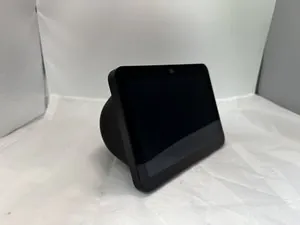
When your device behaves strangely, it’s often because of a software conflict or a temporary network interruption. Smart displays rely on a constant handshake with your home router. If that connection drops or becomes unstable, the screen might show a black image, or the voice assistant may stop listening to your commands. You can verify your current software version by checking the official Amazon device software updates page to ensure you’re running the latest code.
Another common cause is an overloaded local network. If many devices are streaming video or downloading large files at once, the display may struggle to maintain its connection to the cloud servers. This results in slow responses or a “network error” message. If your device is placed too far from the router, signal interference from thick walls or metal appliances can also lead to these symptoms.
To diagnose the source, check your router’s signal strength indicator. If the device shows two bars or fewer, move it within 15 feet of the router to test for stability. If performance improves, the issue is signal attenuation, not the device itself.
Many users mistakenly assume a simple power cycle fixes everything. While pulling the plug clears the cache, it doesn’t address IP address conflicts. If your device fails to reconnect after a reboot, assign a static IP address through your router’s settings. This prevents the display from losing its “handshake” during lease renewals.
Finally, some issues arise from corrupted local data. Over time, the temporary storage used by the operating system can become cluttered. A full reset or a system update usually resolves these internal errors. If the device remains stuck on a logo screen, the hardware might require professional support.
Restart the system to clear errors
A power cycle is the first step for almost any unresponsive device. To do this, pull the power cord directly from the wall outlet. Don’t use the power button on the unit itself, as this often puts the device into a standby mode rather than turning it off completely. Leave the device disconnected for at least 60 seconds to ensure all internal capacitors have fully discharged.
Plug the device back in and wait for the screen to light up. It may take two to three minutes for the system to fully boot and reconnect to your Wi-Fi network. You’ll know it’s ready when the home screen appears and the clock displays the correct time. If the device still shows a “can’t connect” error, check your router by restarting it as well.
This fix is intended for people experiencing temporary freezes, unresponsive touchscreens, or stuttering audio. If your screen is physically cracked or the display panel shows lines or discoloration, a restart won’t fix the hardware damage. In those cases, you should contact Amazon customer support directly to discuss replacement options or warranty claims. Avoid forcing the power cable into the port if it feels stuck, as this can damage the internal pins.
Reset your network connection settings

If the device powers on but can’t reach the internet, the Wi-Fi settings are likely the culprit. Navigate to the “Settings” menu by swiping down from the top of the screen and tapping the gear icon. Select “Network” and then choose your Wi-Fi network from the list. If the signal strength icon shows only one bar, the device is too far from the router.
Attempt to “Forget” the network and then re-enter your Wi-Fi password. This forces the device to establish a fresh connection with the router. Make sure you’re using a 2.4GHz band if your router is far away, as this frequency travels through walls better than the 5GHz band. If you have a dual-band router, try switching between these two frequencies to see which one provides a more stable link for the device.
This method works best when the device is “online” but can’t play music or show video feeds. If the device doesn’t see any Wi-Fi networks at all, your router might be set to a hidden SSID or the device’s internal wireless antenna could be failing. If you still see no networks after a full router reboot, contact your internet service provider to ensure your router is broadcasting the correct frequency.
Perform a factory reset as a last resort
A factory reset wipes all your personal data and returns the device to its original out-of-box state. Only use this method if the previous steps failed to fix persistent software bugs. To perform this, press and hold the “Mute” and “Volume Down” buttons at the same time for about 15 to 20 seconds. You’ll see the Amazon logo appear on the screen, which signals that the process has begun.
Once the reset finishes, the device will prompt you to go through the initial setup process again. You’ll need your Amazon account credentials and your Wi-Fi password to get back online. This process deletes all your custom alarms, routines, and smart home pairings. It’s a powerful tool for fixing deep software corruption, but it requires you to set up your preferences from scratch.
This isn’t for people who simply have a slow connection or a minor audio glitch. If you have important smart home automation routines stored on the device, make sure you have a backup or a list of your settings before starting. If the device fails to boot after a factory reset, the internal storage chip might be faulty. In this instance, you have reached the limit of what you can do at home.
Common mistakes to avoid
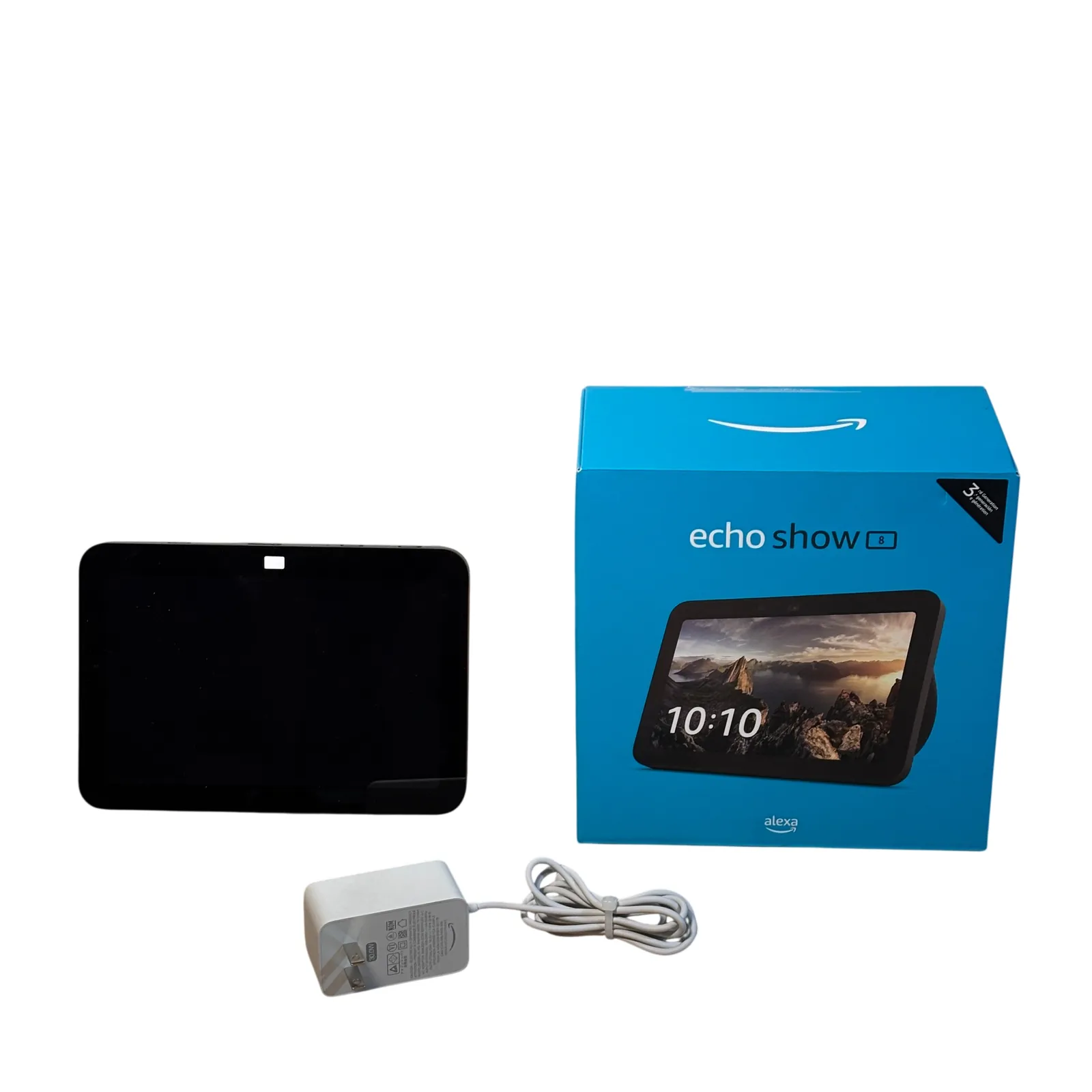
Using a third-party power adapter: Always use the original wall plug provided in the box. Third-party chargers often fail to regulate voltage, leading to intermittent power surges that cause random restarts.
Placing the device near large speakers: Strong magnets in external speakers interfere with the digitizer layer of the screen. This causes ghost touches or erratic inputs. If your cursor jumps across the screen without input, move the device at least two feet away from any audio equipment.
Blocking the microphones: Ensure the top of the device is clear. Covering the microphone array prevents the assistant from hearing you during setup.
Connecting to a public hotspot: These networks often require a web-based login page the device can’t navigate. This results in a “connected but no internet” status. Use a personal mobile hotspot instead to ensure a direct, authenticated connection.
Keeping your device running smoothly
| If you’re doing this | Do this instead | Why |
|---|---|---|
| Leaving it on 24/7 | Restart it once a week | Prevents long-term memory bloat |
| Using a crowded channel | Use a dedicated 5GHz band | Reduces interference from neighbors |
| Keeping it in a cupboard | Place in an open area | Prevents overheating and signal loss |
| Ignoring update prompts | Install updates immediately | Fixes known bugs and security gaps |
Most users mistake a warm device for normal operation. Move it at least three feet away from enclosed spaces or metal surfaces to maintain optimal airflow.
When choosing a Wi-Fi channel, use a free network analyzer app to scan your environment. If you see more than three neighbors on your current frequency, switch to a 5GHz band immediately.
Finally, never skip a firmware update if the release notes mention “stability improvements.” If your device requires a manual reboot after an update, perform it during off-peak hours to avoid interrupting critical background tasks.
Frequently asked questions
How long does a factory reset take?
A factory reset typically takes 5 to 10 minutes to complete. This process erases your personal data and reloads the operating system. If the device remains on the logo screen for more than 15 minutes, the internal software may be corrupted.
Why does my screen flicker?
Screen flickering is usually caused by an unstable power supply or a loose connection. Ensure the barrel plug is pushed firmly into the device until it clicks. If the flickering persists after connecting directly to a wall outlet, the display hardware may be failing.
Is it safe to leave it plugged in?
Yes, it’s safe to leave the device plugged in at all times. These units are designed to remain in a standby state to listen for your wake word. There’s no need to unplug the device unless you’re moving it or troubleshooting a freeze.
What happens if I lose my Wi-Fi?
If you lose your Wi-Fi connection, the device will show a “Network Error” icon on the screen and won’t be able to process voice commands. It will still function as a clock if it was previously set, but all cloud-based features like weather, music, and smart home control will stop working. Once your router is back online, the device should automatically reconnect within a minute or two without any manual input.
How do I know if the hardware is broken?
You can identify a hardware failure if the device doesn’t respond to a factory reset or shows physical damage. If the touch interface fails or the speakers produce a constant buzzing noise, internal components may be damaged. Contact the manufacturer for a potential warranty replacement.
Conclusion
If the steps above don’t resolve your issues, the most reliable path is to check your order history on the Amazon website to see if your device is still covered under the manufacturer’s warranty. If you’re still within the coverage period, the support team can often provide a direct replacement or a repair service that’s much safer than attempting to open the device yourself.