You can fix most issues with your Elgato Video Capture by checking your cable connections and updating your software drivers. When the device fails to show a signal or the audio is out of sync, the primary culprit is often a loose RCA connection or an outdated USB driver on your computer. Start by ensuring all cables are plugged in firmly, as loose connections are the most common reason for signal loss during analog-to-digital conversion.
Troubleshooting Elgato video capture signal problems
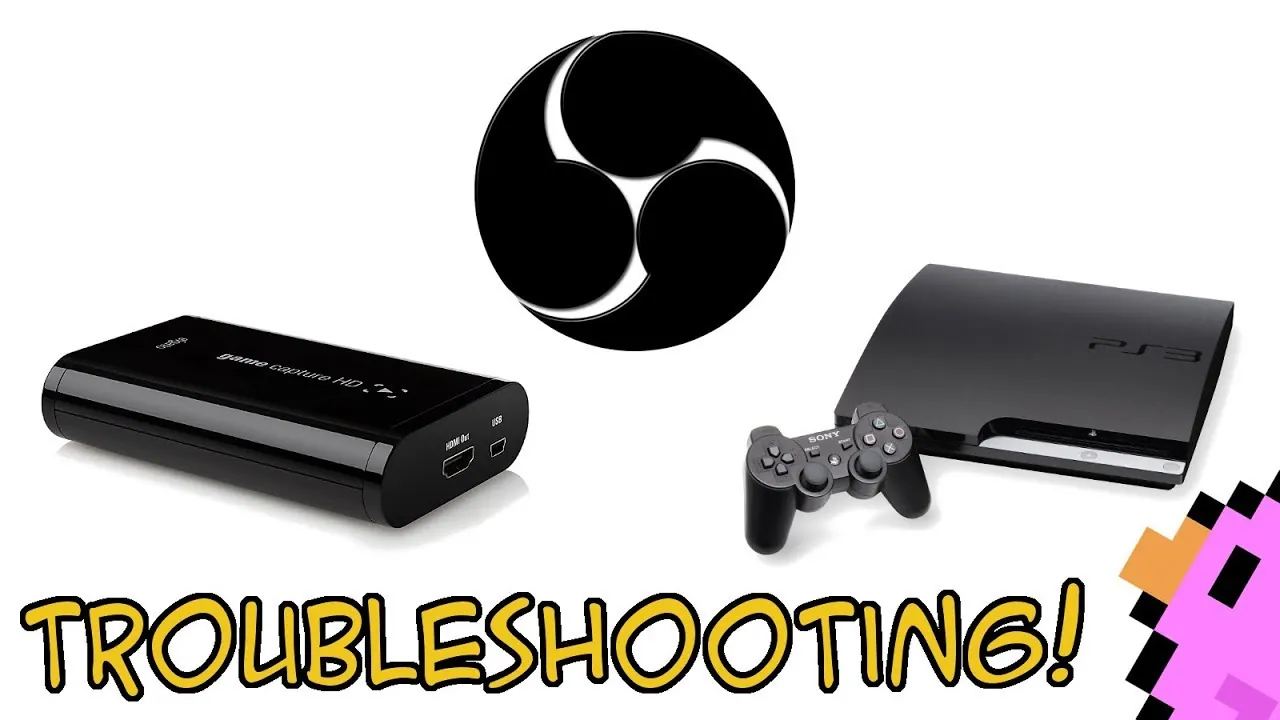
The most frequent cause of trouble is a poor physical connection between your legacy device, such as a VCR or camcorder, and the capture card. If the RCA cables—colored yellow, white, and red—aren’t pushed all the way into the ports, your computer won’t receive a stable video or audio signal.
Check that the yellow composite cable is connected to the “Video In” port and the white and red cables are in the “Audio In” ports. If you see a black-and-white image, you have likely swapped the yellow video cable with one of the audio channels.
Another major cause is a software or hardware conflict within your operating system. If your computer doesn’t recognize the device when you plug it into a USB port, the issue likely lies with the USB controller or a missing driver.
Always try a different USB port on your computer, preferably one directly on the motherboard rather than a USB hub. Hubs often lack the power necessary to maintain a steady signal, which frequently results in dropped frames or intermittent audio crackling.
Lastly, ensure your source device is set to “Play” mode. Many people forget that the VCR or camera must be actively playing the tape to send a signal to the computer. If the screen remains black despite active playback, verify that your capture software is set to the correct input source, such as “Composite” rather than “S-Video.”
Using the wrong input setting is a common mistake that costs users hours of troubleshooting time. If you’re still struggling, check your device manager to confirm the capture card is listed without a yellow warning icon.
Inspecting cables and source device settings
This fix is for anyone seeing a black screen or hearing distorted audio while the software is running. Start by inspecting your RCA cables for any physical damage, such as frayed wires or bent pins. If you have spare cables, swap them out to rule out a broken connection within the wire itself. It’s common for older cables to oxidize, so a simple unplugging and replugging can often clear up a signal that looks grainy or flickers.
Next, verify that your source device is outputting a signal in a format the capture card supports. The Elgato device works with standard composite or S-Video signals. If you’re using an S-Video cable, ensure the yellow RCA cable is disconnected, as the device gives priority to the S-Video connection. If you’re using an adapter, check that it’s a “Signal Out” adapter, not “Signal In,” as these aren’t interchangeable.
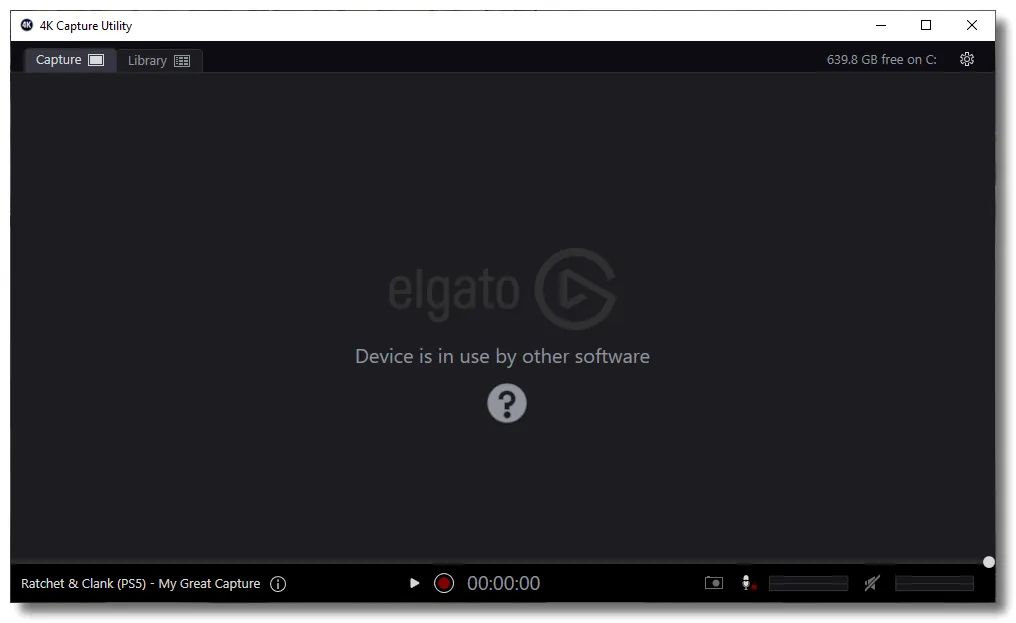
If the software still shows “No Signal,” try closing all other background applications that might be using the camera or audio input. Sometimes, a video conferencing tool or another media player might “grab” the device, preventing the Elgato software from accessing it. If you have confirmed all connections and settings are correct but the software still fails to detect the signal, you may need to uninstall and reinstall the Elgato Video Capture software to reset the internal driver settings.
Updating drivers and software compatibility
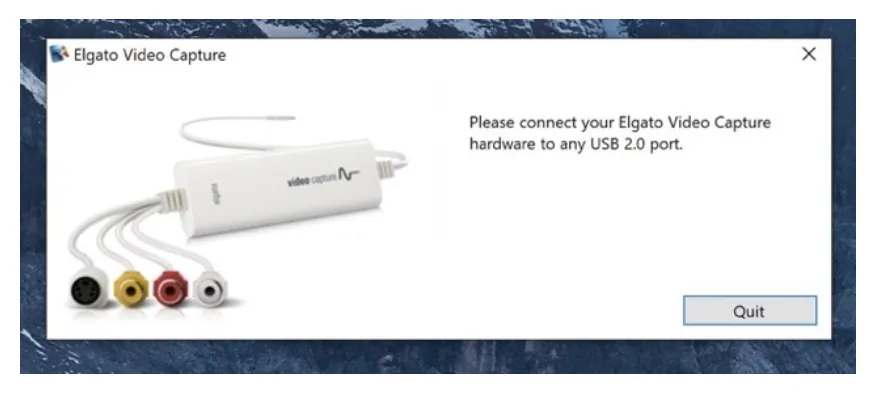
Use this method if the device is detected by your computer but the software crashes or fails to record. You should first download the latest version of the Elgato Video Capture software from the manufacturer’s website. Old versions often lack the updates required to communicate with modern operating systems, leading to errors during the recording or encoding process.
If you’re using a Windows computer, visit the Device Manager to see if the Elgato device appears under “Sound, video and game controllers.” If you see a yellow exclamation mark next to the entry, the driver is corrupted or incorrectly installed. Right-click the device and select “Update driver” to let the system search for the latest files. On macOS, ensure you have granted the software the necessary permissions to access the microphone and camera in your System Settings.
This process isn’t for someone who is uncomfortable with basic computer settings or administrative software changes. If you aren’t confident in navigating your system settings, ask a friend who is familiar with Windows or macOS to help you. Always remember that software updates are free, and you should never pay for third-party “driver update” services that claim to fix your hardware, as these are often scams.
Adjusting audio and video input settings
This approach is for when you have a signal, but the quality is poor or the audio is out of sync. Within the Elgato software, navigate to the settings menu to check the input selection. If your video looks black and white or distorted, you may have the wrong video standard selected. For most users in North America, this should be set to NTSC; if you’re in Europe or parts of Asia, you likely need to switch this to PAL.
This fix is also useful if the audio levels are too low or clipping. You can adjust the gain manually in the software’s audio settings. If you find the audio is lagging behind the video, this is usually a sign that your computer’s processor is struggling to encode the video in real-time. Close any heavy programs like web browsers or photo editors while you record to free up system resources.
If the video remains jerky or skips frames, try reducing the resolution settings if the software allows it. This is a trade-off: you’ll get a smoother file, but the image will be less sharp. If you have tried these adjustments and the recording is still unusable, it’s possible that the source tape itself is damaged or the tape player’s internal heads are dirty, which is a common issue with machines that have been in storage for many years.
Avoiding common mistakes with capture hardware
Connecting to a USB hub: These devices require a direct, high-power connection. Using a hub often causes the signal to drop or the device to disconnect entirely. If your capture card has a status LED, a dim or blinking light usually indicates insufficient power from the port. Plug directly into a rear motherboard port on a desktop rather than a front-panel or external hub.
Mixing up input and output: Ensure your VCR is set to “Out” and the capture device is set to “In.” Connecting an output to an output will never produce a signal. If you see a black screen, check your RCA cables; yellow is for video, while red and white are for audio.
Using damaged tapes: Trying to play a tape with mold or severe physical damage can clog the VCR heads. This makes the signal look like static or “snow.” If you see white streaks, stop immediately to avoid permanent head damage.
Ignoring software permissions: Modern operating systems require explicit microphone access for capture devices. If you deny this, you’ll record video without audio. Check your privacy settings if the input levels remain flat.
Preventing future recording failures
To keep your setup working, you must match your hardware’s capabilities with the age and condition of your media. If your VCR hasn’t been used in a long time, the internal playback heads might need professional cleaning before you attempt to capture your tapes. A common mistake is assuming a device that powers on is fully functional; dirty heads often cause intermittent tracking errors that ruin a capture mid-process.
| If you’re doing this | Do this instead | Why |
|---|---|---|
| Leaving tapes in the attic | Store tapes in a cool, dry place | Heat and humidity degrade magnetic tape |
| Recording to a full drive | Clear at least 20GB of space | Encoding high-quality video needs room |
| Using long RCA extensions | Keep cables under 6 feet | Long cables cause signal interference |
| Ignoring software alerts | Update to the latest version | New versions fix known compatibility bugs |
If your capture software reports dropped frames, check your drive write speed immediately. If you see stuttering, switch to a solid-state drive or a dedicated capture card. If the audio drifts from the video, ensure your sample rate is locked to 48kHz. These small adjustments prevent the permanent loss of unique footage.
Frequently asked questions
How long does it take to capture a tape?
It takes exactly the length of the tape you’re recording. Because this device captures the video in real-time as it plays, you cannot “fast-forward” the process. If your home movie is 120 minutes long, you must let the software run for 120 minutes to complete the transfer.
Is it safe to use a cheap USB extender?
No, it isn’t recommended to use cheap or unpowered USB extensions with this device. These cables often fail to provide the consistent power or data transfer rates required for smooth video capture. If you must use an extension, ensure it’s a high-quality, shielded cable under 6 feet in length.
Why is my video recording in black and white?
The video is likely in black and white because your software is set to the wrong video standard for your region. Ensure the settings menu matches your local format, typically NTSC for North America or PAL for Europe. Switching to the correct standard will restore the color immediately.
What happens if I lose power during a capture?
If you lose power during a recording, the file currently being created will likely be corrupted and unreadable. You’ll need to start the capture process over from the beginning once power is restored. Always ensure your computer is plugged into a reliable power source before starting a long transfer.
Can I capture protected commercial tapes?
No, you can’t use this device to capture copyright-protected commercial VHS tapes. The hardware and software are designed for personal home movies and don’t bypass the copy protection signals found on most store-bought movies. Attempting to do so will result in a black or distorted signal.
How do I know if my VCR is broken?
You can verify if your VCR is working by connecting it directly to a television using the same cables. If the TV shows the same distorted or missing picture as your computer, the problem is with the VCR or the tape, not the capture device. If the TV shows a perfect picture but the computer does not, the issue is with your capture settings or USB connection.
Conclusion
After you finish your recording, always remember to save your files in a format that your computer can easily read, such as MP4. If you notice any issues with the final file, check the software settings one last time to ensure you’re selecting the correct output quality and aspect ratio for your intended use.