If you’re struggling with your printer and need epson et-2720 troubleshooting, you have likely encountered issues with print quality, connectivity, or ink delivery. This model is a cartridge-free EcoTank system, which relies on a specialized ink tank design that can occasionally experience air bubbles or nozzle clogs. Addressing these problems usually involves a series of diagnostic steps that range from software-based cleaning cycles to physical maintenance of the internal print head components.
Key Takeaways
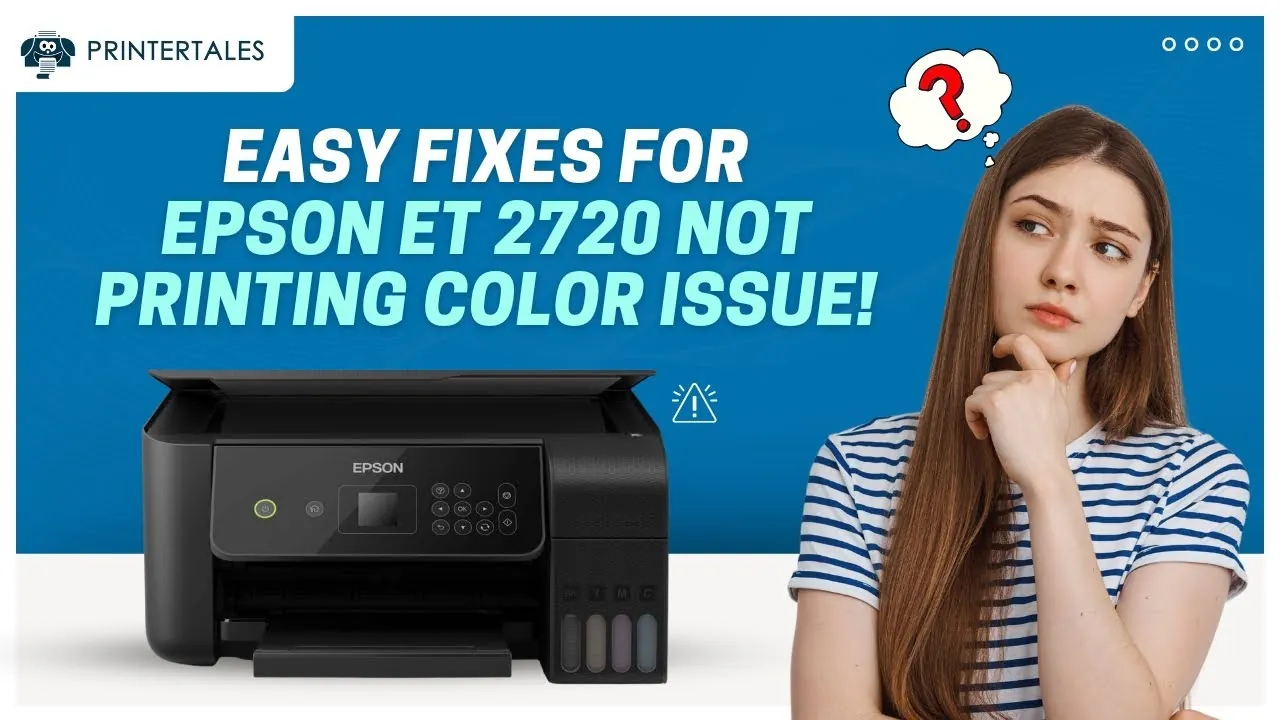
- Perform a nozzle check to identify exactly which colors are missing from your prints.
- Use the built-in head cleaning utility to clear dried ink from the print head.
- Ensure your firmware is updated to the latest version to resolve communication errors.
- Verify that your Wi-Fi signal strength is sufficient for the printer to maintain a stable connection.
- Always use official ink bottles to prevent long-term damage to the internal ink delivery tubes.
Common Print Quality Problems
Poor print quality is the most frequent complaint for this model. You might see horizontal bands across your documents, faded colors, or completely blank pages when attempting to print in color. These issues stem from the print head nozzles becoming blocked by dried ink or air bubbles.
How to run a nozzle check
The nozzle check is the first diagnostic step. You can trigger this through the printer’s control panel or the software driver on your computer. If the resulting pattern has gaps, the print head requires cleaning.
| Issue | Likely Cause | Solution |
|---|---|---|
| Horizontal lines | Clogged nozzles | Head cleaning utility |
| Blurred text | Misaligned print head | Print head alignment tool |
| Faded colors | Low ink levels | Refill ink tanks |
| Paper jams | Debris in feed | Manual roller cleaning |
Addressing Connectivity Issues
Connectivity problems often arise when the printer loses its handshake with your router. Because the ET-2720 relies on a 2.4GHz wireless band, interference from other household electronics can cause the printer to appear “offline” on your computer.
Pro Tip: If your printer isn’t detected, restart both your router and the printer simultaneously. This forces a fresh network discovery process and often clears temporary IP address conflicts that prevent the computer from sending print jobs to the device.
Why is my printer offline?
When your computer reports that the printer is offline, it’s usually a communication breakdown. Check if the Wi-Fi light on the front panel is solid or blinking. A blinking light indicates a loss of connection. You should navigate to the wireless settings on the printer’s LCD screen to re-select your network and re-enter the password.
How to perform deep cleaning
If a standard head cleaning doesn’t resolve the print quality, you may need to perform a power cleaning. Be aware that this process consumes a significant amount of ink. You can find this utility in the maintenance tab of your printer settings.
Managing Ink Tank Maintenance
The EcoTank system is efficient, but it requires proper handling during the refill process. If you notice ink leaking or the printer reporting that tanks are empty when they appear full, there may be a sensor error or an air lock in the tubes.
Troubleshooting Epson ET-2720 ink delivery
- Check for air bubbles in the translucent tubes leading to the print head.
- Ensure the ink tank caps are closed tightly to prevent evaporation.
- Verify that the printer is placed on a level surface to prevent uneven ink flow.
- Inspect the ink levels visually to confirm the sensor readings match the physical volume.
Resolving Paper Feed Failures
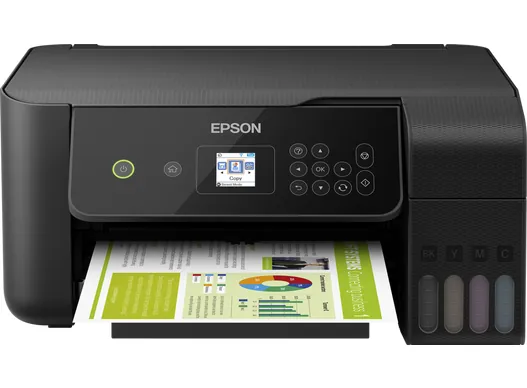
Paper jams are often caused by misaligned paper guides or dust accumulating on the feed rollers. If the printer sounds like it’s trying to feed paper but fails, clear the path by gently removing any stuck sheets.
| Component | Maintenance Action | Frequency |
|---|---|---|
| Paper Rollers | Wipe with damp cloth | Quarterly |
| Print Head | Run cleaning utility | As needed |
| Ink Tanks | Refill to top line | When low |
| Firmware | Check for updates | Monthly |
Managing Print Head Alignment
If your text appears doubled or images look fuzzy, the print head may be out of alignment. This happens after moving the printer or after a heavy paper jam. Use the “Print Head Alignment” feature in the maintenance menu to print a test sheet and follow the on-screen prompts to select the best-looking patterns.
Updating Device Firmware
Outdated firmware can cause erratic behavior, such as the printer failing to wake from sleep mode or refusing to recognize new print jobs. Use the Epson Software Updater tool on your PC or Mac to check for available patches. These updates often contain critical fixes for security and stability.
Warning: Never turn off the printer while a firmware update is in progress. Doing so can corrupt the printer’s internal memory and render the device permanently unusable, requiring a professional service center visit to restore functionality.
Managing Waste Ink Pads
The ET-2720 tracks the amount of waste ink used during cleaning cycles. Eventually, the internal pads will reach their capacity. When this happens, the printer will stop working and display a service required message. You’ll need to use a reset utility or have the pads replaced by an authorized service technician to restore operation.
Resetting Network Settings
If you have changed your internet service provider or upgraded your router, the printer won’t automatically find the new network. You must perform a network reset to clear the old settings. Navigate to the “Restore Default Settings” menu on the printer’s LCD screen and select “Network Settings” to wipe the previous configuration.
Checking for Driver Conflicts
If you recently updated your operating system, your print drivers may be incompatible. Uninstall the existing printer software from your computer’s control panel, download the latest version from the manufacturer’s website, and perform a clean installation to ensure all communication protocols are current.
Frequently Asked Questions
Why won’t my printer print black ink?
Black ink failure is usually caused by a clogged nozzle or an air bubble in the ink tube. Run the head cleaning utility from the maintenance menu. If that fails, perform a nozzle check to see if the black lines are missing. If they are, run a second cleaning cycle and let the printer sit for several hours to allow the ink to settle.
How do I connect to Wi-Fi?
Use the printer’s control panel to select the Wi-Fi setup wizard. Choose your network from the list of available SSIDs and enter your network password. Ensure the printer is within range of your router. If your router uses a 5GHz band, ensure you’re connecting to the 2.4GHz broadcast, as this model doesn’t support 5GHz wireless connections.
What do I do about a paper jam?
Turn off the printer and unplug it from the power source. Open the scanning unit and carefully remove any jammed paper using both hands to avoid tearing the sheet. Check the rear feed tray for small pieces of paper or debris. Once clear, close the unit, plug the printer back in, and perform a test print to ensure the rollers are feeding correctly.
Can I use third-party ink?
While third-party ink is available, it isn’t recommended. Non-official inks may have different viscosities that can clog the sensitive print head nozzles and damage the internal ink delivery system. Using non-official ink may also void your limited warranty. Stick to the specific ink bottle part numbers recommended by the manufacturer to maintain the longevity of your printer’s internal components.
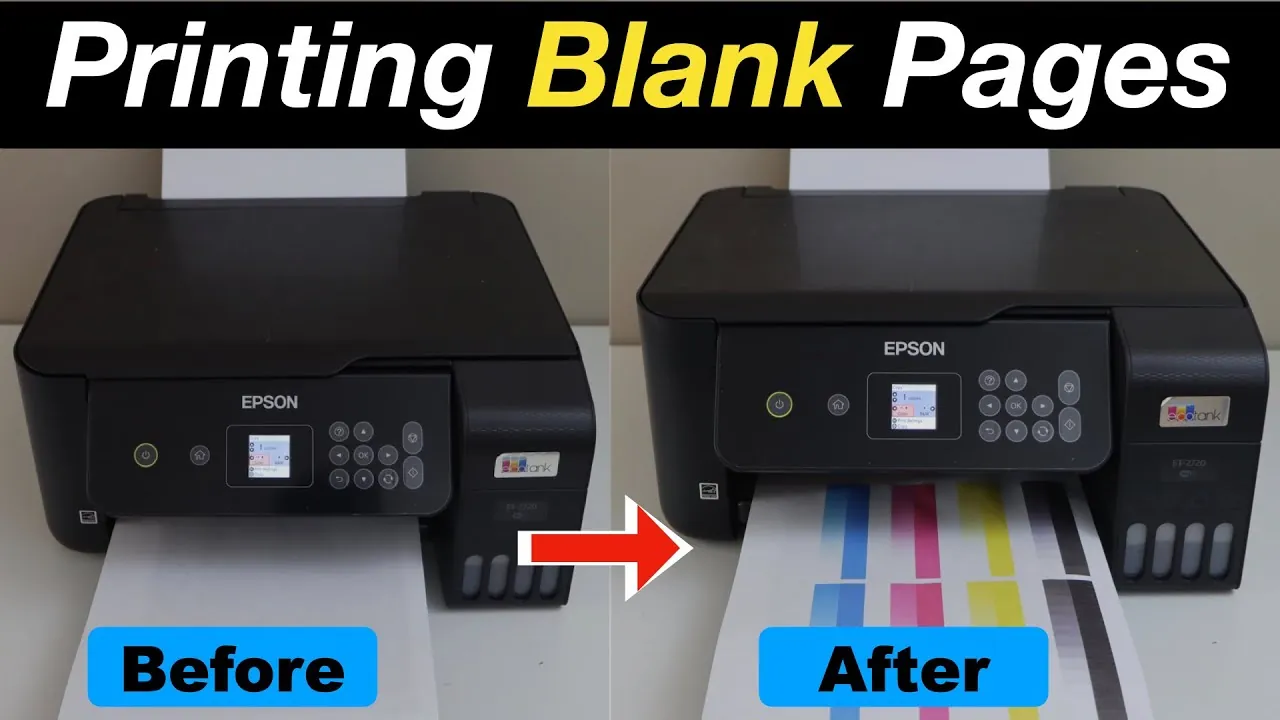
Why is my printer printing blank pages?
Blank pages usually indicate that the print head nozzles are completely blocked or that the ink supply has been interrupted. If you recently refilled the tanks, ensure the transport lock is in the correct position. If the printer has been sitting idle for a long time, the ink has likely dried in the print head, necessitating multiple deep cleaning cycles to restore flow.
Conclusion
Regular maintenance is the most effective way to keep your printer functional over the long term. By performing a nozzle check once a month and keeping your firmware updated, you prevent the most common causes of system failure. If you continue to experience persistent issues after trying these steps, contact the manufacturer’s customer support line for further diagnostic assistance or to request a repair service.