Is your Epson printer acting up right when you need it most? You’re not alone, and fixing it might be easier than you think.
Imagine cutting through the frustration and getting your printer back to perfect working order quickly. In this guide, you’ll discover simple, step-by-step solutions that anyone can follow—no tech skills required. Keep reading, and you’ll learn how to tackle common Epson printer problems so you can save time, avoid costly repairs, and get back to printing with confidence.
Printer Won’t Turn On
When an Epson printer does not turn on, it stops all work. No printing, scanning, or copying can happen. This issue can be simple or need a careful check. Some easy steps can help find the problem. These steps often fix the problem quickly.
Check Power Source
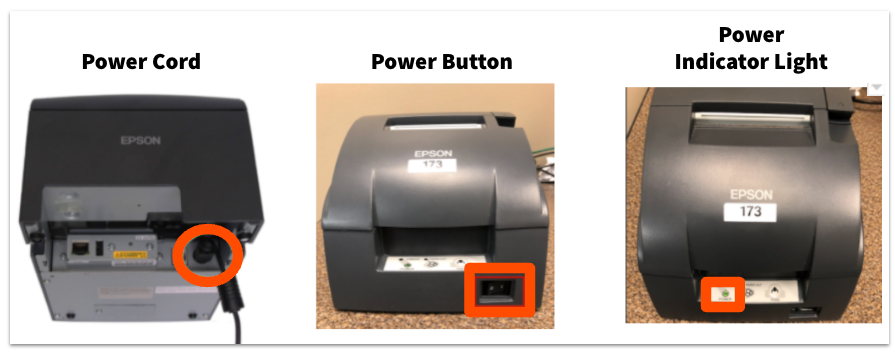
First, make sure the power source is working. The printer must be plugged into a live power outlet. Try plugging another device into the same outlet to check it. If the outlet has no power, the printer won’t turn on. Use a different outlet if needed.
Inspect Power Cord And Outlet
Look at the power cord for damage. Cracks or cuts can stop electricity flow. Also, ensure the cord is firmly connected to the printer and the outlet. Loose connections can cause power problems. Replace the cord if it looks worn or broken.
Reset The Printer
Turn off the printer and unplug it from power. Wait for about 60 seconds. Plug it back in and turn the printer on. This reset can clear minor errors. Sometimes, a simple reset helps the printer start working again.

Paper Jams
Paper jams are a common issue with Epson printers. They stop your printing and cause frustration. Knowing how to fix them quickly saves time and effort.
Paper jams happen when paper gets stuck inside the printer. It can block the paper path and damage the printer if not removed carefully. Let’s explore how to handle this problem step-by-step.
Locate Jammed Paper
First, turn off the printer to avoid damage. Open all panels and trays where paper travels. Look inside the paper feed area and the output tray. Check for any torn or stuck paper pieces. Use a flashlight if needed. Finding the exact jam spot helps in safe removal.
Remove Paper Carefully
Pull the jammed paper slowly and gently. Avoid ripping the paper inside the printer. If paper tears, check for small pieces left behind. Remove all bits to prevent new jams. Use both hands to pull paper evenly. Do not use sharp tools to avoid damage.
Prevent Future Jams
Use clean, dry, and smooth paper for printing. Fan the paper stack before loading to separate sheets. Do not overload the paper tray. Align paper properly inside the tray guides. Regularly clean the printer rollers with a soft cloth. These steps reduce jam chances and keep printing smooth.
Poor Print Quality
Poor print quality can ruin important documents and photos. It often shows as streaks, faded colors, or blurry text. Simple fixes can improve your Epson printer’s output quickly. Focus on cleaning print heads, aligning cartridges, and using the right paper.
Clean Print Heads
Print heads can get clogged with dried ink. This causes streaks and missing lines in prints. Use your printer’s cleaning function to clear blockages. Run the cleaning cycle a few times if needed. Avoid manual cleaning unless you know the process well.
Align Cartridges
Misaligned cartridges create blurry or double images. Epson printers have a built-in alignment tool. Access it from the printer menu or software. Follow the steps to align cartridges perfectly. This improves sharpness and overall print quality.
Use Quality Paper
Low-quality paper absorbs ink poorly. It can cause smudges and faded prints. Choose paper designed for inkjet printers. Use Epson brand or other trusted brands. Good paper helps ink dry evenly and keeps colors bright.
Connectivity Problems
Connectivity problems are common with Epson printers. These issues stop your printer from communicating with your computer or network. Without a proper connection, printing tasks fail or slow down. Troubleshooting these problems can restore smooth printing. Focus on network settings, restarting devices, and updating drivers.
Check Network Settings
Start by checking your printer’s network settings. Ensure the printer is connected to the correct Wi-Fi network. Verify the network name (SSID) and password. Make sure the printer has a valid IP address. Incorrect settings block communication between devices.
Restart Router And Printer
Turn off your router and printer. Wait for about 30 seconds. Power them back on in this order: router first, then printer. Restarting clears temporary glitches. It refreshes the connection and often fixes network issues quickly.
Update Printer Drivers
Outdated drivers cause many connectivity problems. Visit Epson’s official website to download the latest drivers. Install the updates on your computer. Updated drivers improve communication between your computer and printer. This step ensures better stability and performance.
Ink Cartridge Issues
Ink cartridge issues are common problems with Epson printers. They can stop your printer from working correctly. Problems like empty cartridges, wrong ink levels, or cartridge errors cause poor print quality or printer pauses.
Fixing these issues quickly helps keep your printer running smoothly. This guide explains simple steps to solve ink cartridge problems fast.
Replace Empty Cartridges
Empty cartridges stop the printer from printing. Check the ink levels regularly on your printer screen. When ink runs out, replace the cartridge with a new one. Use only cartridges made for your Epson printer. Remove the old cartridge carefully. Insert the new cartridge firmly until it clicks. This ensures the printer reads the cartridge correctly.
Reset Ink Levels
Sometimes, the printer shows wrong ink levels. Resetting the ink levels can fix this. Use the printer’s control panel or software on your computer. Find the option to reset or initialize ink levels. This helps the printer recognize the true ink amount. Resetting prevents false low-ink warnings that stop printing.
Avoid Cartridge Errors
Cartridge errors happen when cartridges are not installed correctly. Always power off the printer before changing cartridges. Clean cartridge contacts gently with a soft cloth. Avoid touching the chip or nozzles. Use genuine Epson cartridges to reduce errors. Keep cartridges sealed until ready to use. Proper care prevents errors and improves print quality.
Slow Printing
Slow printing can cause frustration and waste time. Epson printers may print slowly due to various reasons. Simple fixes often solve this issue quickly. Check your printer settings and clear any stuck jobs. Updating the printer’s firmware can also help speed up printing.
Adjust Print Settings
Check your print quality settings first. High-quality modes take longer to print. Switch to a standard or draft mode for faster output. Avoid using extra features like borderless printing. Set the paper type correctly to match your paper. These changes help the printer work faster.
Clear Print Queue
Sometimes print jobs get stuck in the queue. This can slow down or stop printing. Open the print queue on your computer. Cancel all pending jobs to clear the line. Restart the printer after clearing the queue. This step often fixes slow printing issues.
Update Firmware
Firmware controls your printer’s internal operations. Outdated firmware can cause slow performance. Visit Epson’s official website to check for updates. Download and install the latest firmware carefully. Updated firmware improves printer speed and reliability.
Error Messages
Epson printers often display error messages that stop printing. These messages help identify the problem quickly. Understanding these codes saves time and frustration. This section breaks down common error codes and offers simple fixes.
Decode Common Codes
Error codes like 0x97, 0x9a, and 0xf1 appear on Epson printers. Each code points to a specific issue. For example, 0x97 usually means a hardware problem. Code 0x9a often relates to ink cartridge issues. Check your printer manual or Epson’s website for exact meanings. Knowing the code helps you decide the next step.
Perform Soft Reset
A soft reset clears many error messages. Turn off the printer and unplug it. Wait about five minutes before plugging it back in. Turn the printer on and check if the error remains. This simple step can fix temporary glitches without extra tools.
Contact Support If Needed
Some errors need expert help. Persistent codes or unusual noises may require a technician. Epson support can guide you through complex fixes. Keep your printer model and error code ready. This speeds up the support process and helps solve problems faster.
Frequently Asked Questions
How Do I Fix Epson Printer Paper Jams Quickly?
Clear any stuck paper gently from the tray or rollers. Avoid tearing the paper inside. Check for small scraps that block the path.
Why Is My Epson Printer Not Connecting To Wi-fi?
Confirm the printer is on the same Wi-Fi network as your device. Restart both printer and router. Check for correct password entry.
What Causes Epson Printer Ink To Smudge Or Fade?
Low ink levels or dirty print heads often cause smudging. Clean the print heads using the printer’s maintenance menu. Replace cartridges if needed.
How Can I Solve Epson Printer Driver Installation Issues?
Download the latest drivers from Epson’s official website. Run the installer as an administrator. Disable antivirus temporarily if installation stalls.
Why Won’t My Epson Printer Print Despite Being Online?
Check for error lights or messages on the printer screen. Make sure paper is loaded and ink cartridges are not empty. Restart the printer and try again.
Conclusion
Fixing Epson printer issues can be simple and quick. Start by checking cables and power. Clean print heads for better quality. Update drivers to avoid errors. Restart the printer if it acts strange. Follow these easy steps to keep printing smooth.
Stay calm and patient during troubleshooting. Your printer will work well again soon. Small fixes often solve big problems. Keep this guide handy for future help. Printing should never be a headache.