If you’re dealing with a printer that refuses to cooperate, finding reliable epson et-2760 troubleshooting steps can save you significant time and frustration. The EcoTank series is designed for efficiency, but like any complex electronic device, it may occasionally encounter issues with connectivity, ink flow, or paper handling. By systematically identifying the root cause, you can often restore your printer to full functionality without needing professional repair services. This guide covers the essential maintenance tasks and diagnostic procedures required to keep your device running smoothly for years to come.
Key Takeaways

- Perform a nozzle check to identify specific ink clogs before running a full cleaning cycle.
- Ensure your wireless network frequency is set to 2.4GHz for stable printer connectivity.
- Keep the paper path free of debris to prevent persistent jamming issues during printing.
- Update your printer firmware regularly to resolve known software bugs and compatibility gaps.
- Always use genuine ink bottles to maintain the integrity of the integrated ink system.
Troubleshooting Common Epson 2760 Issues
When your document comes out with streaks, missing colors, or blank pages, the most likely culprit is a clogged print head. Because the EcoTank system uses permanent print heads, dried ink can accumulate if the machine is left unused for long periods.
How to Fix Print Quality Problems
- Nozzle Check: Access the maintenance menu on the printer’s LCD screen. Select “Nozzle Check” to print a test pattern. If the lines are broken or missing, proceed to cleaning.
- Head Cleaning: From the same maintenance menu, select “Head Cleaning.” This uses extra ink to force debris through the nozzles.
- Deep Cleaning: If the standard cleaning doesn’t resolve the issue, perform a “Deep Cleaning.” Note that this consumes a significant amount of ink and should only be done if standard cleaning fails.
| Issue | Potential Cause | Immediate Action |
|---|---|---|
| Faded Colors | Clogged Nozzles | Run Head Cleaning cycle |
| Horizontal Lines | Air in Tubes | Perform Power Ink Flushing |
| Smudged Ink | Dirty Paper Path | Clean rollers with lint-free cloth |
| Blank Pages | Empty Ink Tanks | Refill tanks to max line |
Why Is My Printer Offline?
A common frustration occurs when the computer reports the printer as “Offline” despite it being powered on. This is usually due to a communication breakdown between the router and the printer.
Pro Tip: Always restart your router and your printer simultaneously if you experience recurring connection drops, as this forces the devices to re-establish a stable handshake protocol.
Network Connectivity Troubleshooting
- Check Wi-Fi Signal: Ensure the printer is within range of your router. Signal interference from walls or metal appliances can disrupt the connection.
- Verify Network Frequency: The ET-2760 operates on the 2.4GHz band. If your router uses a combined 2.4GHz and 5GHz SSID, the printer might struggle to hold a connection.
- Static IP Assignment: Log into your router’s administrative portal and assign a static IP address to the printer to prevent the connection from dropping when the DHCP lease expires.
Resolving Paper Jam Errors
Paper jams are often caused by misaligned paper or using media that’s too thick for the rear feed tray. Always ensure the paper guides are snug against the stack, but not so tight that they cause the paper to buckle.
Clearing the Paper Path
- Power Down: Turn the printer off and unplug it from the power source to ensure safety while reaching inside.
- Remove Tray Debris: Open the scanner unit and the rear paper feed tray. Use a flashlight to inspect for small scraps of paper or foreign objects.
- Roller Maintenance: If the printer consistently fails to grab paper, the rollers may have a buildup of dust. Wipe them gently with a damp, lint-free cloth to restore traction.
Understanding Ink System Errors
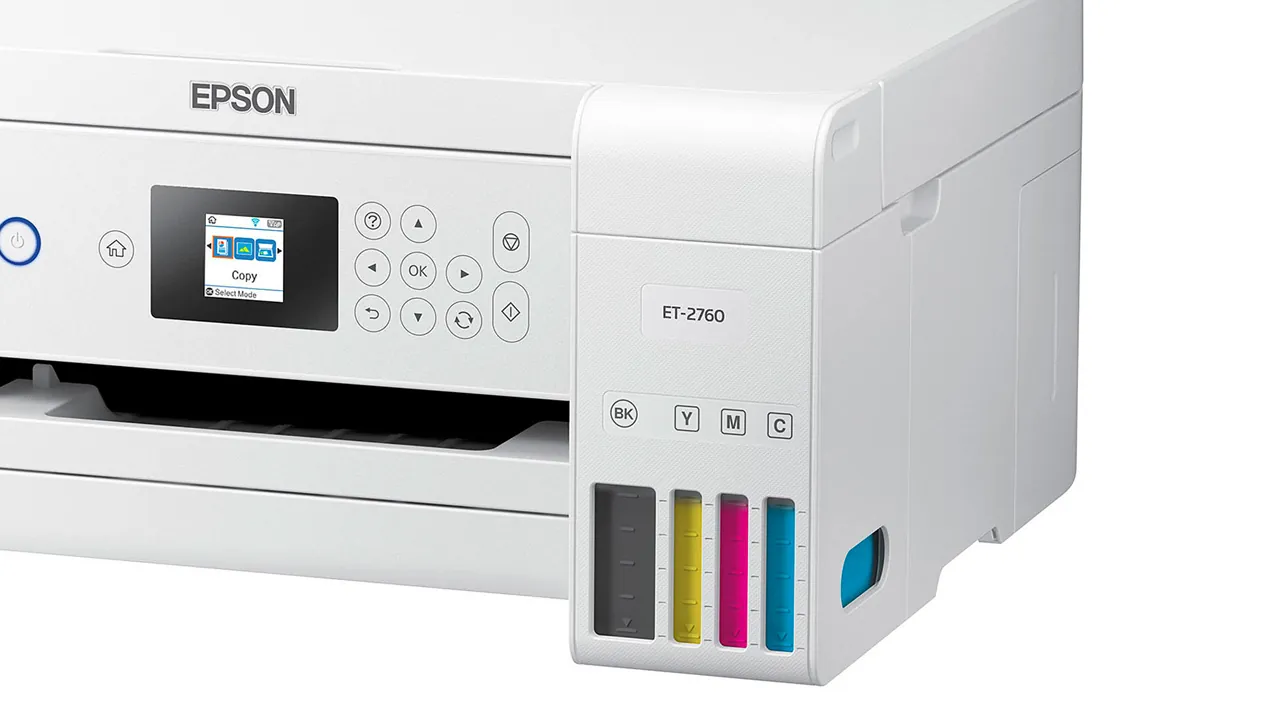
The EcoTank system relies on a precise vacuum-sealed setup. If air enters the ink tubes, the printer will stop producing output. If you have recently moved the printer, the ink levels may appear lower than they are, or air bubbles may have migrated into the print head.
Refilling and Priming the Tanks
- Avoid Overfilling: Always fill tanks to the upper line marked on the reservoir. Overfilling can cause leaking within the internal chassis.
- Resetting Levels: After filling the tanks, you must navigate to the maintenance menu and confirm the ink levels on the LCD screen. The printer doesn’t automatically detect the volume of ink added.
- Genuine Ink: Using non-genuine ink can lead to sediment buildup that permanently damages the internal print head assembly. According to the Epson official support documentation, using non-Epson ink voids the limited warranty on the print mechanism.
Firmware and Driver Updates
Software conflicts often manifest as strange error codes or unresponsive buttons. Keeping your printer software current is a non-negotiable step in maintaining system health.
Updating Your Printer Software
- Download Utility: Use the official Epson Software Updater tool on your computer to check for the latest firmware versions.
- Driver Reinstallation: If the printer is unresponsive, uninstall the existing print drivers, restart your computer, and download the latest package directly from the manufacturer’s website.
- Compatibility: Ensure your operating system is fully updated, as outdated OS versions often fail to communicate correctly with the printer’s spooling service.
Managing Printer Error Codes
If your printer displays a specific error code on the LCD, consult the reference table below to understand the urgency of the situation.
| Error Code | Meaning | Resolution |
|---|---|---|
| E-01 | Printer Error | Clear paper jams and restart |
| E-02 | Scanner Error | Check for obstructions under the lid |
| E-10 | Maintenance Box | Replace or reset the ink pad |
| W-01 | Paper Out | Reload paper and press start |
How to Perform a Hard Reset
Sometimes, the printer’s onboard memory becomes corrupted, leading to persistent “Printer Error” messages that refuse to clear. A hard reset can force the device to return to its factory state.
Warning: Performing a factory reset will erase all custom network settings, saved scan-to-cloud destinations, and user preferences, requiring you to reconfigure the printer from scratch.
The Reset Procedure
- Turn the printer off.
- Hold down the “Help” button and the “Power” button simultaneously.
- Continue holding until the screen displays a message asking if you want to initialize the printer.
- Follow the on-screen prompts to confirm the reset.
- Wait for the printer to cycle through its initial setup phase.
Optimizing Scan and Copy Functions
When the scanner produces dark lines or distorted images, the issue is typically a dirty scanner glass or a calibration error.
Scanning Troubleshooting Steps
- Clean the Glass: Use a microfiber cloth and a small amount of glass cleaner applied to the cloth—never directly to the scanner—to remove fingerprints and dust.
- Check Document Alignment: Ensure the document is placed flush against the corner marked with the arrow.
- Software Settings: If the scanned image is blurry, increase the DPI (dots per inch) settings in your scanning software to at least 300 DPI for standard documents.
Printer Maintenance Schedule
To avoid the need for troubleshooting, adhere to a strict maintenance schedule. Neglect is the primary cause of print head failure.
| Task Frequency | Action Required |
|---|---|
| Weekly | Print one full-color test page |
| Monthly | Clean the exterior and scanner glass |
| Quarterly | Check for firmware updates |
| Yearly | Inspect paper feed rollers for wear |
Frequently Asked Questions
Why is my printer not picking up paper?
Paper feed issues are usually caused by dust buildup on the rollers or the paper guides being too loose. Ensure your paper is stacked neatly and the guides are snug. If the rollers remain slippery, wipe them with a damp, lint-free cloth. If the problem persists, ensure you aren’t using paper that exceeds the recommended weight limit for the ET-2760 model.
How do I clear a “Service Required” error?
A “Service Required” message usually indicates that the ink pads are nearing the end of their service life. These pads collect excess ink from cleaning cycles. While you can sometimes reset the counter using third-party software, the physical pads will eventually overflow. It’s best to contact an authorized service center to have the pads replaced and the internal waste counter reset officially.
Can I use third-party ink in my ET-2760?
While third-party ink is available, it’s strongly discouraged. Epson’s print heads are calibrated specifically for the viscosity and chemical composition of their own ink. Using generic brands can lead to rapid nozzle clogging, inconsistent color reproduction, and permanent damage to the print head, which isn’t covered under the manufacturer’s warranty. Stick to genuine ink to protect your investment.
How do I connect the printer to a new Wi-Fi network?
To change your Wi-Fi settings, navigate to the printer’s “Settings” menu on the LCD screen. Select “Network Settings,” then “Wi-Fi Setup Wizard.” The printer will search for available networks. Select your network, enter your password, and allow the printer to connect. If it fails, ensure you’re connecting to a 2.4GHz network, as the ET-2760 doesn’t support 5GHz or 6GHz bands.
What should I do if the print quality is still poor after cleaning?
If three consecutive head cleaning cycles fail to fix the print quality, the print head may have significant dried ink buildup. Let the printer sit powered off for 24 hours; sometimes, the ink will naturally soften the clog. If it still fails, perform a “Power Ink Flushing” through the maintenance menu. Note that this consumes a large amount of ink and should only be used as a last resort.
Conclusion
If you have tried the steps above and your printer still fails to produce a clean test page, the issue may be a hardware failure that requires professional intervention. Before contacting support, ensure you have your printer’s serial number ready and a copy of your purchase receipt.
For persistent technical glitches that don’t respond to resets, reaching out to the manufacturer’s support team is the most effective way to determine if your unit is eligible for a warranty replacement or requires a paid diagnostic service.