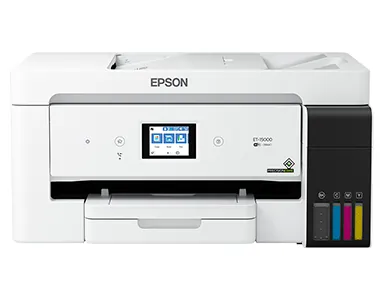
The Epson EcoTank ET-15000 is a versatile wide-format printer designed for high-volume office tasks, but like any complex machine, it occasionally experiences operational hiccups. If you’re currently performing an epson et-15000 troubleshooting session, you’re likely dealing with print quality issues, connectivity failures, or mechanical errors. This printer utilizes a sophisticated ink tank system that requires specific maintenance routines to keep the print heads clear and the internal sensors calibrated. By systematically addressing the ink delivery system, network settings, and paper path, you can resolve the vast majority of common malfunctions without needing professional repair services.
Key Takeaways
- Run a nozzle check pattern immediately if you notice streaks, fading, or missing colors in your printouts.
- Ensure your firmware is updated regularly to maintain compatibility with modern network security protocols and operating systems.
- Use only genuine Epson ink bottles to prevent permanent damage to the precision print head components.
- Clean the paper feed rollers using a lint-free cloth dampened with distilled water to prevent document jams.
- Perform a power cleaning cycle only when standard head cleaning fails, as this consumes a significant amount of ink.
Troubleshooting Epson 15000 Print Quality
Print quality degradation is the most frequent issue encountered with the ET-15000. When your documents appear blurry, have horizontal lines, or display incorrect colors, the primary culprit is often trapped air or dried ink within the ink delivery tubes. To rectify this, navigate to the maintenance menu on the printer’s LCD screen and select “Print Head Nozzle Check.” If the pattern shows gaps, proceed to “Print Head Cleaning.”
Pro Tip: If you perform three consecutive cleanings without improvement, turn the printer off and let it sit for at least six hours to allow air bubbles to settle before trying again.
| Symptom | Probable Cause | Recommended Action |
|---|---|---|
| Horizontal lines | Clogged print head | Run nozzle cleaning cycle |
| Blurred text | Misaligned print head | Run alignment utility |
| Faded colors | Low ink levels | Refill ink tanks |
| Paper smudging | Dirty rollers | Clean path with dry cloth |
Why Is My Printer Offline?
Connectivity problems often stem from dynamic IP address changes or firewall interference. If your computer reports that the printer is offline, first verify that the printer is connected to the same Wi-Fi frequency—either 2.4GHz or 5GHz—as your computer.
A simple power cycle, where you unplug the printer for thirty seconds, can often force the device to re-establish its handshake with your wireless router. If the issue persists, consider assigning a static IP address to the printer via your router’s administrative console to prevent future communication drops.
Managing Paper Jams Effectively
When the printer signals a paper jam, it’s crucial to handle the internal components with care. Never pull jammed paper forcefully, as this can damage the delicate plastic sensor flags or the carriage belt. Open the scanner unit and the rear paper feed tray to inspect for small scraps. Removing these obstructions is essential for maintaining the Epson printer support standards for hardware longevity. Use a flashlight to ensure the entire paper path is clear of debris or dust buildup.
Solving Ink Tank Recognition Errors
The ET-15000 uses a smart sensor system to estimate ink levels. Occasionally, the software may fail to recognize that a tank has been refilled. If you have topped off the ink but the screen still displays a low-level warning, you must manually reset the ink level through the printer’s maintenance menu.
Navigate to “Maintenance” and look for the “Reset Ink Levels” option. Selecting this confirms to the printer that you have refilled the reservoirs, allowing it to reset the internal counter and resume normal operation.
Understanding Status Light Patterns
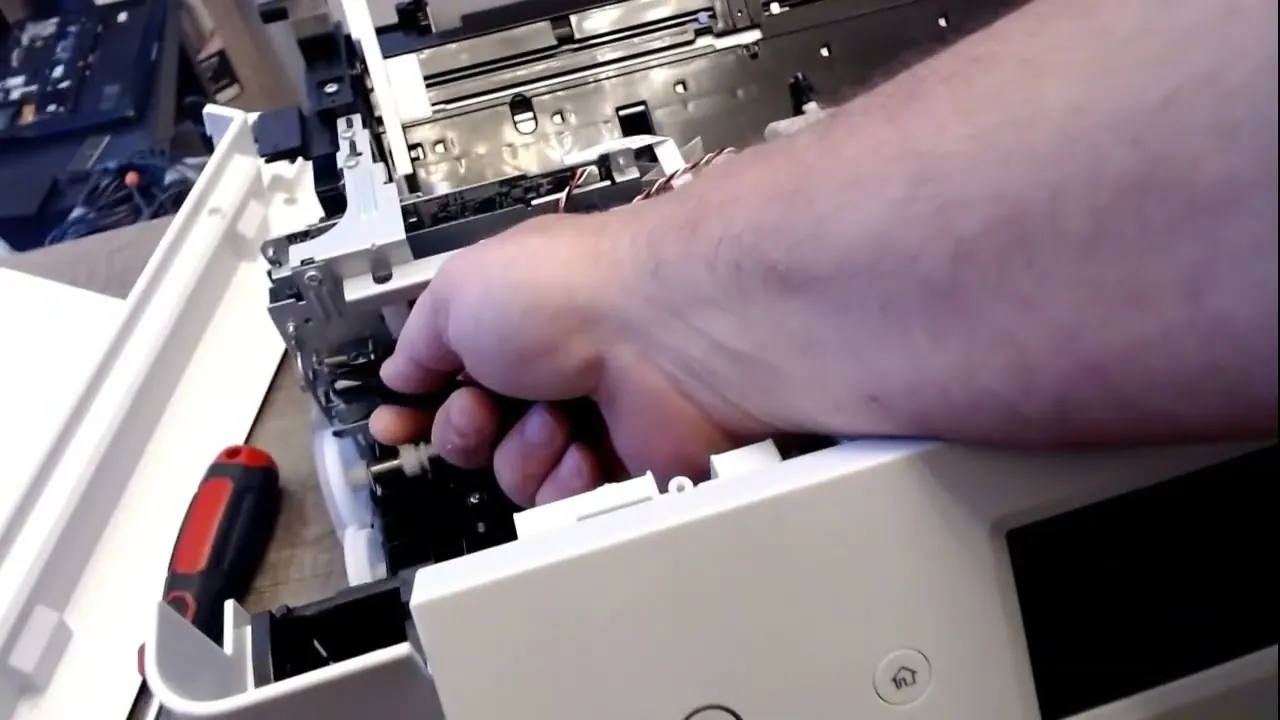
The LED indicators on the control panel are your primary diagnostic tool. A flashing amber light usually signals a critical error, such as a paper jam or an open scanner cover. A steady amber light, however, often indicates that a maintenance task is required, such as replacing the maintenance box.
The maintenance box acts as a waste ink reservoir; when it reaches its capacity, the printer will stop printing to prevent internal leakage. You can purchase a replacement maintenance box and swap it out easily by opening the panel on the back of the unit.
Is My Firmware Outdated?
Running outdated firmware can lead to unexpected crashes, slow scanning speeds, and wireless instability. Epson periodically releases updates to optimize the ink discharge precision and improve the efficiency of the power-saving modes.
To check for updates, use the Epson Software Updater utility on your connected computer. It will automatically scan for the latest version and prompt you to install it. Ensure your printer remains powered on throughout the entire update process, as an interruption could corrupt the printer’s internal logic board.
Checking the Print Head Alignment
If your text looks fuzzy or your images have a “double vision” effect, the print head alignment is likely off. This happens if the printer has been moved or if the carriage motor has experienced a minor slip. The alignment process involves printing a test sheet with various grid patterns.
You’ll then input the numbers of the best-looking patterns into the printer’s interface. This tells the machine exactly where to position the nozzles for optimal sharpness. Run this process twice if the first attempt doesn’t yield perfectly crisp text.
Cleaning the Paper Feed Rollers
Dust accumulation on the feed rollers causes the printer to misfeed or skip pages. To clean these, turn off the printer and disconnect the power cord. Locate the rollers at the rear of the unit.
Using a clean, lint-free cloth lightly dampened with distilled water, gently wipe the rubber surfaces. Rotate the rollers manually if possible, or use the cleaning function in the maintenance menu if the device allows. Allow the rollers to air dry completely before attempting to load new paper.
| Maintenance Task | Frequency | Complexity |
|---|---|---|
| Nozzle Check | Weekly | Low |
| Alignment | Monthly | Medium |
| Roller Cleaning | Quarterly | Medium |
| Firmware Update | As Needed | Low |
Are You Using Official Ink?
Using third-party ink is the most common cause of permanent print head failure. Non-genuine inks often have different viscosity levels and chemical compositions that can cause the microscopic nozzles in your ET-15000 to clog beyond repair.
If you suspect your current ink is the issue, you may need to perform a “deep cleaning” cycle. This is a more aggressive version of the standard cleaning that clears out old, viscous ink. Only use this if you have switched back to official Epson ink bottles and are still experiencing poor results.
How to Reset Network Settings
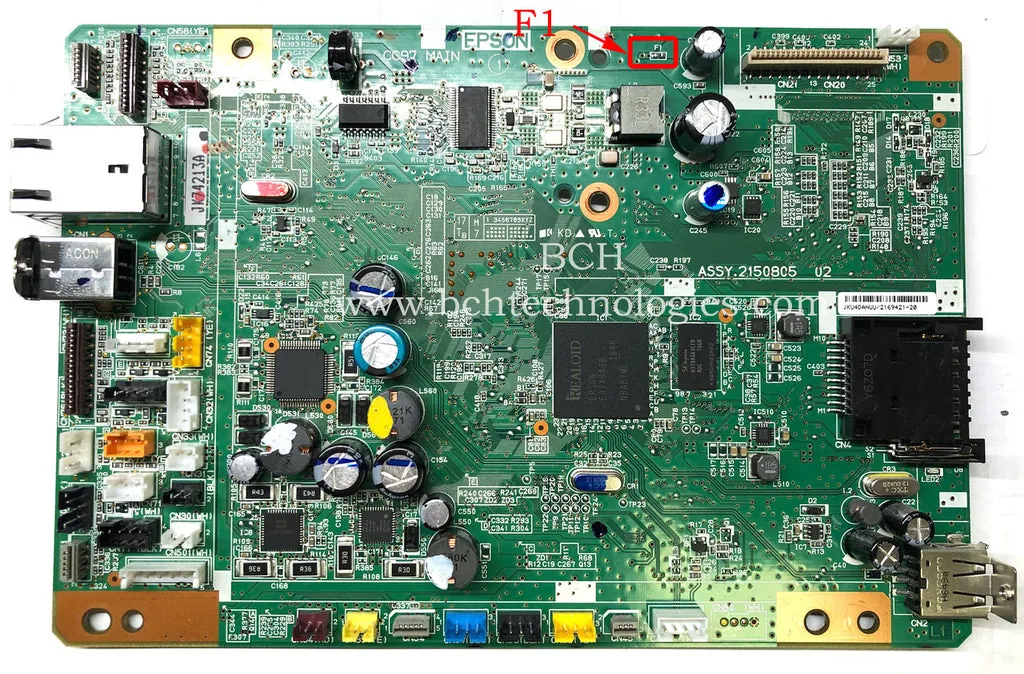
If you have changed your wireless router or moved your office setup, the printer may be unable to find your network. Resetting the network settings to factory defaults is a reliable way to start fresh. Go to the “Settings” menu, then “Restore Default Settings,” and choose “Network Settings.”
After the printer resets, you’ll need to reconnect it via the Epson Smart Panel app or by manually entering your Wi-Fi credentials on the printer’s touch screen. This clears out corrupted cache files and old connection profiles that may be causing interference.
Related guides
- Epson ET 2800 Troubleshooting: For Common Printer Issues
- Epson Printer Troubleshooting Guide: Quick Fixes for Common Issues
Frequently Asked Questions
Why does my printer say the maintenance box is full?
The maintenance box is a physical container that collects excess ink used during cleaning cycles. When the internal counter reaches its limit, the printer prevents further use to avoid ink overflow inside the chassis. You must purchase a new maintenance box, replace the old one, and the printer will automatically recognize the new unit and reset the error message.
Can I use the ET-15000 without a Wi-Fi connection?
Yes, you can connect the printer directly to your computer using a standard USB A-to-B cable. This bypasses all wireless network issues. If you choose this method, ensure that you have installed the full driver package from the official website to enable all features, such as duplex printing and high-resolution scanning, which may not be fully functional with basic plug-and-play drivers.
What should I do if the print head is permanently clogged?
If multiple power cleanings and nozzle checks fail to restore print quality, the print head may have dried ink deposits that are impossible to clear via software. In this case, you should contact professional support. Attempting to manually flush the print head with unauthorized solvents or chemicals often results in permanent electrical damage to the print head assembly, which is usually not covered under the manufacturer’s warranty.
How often should I perform a nozzle check?
If you use the printer daily, a nozzle check once every two weeks is sufficient. If you use the printer infrequently, it’s best to perform a nozzle check before any major project. Because the ET-15000 uses liquid ink, it can dry out if left idle for long periods. Printing a small test page once a week keeps the ink flowing through the lines.
Does the ET-15000 support borderless printing?
Yes, the ET-15000 supports borderless printing for various paper sizes, including 4×6, 5×7, and 8.5×11 inches. If you’re experiencing white borders on your prints when you expect full-bleed, check the print settings in your software application. Ensure the “Borderless” option is selected in the print dialog box, as the default setting for many documents is to include a standard margin for printer grip.
Conclusion
Regularly monitoring your ink levels and keeping the paper path free of dust will prevent most of the common issues associated with this model. If you have exhausted the steps provided and the printer still displays an error, consult your original user manual for specific local service center information. Taking the time to perform these maintenance routines now will ensure your printer remains a reliable part of your workspace for years to come.