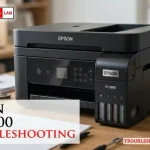
When you encounter technical difficulties with your hardware, performing an epson et-2800 troubleshooting routine can usually restore functionality without requiring professional repairs. These EcoTank printers are designed for high-volume, low-cost printing, but like any complex device, they can experience issues with connectivity, print quality, or paper handling. Whether your printer is failing to communicate with your computer or producing streaky documents, systematic diagnosis is the fastest way to get your workflow back on track.
Key Takeaways
- Check your Wi-Fi signal strength and restart your router if the printer fails to appear on your network.
- Run a nozzle check pattern to determine if internal ink pathways are clogged or dry.
- Ensure the ink tanks are filled above the minimum line to prevent air from entering the print head.
- Use the official Epson Smart Panel app to update firmware and manage maintenance tasks wirelessly.
- Clear paper jams by gently pulling the media in the direction of the paper path to avoid tearing.
Is Your Printer Offline?
When your computer can’t find the printer, the issue is often a mismatch between the network assigned to the printer and the one your PC uses. First, verify that the Wi-Fi light on the printer control panel is solid green. If it’s blinking or off, your printer has lost its connection to the local network.
Pro Tip: Power cycle your devices by turning off the printer and your router for sixty seconds before turning them back on to force a fresh network handshake.
Wireless Connectivity Steps
- Navigate to the network settings menu on the printer’s small LCD screen.
- Select the “Wi-Fi Setup Wizard” to see a list of available signals.
- Choose your home or office 2.4GHz network.
- Enter your security password carefully using the arrow buttons.
- Confirm the connection and verify that the printer status on your computer changes to “Ready.”
| Troubleshooting Category | Common Symptom | Likely Solution |
|---|---|---|
| Network | Printer Offline | Restart Router/Re-pair Wi-Fi |
| Print Quality | Faint Lines/Gaps | Perform Head Cleaning |
| Paper Feed | Jammed Media | Clear Path/Clean Rollers |
| Ink System | Low Ink Warning | Refill Tanks/Reset Levels |
Addressing Poor Print Quality
If your documents appear faded, streaky, or missing colors, the print head nozzles are likely clogged. This often happens if the printer has sat idle for several weeks. The Epson EcoTank maintenance guide provides specific instructions on how to initiate a cleaning cycle from the printer interface. You should begin by printing a test pattern to see exactly which color is failing.
Running a Nozzle Check
- Load a clean sheet of A4 or letter-size paper.
- Use the printer’s maintenance menu to select “Nozzle Check.”
- Examine the printed grid for broken lines or missing segments.
- If gaps exist, select “Head Cleaning” from the maintenance menu.
- Repeat the cleaning cycle up to three times; if no improvement is seen, turn the printer off and let it sit for six hours to allow dried ink to soften.
Fixing Common Paper Jams
Paper jams occur when the feed rollers lose traction or a small scrap of debris blocks the internal path. Always pull jammed paper slowly to ensure no fragments remain inside the machine. If you rip a piece of paper, the printer will continue to report a jam error until the tiny remnant is removed.
- Rear Paper Feed: Gently lift the paper support and remove any visible sheets.
- Internal Path: Open the printer cover and use a flashlight to inspect the rollers.
- Roller Cleaning: If the printer consistently misfeeds, use a lint-free cloth dampened with water to wipe the rubber rollers.
Managing Ink Levels Properly
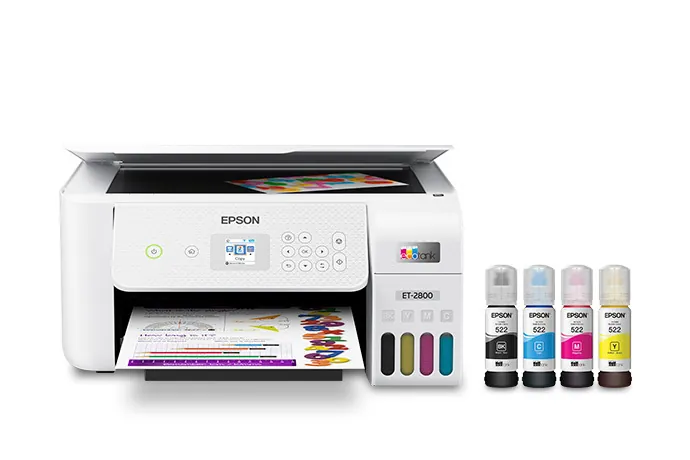
The EcoTank system is efficient, but it requires that you don’t let the ink levels drop below the lower line on the tanks. When air enters the ink tubes, it creates a persistent blockage that’s difficult to clear. Always keep the ink bottles capped tightly and store them in a cool, dark location to prevent the chemicals from degrading.
Warning: Never attempt to force ink into the tanks using a syringe or unauthorized tools, as this can cause permanent damage to the internal print head assembly and void your manufacturer warranty.
| Maintenance Task | Recommended Frequency |
|---|---|
| Nozzle Check | Monthly or after long inactivity |
| Firmware Update | Every 3-6 months |
| Roller Cleaning | If paper feed becomes noisy |
| Ink Tank Refill | When ink reaches the lower line |
Why Is My Ink Streaking?
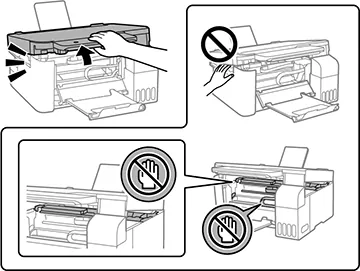
Streaking usually indicates that the print head is physically dirty or that the ink has been contaminated. If cleaning cycles don’t resolve this, check the area under the print head carriage. Dust and paper lint can accumulate on the bottom of the print head, dragging through the ink as it moves across the page. Use a soft, dry cloth to lightly wipe the area, but avoid touching the electrical contacts or the ribbon cable.
Updating Your Printer Firmware
Outdated firmware can lead to communication errors between the printer and modern operating systems. Epson releases periodic updates to improve stability and security. You can update your firmware by connecting the printer to a computer via USB and using the Epson Software Updater utility. This tool will automatically scan for the latest version and walk you through the installation process.
Steps to Update
- Download the Epson Software Updater from the official website.
- Install and launch the utility on your connected computer.
- Select your printer model from the list.
- Check for “Firmware Update” in the available downloads section.
- Ensure the printer remains powered on during the entire update process.
Troubleshooting Epson 2800 Error Lights
The ET-2800 uses a combination of light patterns to communicate errors. A blinking power light usually indicates a startup error or a paper jam, while a blinking ink light indicates that the printer believes the ink levels are critically low. If you have refilled the tanks and the light is still blinking, you may need to reset the ink level settings through the printer’s utility software on your computer.
Understanding Print Head Realignment
If your text looks blurry or vertical lines appear jagged, the print head alignment is likely off. This can happen after moving the printer or after a heavy paper jam. Use the “Print Head Alignment” feature found in the printer maintenance settings. The printer will print a series of patterns, and you’ll be asked to choose the most precise-looking ones from the list to calibrate the carriage movement.
Are My Ink Bottles Compatible?
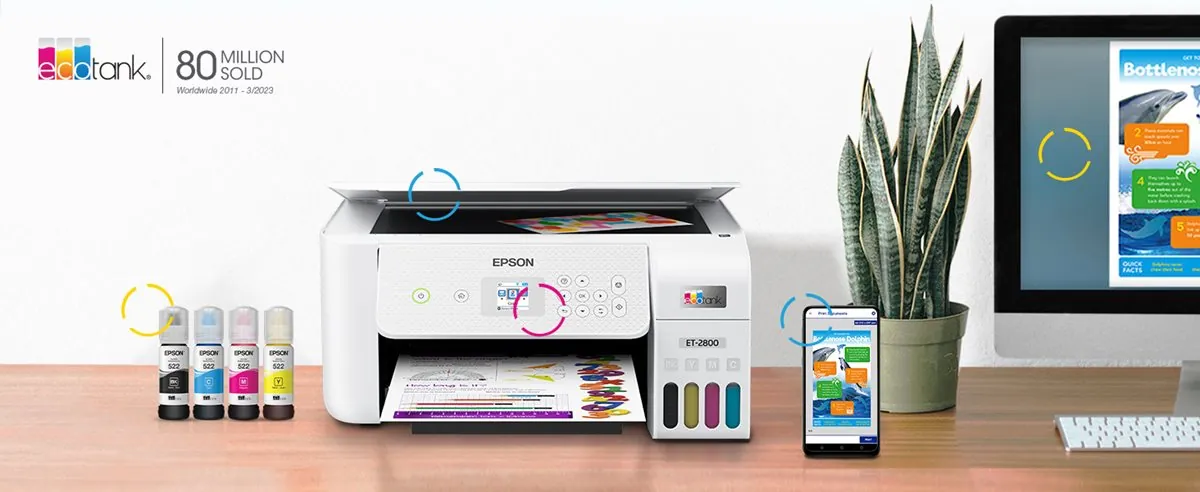
Using generic or third-party ink can cause permanent clogs in the print head, which is far more expensive to fix than the cost of genuine ink. Always use the 522 series ink bottles designed specifically for the ET-2800. These bottles feature a keyed nozzle design that ensures you can’t put the wrong color into the wrong tank, preventing accidental cross-contamination.
Frequently Asked Questions
Why does my printer print blank pages?
Blank pages usually occur because the ink nozzles are completely dry or the ink tubes have lost their prime. If you haven’t used the printer in a long time, the ink inside the print head may have solidified. Run the “Head Cleaning” utility from the printer driver settings on your computer. If the problem persists after three cycles, the print head may need professional service.
How do I factory reset my printer?
To perform a factory reset, navigate to the “Settings” menu on the printer’s LCD screen. Look for “Restore Default Settings” or “Network Settings Reset.” Select the option to wipe all stored data. Keep in mind that this will remove your Wi-Fi credentials and any custom print settings, requiring you to set the printer up as if it were brand new.
Can I print from my smartphone?
Yes, you can print directly from your smartphone using the Epson Smart Panel app. Download the app from your device’s app store and ensure your phone is connected to the same Wi-Fi network as the printer. The app will automatically detect the ET-2800 and allow you to print documents, photos, and perform maintenance tasks directly from your mobile interface.
What do I do if the power light is flashing?
A flashing power light generally indicates a hardware error, such as a paper jam, a carriage obstruction, or a mechanical failure. First, turn the printer off and unplug it for two minutes. Check the interior for any jammed paper or obstructions blocking the print head carriage. If the light continues to flash after restarting, the printer may require a hardware service to address a mechanical failure.
How do I change the paper size settings?
You can change the paper size settings through the “Printing Preferences” menu on your computer before sending a print job. Ensure the paper size selected in the software matches the actual paper size loaded in the rear tray. If the settings don’t match, the printer may display a “Paper Mismatch” error, which will prevent the document from printing until you confirm the correct size.
Conclusion
If you have exhausted these troubleshooting steps and your printer is still failing to operate correctly, your next step is to visit the official support page for your specific region to verify your warranty status and locate the nearest authorized service center. Keeping your firmware updated and using genuine ink will ensure your device remains reliable for many years of printing.