The Epson FastFoto FF-680W is a high-speed scanner designed for digitizing large collections of photos and documents, though users sometimes encounter performance hiccups that require effective epson ff-680w troubleshooting to restore full functionality. Whether you’re dealing with paper jams, connectivity drops, or poor image quality, understanding the mechanical and software components of your device is essential for maintaining a smooth workflow. This guide covers the most common technical hurdles and provides actionable solutions to get your scanner back to its optimal state.
Key Takeaways
- Clean the internal rollers regularly to prevent paper feed errors.
- Verify your network connection if the scanner fails to appear in the software.
- Update your firmware via the Epson Software Updater to fix known bugs.
- Use the calibration sheet provided with the device to correct image color shifts.
- Ensure the carrier sheet is used for delicate or non-standard documents.
Why Is My Scanner Not Connecting?
Connectivity issues are the most frequent complaint for wireless scanners. First, confirm that your router is broadcasting a 2.4GHz signal, as the FF-680W may struggle with 5GHz-only networks. If your computer can’t locate the scanner, perform a hard reset by powering off both the scanner and your router. Wait thirty seconds, then power the router back on, followed by the scanner.
Ensure that the USB cable is disconnected during wireless setup to avoid signal conflicts. If the connection remains unstable, you may need to assign a Static IP Address to the scanner through your router’s configuration page to prevent the device from dropping off the network during long scanning sessions.
Resolving Paper Jams and Feeds
Paper jams often result from dust accumulation on the feed rollers or misaligned documents. When a jam occurs, don’t force the paper out, as this can damage the internal sensors. Open the scanner cover and gently remove the document. If the paper feeds unevenly, check if the side guides are adjusted snugly against the edges of your photos or documents.
A common culprit for frequent jamming is a dirty pickup roller. Over time, paper lint and oils from your fingers create a slick surface that prevents the rollers from gripping the paper. Clean these rollers using a soft, lint-free cloth dampened with water or a mild, non-abrasive cleaner.
| Maintenance Task | Frequency | Tool Required |
|---|---|---|
| Clean Roller Assembly | Every 1,000 scans | Lint-free cloth |
| Perform Calibration | Monthly | Calibration sheet |
| Update Firmware | As notified | Epson Software Updater |
| Clear Path Debris | After every jam | Compressed air |
How to Fix Image Quality Issues
If your scans appear blurry, streaked, or discolored, the optical path or the internal sensors are likely compromised. Vertical lines on your images are a classic sign of debris on the scanner glass. Use a clean, dry, soft cloth to wipe the glass strips inside the scanner cover.
If the color seems “off” or washed out, the device likely needs recalibration. According to the official Epson FastFoto FF-680W user guide, performing a calibration using the included white card is necessary to reset the sensor sensitivity and ensure accurate color reproduction. Avoid using glass cleaners or chemicals that could leave a film on the optical surface.
Epson 680W Software and Driver Troubleshooting
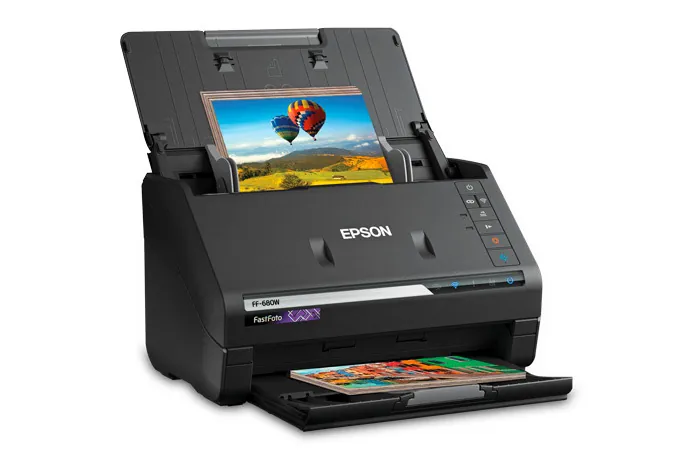
Software glitches often manifest as the scanner software freezing or failing to save files to the designated folder. Begin by checking for pending updates. The Epson Software Updater tool is your primary resource for ensuring that your drivers and scanning applications are compatible with your current operating system.
If the software crashes during a large batch, try reducing the batch size or lowering the resolution settings. Sometimes, background security software or firewalls may block the communication between the scanner and the computer. Temporarily disable these to see if the issue persists, and if it resolves, add the scanner application as an exception in your security settings.
Understanding Status Light Patterns
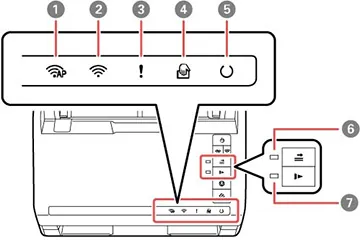
The LED status lights on the front panel provide a diagnostic code for what is happening inside the machine. A flashing red light usually indicates a hardware error or a paper jam, while a blinking orange light often signifies a communication issue. If the lights are flashing in a specific sequence, refer to the manual to identify the error code.
A solid green light indicates the device is ready, but if it stays solid while you’re trying to scan, the software might not be “seeing” the device. Ensure that the ScanSmart software is running in the background and that the scanner is selected as the active device in the software preferences.
Managing Delicate or Old Photos
Scanning vintage photos requires extra care. If the photos are curled or fragile, don’t feed them directly into the rollers. Instead, use the carrier sheet provided with your scanner. This protects the original document from mechanical stress and ensures it moves through the rollers smoothly.
If you’re scanning a large collection, periodically stop to clear out any paper dust that has accumulated. Using the carrier sheet also helps prevent roller marks on glossy photos, which can occur if the rollers are dirty or if the pressure settings are too high. Always ensure your photos are free of adhesive residue or loose tape before feeding.
Improving Wireless Signal Stability
Wireless performance can be significantly impacted by environmental factors. Keep the scanner within a reasonable range of your wireless access point, ideally within thirty feet and away from large metal objects or heavy appliances that cause interference. If you’re operating in a dense environment with many Wi-Fi networks, consider changing your router’s wireless channel to a less congested frequency.
A stable connection is crucial for high-resolution scanning, as large file sizes require a consistent data stream. If your router supports it, prioritize the scanner’s traffic using Quality of Service (QoS) settings to ensure it receives enough bandwidth.
| Troubleshooting Step | Goal | Expected Outcome |
|---|---|---|
| Power Cycle | Reset hardware | Clear temporary errors |
| Update Drivers | Software compatibility | Improved performance |
| Clean Glass | Remove vertical lines | Clear, sharp images |
| Adjust IP Settings | Network stability | Consistent connectivity |
When to Contact Epson Support
If you have exhausted all self-help steps and the scanner still fails to function, it may be time to seek professional assistance. Before calling, note the exact error message or the specific behavior of the status lights. Have your serial number ready, which is typically found on the back or bottom of the unit.
Epson offers various support channels, including live chat, phone support, and email. If the unit is still under manufacturer warranty, they may provide a repair or a replacement unit. Be prepared to describe the steps you have already taken, as this will help the support agent rule out common issues quickly.
Tips for High-Volume Scanning
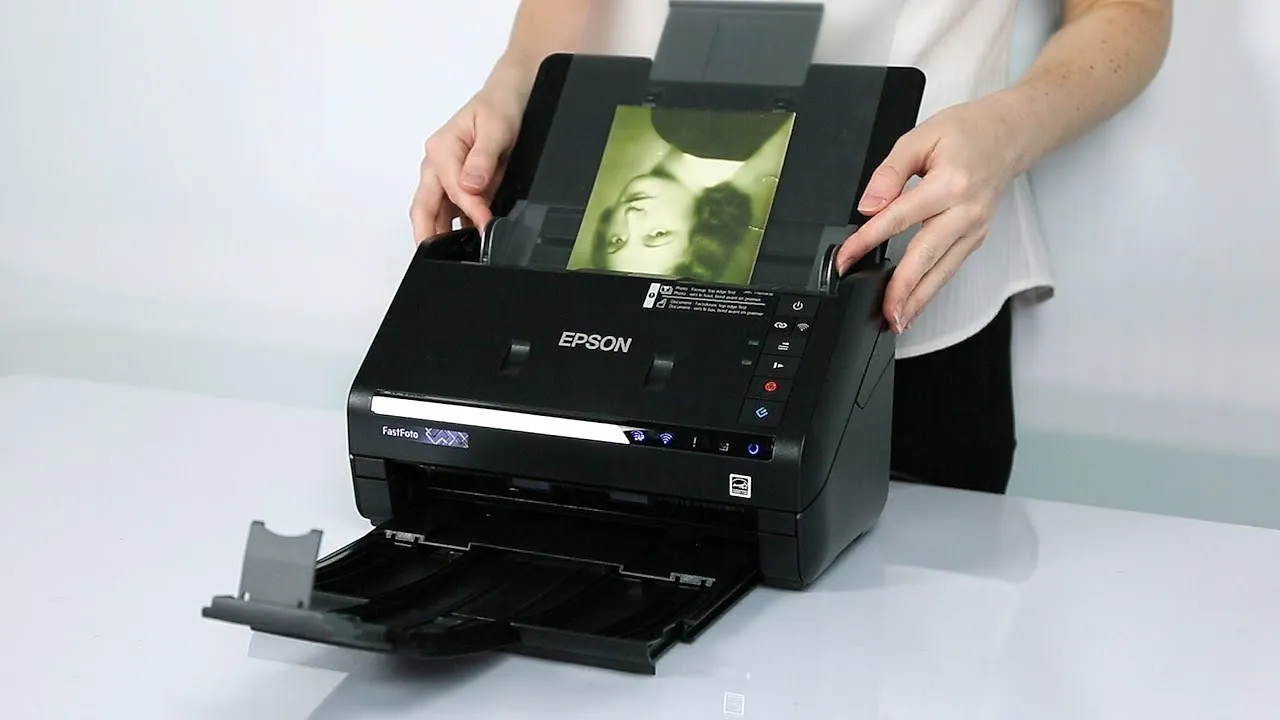
If you’re processing hundreds of photos, efficiency is key. Organize your photos by size and thickness before beginning a batch. Don’t mix heavy cardstock with thin photo paper in the same stack, as this is a primary cause of feeding errors.
If you notice the scanner slowing down, it’s often a sign that the computer is struggling to process the images. Close unnecessary applications to free up system memory. Additionally, ensure that your destination folder has enough disk space, as high-resolution scans consume significant storage. Regularly clearing your cache and organizing your files into dated folders will help maintain a smooth workflow.
Related guides
- Epson Et 2850 Troubleshooting: Quick Solutions
- Epson Projector Troubleshooting: Quick Fixes and Tips
- Epson ET 2800 Troubleshooting: For Common Printer Issues
Frequently Asked Questions
Why is the scanner light flashing red?
A flashing red light typically indicates a hardware error, such as a paper jam, an open cover, or a communication failure. First, open the scanner cover to ensure there’s no jammed paper. If the path is clear, close the cover firmly and power the scanner off and on. If the light persists, check the software interface for a specific error message or code.
How do I reset the scanner?
To perform a hard reset, turn off the scanner and disconnect the power cable. Wait for at least one minute to allow the internal capacitors to discharge. While the scanner is off, restart your computer and your wireless router. After everything has rebooted, reconnect the power to the scanner and turn it on. This clears temporary memory errors and forces a fresh handshake with your network.
Can I scan without the carrier sheet?
You can scan standard photos and documents without a carrier sheet. However, you must use the carrier sheet for delicate, fragile, or non-standard items like receipts, thin paper, or photos that are curled or damaged. The carrier sheet acts as a protective buffer, preventing the rollers from grabbing or tearing the original document while ensuring it moves at a consistent speed through the scanning path.
Why are there lines on my scans?
Vertical lines are almost always caused by dust, ink, or adhesive residue on the internal glass surface of the scanner. Open the scanner cover and use a soft, dry, lint-free cloth to wipe the glass strips inside. If a dry cloth doesn’t remove the lines, you may lightly dampen it with water, but ensure the surface is completely dry before attempting to scan again.
How often should I calibrate the scanner?
You should calibrate the scanner whenever you notice a decline in image quality, such as color shifts or washed-out colors. Aside from these symptoms, it’s good practice to perform a calibration once every month if you scan frequently. Use the official calibration sheet that came with your device, as using a different type of paper or a non-standard sheet can lead to incorrect sensor readings.
Conclusion
Performing regular maintenance on your Epson FastFoto FF-680W is the most effective way to prevent downtime and keep your photo digitization project moving forward. By keeping the rollers clean, using the carrier sheet for delicate documents, and ensuring your software is up to date, you’ll avoid the most common technical pitfalls. If you continue to face persistent hardware issues, reach out to Epson technical support for further diagnostic assistance.