When your office communication suddenly drops, performing an esi phone system troubleshooting sequence is the fastest way to restore connectivity without waiting for an expensive technician. Business communication infrastructure relies on stable power, correct network configuration, and properly registered handsets to function optimally. Whether you’re dealing with a dead display, audio quality issues, or failed call routing, most common problems stem from simple physical layer faults or minor software glitches that can be resolved on-site.
Key Takeaways
- Check all physical cable connections, specifically the RJ-45 Ethernet cables, to ensure they’re seated firmly in the ports.
- Verify that your Power over Ethernet (PoE) switch is active and providing sufficient wattage to the connected desk phones.
- Perform a system reboot by power cycling the main ESI communications server or the individual digital station card.
- Check for IP address conflicts if your system uses VoIP, as duplicate addresses will disrupt registration.
- Consult the ESI Communications official support documentation to identify specific error codes displayed on your handset screen.
Troubleshooting Common ESI Phone System Issues
Hardware failures are often the easiest to diagnose because they’re usually localized to a single desk or a specific piece of equipment. If a single station is down, start by inspecting the physical link. A loose cable connection is the most frequent culprit. Ensure the Ethernet cord is clicked into both the wall jack and the handset port. If the phone still doesn’t power on, swap the cable with a known working one from a neighboring desk.
Diagnosing Power and Connectivity
If the phone has no power, the issue might be the Power over Ethernet source. ESI phones typically require standard IEEE 802.3af power. If you’re using a PoE switch, verify that the port is enabled and not in an error-disabled state. If the phone is powered via a local power brick, ensure the wall outlet is providing electricity by testing it with another device.
| Fault Symptom | Likely Cause | Recommended Action |
|---|---|---|
| Blank LCD Screen | No power to unit | Check PoE switch or power brick |
| “No Service” Error | Network registration failed | Restart phone and router/switch |
| Distorted Audio | Jitter or packet loss | Check network bandwidth/QoS |
| Intermittent Dropped Calls | Faulty cabling | Replace Cat5e/Cat6 patch cable |
How to Reboot Your System
A hard reboot is often necessary to clear cache or stuck processes within the ESI system controller. Before performing a full system restart, ensure you have notified all staff, as this will drop all active calls and temporarily disable the internal phone directory. The system power cycle should be done by disconnecting the main power supply from the ESI server, waiting at least 30 seconds, and then reconnecting it.
Resetting Individual Handsets
If only one user is having trouble, you don’t need to reboot the entire office. Simply unplug the Ethernet cable from the back of the specific phone. Wait 15 seconds for the capacitors to discharge, then plug it back in. The phone will perform a boot sequence where it attempts to contact the server. Watch the screen for “Registering” or “Configuring” messages; if it hangs on these, the issue is likely a network configuration error rather than a hardware fault.
Addressing Audio Quality Problems
Audio issues such as echo, static, or robotic voices are almost always related to network latency or Quality of Service (QoS) settings. In a VoIP environment, voice traffic must be prioritized over data traffic. If your network is congested by large file transfers or video streaming, the phone system may suffer.
Analyzing Network Latency
If you notice intermittent audio quality, check your network switch configuration. Ensure that your voice VLAN is prioritized using DSCP tagging. You can often see packet loss metrics within the ESI system management interface. If the latency exceeds 100ms, you’ll likely experience noticeable voice degradation. Ensure that all network switches in the path are gigabit-capable and that there are no faulty cables causing CRC errors on the line.
What Causes Call Routing Failures?

Call routing issues, such as calls not reaching the correct extension or failing to ring the auto-attendant, are usually software-based. These problems often arise after an office move or a network change. The call routing table acts as the brain of your phone system, directing incoming signals to the correct destination.
| Error Type | Common Origin | Resolution Method |
|---|---|---|
| Ring-no-answer | User DND active | Disable Do Not Disturb on phone |
| Wrong destination | Misconfigured hunt group | Review extension routing settings |
| Auto-attendant loop | Incorrect time profile | Check office hours settings |
| Calls failing out | SIP trunk registration | Verify ISP credentials and status |
Resolving SIP Trunk Registration Errors
If your entire office can’t make outgoing calls, the issue is frequently the SIP trunk registration. The SIP trunk is the digital link between your ESI system and your service provider.
If the authentication credentials have changed or the provider is experiencing an outage, the ESI system will show a registration error. Check the status page of your ESI interface; if the SIP trunk is marked as “Unregistered,” you must verify your username, password, and public IP address with your provider.
Identifying Firmware Compatibility Issues
Sometimes, a phone system behaves erratically because the handset firmware is out of sync with the system server firmware. If you have recently updated your ESI server, you may need to push firmware updates to the individual desk phones. This process is usually automated, but if a phone is left in a suspended state during an update, it can become unresponsive. Ensure that all phones are on the same firmware version to maintain compatibility across the office.
Understanding Status Indicators
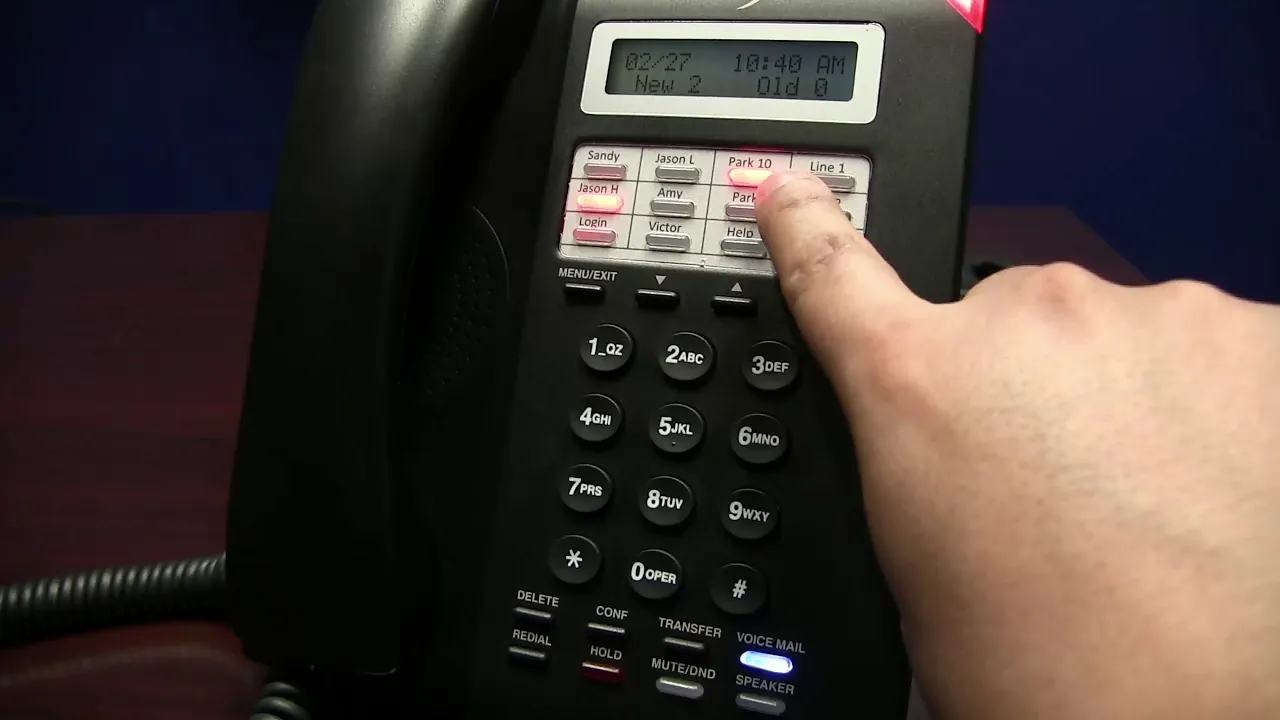
ESI phones provide visual feedback through their LED indicators and screen messages. A solid red light often indicates a missed call or a message waiting. A flashing light might indicate an active call or a specific system alert status. If you see a persistent error message such as “Network Unreachable,” this is a clear sign that the phone isn’t getting a response from the default gateway on your network.
Reading Error Messages
- Network Unreachable: The phone can’t see the server. Check your VLAN settings.
- Registration Failed: Authentication credentials are incorrect or blocked.
- Server Busy: The system is overloaded or the SIP trunk is down.
- No DHCP: The phone isn’t getting an IP address from your router.
Managing Internal Extension Conflicts
If two phones are ringing simultaneously when only one should, or if one phone keeps dropping its registration, you likely have an IP address conflict. In a static IP setup, ensure that no two devices share the same address. In a DHCP setup, ensure that your DHCP server has enough available addresses in its pool to accommodate all phones. If you add new devices, you may need to expand the scope of your DHCP server to avoid address exhaustion.
Are There Security Risks to Consider?
When troubleshooting, security should be a priority. An improperly configured phone system can be vulnerable to unauthorized access or toll fraud. Always ensure that the administrative password for your ESI system is changed from the default. If you’re opening ports on your firewall for remote access, ensure you’re using VPN tunnels or strictly limiting access to known IP addresses to prevent bad actors from hijacking your phone lines.
Frequently Asked Questions
Why does my ESI phone say “No Service”?
This message typically indicates that the phone has lost connection to the ESI server. First, verify that the Ethernet cable is securely connected to both the phone and the network switch. If the physical connection is sound, restart the phone by unplugging it and plugging it back in. If the error persists, check your network switch to ensure the specific port is active and properly configured for the voice VLAN.
How do I factory reset an ESI handset?
A factory reset should be your last resort, as it wipes all custom settings, including extension numbers and programmable keys. To perform a reset, you typically hold down a specific key combination during the power-up sequence, such as the “Hold” or “Transfer” keys depending on the model. Consult your specific ESI model manual, as the exact sequence varies significantly between legacy digital units and modern IP phones.
Can I fix audio echo myself?
Audio echo is often caused by acoustic feedback or network jitter. First, lower the volume on the handset speakerphone to see if the echo subsides. If the problem persists, the issue is likely network-related. Ensure your router is prioritizing voice traffic via QoS settings. If the echo only happens on calls to specific external numbers, the issue may actually reside with the provider’s network or the recipient’s equipment.
What should I do if the auto-attendant fails?
If callers aren’t hearing your greeting, verify that the audio files are correctly uploaded to the ESI system memory. Check the system’s “Time Profiles” to ensure the system isn’t incorrectly set to “After Hours” mode. If the greeting is present but callers can’t select options, verify that the DTMF signaling settings match those required by your telecommunications provider for proper tone recognition.
Why do my calls drop after 30 seconds?
Calls dropping at a consistent interval usually indicate a NAT traversal issue. The ESI system is likely attempting to negotiate a voice path, but the firewall is blocking the media stream once the initial signaling is complete. Ensure that your firewall has the appropriate ports open for SIP signaling and RTP media streams, and verify that your ESI system is correctly configured to report its public IP address.
Conclusion
To resolve your persistent issues, start by logging into your ESI administrative interface to check the system logs, as these provide the most accurate diagnostic data regarding registration and connectivity failures. If the logs indicate an authentication error, verify your service provider credentials immediately. Should the logs remain clear while the physical hardware remains unresponsive, contact your certified ESI partner to request a remote diagnostic assessment of your server configuration.