You can fix an eufy troubleshooting red light issue by first checking the device’s power connection and ensuring the battery is fully charged. This indicator usually signals that the unit has a low battery, a connection failure, or a system error that prevents normal operation. If the light remains red after you confirm the power source is working, the device may need a hard reset.
Troubleshooting your eufy red light
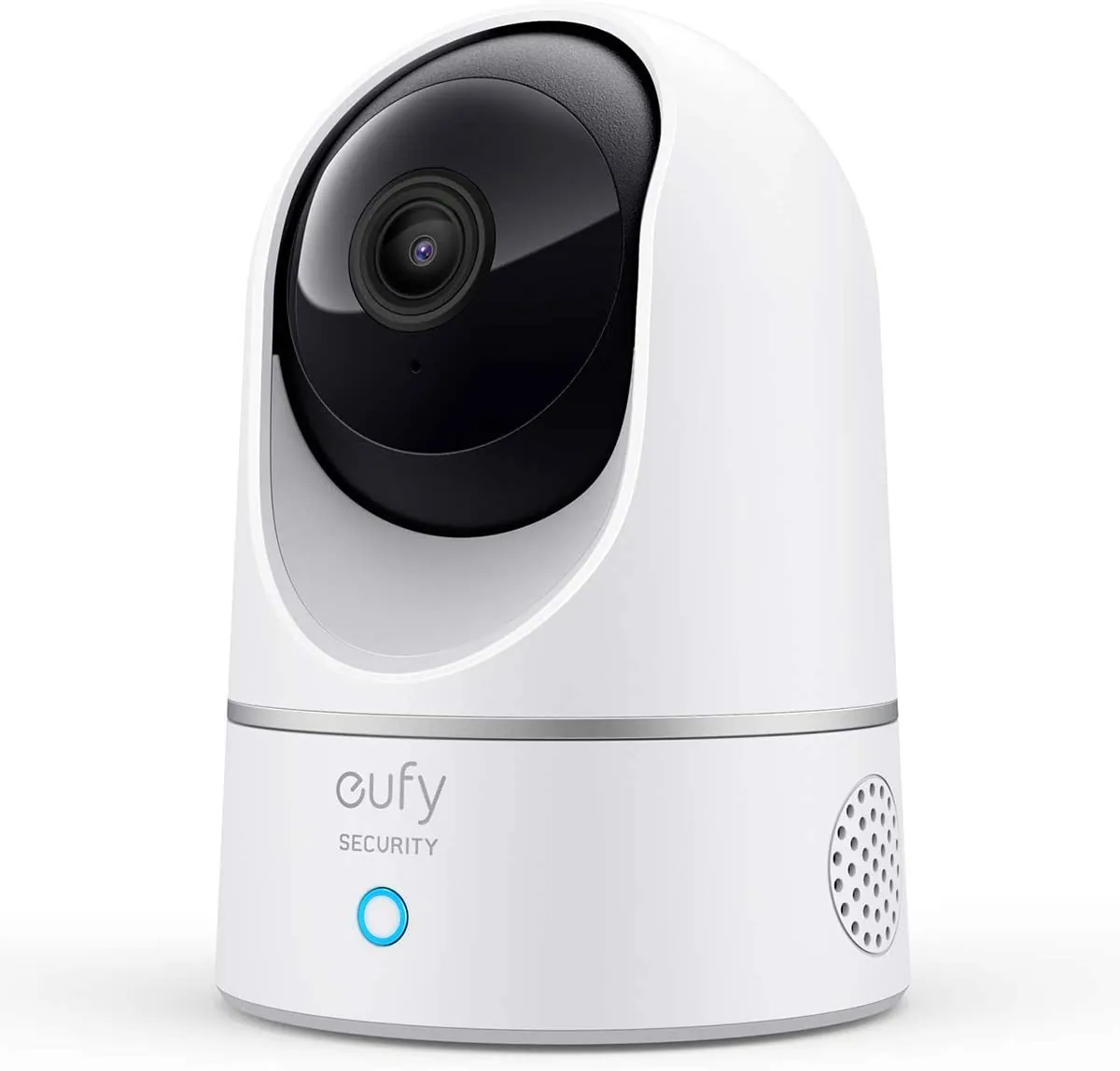
The red light on your device serves as a warning that it can’t complete its current task. Most of the time, this happens because the battery level has dropped below the threshold required to maintain a connection to your home network. When the voltage is too low, the internal software stops functioning, and the hardware displays a solid or blinking red light to alert you.
Another common cause is a failed firmware update. If the power cuts out while the device is downloading or installing new software, the system can get stuck in a loop. This often leaves the unit in a state where it can’t boot up properly. You can check the specific status codes for your model on the Eufy official support center to see if your light pattern matches a known hardware fault.
Finally, connectivity issues can cause this status. If your router changes its channel or if the Wi-Fi signal is too weak, the device might struggle to reconnect. The red light indicates it’s searching for a signal but failing to find a stable path. This occurs more often in homes with thick walls or when the device is placed too far from the main wireless access point.
Reset the connection settings
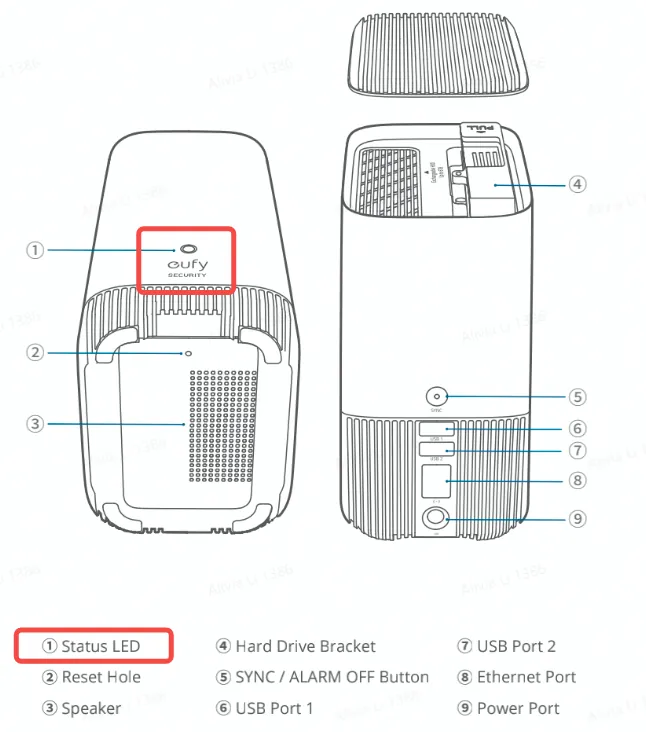
If a simple power cycle doesn’t help, you should reset the device to its factory state. This clears out old configuration files that might be causing the red light error. You’ll need to press and hold the reset button—usually located on the back or bottom of the unit—for about 10 seconds until you hear a tone or see the light flash.
This fix is intended for users who have already confirmed their power source is active. Once the device resets, you must use the mobile app to set it up again as if it were new. If you don’t have your original login details or access to the email account linked to the app, you won’t be able to complete the setup process.
Keep in mind that resetting the unit wipes all saved schedules and custom settings. If the light remains red after a full reset and re-pairing, the internal hardware may have a permanent failure. In such cases, you should reach out to the manufacturer’s customer service team for a warranty claim or professional repair. Never attempt to open the device housing, as this will immediately void your warranty and could expose you to electrical hazards.
Verify the power supply
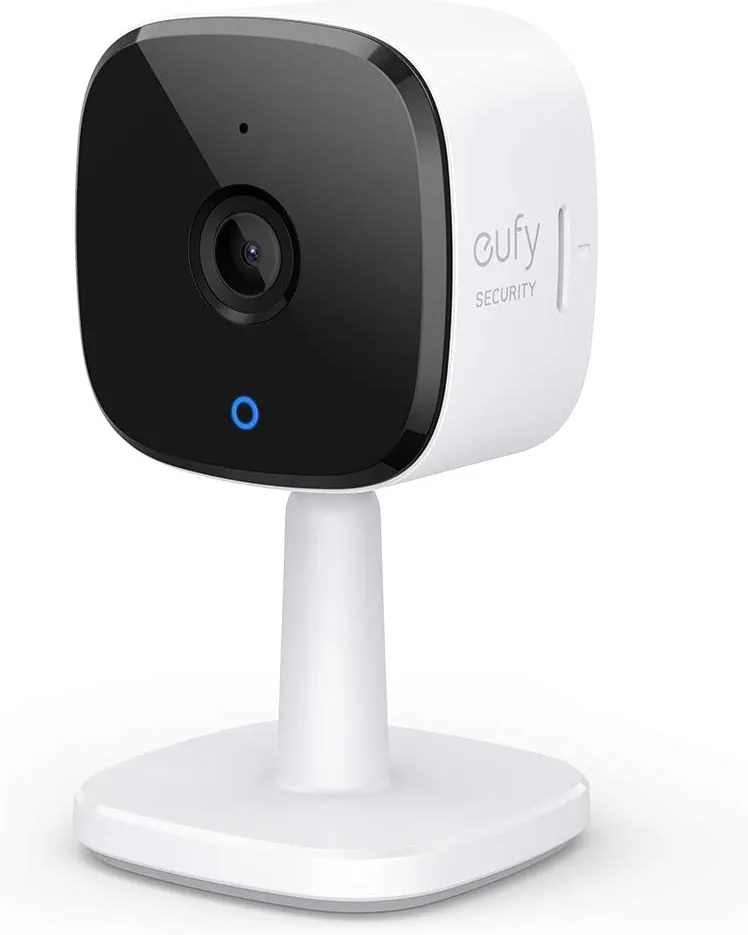
Sometimes the issue isn’t with the device itself but with the adapter or cable. If your device uses a wall plug, ensure it’s pushed all the way into the outlet. You should also check the cable for any signs of fraying or damage. If you have a compatible cable of the same voltage, swap it to see if the red light turns off.
This fix is for users whose devices show a red light even when plugged in for several hours. If you’re using a solar panel or a third-party charging dock, try switching to the original wall charger provided in the box. This rules out the possibility that the accessory isn’t delivering enough power to the unit.
Be aware that using a charger with the wrong output amperage can cause the light to stay red because the battery isn’t receiving enough current to charge. Always check the label on your power adapter to ensure it matches the requirements listed on the base of your device. If the device still fails to charge using the original manufacturer cable, the internal battery might have reached the end of its life.
Update the network environment
If your device is powered correctly but still shows a red light, it may be having trouble reaching the internet. You should try moving the unit within five feet of your wireless router temporarily to see if the status changes. If the red light turns off or changes color, you have confirmed the issue is distance or physical interference.
This method works best for users who have recently added new electronic devices or moved furniture that might block the Wi-Fi signal. If your home has a large floor plan, consider using a signal extender to bridge the gap between your router and the unit. This is a common solution for devices installed in garages or on outdoor patios where thick walls often degrade the signal.
If your router uses a dual-band network, ensure the device is connecting to the 2.4GHz band rather than the 5GHz band. Many smart devices lack the hardware to “see” 5GHz frequencies. If your router uses band steering to automatically switch devices, it might be forcing your unit onto a frequency it can’t maintain.
The mistake most users make is assuming their router is smart enough to handle the handshake automatically. If the connection drops intermittently, disable band steering in your router’s admin panel. If you aren’t comfortable changing these settings, contact your internet service provider for guidance on how to create a dedicated 2.4GHz network specifically for your smart home ecosystem.
Common mistakes to avoid
Leaving the device unplugged for too long: If the battery drains completely, it can take several hours to show a charging status again. Don’t assume the unit is broken if it stays red for the first hour of charging. If the light remains dark after four hours, only then should you consider a hardware fault.
Attempting to open the casing: Opening the device to inspect internal components is dangerous and voids your warranty immediately. Leave repairs to authorized staff.
Forcing a reset while updating: If the device is in the middle of an automatic firmware update, interrupting it by pressing the reset button can corrupt the software permanently. Look for the flashing amber status light; if it’s pulsing, the device is writing to memory. Never disconnect power during this cycle.
Using non-certified power adapters: Using a random USB charger from another device may fail to provide the necessary amperage required for your specific device. This mismatch keeps the red light on indefinitely. Always check the label for the specific amperage rating listed in your manual before plugging it in.
Steps for better device performance
| If you’re doing this | Do this instead | Why |
|---|---|---|
| Leaving it far from the router | Place it within 20 feet of the router | Ensures a strong, stable signal for the unit |
| Using any USB cable | Use the original cable provided | Guarantees the correct power transfer |
| Ignoring software updates | Run updates when they appear | Prevents crashes caused by old software |
| Charging via a laptop port | Plug into a wall outlet | Provides the constant, high power needed |
Signal interference often spikes when your device sits behind thick walls or large appliances. If your connection drops frequently, move the device to an open shelf within the 20-foot range.
Generic cables may look identical, but many lack the internal shielding required for data integrity. Using a third-party cord often causes intermittent syncing errors that look like hardware failure.
Most users delay updates to save time, yet this mistake forces the processor to work harder to bypass bugs. If your battery drains rapidly, an outdated firmware version is likely the culprit.
Laptop ports fluctuate in voltage depending on the computer’s own power state. Always use a wall adapter if the device shows a “slow charging” notification. This simple switch prevents long-term battery degradation.
Frequently asked questions
Can I fix a red light by myself?
You can fix most red light issues by resetting the device or ensuring a stable power connection. These problems usually stem from temporary network drops or a low battery. If these steps fail, the unit may have a hardware defect requiring professional support; never attempt to disassemble the device, as this is unsafe and voids your coverage.
How long does it take to charge?
It usually takes 4 to 8 hours to fully charge the battery when using a standard wall outlet. The exact time varies based on the current battery level and the temperature of the room. If the temperature is outside of the manufacturer’s recommended operating range, the battery may not charge to protect the internal cells. Always charge your unit in a room-temperature environment to ensure the fastest and safest charging cycle.
What happens if the light stays red after a reset?
If the light stays red after a full factory reset, you likely have a hardware failure that can’t be fixed at home. This often means the internal battery or the mainboard has stopped functioning correctly. You should contact the manufacturer’s support team with your device’s serial number to check if you’re still eligible for a replacement or a professional repair service.
Is it safe to leave the device plugged in?
Yes, it’s perfectly safe to leave the device plugged into a wall outlet for continuous power. These units are designed to manage their own power intake and will stop drawing current once the battery is full. This is actually the recommended way to use them if you want to avoid the red light warning caused by a dead battery. Just ensure you use the original power adapter provided by the manufacturer.
Why does the red light blink?
A blinking red light usually indicates that the device is in pairing mode or has lost its connection to the Wi-Fi network. This is different from a solid red light, which often signifies a critical error or a completely empty battery. If your light is blinking, open your app to see if the device is asking you to re-enter your Wi-Fi password or complete a new setup process.
How do I know if the battery is dead?
You can confirm the battery is dead if the device only works while plugged in but immediately turns off and shows a red light when disconnected. If the unit doesn’t hold a charge for more than a few minutes after being plugged in for several hours, the battery has likely reached its chemical limit. This is normal behavior for rechargeable batteries after several years of consistent use.
Conclusion
If you continue to see a red light after following these steps, check your warranty status through the official app or the manufacturer’s website. They can provide specific guidance for your model and help you determine if a repair is possible.
Related guides