When your machine stops working, the most common fix for eufy robot vacuum troubleshooting is to check the side brushes for hair tangles and clear the main roller brush of debris. These parts often jam because of carpet fibers or pet hair, which prevents the wheels from turning or the vacuum from moving forward. If the machine still doesn’t respond after you clean these areas, you should inspect the sensors for dust buildup. You can find detailed support guides for these specific maintenance tasks on the Eufy official support portal.
Why your eufy robot vacuum fails
Most performance issues stem from simple mechanical blockages or sensor interference rather than electrical faults. The most frequent cause is a tangled main brush roll, which forces the motor to draw too much power and eventually triggers a safety shutdown. If the brush can’t spin freely, the robot will stop moving to prevent the motor from burning out.
Another common cause is dirty cliff sensors or bumper sensors. These small windows sit on the underside or front of the unit and detect drops or obstacles. If a layer of dust covers them, the robot thinks it’s dangling over a staircase or pressed against a wall, causing it to spin in circles or stop completely. You should wipe these sensors with a clean, dry cloth once a week to maintain proper navigation.
Finally, battery performance often declines if the contact points on the charging base are oxidized or covered in dust. If the robot can’t dock properly, it won’t charge, leading to short runtimes or an inability to start. You should check that the metal charging pins are clean and that the base sits on a hard, flat surface. Never place the base on thick carpet, as this can block the path and prevent the robot from aligning with the pins.
Clear the brush and wheels
This fix is for users whose robot vacuum is stuck, making a grinding noise, or showing a “brush” error light. You must first turn the power switch to the off position to ensure the device doesn’t start while your hands are near the moving parts. Flip the robot over to expose the bottom, then locate the brush guard cover.
Press the release tabs on the cover to remove it and lift the main brush roll out. Use a pair of scissors to carefully cut through any hair wrapped around the bristles, being careful not to cut the rubber or plastic components. After you remove the debris, spin the side brushes manually to ensure they turn without resistance. If you feel grinding, check for small objects like pebbles or staples trapped in the side brush housing.
This fix isn’t for users who hear a high-pitched electrical buzzing or smell burning plastic, as these are signs of an internal motor failure that you can’t repair at home. If you clear all debris and the error persists, the issue might be a faulty motor or a failing sensor. In these cases, you should contact the manufacturer or a certified repair technician to avoid voiding your warranty or causing an electrical hazard.
Clean the sensors and base
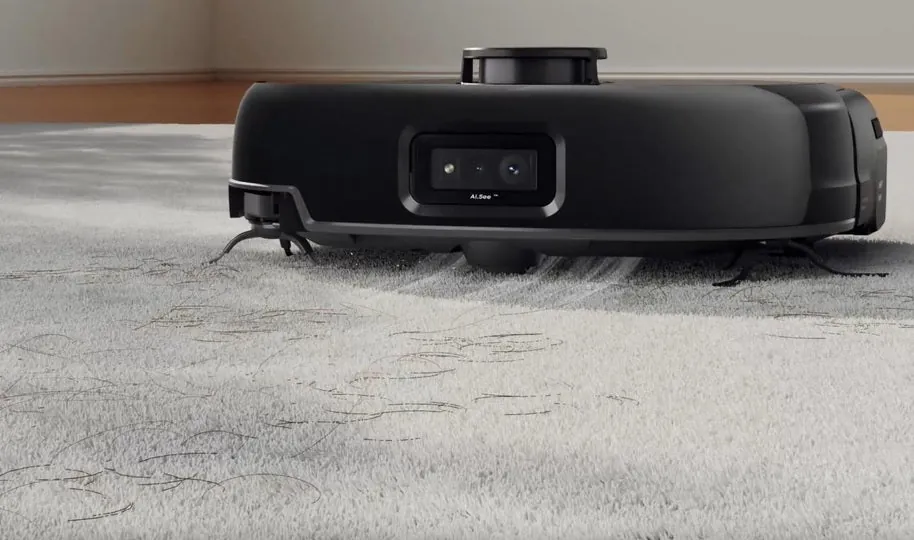
This procedure is for robots that spin in circles, back away from furniture, or fail to find the charging station. Start by using a soft, dry microfiber cloth to wipe the three or four cliff sensors located on the bottom of the unit. These sensors look like small, dark glass windows and are vital for detecting edges.
Next, clean the bumper sensor by gently tapping the front of the robot. If it feels “sticky” or doesn’t spring back, a small piece of debris is likely caught in the gap. Use a blast of compressed air to clear the space between the bumper and the main body. Never use water or liquid cleaners on any part of the vacuum, as moisture can damage the internal circuit boards.
Finally, inspect the charging base. Use a dry cloth to wipe the metal contacts on the base and the corresponding contacts on the bottom of the robot. If the robot still struggles to charge, verify the outlet itself by plugging in a lamp to ensure it has power. If the light on the base doesn’t turn on even when the wall adapter is secure, the power cable might be damaged and require a replacement.
Perform a factory reset
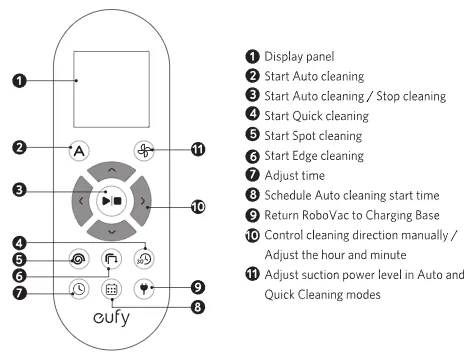
If the robot experiences software glitches, such as forgetting its schedule or ignoring remote commands, a reset can help. This is for users who have tried cleaning the hardware and still face connectivity or logic errors. Before you proceed, note that this will erase all saved cleaning schedules and custom settings, meaning you’ll need to reconfigure the device from scratch.
To reset the device, press and hold the power button for at least 10 seconds while the vacuum is off the charging station. Most models will play a sound or show a flashing light sequence to confirm the reset is complete. If your model uses an app, you must also remove the device from your phone’s list and re-pair it as if it were brand new.
This process isn’t for units that have physical damage, such as a cracked water tank or a broken wheel assembly. If the robot makes a loud, mechanical knocking sound during movement, a reset won’t fix the mechanical failure. If you perform a reset and the robot still refuses to move or connect, the main logic board may have failed, which requires professional inspection.
Mistakes to avoid
Running the vacuum on high-pile shag rugs will strain the motor and cause frequent “brush jammed” errors. If your rug fibers exceed one inch in length, the vacuum will likely stall within minutes.
Using wet cloths to clean the sensors can leave a film that confuses the navigation system. Always use a dry, lint-free microfiber cloth. If the robot begins bumping into walls it previously avoided, you have likely created a residue that requires a deep cleaning with isopropyl alcohol.
Forcing the robot to move while it’s charging can bend the metal contacts and prevent future charging. If the unit fails to dock, check these pins for alignment.
Ignoring warning beeps will eventually cause the battery to discharge fully, which shortens its overall lifespan.
Attempting to open the sealed housing will void your warranty and risks damaging the delicate internal wiring. If the unit fails, contact support before removing any screws.
Prevent vacuum problems
Maintaining your device regularly stops most common errors before they start. If you notice the robot is picking up less dust than usual, check the filter first. A clogged filter restricts airflow, which makes the motor work harder and reduces suction power.
The filter’s lifespan depends on your specific usage and environment. Check the filter regularly for a gray, matted layer, which indicates it’s time for a replacement; consult your owner’s manual for specific maintenance guidance.
| If you’re doing this | Do this instead | Why |
|---|---|---|
| Leaving cables on the floor | Use cable ties to lift them | Cords tangle and stop the brush |
| Running it on wet floors | Dry the area completely first | Moisture ruins the internal parts |
| Cleaning with a wet rag | Use a dry microfiber cloth | Water damages the sensors |
| Ignoring the filter | Replace as needed | Clogged filters kill suction power |
| Using thick shag carpet | Use only on hard or flat rugs | High pile traps and stalls motors |
If the robot emits a high-pitched whine, stop it instantly. This sound indicates a blockage in the intake port. Check the brush roll for hair wraps; if you can’t pull them out by hand, use a seam ripper to slice through the fibers without damaging the bristles.
Frequently asked questions
How long does the battery last?
The battery typically lasts between 90 and 120 minutes on a standard suction setting. This runtime varies based on floor type and battery age. If performance drops below 45 minutes, the battery may require replacement.
Why does my vacuum beep three times?
Three beeps indicate that the front bumper is stuck or the robot is trapped. Check that the bumper moves freely and isn’t wedged against an obstacle. If the bumper is clear, internal debris may be preventing the sensor from resetting.
Is it safe to leave the base plugged in?
It’s safe to leave the base plugged in at all times to ensure the robot remains charged. The base monitors battery levels and stops sending power once the unit is full. Always place the base on a level floor away from stairs.
How often should I clean the brushes?
You should clean the brushes regularly to maintain performance. Always turn the unit off before cleaning to prevent accidental activation. If hair is wrapped around the axle, use small scissors to cut it away rather than pulling.
What happens if the robot gets wet?
Water can cause an immediate short circuit in the motherboard or damage the cliff sensors. If the robot touches a spill, turn it off immediately and remove it from the area. Never use a heat source to dry it.
How do I fix a connection error?
A connection error usually means the robot has lost its signal to your Wi-Fi router. Most robot vacuums only support 2.4GHz networks, so ensure your phone is connected to that frequency. If the problem persists, perform a factory reset and pair the device again.
Conclusion
If your device still isn’t performing at its best, don’t hesitate to reach out to the customer service team directly. They’re happy to help you diagnose more complex technical issues. Keeping your floors clean doesn’t have to be a chore, and you’ll be back to hands-free vacuuming in no time.
Related guides