When a busy kitchen grinds to a halt because a receipt fails to print, every second impacts ticket times and customer satisfaction. You can fix these Epson kitchen printers by systematically checking the hardware, network connections, or point-of-sale software configurations. Most connectivity errors result from power disruptions or incorrect IP settings, while print quality issues typically involve thermal paper degradation or blocked print heads. Understanding basic diagnostic lights and physical connections resolves most service interruptions without needing an expensive technician.
Key Takeaways
- Check all power and Ethernet cable connections before attempting software resets.
- Perform a self-test print to confirm the printer hardware is functioning independently of the network.
- Verify that the printer’s IP address matches the settings within your point-of-sale software.
- Clear any paper jams and ensure the thermal paper roll is loaded with the heat-sensitive side facing the print head.
- Clean the print head regularly using a lint-free cloth and isopropyl alcohol to prevent fading.
Printer Hardware Status Lights
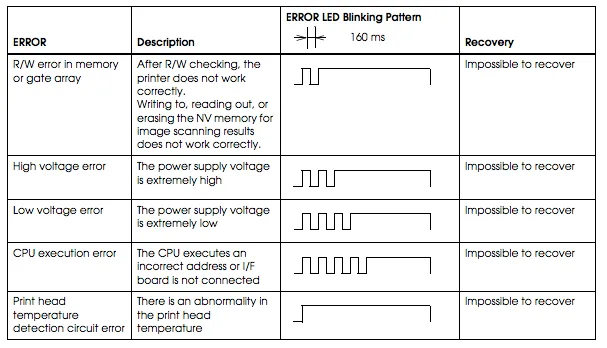
The status lights on the front of your Epson printer are the primary indicators of its current operational state. When the printer stops responding, observe the colors and blinking patterns of the “Power,” “Error,” and “Paper” LEDs. A solid green light typically indicates the machine is ready, while a flashing light usually signals a specific mechanical or communication error.
| Light Indicator | Status | Required Action |
|---|---|---|
| Power LED Off | No Power | Check outlet and power brick connection. |
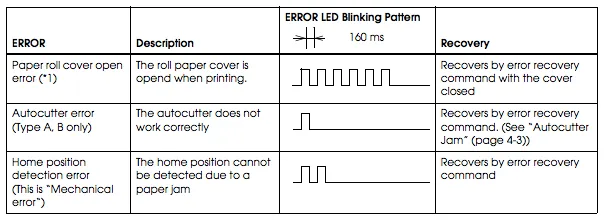
| Error LED Flashing | Mechanical Fault | Open cover, clear jam, and reseat paper. |
| Paper LED On | Out of Paper | Replace roll and ensure sensor is clear. |
| Power/Error Blinking | Network Error | Power cycle router and printer switch. |
Hardware status checks are your first line of defense. If the Error light is blinking, the internal mechanical sensors may be obstructed by debris or a misaligned paper roll. Always ensure the printer cover is fully latched, as the safety sensor will prevent printing if it detects an open lid.
How to Test the Hardware?
To determine if the issue is mechanical or network-related, perform a hardware self-test. This process bypasses your point-of-sale system entirely, printing a status report directly from the printer’s internal firmware. To start, turn the printer off, hold the “Feed” button, and turn the printer back on while keeping the button pressed until the status page begins to print.
If the self-test prints clearly, your printer hardware is fully operational, and the problem resides in your network or software configuration. If the text is faded, streaky, or missing lines, the print head likely requires cleaning or replacement. Always use thermal paper rolls compatible with your specific model, as low-quality paper can leave residue on the print head, leading to premature failure and poor output quality.
Troubleshooting Epson Kitchen Printer Network Issues
Kitchen printers often lose their connection due to dynamic IP address changes. If your router assigns a new IP to the printer, your POS software will no longer be able to find it. You should always assign a static IP address to your printer through your router’s administrative console to prevent these drops.
Pro Tip: If your printer is connected via Ethernet, ensure the link lights on the back of the port are blinking green and amber. If they’re completely dark, the cable itself is likely damaged or improperly seated.
You can verify the current IP address of your printer by looking at the bottom of the self-test page you printed earlier. If the IP address shows as 0.0.0.0 or is unreachable, the printer isn’t successfully handshaking with your local network. Consult the Epson printer support documentation to find the default network configuration steps for your specific series, such as the TM-T88 or TM-U220 models.
Managing Thermal Paper Jams
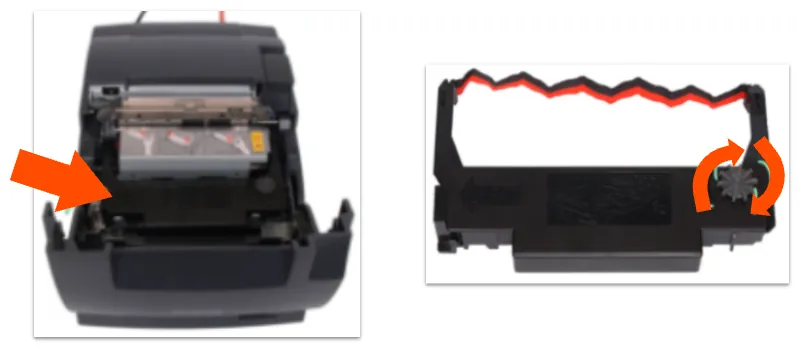
Kitchen environments are harsh, filled with grease, steam, and high temperatures. These elements often cause paper to stick or jam within the feed mechanism. If you suspect a jam, power down the unit, open the cover, and remove the paper roll entirely. Inspect the internal rollers for any bits of torn paper or adhesive residue from the end of the roll.
Use a pair of tweezers to carefully remove any obstructions. Never use sharp metal objects that could scratch the sensitive thermal print head, as this will cause permanent white lines to appear on every receipt. After clearing the path, ensure the roll is seated correctly so that it unspools from the bottom rather than the top. If the paper is loaded backward, the printer will feed the paper through, but nothing will appear on the receipt.
Cleaning the Print Head
Over time, the print head accumulates dust and grease, which can lead to light or unreadable text. To clean it, use a specialized thermal print head cleaning pen or a soft, lint-free cloth lightly dampened with 99% isopropyl alcohol. Gently wipe the print head element—the thin, dark line where the paper passes over—and allow it to air dry for two minutes before reloading the paper.
Maintaining print head cleanliness is vital for the longevity of your hardware. If you notice “fading” on the left or right side of the receipt, it’s a clear indicator that the print head has uneven debris buildup. Regular maintenance cycles, perhaps once every two weeks in a high-volume kitchen, will significantly reduce the frequency of troubleshooting calls.
Is the POS Software Configured?
Even if the printer works, your POS software must be correctly pointed to the printer’s current IP address. Navigate to your POS settings menu and locate the “Hardware” or “Printers” tab. Ensure the printer type is set to the correct driver, such as “Epson TM-T88V” or “Generic ESC/POS.”
If you have recently updated your router or moved the printer to a different Ethernet port, the POS system may still be trying to communicate with an old address. Manually enter the static IP address found on your self-test printout into the POS printer configuration. Save the settings and restart your POS terminal to ensure the changes take effect.
Check Power Supply Reliability
Kitchen printers are often plugged into power strips that get kicked, bumped, or overloaded by other kitchen appliances. If your printer turns off randomly during the shift, the power cable may have a loose connection. Ensure the power brick is securely plugged into the wall and that the connector going into the printer is tight.
If the printer is losing power repeatedly, check for a faulty power brick or a failing wall outlet. Using a surge protector is highly recommended in kitchen environments to protect the sensitive internal circuitry from the spikes caused by large appliances like commercial refrigeration units or high-power ovens. If the printer feels excessively hot to the touch, it may be a sign of a failing power supply unit that needs immediate replacement.
How to Reset Printer Settings?
Sometimes, a configuration error becomes so deep-seated that a factory reset is the only remaining option. Note that a factory reset will erase all custom network settings, including the static IP address you previously assigned. You’ll need to reconfigure the printer from scratch after performing this action.
To perform a reset, locate the small “Reset” or “SW” button on the back of the printer, often recessed inside a small hole. Use a paperclip to hold this button down for 10-15 seconds while the printer is powered on. Wait for the printer to cycle through its lights and print a confirmation page. Once reset, your printer will revert to its factory-default IP address, typically found in the user manual for your specific model.
Troubleshooting Serial or USB Connections
While most modern kitchens use Ethernet, some setups still rely on USB or Serial (RS-232) connections. These interfaces are more susceptible to interference and have shorter cable length limitations. If you’re using a USB connection, ensure the cable is no longer than 15 feet.
For Serial connections, ensure that the baud rate and parity settings in your POS software match the printer’s dip switch settings. If these don’t match exactly, the printer will output “garbage” characters or simply fail to respond. Check the dip switch diagram on the bottom of the printer to verify the current configuration.
Understanding Dip Switch Settings
Dip switches are small physical toggles on the bottom of the printer that control low-level functions like print density, character sets, and data transmission speeds. If you have accidentally flipped one of these switches during a cleaning or move, your printer may behave erratically.
Always keep a record of the default dip switch positions for your specific unit. If you suspect a switch has been moved, refer to the manufacturer’s manual to return them to the factory defaults. Modifying these switches without a clear understanding of their function can lead to persistent communication errors that are difficult to diagnose through software alone.
Dealing with Paper Feed Issues
If the printer makes a grinding noise or the paper doesn’t advance, the feed motor or the rubber platen roller may be damaged. Check the platen roller for any signs of cracking or hardening due to heat exposure. If the roller is slick or damaged, it won’t be able to grip the paper effectively, causing the motor to spin without advancing the receipt.
Warning: Don’t apply oil or grease to the printer’s internal gears. These lubricants will attract kitchen dust and flour, turning into a thick paste that will eventually cause the motor to seize up. Use compressed air to clear out debris instead.
| Component | Potential Issue | Solution |
|---|---|---|
| Platen Roller | Slipping/Hardening | Clean with mild soap or replace roller. |
| Feed Motor | Grinding Noise | Check for internal debris/teeth damage. |
| Paper Sensor | False “Out” signal | Clear dust from the optical sensor area. |
| Interface Card | No connectivity | Reseat internal network card or cable. |
Frequently Asked Questions
Why does my printer print blank receipts?
This almost always happens because the thermal paper is loaded backward. Thermal paper is heat-sensitive on only one side. If the non-sensitive side is facing the print head, the printer will run, but no image will be created. Flip the roll over so the paper unspools from the bottom toward the front of the printer, and try running your test print again.
What should I do if the printer is slow?
Slow printing is often caused by an overflowing print queue or network congestion. Restart your POS terminal to clear the pending print jobs. If the printer is on a wireless bridge, move it to a hardwired Ethernet connection, as kitchen interference often degrades wireless signals. High-density graphics or complex logos on receipts can also slow down printing speeds significantly.
Can I use any thermal paper roll?
No, you must use the correct width and thermal sensitivity for your printer. Most Epson kitchen printers require standard 80mm thermal paper. Using paper that’s too thick or too thin can jam the automatic cutter or cause the print head to overheat. Always verify the specifications in your printer’s user manual to ensure the paper weight matches the manufacturer’s requirements.
How do I fix a “Communication Error”?
A communication error indicates that the POS software can’t find the printer on the network. First, confirm the printer and the POS terminal are on the same subnet. Next, check that the printer’s static IP address hasn’t changed. If the IP is correct, try pinging the printer’s IP address from a computer on the same network to see if it responds.
Does the automatic cutter ever fail?
Yes, the automatic cutter is a mechanical component that can become jammed by paper scraps or grease. If the cutter stops mid-cycle, the printer will show an error light. You can usually manually rotate the small gear on the cutter mechanism to retract the blade. If the cutter jams frequently, it’s likely worn out and requires a professional repair.
Conclusion
Regular maintenance and systematic checking of your hardware connections will keep your kitchen operations running smoothly. Start by performing the self-test to isolate the hardware, then move to checking your network and software settings. If the issues persist after these steps, contact your POS provider or an authorized service technician to inspect the internal components for long-term wear.