The Epson EcoTank ET-8550 is a high-performance photo printer that relies on sophisticated ink delivery systems, which can occasionally encounter operational hurdles. If you’re currently dealing with epson et-8550 troubleshooting, you’re likely facing issues related to print head clogs, connectivity drops, or media handling errors. These problems are generally manageable through routine maintenance cycles and software adjustments. Addressing these concerns effectively requires a methodical approach, starting from the simplest hardware checks and moving toward advanced system calibrations.
Key Takeaways
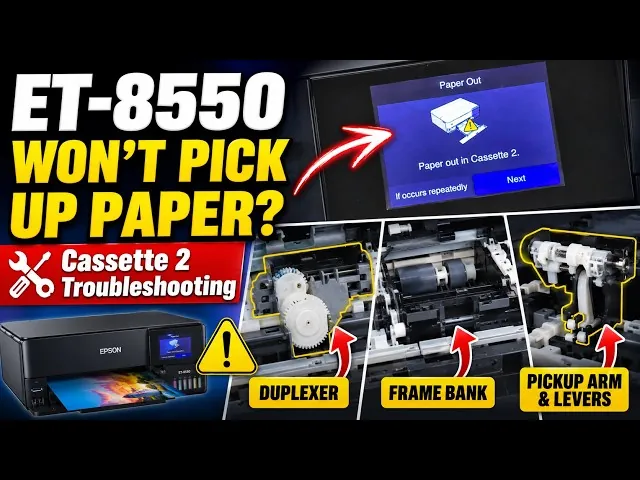
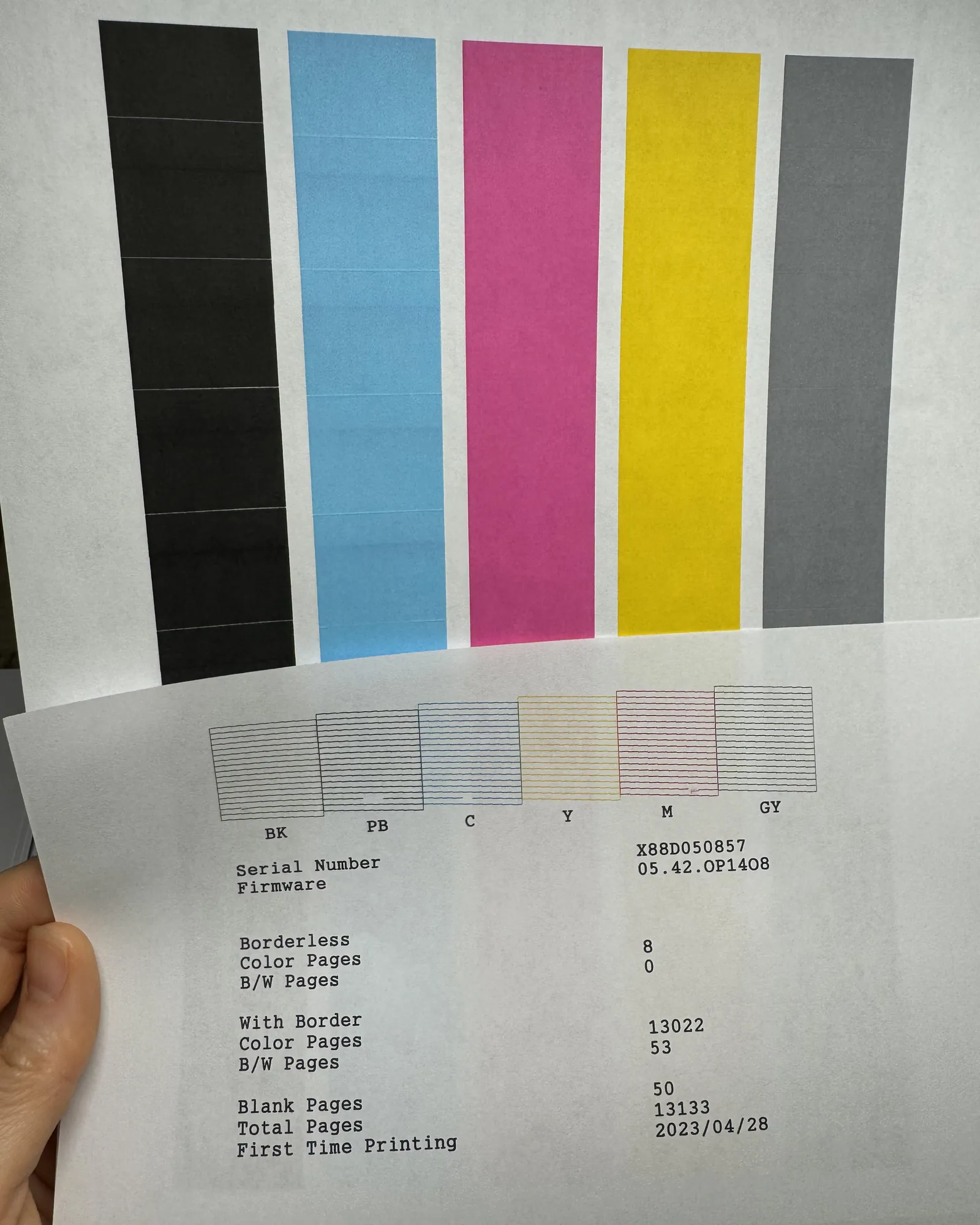
- Perform a nozzle check pattern print to identify specific color channels that require cleaning.
- Use high-quality, manufacturer-recommended paper to prevent mechanical paper jams in the rear feed.
- Ensure your firmware is updated to the latest version to resolve persistent wireless connectivity bugs.
- Verify that ink tanks are filled to the minimum line to prevent air bubbles from entering the lines.
- Execute a power cleaning cycle only after two standard cleaning attempts fail to produce clear results.
Causes of Epson 8550 Print Quality Issues
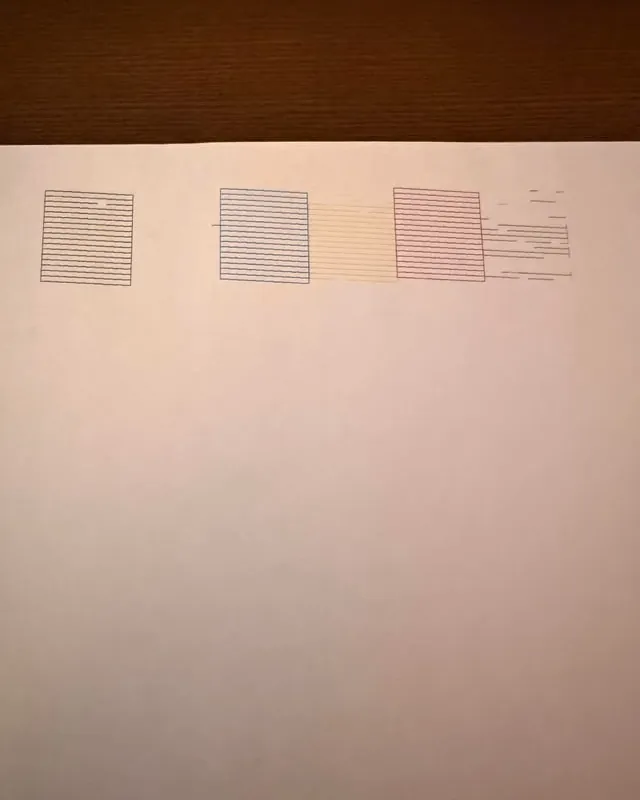
Most print quality defects, such as streaks, gaps, or color shifts, stem from air entering the ink tubes or dried ink blocking the microscopic nozzles. The ET-8550 utilizes a six-color ink system, meaning a single blocked nozzle in one channel can significantly degrade the entire image. To resolve these, you must initiate the maintenance menu on the printer’s touchscreen.
| Symptom | Primary Cause | Recommended Action |
|---|---|---|
| Horizontal banding | Clogged print head | Run Head Cleaning cycle |
| Vertical misalignment | Calibration error | Perform Print Head Alignment |
| Faded colors | Air in ink lines | Execute Power Cleaning |
| Smearing on paper | Dirty paper rollers | Clean rollers with lint-free cloth |
Print head maintenance is the most frequent requirement for this model. If you notice white lines appearing across your photos, don’t immediately resort to a power cleaning, as this consumes a significant amount of ink. Instead, perform a standard head cleaning and print a test pattern to see if the gaps have diminished. If the pattern shows improvement but isn’t perfect, repeat the process one more time before escalating to more intensive measures.
How to Fix Connectivity Problems
If your computer or mobile device can’t find the printer, the issue is often related to the network frequency or the IP address assignment. The ET-8550 supports both 2.4GHz and 5GHz bands, but stability is often higher on the 2.4GHz spectrum. If you experience intermittent drops, log into your router settings to ensure the printer is assigned a static IP address, which prevents the connection from timing out when the printer enters sleep mode.
Wireless network settings should be reset if you change your router or ISP. You can perform a network reset directly through the printer’s control panel under the “Settings” menu. Once reset, use the Epson ET-8550 official support documentation to follow the guided setup for your specific operating system. This ensures that the necessary drivers and software utilities are correctly linked to the printer’s unique hardware ID.
Managing Paper Feed Errors
Paper jams are usually caused by debris inside the rear feed or the use of paper that exceeds the maximum weight specifications. The ET-8550 is designed for high-quality photo media, but it’s sensitive to the way paper is loaded. Always ensure the edge guides are snug against the paper stack without being so tight that they cause the paper to bow or buckle.
Proper paper loading involves fanning the stack before insertion to prevent static electricity from causing multiple sheets to feed at once. If you receive a “Paper Jam” error, turn off the printer, unplug it, and use a flashlight to inspect the interior path for any small scraps of paper or foreign objects. Never use sharp tools to remove jammed paper, as this can easily damage the delicate internal sensors or the print head assembly.
Why Is My Printer Blurry?
Blurriness is almost always a result of a misalignment between the print head and the paper. When the print head moves across the page, it must fire ink droplets at precise intervals. If the printer has been moved, bumped, or subjected to heavy vibration, the internal alignment can shift.
To fix this, go to the “Maintenance” tab on the printer display and select “Print Head Alignment.” You’ll be prompted to print an alignment sheet. Follow the on-screen instructions to select the most solid-looking squares from the test prints. This allows the printer to compensate for any physical offset in the carriage movement.
Precision alignment tasks should be performed whenever you switch to a significantly thicker paper type, such as heavy cardstock or fine art cotton rag, as these materials sit at a different height relative to the print head.
Troubleshooting Ink Tank Level Errors
The EcoTank system is reliable, but the sensors that monitor ink levels can occasionally report incorrect data. If you have refilled your tanks but the printer still displays a “Low Ink” warning, you may need to manually reset the ink levels in the software. This is done through the Epson Printer Utility on your computer.
Ink level monitoring requires that you only use genuine Epson ink bottles to ensure the chemical composition remains consistent with the printer’s factory settings. Using third-party inks can clog the permanent print head, which isn’t user-replaceable. If you suspect an ink tank sensor error, ensure the printer is on a perfectly level surface. An unlevel printer can cause the ink to settle unevenly, triggering false low-level warnings or preventing the printer from drawing ink effectively.
Addressing Unusual Noises
If you hear grinding or clicking noises during startup or printing, it usually indicates a mechanical obstruction. Check the carriage path for any loose cables or plastic tabs that may have snapped off. The ET-8550 has a complex internal pulley system; if you see any loose belts, don’t attempt to repair them yourself, as this requires specialized tools to maintain tension.
Mechanical inspection steps include:
- Checking the paper path for obstructions.
- Ensuring the ink cover is fully closed.
- Verifying that the waste ink pad isn’t saturated.
- Removing any protective tape left over from the unboxing process.
Frequently Asked Questions
Why does my printer say “Service Required”?
This message typically indicates that the waste ink pads have reached the end of their service life. These pads absorb the excess ink used during cleaning cycles. You must contact an authorized service center to have the pads replaced and the internal counter reset by a technician, as this isn’t a user-serviceable part and requires proprietary software to clear the error state.
Can I fix a clogged print head myself?
Yes, you can often fix minor clogs using the built-in “Head Cleaning” and “Nozzle Check” functions found in the maintenance menu. If these fail, you may need to run a “Power Cleaning” cycle. Avoid third-party cleaning kits or chemical solvents, as these can permanently corrode the print head nozzles and void your manufacturer warranty, leading to expensive repair costs or total unit failure.
How do I update my Epson printer firmware?
You can update the firmware by connecting the printer to your local Wi-Fi network and navigating to the “Firmware Update” section within the printer’s setup menu. Alternatively, you can download the Epson Software Updater utility on your computer. Keeping the firmware current is essential for maintaining compatibility with the latest operating systems and fixing known bugs related to paper handling and network connectivity.
What should I do if the print colors are wrong?
Incorrect colors are often caused by air bubbles in the ink tubes or a depleted color channel. Start by performing a nozzle check to verify that all colors are printing correctly. If a specific color is missing, run a head cleaning cycle. Ensure you’re using the correct color profile in your print dialog box, as selecting the wrong paper type can cause the printer to apply incorrect color management.
How do I clear a paper jam safely?
Turn the printer off and unplug it from the power source to prevent any movement while you work. Open the scanner unit and the rear paper feed tray to gain access to the paper path. Use a flashlight to locate any jammed sheets and pull them out gently in the direction of the paper feed to avoid tearing the paper, which can leave debris stuck inside the rollers.
Conclusion
Regularly performing these maintenance routines will extend the lifespan of your device significantly. If you find that the steps above don’t resolve your specific issue, perform a factory reset of the printer settings to eliminate any corrupted configuration files. Always ensure your workspace remains dust-free, as fine particles can easily settle on the internal components and degrade print quality over time.