When your tracker is unresponsive, you should perform a manual restart to fix common fitbit luxe troubleshooting issues. The most frequent cause for a device that won’t turn on or sync is a depleted battery or a frozen firmware process. If your screen remains dark after trying these steps, check your charging connection for debris. You can find official guidance on how to manage your device health at the Fitbit help center.
Fixing an unresponsive Fitbit Luxe
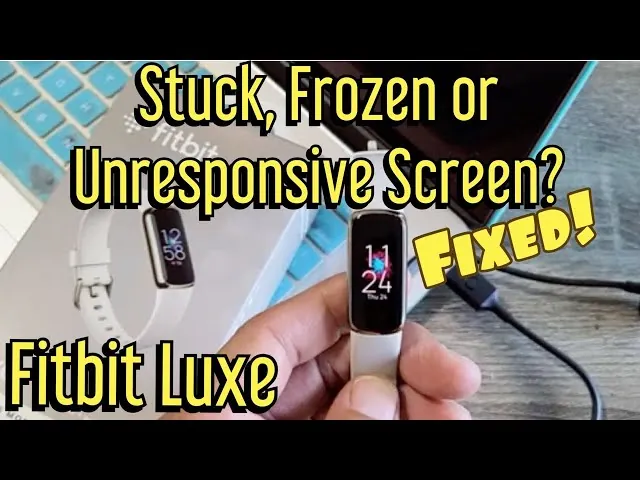
The primary reason your device stops working is a software glitch caused by a pending update or a low-power state. When the internal software hits a conflict, it may stop showing data or fail to connect to your phone.
This happens most often when the battery drops to zero percent and the device struggles to wake up during the charging cycle. If you notice the screen flickering, it’s usually a sign that the battery is failing to hold a steady voltage.
To fix a frozen state, perform a hard reset by holding the side button for fifteen seconds while the device is plugged into a power source. If the screen remains black, the battery may be deep-discharged. Leave it on the charger for at least four hours before attempting another reset.
Another common cause involves physical connection failures between the charging pins and the back of the tracker. Sweat, lotion, or dust can build up on the metal contacts, which prevents a proper electrical flow. If you see the charging icon but the percentage doesn’t increase, the pins are likely blocked. Clean the contacts with a soft toothbrush dipped in isopropyl alcohol to restore conductivity.
You should also verify that your phone’s Bluetooth setting is enabled, as connectivity issues often mimic hardware failures. Toggle your phone’s Bluetooth off and on, then delete the tracker from the app’s paired devices list before re-adding it.
If your device is physically damaged or has been submerged in water beyond its rating, these software steps won’t resolve the problem. If you see condensation inside the screen, the seal has failed. In that case, stop charging immediately to prevent a short circuit, as the internal components are likely corroded beyond repair.
Restart your device properly
To perform a restart, locate the small button on the flat end of your charging cable. Plug the cable into a USB power source, then attach the other end to the tracker. Press the button on the cable three times within eight seconds, pausing for about one second between each press. You’ll see the device vibrate or display the logo on the screen when the restart begins.
This fix is intended for users experiencing frozen screens, failed syncing, or a tracker that won’t respond to touch. If the screen doesn’t show a logo after the third press, check that your USB port is providing power.
If you suspect power issues, plug the cable into a computer port rather than a wall adapter. If you have tried this three times and the device remains black, it’s likely that the battery has reached the end of its functional life.
Distinguish a dead battery from a software freeze by checking the charging indicator. If the battery icon appears but the device won’t boot, the software is corrupted. If no icon appears after ten minutes of charging, the hardware has failed. In that case, no further restarts will resolve the issue.
Clean the charging contacts
If your device isn’t charging, cleaning the metal pins is the most effective way to restore power. Use a soft-bristled toothbrush or a dry cotton swab to gently remove any buildup from the pins on both the tracker and the charging cable.
Avoid using metal tools like needles or paperclips. These scratch the delicate gold plating, which accelerates permanent corrosion. If you use soap or cleaning chemicals, you risk damaging the internal water-resistant seals of the device.
This step is for anyone whose tracker shows no signs of life or fails to reach a full charge. A clean connection allows the current to flow consistently, which is necessary for the device to perform a hard reset.
If you notice green or white residue on the pins, this is a sign of oxidation. This crust acts as an insulator, blocking the flow of electricity entirely. If you see this, the charging cable usually needs to be replaced.
To test if the cable is the culprit, try charging a friend’s device with your cable. If their device fails to charge as well, the cable is faulty. If your device still refuses to charge after a thorough cleaning with a new or verified cable, you should contact official support to discuss warranty options.
Update the firmware and software
When your tracker is acting slow or missing features, updating the software is the best way to resolve these conflicts. Ensure your phone is connected to Wi-Fi and that the tracker has at least 50 percent battery life before starting the process.
Open the app on your phone, tap your profile icon, and look for a banner that mentions an available update. If the update fails, restart your phone and ensure no other Bluetooth devices are interfering with the signal. Most failures occur because the background sync process competes with the firmware download.
This fix is for users who have a working screen but experience bugs or missing data. If your app says the device is up to date but you’re still having issues, try removing the tracker from your account and re-pairing it. This forces the app to resynchronize all settings and can clear out corrupt cache files.
If you’re unable to complete the update, it might be due to a poor internet connection, so try moving closer to your router. If the progress bar hangs at 99 percent for more than ten minutes, don’t force-close the app. Instead, toggle your phone’s Bluetooth off and on again to reset the handshake.
If the device remains unresponsive after a failed update, perform a hard factory reset by holding the side button for fifteen seconds. This wipes the temporary memory, but it will also delete any unsynced activity data currently stored on the tracker. Always check your dashboard online first to confirm your last successful sync time.
Common mistakes to avoid
Don’t leave your tracker in a hot car. Temperatures exceeding 115 degrees Fahrenheit degrade the lithium-ion battery, causing permanent capacity loss that shortens your daily runtime by up to 30 percent.
Avoid prying open the casing. The device is factory-sealed to maintain an IP68 water-resistance rating. Breaking this seal introduces moisture that corrodes internal circuits within weeks, effectively voiding your warranty.
Never force the charging cable. If the connector doesn’t slide in with minimal pressure, you’re likely misaligned. Forcing it bends the delicate copper pins, which is expensive to repair or necessitates a full device replacement.
Avoid third-party charging cables. Use only the manufacturer-supplied cord, as generic cables often lack the voltage regulation required to protect the motherboard from power surges.
Don’t ignore a “Data Not Cleared” error. This indicates a memory corruption issue. If you see this, perform a factory reset immediately. Delaying this step risks a total system lock, which renders the device permanently unresponsive and unrecoverable.
If your device feels unusually hot while charging, unplug it immediately. Wait ten minutes for the internal temperature to stabilize before attempting to reconnect.
Preventing future performance issues
If you follow these habits, you’ll keep your device running smoothly for as long as possible.
| If you’re doing this | Do this instead | Why |
|---|---|---|
| Charging it every night | Charge only when below 20% | Reduces battery stress |
| Using it in the shower | Take it off before bathing | Heat and soap damage seals |
| Ignoring sync errors | Sync at least once a day | Prevents data loss |
| Storing it dead for months | Store at 50% charge | Prevents deep discharge |
Frequently Asked Questions
Can I fix a screen that’s completely black?
You can fix a black screen by performing a button-press restart while the device is plugged into a working USB power source. If the screen remains unresponsive, the battery may be completely dead. Leave the device charging for two hours before trying again, as persistent issues likely indicate hardware failure.
Why does my tracker keep disconnecting from my phone?
This happens because your phone’s battery optimization settings are putting the app to sleep. Ensure the app has permission to run in the background and that Bluetooth is always allowed. Older phones may struggle to maintain a constant connection, so refreshing your Bluetooth settings can help restore the handshake.
Is it safe to use a wall adapter from a phone?
Always use a standard computer USB port or a low-power wall brick to ensure the longevity of your hardware.
How long should the battery last?
The battery typically lasts up to 10 days on a single charge, depending on your personal usage. Features like always-on displays or high-frequency heart rate tracking will significantly reduce this time. If your battery drains in less than 24 hours, it’s a sign that the battery has degraded.
What happens if I perform a factory reset?
A factory reset will erase all personal data and return the device to its original state. Only use this as a last resort if all other troubleshooting steps fail. Ensure your data is synced to the cloud first, as you’ll need to set up the device as new.
Conclusion
If your screen still stays dark after these checks, don’t worry. It’s possible your device has a deeper hardware issue that requires professional support. Reach out to the customer service team through the website to see if you’re still under warranty. They’ll help you get back on track in no time.