To restore your internet connection, performing frontier nvg443b troubleshooting usually involves power cycling your router and checking your physical cable connections. If your lights are red or blinking, the most frequent cause is a temporary service interruption or a loose Ethernet cable. You can verify your current service status by checking the official Frontier status page to see if there’s a known outage in your area. Always ensure your cables are pushed firmly into their ports before attempting a reset.
Why your router loses signal
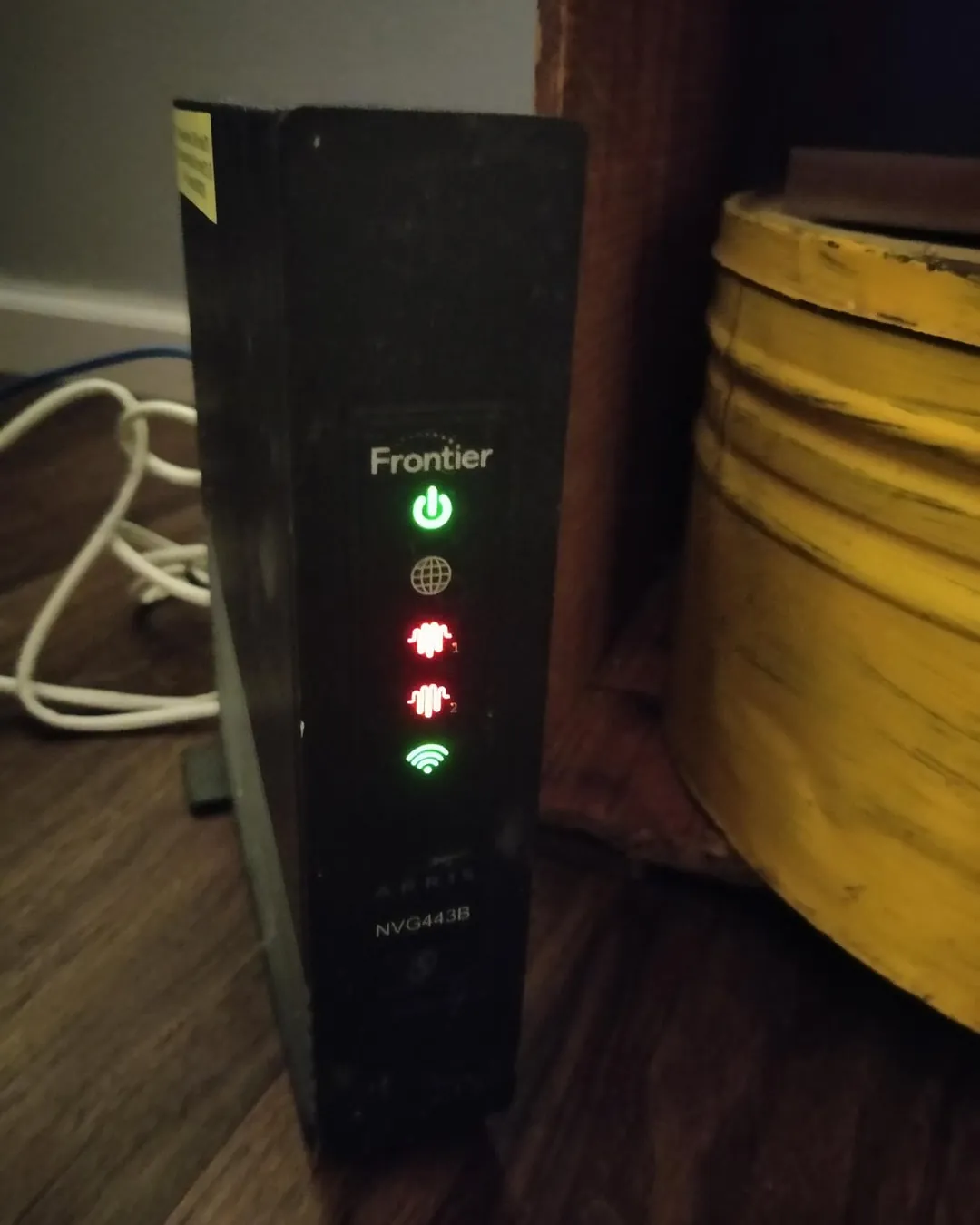
Connection issues often stem from external line problems or internal hardware glitches. If the broadband light on your device remains red, it’s likely that the signal from the street isn’t reaching the modem. This happens if there’s damage to the outside wiring or if the local node is offline. You should check the cables running from the wall jack to your router to ensure they haven’t been bumped or loosened by furniture.
Internal software errors also cause the unit to freeze or drop the signal. Like any computer, the router’s operating system can encounter a memory error that stops it from passing data to your devices. A simple restart clears the temporary memory and forces the device to re-establish a handshake with the network.
If the device feels very hot to the touch, it might be struggling with poor airflow. Internal components throttle their performance to avoid heat damage, which creates intermittent drops. Move the router to an open, elevated surface at least three feet from other electronics.
Distinguish between a line fault and a hardware failure by checking your status lights. If the power light is blinking, the unit is likely failing. If the internet light is steady but your devices can’t connect, the issue is internal. Always prioritize a hard reset before calling your provider.
Power cycle the gateway
If you suspect the hardware is stuck, you should perform a full power cycle. Unplug the power cord from the back of your unit and wait for at least 60 seconds before plugging it back in. This wait time is vital because it ensures the device fully shuts down and resets its internal state before power is restored. Once reconnected, wait five to ten minutes for the status lights to stabilize.
If the power light remains off after plugging it in, try a different wall outlet to rule out a localized electrical failure. This fix is for users who have a solid power light but no internet access or a flashing red broadband indicator.
If you see a solid red light instead of a flashing one, the issue is likely a service outage rather than a hardware hang. In that case, checking the status page on your mobile data is faster than rebooting.
If the lights don’t change after ten minutes, you might have a faulty power adapter. You should never attempt to open the router housing yourself, as this voids your warranty and poses a risk of electrical shock. If a different outlet doesn’t help, contact Frontier support to request a replacement unit. When calling, have your account number ready to avoid the common mistake of repeating basic troubleshooting steps you have already performed.
Check the physical cabling
Loose or damaged cables are a common point of failure that many people overlook. Inspect the Ethernet cable connecting your wall jack to the WAN port on the back of the router. Ensure the plastic tab on the connector clicks into place; if it feels loose or wobbly, the connection is likely intermittent. A cable that has been pinched by a door or chewed by a pet will often show signal drops even if it looks fine from the outside.
If you have a spare Ethernet cable, swap the current one to see if the connection stabilizes. This fix is ideal if you notice the internet drops only when someone moves near the equipment or if the lights flicker when the cable is touched.
If you find that the cable is damaged, replace it with a standard Cat5e or Cat6 cable. Should the issue persist after using a new cable, the problem is likely with the port itself or the external line. In that case, you must stop trying to fix it and call a technician to inspect the wall jack.
Reset the device settings
If the router is unresponsive to a standard reboot, you might need to perform a factory reset. Use a paperclip to press and hold the small reset button on the back of the device for 15 seconds while it’s powered on. This action wipes all custom settings, including your Wi-Fi name and password, returning the router to its default state. Only do this if you’re prepared to reconfigure your network settings from scratch.
This step is for those who have tried power cycling but still face persistent configuration errors. It isn’t for users who have a red broadband light, as that usually indicates a line issue that a reset can’t fix. If your status light is solid red, don’t waste time resetting; call your service provider to check for a local outage or a damaged physical cable.
After the reset, wait for the lights to turn solid green, which confirms the device has successfully reconnected to the network. This process typically takes three to five minutes. If the lights remain blinking amber after ten minutes, the firmware may be corrupted.
If you can’t access the router’s web interface to set up your Wi-Fi after the reset, contact the official support team for a guided configuration. Many users mistakenly reset the device repeatedly when a single, longer hold is all that’s required to clear the internal cache.
Common Frontier NVG443B troubleshooting mistakes
Holding the reset button too briefly: A reset only triggers a full wipe of the flash memory if you hold the button for at least ten seconds. If you release it early, the device may simply reboot without clearing the corrupted configuration files that caused your initial connection failure.
Plugging the router into a power strip: High-draw devices often experience subtle voltage drops on cheap power strips. These fluctuations cause intermittent packet loss that looks like an ISP outage. Always plug the unit directly into a wall outlet to ensure a stable current.
Ignoring the status light colors: Users often treat these lights as binary indicators, but the manual defines specific patterns for line errors versus authentication errors. A solid red light typically signals a physical line break, while a blinking amber light indicates a handshake failure with your provider.
Overheating the unit: Placing a router inside a closed cabinet blocks essential airflow. This causes internal chips to throttle or crash. If the chassis feels hot to the touch, move it to an open shelf.
Improving your connection stability
If your connection drops frequently, compare your current setup to these placement guidelines.
| If you’re doing this | Do this instead | Why |
|---|---|---|
| Placing router on carpet | Place on a hard surface | Carpet blocks bottom vents |
| Using a long flat cable | Use a shielded round cable | Flat cables have less shielding |
| Tucking cables behind desk | Keep cables loose and clear | Tight bends damage internal wire |
| Hiding router in a cabinet | Place in an open area | Cabinets trap heat and block signal |
Most users mistake signal obstruction for a faulty internet provider. Before calling support, check your router’s temperature. If the casing feels hot to the touch, thermal throttling is likely forcing your connection to cycle. Move the device to a central, elevated position at least three feet off the floor.
The decision rule is simple: if you can see your router from across the room, the signal has a clear path. If it’s hidden behind a television or inside a metal media console, your signal range and quality will be significantly reduced. Ensure your router sits at least six inches away from other electronics to prevent electromagnetic interference.
Frequently asked questions
How long does a factory reset take?
A factory reset typically takes 5 to 10 minutes to complete. The device erases its configuration and reboots to its original state once the status lights remain steady. Don’t unplug the device during this process, as power loss can permanently damage the internal software.
Can I fix a red broadband light myself?
You can’t fix a red broadband light because it indicates a signal loss from your external network provider. This light signifies a line or infrastructure fault outside your home. If checking your wall cable doesn’t resolve the issue, you must contact your provider for a line test.
How often should I reboot my router?
You should only reboot your router when you experience a drop in speed or connectivity. Modern routers are designed to remain connected indefinitely, so routine reboots are unnecessary. If you need to reboot more than once a week, contact support to investigate potential hardware or signal issues.
Is it safe to leave the router on 24/7?
It’s safe to leave your router on at all times, as these devices are designed for continuous operation. Turning the device off can interfere with essential firmware updates pushed during off-peak hours. These devices consume very little electricity, so leaving them on has a negligible impact on energy usage.
What happens if the router won’t turn on?
If the router won’t turn on, the device is likely not receiving power from the outlet or the adapter has failed. Test the wall outlet with another device to confirm it’s functional. If the outlet works, contact your service provider to request a replacement power cable or unit.
Conclusion
If these quick fixes don’t get you back online, don’t hesitate to reach out to customer support. They’ll be able to run a remote diagnostic test to see if there’s a deeper issue with your line. It’s the best way to ensure your connection stays stable for the long haul.