To fix a frozen or unresponsive screen on your device, you should perform a hard reset by pressing and holding the power button for 15 seconds until the screen goes dark. Most issues related to gizmo watch 3 troubleshooting stem from low battery levels, poor network signal, or software glitches that prevent the device from syncing properly with the parent app. If the watch remains unresponsive after a hard reset, plug it into the official charger for at least 30 minutes before trying to turn it on again.
Troubleshooting common Gizmo Watch 3 issues
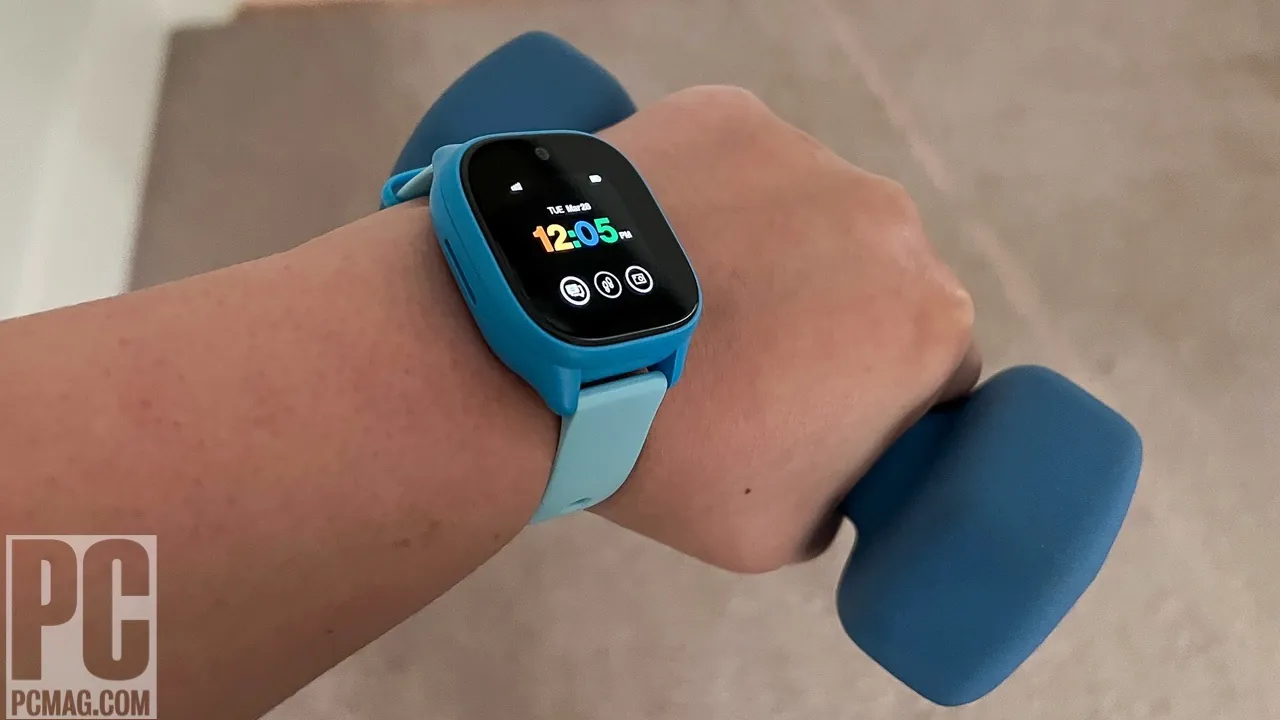
The most common cause for a device failure is a depleted battery that has fallen below the minimum voltage required to boot the operating system. When a battery sits at zero percent for an extended period, it enters a deep discharge state. This requires a longer initial charge time than a daily top-up to wake the internal power management chip. You can check the official Verizon Gizmo Watch support page to see the specific charging indicators for your model.
Software conflicts also trigger common errors. If the device has a pending firmware update but the battery is low, the system may hang during the installation process. This creates a loop where the watch tries to update but lacks the power to finish, leading to a frozen screen. If your watch is stuck on a logo screen, it’s likely trying to complete this background task.
Finally, connectivity issues often look like hardware failures. If the watch can’t reach the network, the parent app will show the device as offline or unable to update location data. This happens if the watch is in a basement, a building with thick concrete walls, or an area with limited cellular coverage. The watch will keep searching for a signal, which drains the battery much faster than normal use.
Force a system restart
If your watch is frozen, you must force a system restart to clear the temporary memory. This is the primary fix for screens that don’t respond to touch or buttons that seem stuck. To do this, locate the power button on the side of the casing. Press and hold it down firmly. Don’t let go until the screen turns completely black and the device attempts to restart.
Most users release the button too early. You must hold it for a full 15 seconds to bypass the standard sleep mode and trigger the hard reset.
This process is safe and won’t delete your saved contacts or settings. It simply stops the current software process and reloads the operating system from scratch. If the watch doesn’t restart after 15 seconds, check that the button isn’t physically jammed by dirt or debris. Use a soft, dry cloth to gently clean around the button edge.
If the watch still doesn’t turn on after a hard reset, the battery might be too low to initiate the boot sequence. Connect the device to its magnetic charger. Ensure the pins on the charger align perfectly with the metal contacts on the back of the watch. If you see the charging icon appear, leave it untouched for at least an hour. This provides enough energy for the system to recover from a complete shutdown.
Update the parent software
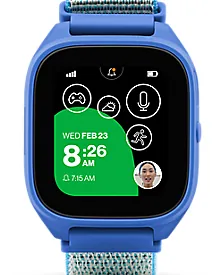
When the watch is working but features like location tracking or messaging fail, the problem is usually in the parent app. You should verify that you’re running the latest version of the Gizmo Hub app on your smartphone. If the app is outdated, it can’t send the correct commands to the watch, which leads to sync errors.
To update the app, go to the Google Play Store or the Apple App Store on your phone. Search for the app and check for an “Update” button. If one is available, install it immediately. Once updated, open the app and log in to your account. The app will automatically try to re-establish a connection with the watch. If it asks for new permissions, grant them so the software can access your phone’s network data.
A common mistake is assuming a simple app restart fixes the issue. If the version number is behind by more than two releases, the app often loses its handshake with the watch’s firmware. Check your app store’s “What’s New” section to see if your current version matches the latest release date. If you see a version mismatch, uninstall the app entirely before reinstalling it to clear out corrupted cache files.
This fix is for users who have a working watch but experience intermittent data sync issues. It isn’t for hardware damage like a cracked screen or water ingress. If your watch has physical damage, don’t attempt to force a restart or charge it. In such cases, contact the manufacturer directly for a professional assessment or a warranty claim.
Check network connectivity status
If you can’t send messages or see the watch’s location, you must verify the cellular signal strength. The watch requires a stable 4G connection to communicate with the parent app. If the device is in a “dead zone,” it will lose its ability to sync, even if the screen appears to be working normally.
Move the watch to an open area, such as a window or an outdoor space, to see if the signal bars reappear. If the watch shows no signal in an area where your phone has full bars, the internal SIM card might have lost its registration. You can check the connection status in the “Device Settings” menu within the Gizmo Hub app on your phone.
If the settings show that the device is disconnected, try toggling the “Airplane Mode” on and off within the app. This forces the watch to scan for nearby cell towers again. If this doesn’t work, the issue may be a temporary outage with the cellular carrier.
Wait 15 minutes and try again. If the watch remains offline for more than 24 hours while in a known coverage area, contact your service provider to ensure your data plan is active and the device hasn’t been suspended for any reason.
Common mistakes to avoid
Using non-original charging cables: Third-party chargers often lack the regulated voltage required to protect the sensitive battery management system. Using a bargain cable can fry the internal charging controller, a repair that often costs more than the device itself.
Leaving the watch in extreme heat: This pressure can crack the screen or permanently warp the processor. Never leave your watch in a parked car, even for a few minutes.
Attempting to open the watch casing: Prying the housing voids your warranty immediately. More importantly, you’ll likely destroy the factory-applied adhesive seals. Once these seals are compromised, the watch is no longer water-resistant, meaning a single splash or sweat during a workout could cause a fatal short circuit.
Ignoring low battery warnings: Letting the charge hit zero repeatedly accelerates chemical aging.
Correcting usage habits
The way you handle your device changes how often you encounter errors. Use this table to align your habits with the manufacturer’s recommendations for long-term stability.
| If you’re doing this | Do this instead | Why |
|---|---|---|
| Charging overnight | Charge during the day | Prevents battery stress |
| Forcing updates at low power | Charge to 50% first | Avoids firmware corruption |
| Keeping it in a pocket | Wear it on the wrist | Improves signal reception |
| Ignoring app notifications | Keep app updated | Fixes sync bugs quickly |
Frequently Asked Questions
How long does the battery last?
The battery lasts between 12 and 24 hours on a single charge, depending on your usage. Heavy use of location tracking or frequent calling significantly shortens this range. If the battery dies early, try reducing the frequency of location updates in your app settings.
Can I reset the watch to factory settings?
You can perform a factory reset through the “Settings” menu on the watch or the Gizmo Hub app. This process erases all data, including contacts and saved settings. Note that you’ll need to re-pair the watch with your parent account after the reset is complete.
Why is the screen unresponsive to touch?
If the screen becomes unresponsive, start by wiping it with a dry, lint-free cloth to remove moisture. If it still doesn’t respond, perform a hard reset by holding the power button for 15 seconds. If the screen remains unresponsive after restarting, it may require professional inspection.
Is it safe to get the watch wet?
The device is water-resistant, meaning it can handle splashes but shouldn’t be submerged in water. If the watch is exposed to significant moisture, dry it immediately with a soft cloth. Don’t attempt to charge the device until it’s completely dry to prevent damage.
What happens if I lose the charging cable?
You must purchase a replacement cable specifically designed for this model to ensure correct voltage and pin alignment. Using a generic magnetic cable can lead to slow charging or failure to charge. Always check the official manufacturer’s website or an authorized retailer for the correct accessory.
How do I know if the watch is charging?
A charging icon appears on the screen when the watch is connected to the official power cable. If the screen remains black after 10 minutes, ensure the magnetic pins are clean and making full contact. If the device still fails to charge, try using a different wall outlet or power brick.
Conclusion
If your device still won’t cooperate, don’t worry. You can easily reach out to the official support team through the app’s help menu. They’re ready to assist with any persistent glitches, so you’ll be back to staying connected with your little one in no time at all.