You can resolve most connectivity issues by performing a power cycle, as gigapoint 803g troubleshooting usually starts by resetting the device’s link to the network. The most common cause for a loss of service is a temporary synchronization error between your home hardware and the service provider’s headend equipment. To begin, unplug the power adapter from the wall outlet, wait for 60 seconds, and then plug it back in. This allows the internal components to fully discharge and clear any stuck data packets that might be blocking your signal.
Troubleshooting Gigapoint 803G connection failures
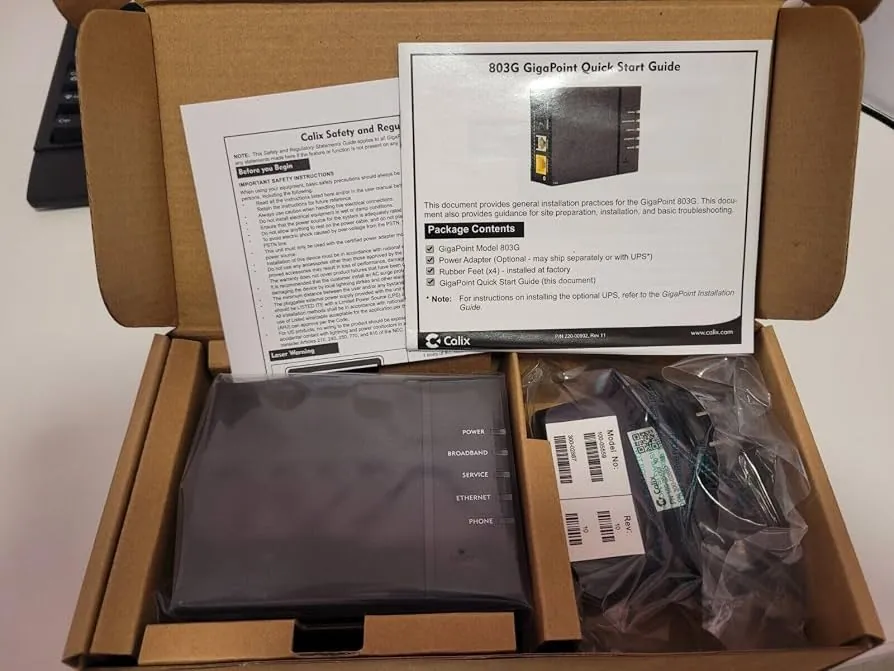
Network interruptions often occur when the fiber-optic signal is disrupted or when the local authentication handshake fails. Because this hardware relies on a precise light-based signal, even minor physical disturbances can cause the unit to report a connection error. If the fiber cable is bent at a sharp angle, the light signal may fail to reach the receiver correctly, leading to a loss of status lights on the front panel.
Another frequent cause involves local service outages or maintenance scheduled by your internet service provider. You should check the official Calix customer support portal to see if there are reported service interruptions in your area. If the provider is performing upgrades, your unit will be unable to establish a handshake until they finish their work. This is a common situation that requires no action on your part other than waiting for the signal to return once the maintenance window closes.
Environmental factors also matter. Heat buildup inside the casing can trigger a protective shutdown or cause performance throttling to prevent hardware damage. Ensure the unit is placed in a cool, well-ventilated area with at least 4 inches of clearance on all sides. If the unit feels excessively hot to the touch, it may be failing due to thermal stress.
Perform a hard power reset
A hard power reset is the most effective way to clear minor internal software errors. Start by disconnecting the power cable from the back of the device or the wall outlet. Don’t press any buttons on the front of the unit, as these are typically disabled for users. Leave the device completely unpowered for at least 60 seconds to ensure the internal capacitors have drained their stored energy.
After the wait, reconnect the power cable securely. Watch the indicator lights on the front panel as they cycle through their startup sequence. It typically takes between 3 to 5 minutes for the device to re-establish a stable connection with the central office. If the power light remains off, double-check that your wall outlet is functional by plugging a different appliance into the same socket.
This method is ideal for users experiencing intermittent drops or slow speeds that started suddenly. If you find the lights remain red or blinking after 10 minutes of waiting, the issue is likely outside your home. In such cases, you should stop your troubleshooting and contact your internet service provider’s support team directly. They can perform a remote diagnostic test on your line to determine if the equipment itself is faulty or if the fiber drop has been physically damaged.
Inspect the fiber cable connection
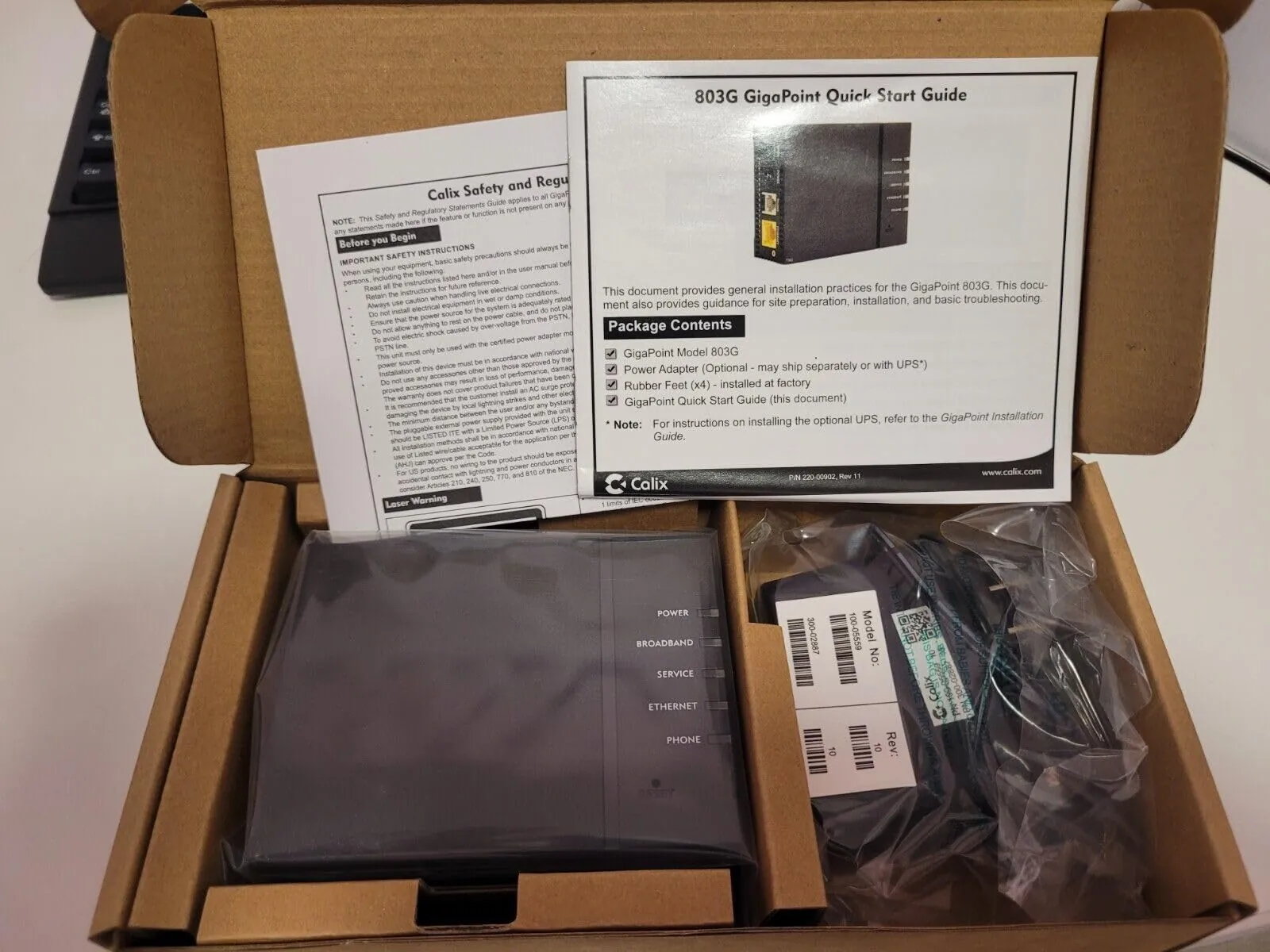
The fiber-optic cable is the lifeline for your device, and any physical stress on this line can break the connection. Inspect the thin, often yellow or white cable that runs into the back of your unit. Look for sharp kinks, heavy objects resting on the cord, or signs of animal chewing. If the cable is tightly wound or pinched against a wall, gently straighten it to remove the strain.
Don’t attempt to disconnect or clean the fiber connector yourself. The end of the fiber cable is extremely sensitive to dust and oils from your skin, which can permanently degrade the signal quality. If you see debris inside the connector port, don’t use compressed air or swabs to clean it. This is a delicate task that requires specialized tools and training; if you suspect the port is damaged, you must ask your service provider to send a technician.
This step is for users whose status lights show a persistent “LOS” or “Link” error. If the cable looks fine but the error persists, there may be a break in the line somewhere between your home and the street. Only a professional with an optical time-domain reflectometer can locate and repair these types of breaks.
Check your local network configuration
If the unit’s lights indicate a successful connection but your devices can’t access the internet, the issue may be in your router settings. Ensure that your router is connected to the correct LAN port on the device. Some setups require a specific port to be active for data traffic, while others may be reserved for additional services like VoIP or television. Check your ISP manual to see if your data port is color-coded or labeled as “WAN” or “Internet.”
If you have a separate router, try connecting a computer directly to the device using an Ethernet cable to rule out a router failure. If you can access the internet during this test, your router is the source of the problem, not the fiber unit. This is a simple way to isolate where the chain of communication is breaking down.
If you don’t have technical experience with network hardware, avoid changing any IP addresses or DNS settings within your router’s interface. Making incorrect changes here can lock you out of your own network. Many users mistakenly toggle the DHCP server off, which prevents devices from receiving an IP address and kills the connection instantly.
If you’re uncertain about these settings, simply reset your router to its factory default state using the pinhole button on the back of the router itself. Hold this button for at least ten seconds until the lights cycle. This decision rule saves you hours of manual troubleshooting by reverting any accidental misconfigurations that occurred during your initial setup.
Common troubleshooting myths
Pressing the reset button repeatedly: Doing this frequently can force the device into a recovery mode that requires provider intervention to exit. If the status light stays solid red for more than ten minutes, stop pressing. Wait for a full power cycle instead.
Cleaning the fiber tip with alcohol: You’ll likely leave a residue that blocks light, causing a total loss of signal that only a technician can fix. Use only specialized, lint-free optical wipes designed for glass surfaces. Household cloths leave microscopic fibers that degrade data speeds.
Covering the vents to hide lights: Blocking airflow causes the internal processor to overheat, which leads to permanent hardware failure over time. If you find the lights distracting, use a small piece of electrical tape on the plastic casing. Never obstruct the intake or exhaust grilles.
Swapping the fiber cable with another: These cables are calibrated for specific signal strengths. Using a different length or type can cause the connection to drop out. If the cable is damaged, request a replacement directly from your provider to ensure the core diameter matches your hardware requirements.
Maintain a stable connection
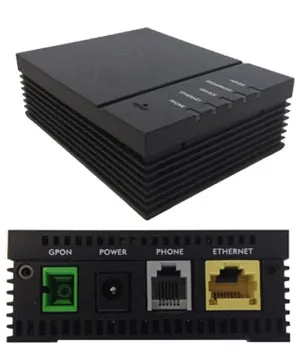
You can prevent most issues by keeping the environment around your equipment stable and protected from physical damage.
| If you’re doing this | Do this instead | Why |
|---|---|---|
| Placing unit in a cabinet | Place in open air | Prevents thermal shutdown |
| Moving the unit often | Keep in a fixed spot | Protects the fragile fiber line |
| Using a power strip | Use a wall outlet | Ensures consistent voltage delivery |
| Ignoring blinking lights | Call your provider | Prevents long-term service loss |
Most users mistakenly hide their hardware inside media consoles to reduce clutter. This choice traps heat, which causes the processor to throttle and creates intermittent signal drops. If your device feels hot to the touch, move it to an open shelf immediately.
When troubleshooting, check the status lights first. A solid green light indicates a healthy connection, while a flashing amber light signals a handshake failure with the local node. If the light remains amber for more than three minutes, perform a hard power cycle. If the pattern persists, the issue lies in the external line, not your internal setup.
Frequently asked questions
How long does a factory reset take?
A factory reset takes 10 to 15 minutes to complete as the unit downloads configuration files. Don’t interrupt this process, as cutting power during firmware updates can brick the device. Contact your provider if lights flash for over 20 minutes.
Is it safe to leave the unit on 24/7?
Yes, the device is designed to operate continuously for years without needing to be turned off. Keeping it powered ensures you receive automatic security updates and maintenance. You only need to unplug it if there’s a high risk of power surges.
What do the red lights mean?
A red light typically indicates a “Loss of Signal” (LOS), which means the unit isn’t receiving data from the outside fiber network. This is almost always an external issue caused by a line break or an outage in your neighborhood. You can’t fix this through settings or resets, so you should check your provider’s status page and then call them to report the red indicator if no outage is listed.
How do I know if the unit is broken?
The unit is likely broken if it remains unresponsive after verifying the outlet works. If you see no lights or hear buzzing, the hardware has reached its end of life. Contact your service provider to arrange for a replacement.
Can I move the device to another room?
You shouldn’t move the device because the fiber-optic cable is fragile and cut to a specific length. Moving it risks snapping the internal glass, causing a total loss of service. Request a professional relocation service if you need the unit moved.
Conclusion
Regularly checking your cables for physical strain and ensuring the device has proper ventilation will keep your connection stable for years. If you follow these steps and still face issues, reach out to your provider’s technical support team to investigate the external line.