Is your Google Home acting up when you need it most? Whether it’s not responding, losing connection, or just behaving oddly, these issues can be frustrating.
But don’t worry—you’re not alone, and fixing your device might be easier than you think. In this guide, you’ll discover simple, effective steps to troubleshoot your Google Home quickly. Keep reading to get your smart assistant back on track and working smoothly again.

Setup Problems
Setting up Google Home can sometimes be tricky. Many users face problems that stop them from completing the setup. These issues often relate to Wi-Fi, account linking, or device compatibility. Understanding these common problems helps you fix them quickly. Here are the key setup problems and ways to solve them.
Wi-fi Connection Issues
Google Home needs a strong Wi-Fi signal to work. Weak or unstable connections cause setup failures. Check if your Wi-Fi is active and working on other devices. Move Google Home closer to the router for a better signal. Restart your router and Google Home to refresh the connection.
Make sure your Wi-Fi network is 2.4 GHz or 5 GHz, as Google Home supports both. Avoid networks that require extra login steps, like guest networks. Enter the Wi-Fi password carefully during setup to prevent errors.
Account Linking Errors
Linking your Google account is necessary for Google Home to function. Errors happen if the account details are incorrect or incomplete. Double-check your login credentials before starting the setup. Use the same Google account on your phone and Google Home app.
Sometimes, app permissions block account linking. Open the Google Home app and allow all requested permissions. Clear the app cache or reinstall it if problems persist. Ensure your account settings allow third-party devices to connect.
Device Compatibility
Not all devices work with Google Home. Check if your smartphone or tablet meets the app’s requirements. Older devices or outdated operating systems may cause setup issues.
Update your phone’s software and Google Home app to the latest versions. Confirm that your device supports Bluetooth and Wi-Fi standards needed by Google Home. Using a compatible device ensures a smoother setup process.
Voice Recognition Errors
Voice recognition errors can be frustrating with Google Home. The device may not hear commands correctly or mix up words. These errors affect how well Google Home understands and responds to you. Fixing voice recognition issues improves your experience and makes the device more useful.
Improving Microphone Sensitivity
Google Home relies on its microphone to hear your voice clearly. Dirt or dust on the microphone can reduce sensitivity. Clean the device gently with a soft cloth. Avoid covering the microphone area with objects. Place Google Home in an open space away from walls. This helps the microphone pick up your voice better.
Training Voice Match
Voice Match helps Google Home recognize your voice specifically. Set up Voice Match in the Google Home app. Speak clearly during the training process. Repeat the phrases as asked by the app. This helps the device learn your speech pattern. It reduces mistakes when you give commands later.
Dealing With Background Noise
Background noise confuses Google Home’s voice recognition. Turn off or move away from noisy devices. Close windows to block outside sounds. Speak directly towards the device in a normal tone. Avoid shouting or whispering. Quiet surroundings improve the accuracy of voice commands.
Device Unresponsive
Google Home may sometimes stop responding. This can be frustrating, especially when you need it most. The device might not answer your questions or follow commands. Such issues often have simple fixes. This section covers key steps to solve an unresponsive Google Home.
Restarting Google Home
Restarting is the easiest way to fix many problems. Unplug the power cable from your Google Home. Wait for about 10 seconds. Then, plug it back in. Give the device a minute to start. This often clears temporary glitches and restores response.
Factory Reset Steps
Factory reset erases all settings and data. Use this only if restarting does not work. Find the small reset button on the device base. Press and hold the button for about 15 seconds. Wait until you hear a confirmation sound. The device will reset and reboot. You will need to set it up again after this.
Firmware Updates
Outdated firmware can cause unresponsiveness. Check if your Google Home is running the latest software. Open the Google Home app on your phone. Select your device and tap on settings. Look for firmware update options. If available, follow prompts to update. Keep your device connected to Wi-Fi during the update.
Audio Problems
Audio problems with Google Home can spoil your experience. Sounds may be too low, distorted, or fail to connect properly. These issues often have simple fixes. Addressing them quickly helps you enjoy clear, crisp sound every time.
Low Volume Fixes
Start by checking the volume level on your device. Use voice commands like “Hey Google, set volume to 7.” Confirm the volume is not muted or too low. Also, check the Google Home app for volume settings. Sometimes, volume limits are set in the app. Move the device closer to you or away from walls. These steps often solve low sound problems fast.
Distorted Sound Solutions
Distorted sound may come from interference or hardware issues. Restart your Google Home by unplugging it for 10 seconds. Clean the speaker area gently to remove dust. Avoid placing the device near other electronics that cause interference. If distortion continues, reset the device to factory settings. This clears software glitches causing bad audio.
Bluetooth Connectivity
Bluetooth problems stop your Google Home from playing through other speakers. Ensure Bluetooth is turned on in the Google Home app. Check your other device is in pairing mode and close by. Remove old Bluetooth connections from both devices to avoid confusion. Restart both devices to refresh connections. Re-pair your devices for a strong, stable link.
Smart Home Integration
Smart home integration makes life easier by connecting devices with Google Home. You can control lights, thermostats, cameras, and more using voice commands. Proper setup and troubleshooting keep everything running smoothly. Simple fixes often solve common problems quickly.
Troubleshooting Device Connections
Check if your device is powered on and near the Google Home. A weak Wi-Fi signal can cause connection issues. Restart your router and device to refresh the network. Make sure the device supports Google Home integration. Use the Google Home app to see connected devices and their status.
Managing Linked Accounts
Linking accounts lets Google Home control services like music and security. Open the Google Home app and go to “Settings.” Find the “Linked Accounts” section. Remove and re-add accounts if services stop working. Use the same login details for each account to avoid errors.
Updating Device Firmware
Firmware updates fix bugs and add new features. Check the device manufacturer’s app for updates. Keep Google Home’s firmware updated through the Google Home app. Updates often happen automatically but can be started manually. Regular updates improve device performance and security.
App-related Issues
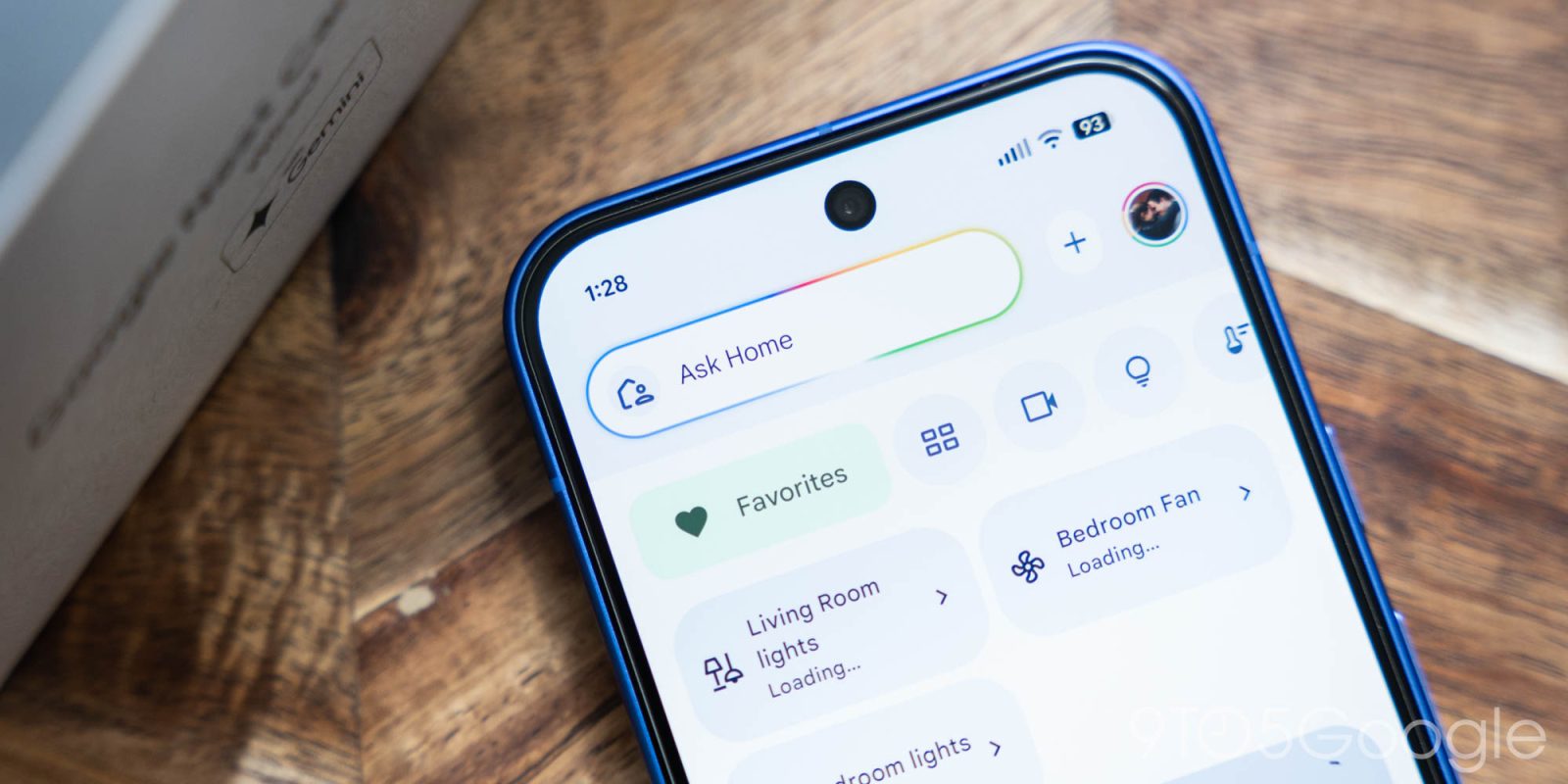
App-related issues often cause trouble with Google Home. These problems stop the device from working well. The Google Home app controls the device. When the app has issues, the device may not respond or sync. Fixing app problems is important for smooth operation. This section explains common app issues and how to fix them.
Google Home App Crashes
The app may close suddenly without warning. This stops you from controlling the device. Crashes can happen due to bugs or outdated app versions. Restart the app to clear small errors. Update the app regularly to get the latest fixes. If crashes continue, try reinstalling the app. This removes corrupted files that cause trouble.
Syncing Problems
Devices may not sync properly with the app. This means settings or commands do not update. Sync issues can result from weak Wi-Fi or app glitches. Check your internet connection first. Restart the router if the connection is poor. Force close the app and open it again. This can refresh syncing and restore connection. Make sure your app and device use the same Wi-Fi network.
Clearing Cache And Data
Cache stores temporary app files. These files speed up the app but can cause bugs. Clearing cache removes old files and frees space. Go to app settings on your phone. Find Google Home and tap storage options. Select ‘Clear Cache’ first. If problems stay, choose ‘Clear Data.’ This resets the app but removes saved info. You must log in again and set up your device.
Network And Connectivity
Network issues often cause Google Home to stop working properly. A strong and stable connection helps Google Home respond quickly and accurately. This section covers key tips to fix network and connectivity problems. Follow these simple steps to get your device back online.
Router Settings Adjustments
Check your router for any blocks on Google Home. Some routers limit new devices or use firewalls that stop connections. Restart your router to refresh the network. Make sure your router’s firmware is up to date. Set your router to use 2.4 GHz or 5 GHz bands, depending on your Google Home model. Disable any parental controls or MAC address filtering that may block the device.
Ip Address Conflicts
IP address conflicts happen when two devices share the same IP. This can cause connection drops or slow response times. Assign a static IP to your Google Home in your router settings. This gives the device a fixed address on your network. Alternatively, reboot your router to clear conflicting IP assignments. This simple step often restores smooth connectivity.
Using Guest Networks
Guest networks isolate devices for security but can limit Google Home’s features. Google Home might not communicate with other devices on a guest network. Connect Google Home to your main Wi-Fi network instead. This allows full access to your smart home devices. Avoid guest networks if you want seamless voice control and device syncing.

Security And Privacy
Security and privacy are key for anyone using Google Home. Protecting your personal data keeps your information safe. It also helps prevent unauthorized access to your device. Understanding how to manage these settings improves your experience.
Reviewing Voice Data
Google Home records voice commands to improve service. You can review these recordings anytime. Visit your Google account to listen and delete voice data. Removing old recordings helps protect your privacy. Checking this regularly keeps control in your hands.
Adjusting Privacy Settings
Privacy settings let you control what Google Home can do. You can limit the information Google collects. Turn off features you don’t use or trust. Adjust settings in the Google Home app under “Privacy.” This prevents unnecessary data collection and sharing.
Managing Permissions
Permissions control how Google Home interacts with other apps. You decide what access the device has. Check app permissions in your Google Home settings. Disable permissions for apps you don’t want connected. This reduces risks and keeps your data safer.
Frequently Asked Questions
How Do I Fix Google Home Not Responding?
Restart your Google Home by unplugging it for 10 seconds. Ensure it’s connected to Wi-Fi and the microphone is on.
Why Is My Google Home Not Connecting To Wi-fi?
Check your Wi-Fi password and router settings. Move Google Home closer to the router for a stronger signal.
How To Reset Google Home To Factory Settings?
Press and hold the microphone mute button for about 15 seconds. Wait for the device to reset and restart.
What To Do If Google Home Won’t Play Music?
Confirm your music service is linked in the Google Home app. Check your internet connection and try again.
How Can I Improve Google Home Voice Recognition?
Speak clearly and avoid background noise. Place the device in an open area, not inside cabinets or behind objects.
Conclusion
Troubleshooting your Google Home can be quick and simple. Start with basic steps like checking the Wi-Fi and power connection. Restart your device to clear minor glitches. Use the Google Home app to manage settings easily. These tips help fix common issues fast.
Keep your device updated for better performance. Remember, small actions can solve most problems. Stay patient and try each step carefully. Your Google Home will work smoothly again soon.