If your device is unresponsive or dropping its signal, performing standard google nest doorbell troubleshooting often restores full functionality by refreshing the power and wireless connection. Most issues stem from a loose wire, a weak Wi-Fi signal, or a drained internal battery. You can usually fix these problems yourself by checking your power supply and resetting the network settings through your home app.
Troubleshoot your Google Nest doorbell connection issues
The most common cause for connectivity issues is an unstable Wi-Fi signal between your router and the front door. Because video doorbells require a steady upload speed to stream high-definition footage, even a small drop in signal strength can cause the device to go offline.
Thick walls, distance from the router, or interference from other electronics often create these dead zones. If your signal strength shows as “weak” or “poor” in the app, move your router closer to the door or install a mesh Wi-Fi node within 20 feet of the device.
Finally, software glitches can occur after a router update or a power outage. If your device was working fine yesterday but stopped suddenly, the internal software might be stuck in a loop. A simple power cycle, by removing the device from its base for ten seconds, often clears these temporary errors. You can confirm your current status and view specific error codes by visiting the official Google Nest Help center.
Safety: Inside a mains-powered machine, the parts behind the outer cover can hold a dangerous electrical charge even after it has been unplugged — that’s why they sit behind a cover. Opening the housing, or testing or replacing anything behind it, is a job for a qualified technician, never a home repair.
Restart the device through the app
If your device is powered on but not streaming video, a simple software restart is the first step. This clears temporary errors without deleting your saved settings or video history. You can trigger this process directly from your smartphone by navigating to the device settings menu in the Google Home app.
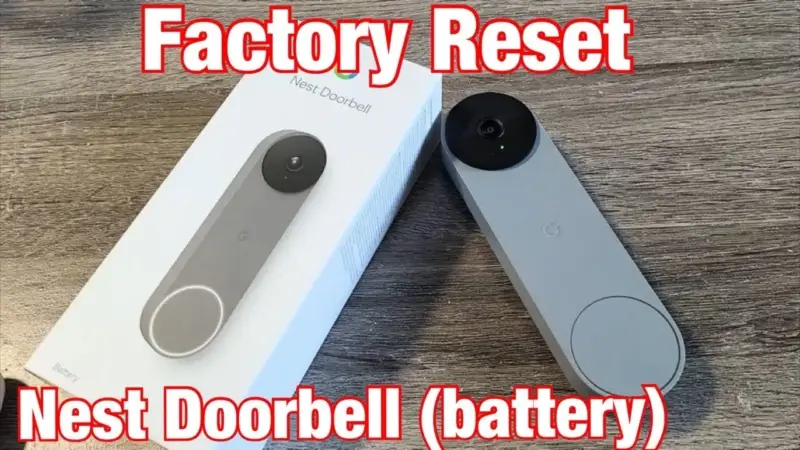
Select your camera from the list and look for the settings gear icon in the top right corner. From there, choose the option to restart the device. If the app can’t communicate with the doorbell, you can also perform a manual restart. Locate the small reset pinhole on the back or side of the unit and use a paperclip to press the button for exactly 5 seconds.
Don’t hold the button for more than 10 seconds, as this will trigger a full factory reset. A factory reset erases all your data and requires you to set the device up as if it were brand new. If the status light starts pulsing blue, the restart process is underway and the device should reconnect to your network within a few minutes.
Check the physical wiring and power
If the device is completely dead, the issue is likely a loose connection or a failed transformer. Start by removing the doorbell from its mounting plate to ensure all wires are securely fastened to the terminals. If a wire is frayed or disconnected, use a small screwdriver to tighten the terminal screws until the wire is held firmly in place.
If the wires look secure, you must have a professional technician verify the voltage coming from your house to ensure it meets the device’s power requirements. If the voltage is insufficient, the device will fail to power on or reboot constantly during night vision mode.
If you aren’t comfortable using a voltage tester or working around live electrical components, contact a licensed electrician to inspect your doorbell circuit. Never attempt to alter the internal electrical wiring of your home if you don’t have experience with low-voltage systems. A mistake here can blow a fuse or damage your home’s chime box.
Improve the wireless signal strength
When your device connects but the video feed is choppy or slow, you likely have a signal range issue. You can test your signal strength by standing at your door with your phone and checking the Wi-Fi bars while connected to the same network. If you have fewer than two bars, your router is likely too far away to support the camera.
Moving your router closer to the front of your home or removing obstructions like metal cabinets can provide an immediate boost. If moving the router isn’t possible, consider installing a Wi-Fi mesh system or a dedicated range extender. These devices create a stronger, more reliable path for your data to travel from the doorbell to the internet.
If your network is crowded with many devices, your doorbell might be losing priority. Try disconnecting other non-essential devices from the network to see if the video feed improves.
Check your router’s settings to ensure it broadcasts a 2.4 GHz signal. Google Nest doorbells often struggle with 5 GHz bands because those signals fail to penetrate exterior walls or heavy doors. If you see both options, force the doorbell to connect to the 2.4 GHz network for better range.
If the feed remains broken even with a strong signal, your router might be using an outdated security protocol. Switch your router’s encryption to WPA2-AES to ensure compatibility. Using WPA3 or older WEP standards often causes the doorbell to drop its connection intermittently.
Common mistakes to avoid
Don’t perform a factory reset as your first step, as this deletes all your saved activity zones and preferences. If you can’t see your video feed, check the Google Home app for a status code first. A reset should only be your final option after all other connection steps fail.
Avoid using third-party power adapters that don’t match the voltage requirements, as these can permanently damage the internal battery. Use only the original hardware provided in the box. If you lose your adapter, verify the output specifications on the replacement unit exactly match the original label before plugging it in.
Don’t ignore a blinking yellow light, as this signals a critical power issue that requires immediate attention before the battery dies completely.
Avoid placing your router inside a closed metal cabinet, as this acts as a shield and blocks the signal. If your doorbell consistently drops the connection, move the router to an open, elevated position.
Maintaining a stable connection
Comparing your current setup to the recommended standards will help you keep the device online. The following table shows how to adjust your habits to prevent future connectivity issues.
| If you’re doing this | Do this instead | Why |
|---|---|---|
| Using a weak router | Install a mesh Wi-Fi system | Provides consistent coverage everywhere |
| Ignoring app notifications | Check the status light daily | Early detection prevents total failure |
| Overloading the network | Use a dedicated guest network | Reduces traffic for your camera |
| Using long, thin wires | Use thicker gauge copper wire | Reduces voltage drop over distance |
If your doorbell remains offline despite these adjustments, check the distance between your router and the front door. If the signal must pass through more than two interior walls or a brick exterior, the Nest Doorbell will struggle to maintain a stable handshake. In these cases, moving the router even three feet closer to the entry point can resolve persistent drops.
Many users mistakenly blame their internet service provider when the actual culprit is a low-voltage transformer. If your doorbell reboots every time the mechanical chime sounds, your transformer likely lacks the power to support both the chime and the Wi-Fi radio simultaneously.
Frequently asked questions
How long does a factory reset take?
A full factory reset takes 5 to 10 minutes. Press and hold the reset button for 10 seconds to wipe the memory and reboot the device. Once the light turns solid or pulses blue, add the device back through your home app.
Why is my doorbell light blinking white?
A blinking white light indicates that your device is currently attempting to connect to your Wi-Fi network. This usually happens after a power surge or a change in your internet service. If it stays in this state for more than 15 minutes, restart your router and wait for the signal to return. If the light continues to blink, your Wi-Fi password may have changed or the router is blocking the device.
Can I fix a dead battery myself?
No, you can’t replace the internal battery yourself because the unit is sealed to remain weather-resistant. If the battery no longer holds a charge after being connected to power for 24 hours, the hardware has likely reached its lifespan. You should check your purchase date to see if the device is still under the manufacturer’s warranty. If the warranty has expired, you’ll need to replace the entire doorbell unit.
Is it safe to clean the lens?
Yes, it’s perfectly safe to clean the lens using a soft, dry microfiber cloth. Don’t use liquid cleaners, harsh chemicals, or abrasive paper towels, as these can scratch the protective coating on the camera lens. Gently wipe the surface to remove dust or water spots that might be causing blurry images. If the image remains blurry after cleaning, there may be internal condensation that requires a professional inspection.
What happens if I lose my Wi-Fi password?
If you lose your Wi-Fi password, you must reset the router through your internet service provider’s mobile app or web portal. Once you update the password on your router, you’ll need to manually reconnect the doorbell through the home app. The device can’t update its own credentials automatically. If you have saved the password in a digital vault, check there first to avoid having to reconfigure all your smart home devices.
Conclusion
If these quick fixes don’t get your camera back online, it’s a good idea to reach out to Google’s support team for further help. They’ll be able to check if there’s a deeper hardware fault. Don’t worry, you’ll have your front porch covered again before you know it.