Is your Insignia TV acting up when you least expect it? You’re not alone, and the good news is that many common problems can be fixed quickly without calling a technician.
Whether your screen goes black, the sound cuts out, or the remote won’t respond, this guide will help you get your TV back to working perfectly. Keep reading—by the end, you’ll have simple, effective solutions that save you time, frustration, and money.
Your next binge-watch session is just a few easy steps away.
Power Problems
Power problems are common issues with Insignia TVs. They stop the TV from working properly. These problems can cause frustration and confusion. Understanding simple fixes can save time and money.
Power issues often come from electrical faults or hardware glitches. Checking the power source and connections is the first step. Sometimes, the solution is easy and quick.
No Power Or Won’t Turn On
Check if the power cord is plugged in tightly. Try a different outlet to rule out socket problems. Press the power button on the TV itself, not just the remote. Look for any signs of damage on the cord or plug. If none work, the power supply inside the TV may be faulty.
Tv Turns Off Unexpectedly
The TV may overheat and shut down to protect itself. Make sure vents are clear and the TV is not in a closed space. A faulty power cable can cause sudden shutdowns. Software glitches might also cause this issue. Restart the TV by unplugging it for a few minutes.
Power Button Not Responding
Try pressing the button firmly and hold it for a few seconds. The button might be stuck or damaged. Clean around the button gently to remove dust or dirt. Use the remote control to check if it can power on the TV. If the button still fails, professional repair may be needed.
Picture Issues
Picture issues on your Insignia TV can spoil your viewing experience. These problems include a black screen, fuzzy images, wrong colors, or flickering. Fixing these issues often needs simple steps. Understanding each problem helps you solve it faster.
No Picture Or Black Screen
Sometimes, the TV turns on but shows no picture. The screen stays black. Check if the TV is on the right input source. Make sure all cables are tightly connected. Try unplugging the TV for a minute, then plug it back in. This can reset the system.
Distorted Or Fuzzy Image
A fuzzy or distorted picture can mean a weak signal. Check the antenna or cable connection. Clean the HDMI ports and cables. Replace old or damaged cables. Adjust the picture settings in the TV menu to improve clarity.
Color Problems
Colors may look wrong or faded. This can happen if the color settings are off. Go to the TV’s picture menu and reset color settings. Check if the cables are connected properly. Sometimes, poor signal quality affects colors too.
Screen Flickering
Flickering screens can be annoying and tiring for your eyes. This might be due to loose cables or power issues. Secure all cable connections. Try a different power outlet. Updating the TV’s software can also stop flickering.
Sound Problems
Sound problems on your Insignia TV can spoil your viewing experience. These issues can range from no sound at all to distorted audio or even volume controls not responding. Fixing sound problems is often easier than it seems.
Below are common sound problems and simple ways to solve them.
No Sound
Check if the TV is muted. Press the mute button on your remote to unmute.
Verify the volume is turned up. Sometimes the volume may be set too low.
Inspect all cables connected to the TV. Loose or damaged cables can cause no sound.
Try switching the TV to another input source to see if the sound works there.
If using external speakers or soundbars, ensure they are powered on and connected properly.
Audio Distortion
Audio distortion often happens due to weak or damaged cables. Replace any old or worn-out cables.
Check if the TV’s audio settings are set correctly. Adjust bass, treble, and balance settings.
Turn off any sound enhancement features. These can sometimes cause unwanted noise.
Try lowering the volume to see if distortion decreases.
Test with different content. Sometimes the issue is with the source, not the TV.
Volume Controls Not Working
Remove any obstructions between the remote and the TV sensor.
Replace the remote’s batteries with fresh ones.
Try using the TV’s physical buttons to adjust the volume.
Reset the TV by unplugging it for a few minutes and then plugging it back in.
Check for any software updates for your TV. Sometimes updates fix remote control issues.

Remote Control Troubles
Remote control problems can stop your Insignia TV from working well. These issues often cause frustration and confusion. Understanding common remote troubles helps fix them fast. This guide shows simple solutions to get your remote back on track.
Remote Not Responding
Sometimes, the remote does not send signals to the TV. Check the batteries first. Dead or weak batteries cause no response. Replace them with new ones. Make sure the battery contacts are clean and not rusty. Point the remote directly at the TV sensor. Remove any objects blocking the path. If the remote still does not work, try resetting the TV. Unplug the TV for a minute, then plug it back in. This can fix minor glitches.
Buttons Stuck Or Unresponsive
Buttons may stick or not work properly over time. Dirt and dust build-up causes this problem. Clean the remote gently with a soft cloth. Press each button several times to loosen them. Avoid using water or harsh cleaners. If a button remains stuck, open the remote carefully. Clean inside with a dry brush. Reassemble and test the buttons again. Stuck buttons can also result from spills. In that case, consider replacing the remote.
Pairing And Syncing Remote
Some Insignia remotes need pairing with the TV. This step allows the remote to control the device. To pair, hold the pairing button on the remote. Press it until the LED light flashes. On the TV, go to the settings menu. Select the remote or Bluetooth setup option. Follow the on-screen instructions to complete pairing. If pairing fails, restart both TV and remote. Repeat the process to sync them properly.
Connectivity Issues
Connectivity issues can disrupt your experience with an Insignia TV. These problems stop you from streaming, sharing, or using smart features. Many users face troubles with Wi-Fi, HDMI ports, or Bluetooth connections. Understanding these issues helps fix them quickly.
Wi-fi Not Connecting
Your Insignia TV may fail to connect to Wi-Fi. Check if your router is working properly. Restart the TV and router to refresh the connection. Ensure the TV is within range of the Wi-Fi signal. Enter the correct network password carefully. Update the TV’s software for better compatibility. Avoid interference from other devices near your TV.
Hdmi Port Problems
HDMI port issues cause no picture or sound on your TV. Inspect the HDMI cable for damage or loose ends. Try a different HDMI cable to rule out cable faults. Test other HDMI ports on the TV. Clean the HDMI port gently to remove dust or debris. Make sure the connected device is powered on. Select the right input source on your TV menu.
Bluetooth Pairing Failures
Bluetooth pairing problems prevent wireless devices from connecting. Ensure your device is in pairing mode. Keep the device close to your TV. Turn off other Bluetooth devices to avoid interference. Restart both the TV and the Bluetooth device. Remove old paired devices from your TV list. Update the TV’s firmware to fix bugs.
Software And Firmware
Software and firmware are vital for your Insignia TV’s performance. They control how the TV runs and interacts with apps and devices. Keeping them up to date ensures smooth operation and new features. Problems often arise from outdated software or firmware bugs. Fixing these can resolve many common issues.
Updating Firmware
Firmware updates fix bugs and improve TV functions. Check for updates in the TV settings menu. Make sure your TV is connected to the internet. Follow the on-screen instructions to download and install updates. Do not turn off the TV during the update. Updated firmware can solve many glitches and improve speed.
Resetting To Factory Settings
Factory reset restores the TV to its original state. It removes all custom settings and data. Use this step if the TV has persistent software issues. Find the reset option in the settings menu under system or support. Confirm your choice to start the reset. Afterward, set up your TV again from scratch.
App Crashes And Freezes
App crashes often happen due to software conflicts or outdated apps. Restart the TV to clear temporary issues. Update the app causing the problem from the app store. Clear the app cache if the TV allows it. Reinstall the app if crashes continue. These steps can improve app stability and performance.
Audio/video Sync Problems
Audio and video sync problems cause frustration during TV viewing. The sound may come before or after the picture. This mismatch makes it hard to enjoy movies or shows. Many users face this issue with Insignia TVs. Fixing it can restore your viewing experience quickly.
Lip Sync Delay
Lip sync delay happens when the voice does not match mouth movements. This can occur due to processing delays in the TV or connected devices. Small delays create noticeable problems in conversations and singing scenes. Checking all connected devices can help find the cause.
Try restarting your TV and any connected devices like cable boxes or streaming players. This simple step often solves sync problems. Also, check for software updates on your Insignia TV. Updates can fix bugs causing delay.
Sync Settings Adjustment
Many Insignia TVs have settings to adjust audio and video sync. Find the sync adjustment option in the TV menu under audio or sound settings. It lets you move sound forward or backward to match the picture.
Start with small changes, like 10 to 20 milliseconds, and test the result. Keep adjusting until the audio matches the video perfectly. This method works well for most lip sync issues. It does not require special tools or technical knowledge.
Remember, different inputs may need separate adjustments. Check sync settings for HDMI, cable, or streaming apps individually. This ensures smooth audio and video for all content sources.
Error Messages
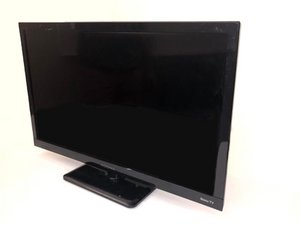
Error messages on an Insignia TV can be confusing and frustrating. They often signal a problem with the TV’s hardware, software, or connectivity. Understanding these messages helps fix issues fast and saves time. This guide explains common error codes and offers simple troubleshooting steps.
Common Error Codes
One frequent error is the “No Signal” message. It means the TV does not receive a signal from the cable box or device. Another common code is “HDCP Error.” This shows a problem with content protection between devices. The “Network Error” message appears when the TV cannot connect to the internet. “Firmware Update Failed” alerts users that the TV’s software did not update properly. Recognizing these codes is the first step to solving problems.
Troubleshooting Steps
Start by checking all cables and connections. Loose or damaged cables cause many errors. Restart the TV and connected devices to refresh the system. For network issues, test the internet connection on other devices. Reset the TV’s network settings if the problem continues. Update the TV firmware manually from the official Insignia website if automatic updates fail. If the HDCP error shows, unplug and reconnect all HDMI devices. These steps often clear error messages and restore normal function.

Frequently Asked Questions
Why Is My Insignia Tv Not Turning On?
Check if the power cord is plugged in securely and the outlet works. Try pressing the power button on the TV itself. A remote control issue might also cause this problem.
How To Fix Insignia Tv With No Sound?
Make sure the volume is not muted or set very low. Check the audio settings and any connected devices. Restart the TV to clear minor sound glitches.
What To Do If Insignia Tv Remote Stops Working?
Replace the remote batteries with new ones. Clean the remote sensor on the TV and remote. Try using the TV buttons to confirm if the remote is faulty.
How Can I Improve Insignia Tv Picture Quality?
Adjust the picture settings like brightness, contrast, and sharpness in the TV menu. Make sure cables are connected properly and use high-quality input sources. Reset picture settings to default if needed.
Why Does My Insignia Tv Screen Keep Freezing?
A frozen screen often means the TV needs a restart. Unplug the TV from power for 60 seconds, then plug it back in. Update the TV software to fix bugs causing freezing.
Conclusion
Troubleshooting your Insignia TV does not have to be hard. Simple steps can fix most common problems quickly. Check connections, restart the TV, and update the software first. Small fixes save time and money. Keep this guide handy for future issues.
Enjoy clear pictures and sound again with ease. Stay calm and follow the steps carefully. Your TV will work smoothly soon.