Dealing with a slow or unreliable WiFi connection can be frustrating, especially when you have invested in a Netgear WiFi extender to boost your network. Many users expect these devices to work smoothly, but sometimes things do not go as planned. Problems can range from connection issues to firmware glitches, and even basic setup mistakes. This guide is designed to help you troubleshoot your Netgear extender efficiently, using simple steps and clear explanations. Whether you are a first-time user or have some technical background, you will find practical advice to get your extender working again.
Understanding How Netgear Extenders Work
Before starting any troubleshooting, it is important to know what a WiFi extender actually does. A Netgear extender picks up your existing WiFi signal and rebroadcasts it to areas where your router’s signal is weak. It acts as a bridge, not as a new router. Knowing this helps you diagnose where things might be going wrong.
Many problems begin with placement. If the extender is too far from the router, it cannot pick up a strong enough signal to repeat. If it is too close, it might not cover the needed area. The ideal location is usually halfway between your router and the area with poor WiFi.
Common Netgear Extender Problems
Most issues with Netgear extenders fall into a few categories:
- Cannot connect to the extender
- Weak or no internet signal
- Extender not showing up in WiFi list
- Device disconnects frequently
- Slow speeds after setup
- Firmware update issues
Recognizing which category your problem fits in makes it easier to find a solution.
Initial Setup Problems And Solutions
Many users struggle during the first setup. If you cannot get your extender working right after unboxing, these are the main things to check:
1. Power And Indicator Lights
Check that the extender is plugged in properly. The Power LED should be solid green. If it is blinking or off, try a different outlet. Some models have a Reset button on the side or bottom—pressing this for 7–10 seconds can help clear minor glitches.
2. Connecting To The Extender’s Network
When setting up, you should see a WiFi network called something like NETGEAR_EXT. If you do not see this, move the extender closer to your router and reboot both devices. Sometimes, interference from walls or appliances can block the signal.
3. Using The Wps Button
For quick setup, you can use the WPS (WiFi Protected Setup) button. Press the WPS button on your router, then within two minutes, press the WPS button on the extender. The WPS LED should turn solid green. If it does not, try again, or use the web browser setup method.
4. Web Browser Setup
If WPS does not work, connect to the extender’s network on your device, open a browser, and go to www.mywifiext.net. This should start the setup wizard. If this page does not load, check that your device is actually connected to the extender’s network, not your main WiFi.
5. Firmware Out Of Date
Sometimes, the extender’s firmware is too old and does not support your router’s features. Visit the Netgear support site, find your model, and download the latest firmware. You can update through the setup wizard or the extender’s admin page.
Placement And Signal Issues
Even after successful setup, you may find your internet slow or unreliable. Often, this is a placement issue.
Finding The Best Spot
The extender should be within range of your router’s signal. Netgear extenders have a Signal LED that shows if the signal is strong (green), fair (amber), or weak (red). Aim for a green light. Move the extender and test again if you see amber or red.
Avoiding Interference
Metal objects, microwaves, cordless phones, and thick walls can all block WiFi signals. Try placing the extender in a spot with fewer obstacles. Avoid putting it inside cabinets or behind large furniture.
2.4 Ghz Vs 5 Ghz Bands
Most Netgear extenders support both 2.4 GHz and 5 GHz bands. The 2.4 GHz band covers more distance but is slower, while 5 GHz is faster but has less range. If your device keeps dropping connection, try switching to 2.4 GHz.
Here is a comparison of the two bands:
| Feature | 2.4 GHz | 5 GHz |
|---|---|---|
| Range | Longer | Shorter |
| Speed | Lower | Higher |
| Interference | More (crowded band) | Less |
| Best For | Walls, long distance | Close devices, streaming |
Connection Problems: Devices Cannot See Or Connect To The Extender
Sometimes your phone or laptop cannot see the extender’s network at all. Here are the main fixes for this issue:
1. Reboot Everything
Unplug the extender and router for 30 seconds, then plug them back in. This simple step can fix many temporary glitches.
2. Check Ssid Broadcast
Some extenders allow you to hide the SSID (network name). Log in to the extender’s admin page and make sure SSID broadcast is enabled.
3. Too Many Devices
Most extenders can only support a set number of devices (often 10–20). If you have many smart devices, phones, and computers, try disconnecting some and see if the problem improves.
4. Check Device Compatibility
Older devices may not support modern WiFi standards like 802.11ac. If your extender uses newer standards, older laptops or phones might not connect. Try updating your device’s WiFi drivers or use a different device.
5. Reset To Factory Settings
As a last resort, hold the Reset button on your extender for 10 seconds. This will erase all settings and let you start fresh.
Internet Signal Problems: Extender Connects, But No Internet
Sometimes your device connects to the extender, but there is no internet access. This can be confusing, but a few targeted steps usually solve it.
1. Confirm Router Internet
First, check if your router has internet. Connect a device directly to the router. If you have no internet there, the problem is with your ISP or router, not the extender.
2. Ip Address Conflicts
If both your router and extender use the same IP address (usually 192. 168. 1. 1), they can conflict. Log in to the extender settings and change its IP to something like 192. 168. 1. 250.
3. Dns Issues
Sometimes the extender does not pass along DNS settings from the router. Try setting DNS servers manually on your device or extender (for example, use Google’s 8.8.8.8 and 8.8.4.4).
4. Mac Address Filtering
Some routers have MAC filtering turned on, which blocks new devices. Add the extender’s MAC address to your router’s allowed list. You can find the extender’s MAC address on its label or in the admin menu.
Extender Not Showing In The Wifi List
If your extender network is not visible at all, here are the most common causes:
- Out of Range: Move the extender closer to the router.
- Disabled Wireless: Check the extender’s settings to make sure WiFi is enabled.
- SSID Hidden: Go to the extender admin page and unhide the SSID.
- Firmware Problem: Update the firmware using a wired connection if possible.
- Hardware Defect: If the extender has power but never shows a WiFi network, it may be faulty.
Frequent Disconnections Or Slow Speed
If your connection drops often or is very slow, try the following:
1. Change Extender Channel
Your extender may be using the same WiFi channel as a neighbor’s router. Log into the extender’s settings and try a different channel (1, 6, or 11 for 2. 4 GHz).
2. Update Firmware
Firmware updates can fix bugs and improve speed. Always keep your extender’s firmware up to date.
3. Reduce Interference
Microwaves, baby monitors, and thick walls can all cause dropouts. Move the extender and devices away from these sources.
4. Check Bandwidth Sharing
If many people are streaming video at once, your extender might not keep up. Limit high-bandwidth use or upgrade your main router for better performance.
5. Use Wired Backhaul
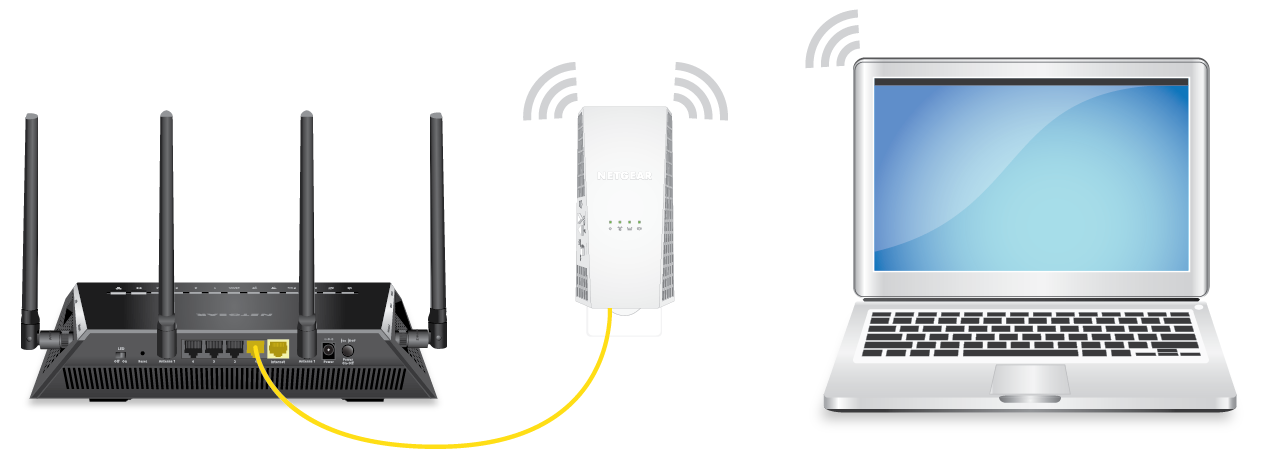
Some Netgear extenders support Ethernet backhaul. Connect the extender to your router with an Ethernet cable for the best speed and stability.
Firmware And Software Issues
Keeping your extender’s firmware current is important for security and performance. Here’s how to manage firmware and software issues:
1. Downloading Firmware
Go to the official Netgear support site, enter your model number, and download the latest firmware file.
2. Updating Firmware
Log into your extender’s admin page (often at 192.168.1.250 or www.mywifiext.net). Go to the Firmware Update section, upload the downloaded file, and follow the prompts.
3. Firmware Update Fails
If the update does not finish or the extender stops working, try these steps:
- Use a wired Ethernet connection for the update.
- Reset the extender and try again.
- Download the firmware file again in case it was corrupted.
4. Security Patches
Firmware updates often include important security patches. Outdated firmware can leave your network open to attacks. Make a habit of checking for updates every few months.
Advanced Troubleshooting: Dealing With Persistent Problems
Sometimes basic steps are not enough. Here are advanced troubleshooting tips for complex issues.
1. Checking Log Files
Netgear extenders keep log files you can view in the admin menu. These logs show connection attempts, errors, and other useful data. Look for repeated errors or failed connections.
2. Manual Ip Settings
If your network uses static IP addresses, make sure your extender is set up with the correct IP, subnet mask, gateway, and DNS.
3. Reset And Reconfigure
If you have tried everything else, do a factory reset (hold the reset button for 10 seconds). Set up the extender from scratch, paying attention to each step.
4. Compatibility With Mesh Networks
Some modern routers use mesh technology. Not all Netgear extenders work well with mesh routers. Check the extender’s documentation for compatibility notes.
5. Contacting Support
If all else fails, contact Netgear customer support. Have your extender’s model number, firmware version, and a summary of troubleshooting steps ready. This speeds up the process.
Comparing Netgear Extender Models
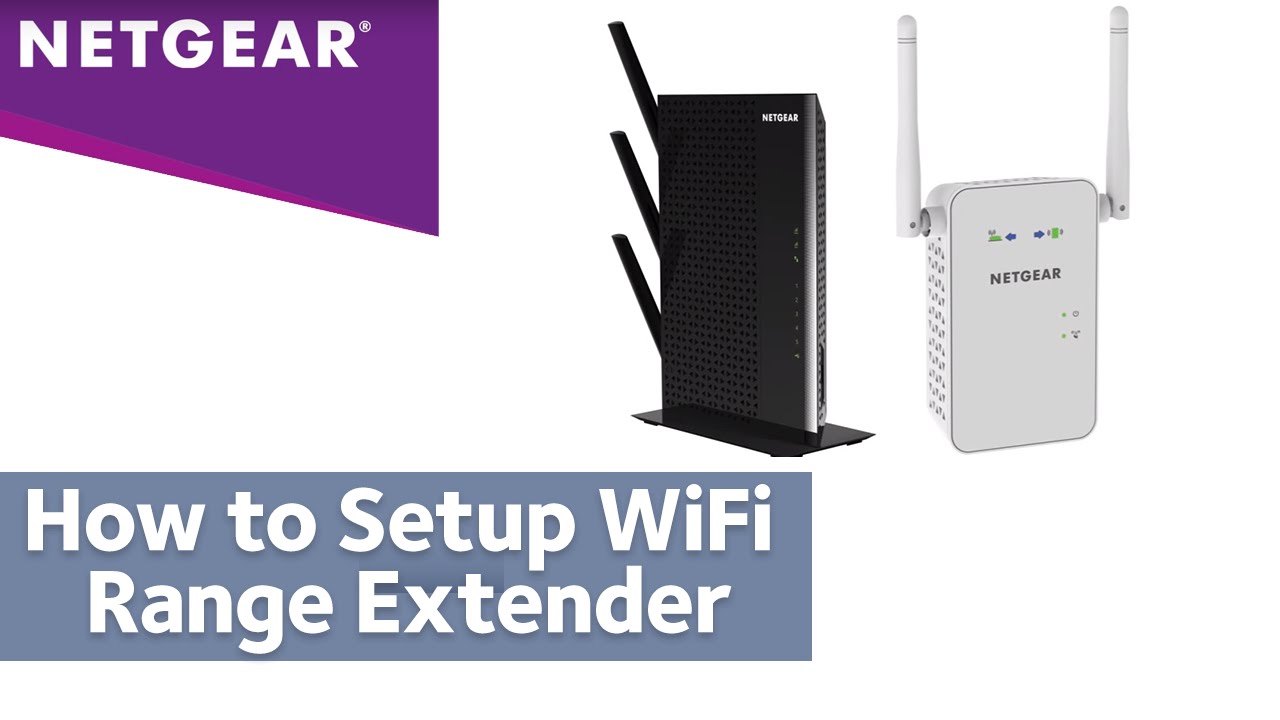
If you are considering replacing your extender, it helps to know the differences between popular models. Here’s a quick comparison:
| Model | WiFi Standard | Max Speed | Ethernet Port | Ideal Usage |
|---|---|---|---|---|
| EX3700 | AC750 | 750 Mbps | 1 | Small homes |
| EX6120 | AC1200 | 1200 Mbps | 1 | Medium homes |
| EX8000 | AC3000 | 3000 Mbps | 4 | Large homes, gaming |
| EAX20 | AX1800 (WiFi 6) | 1800 Mbps | 1 | WiFi 6 devices |
Choosing the right extender for your needs can prevent many problems. For example, using an older AC750 model in a large home may result in weak signals or slow speeds.
Practical Tips For Long-term Reliability
Keeping your Netgear extender running well involves some ongoing care:
- Reboot Regularly: Restart your extender every few weeks to clear memory and fix minor glitches.
- Monitor Connected Devices: Too many devices slow down your network. Disconnect old or unused devices.
- Update Firmware: Check for updates at least twice a year.
- Secure Your Network: Use strong passwords and WPA2 or WPA3 security.
- Watch for Overheating: Extenders can get warm. Make sure there is airflow around the device.
These small steps can prevent bigger problems later.
Two Common Mistakes Beginners Make
Even with clear instructions, beginners often make two non-obvious mistakes:
- Placing the extender in a dead zone: Many users put the extender where there is already no WiFi. It must be placed where the existing signal is still strong, so it has something to extend.
- Not separating SSIDs: Some users give the extender and main router the same network name (SSID). This can confuse devices, causing them to switch back and forth, leading to dropped connections.
Always double-check these details during setup for the best results.
When To Replace Your Netgear Extender
No device lasts forever. If you have tried all troubleshooting steps and your extender still does not work, it may be time to replace it. Signs you need a new extender include:
- Power or WiFi LEDs never light up, even after reset.
- The device overheats or makes noise.
- Firmware updates fail repeatedly.
- Your home’s internet speed has increased, and the extender cannot keep up.
Modern extenders support WiFi 6, which offers better speed, range, and device management. Consider an upgrade if your current model is over five years old.
Data Table: Troubleshooting Steps Vs. Common Problems
To help you quickly match problems with solutions, here is a summary:
| Problem | Quick Fix | Advanced Fix |
|---|---|---|
| No connection to extender | Reboot, check power | Factory reset |
| Slow speeds | Move extender, reboot | Update firmware, change channel |
| Frequent disconnects | Reduce interference | Check logs, Ethernet backhaul |
| Extender not showing | Move closer to router | Firmware update, hardware check |
| Internet but no WiFi | Check SSID broadcast | Manual IP/DNS settings |
Getting Help From Netgear And Online Resources
If you cannot solve your problem, there are more resources available. The Netgear support site offers manuals, troubleshooting videos, and contact options. User forums are also a good place to find advice from others who have faced similar issues.
For official support, visit the Netgear Support site. Make sure you have your model number and firmware version handy.
Frequently Asked Questions
Why Does My Netgear Extender Keep Disconnecting?
Frequent disconnections can be caused by poor placement, wireless interference, outdated firmware, or too many connected devices. Try moving the extender closer to the router, updating the firmware, and reducing interference from other electronics.
How Do I Reset My Netgear Extender To Factory Settings?
Find the Reset button on your extender. Press and hold it for about 10 seconds using a paperclip or pen tip. The extender will reboot, and all settings will return to default. You will need to set it up again as if it were new.
Can I Use More Than One Netgear Extender In My Home?
Yes, you can use multiple extenders, but it is best to connect them each directly to your main router, not “daisy-chained” from one extender to another. This avoids extra lag and connection problems.
Why Is My Extender’s Wifi Slower Than My Main Router?
Extenders repeat the signal, which can cut speed in half due to how WiFi works. To improve speed, place the extender where the signal is strong, use the 5 GHz band if possible, and keep firmware updated.
What Is The Difference Between An Extender And A Mesh System?
A WiFi extender repeats your existing network, while a mesh system uses multiple nodes to create a seamless network. Mesh systems are usually faster and more reliable, but cost more. Extenders are a good budget solution for small to medium homes.
conclusion
Getting your Netgear extender working should not be a mystery. With the right steps, most issues can be fixed quickly. Remember to check placement, update firmware, and use strong security. If problems persist, support resources are available to help you enjoy smooth, reliable WiFi throughout your home.