Are your Phonak hearing aids not working the way they should? It can be frustrating when you rely on your devices daily and suddenly face problems like no sound, weak output, or Bluetooth connection issues.
But don’t worry—you’re not alone, and many common issues have simple fixes. In this guide, you’ll learn easy, step-by-step troubleshooting tips that you can try right now to get your hearing aids back to performing at their best. Whether your device won’t charge, won’t connect to your phone, or seems quiet, keep reading.
By the end, you’ll have clear solutions and know exactly what to do to enjoy crisp, reliable sound again. Let’s get your Phonak hearing aids working perfectly for you!
Common Hearing Aid Issues
Hearing aids can face different problems over time. Knowing common issues helps fix them quickly. This saves time and keeps hearing clear. Below are frequent problems users face with Phonak hearing aids.
Each problem has simple steps to check and solve it. Follow these tips to get your device working well again.
No Sound Or Weak Output
Check the earpiece for earwax or dirt blocking sound. Clean it gently with a soft cloth or brush. Replace the wax guard if it looks clogged. Make sure the hearing aid is turned on. For disposable batteries, insert them with the flat “+” side up. Use fresh batteries for best results. For rechargeable models, place the hearing aid in the charger to confirm it powers on.
Bluetooth Connection Problems
Open your phone’s Bluetooth settings and forget all Phonak devices. Clear app data in the myPhonak app by removing paired devices. Restart your phone and hearing aids. Turn hearing aids off and on by opening and closing the battery door or using the charger. Re-pair the hearing aids with your phone through Bluetooth. This often restores a strong connection.
Charging Difficulties
Clean the charging contacts on both the hearing aids and the charger with a dry cloth. Dirt can block the connection. Check that the charger is plugged into a working outlet or USB port. Use the original charging cable and adapter. Ensure the hearing aids fit correctly in the charger. Improper placement can stop charging.

Fixing Sound Problems
Sound problems with Phonak hearing aids can be frustrating. Poor or no sound affects daily communication and quality of life. Most sound issues come from simple causes. Fixing these often requires just a few quick checks and actions. Below are easy steps to restore clear sound in your hearing aids.
Clean The Earpiece
Check the earpiece for earwax or dirt. Use a soft, dry cloth or a small brush to clean the speaker opening gently. Blocked openings reduce sound quality or stop sound completely. Avoid using water or sharp tools that may damage the device. Clean regularly to keep sound clear.
Replace Wax Filters
Wax filters block earwax from entering the hearing aid. These filters can get clogged over time. Remove the old wax filter carefully. Snap in a new, clean wax filter provided by Phonak. Changing filters often restores sound volume and clarity. Keep spare wax filters handy for quick replacement.
Check Battery And Power
Ensure the hearing aid is turned on. For devices with disposable batteries, insert a fresh battery correctly. The flat side with the “+” sign should face up. For rechargeable models, place the hearing aid in the charger to confirm charging. A low or dead battery causes weak or no sound. Replace or recharge batteries as needed.
Resolving Bluetooth Issues
Bluetooth issues with Phonak hearing aids can disrupt your daily use. They often cause connection drops or failure to pair. Simple steps can fix most problems quickly. Follow these methods to restore smooth Bluetooth operation.
Forget And Re-pair Devices
Start by forgetting your Phonak devices on your phone. Go to Bluetooth settings and remove all Phonak entries. Then, turn off Bluetooth on your phone for a few seconds. Turn it back on and search for your hearing aids again. Pair them as a new device. This clears old connections that may cause conflicts.
Clear App Data
Open the myPhonak app on your phone. Find the option to forget or remove your devices within the app. Clearing this data resets the app’s connection cache. It helps fix issues caused by corrupted or outdated app data. After clearing, reconnect your hearing aids to the app.
Restart Devices And Phone
Turn off your hearing aids by opening the battery doors or placing them in the charger. Wait 10 seconds and turn them back on. Restart your phone as well. Rebooting refreshes system processes and clears temporary glitches. After restarting, try pairing your devices again for a stable connection.
Solving Charging Problems
Charging problems can stop your Phonak hearing aids from working properly. Without power, the device won’t help you hear better. Follow simple steps to fix common charging issues. These easy checks often solve the problem quickly.
Clean Charging Contacts
Dirty contacts block power flow. Use a dry, clean cloth or cotton swab. Gently wipe the metal contacts on the hearing aids and inside the charging case. Remove any dust, dirt, or earwax buildup. Clean contacts improve charging efficiency and speed.
Verify Power Source
Check the charger is firmly plugged in. Test the wall outlet or USB port with another device. A loose or faulty power source can stop charging. Try a different outlet or charger cable if needed. Make sure the charging case lights turn on to confirm power supply.
Resetting Phonak Hearing Aids
Resetting Phonak hearing aids can solve many common problems. It helps clear minor software glitches. Resetting brings the device back to normal operation. It can restore sound quality and Bluetooth connections. Two types of resets exist: soft reset and factory reset. Each serves different troubleshooting needs. Use the soft reset first to fix small issues. The factory reset erases all settings and restores defaults. Choose the reset type based on the problem you face.
Performing A Soft Reset
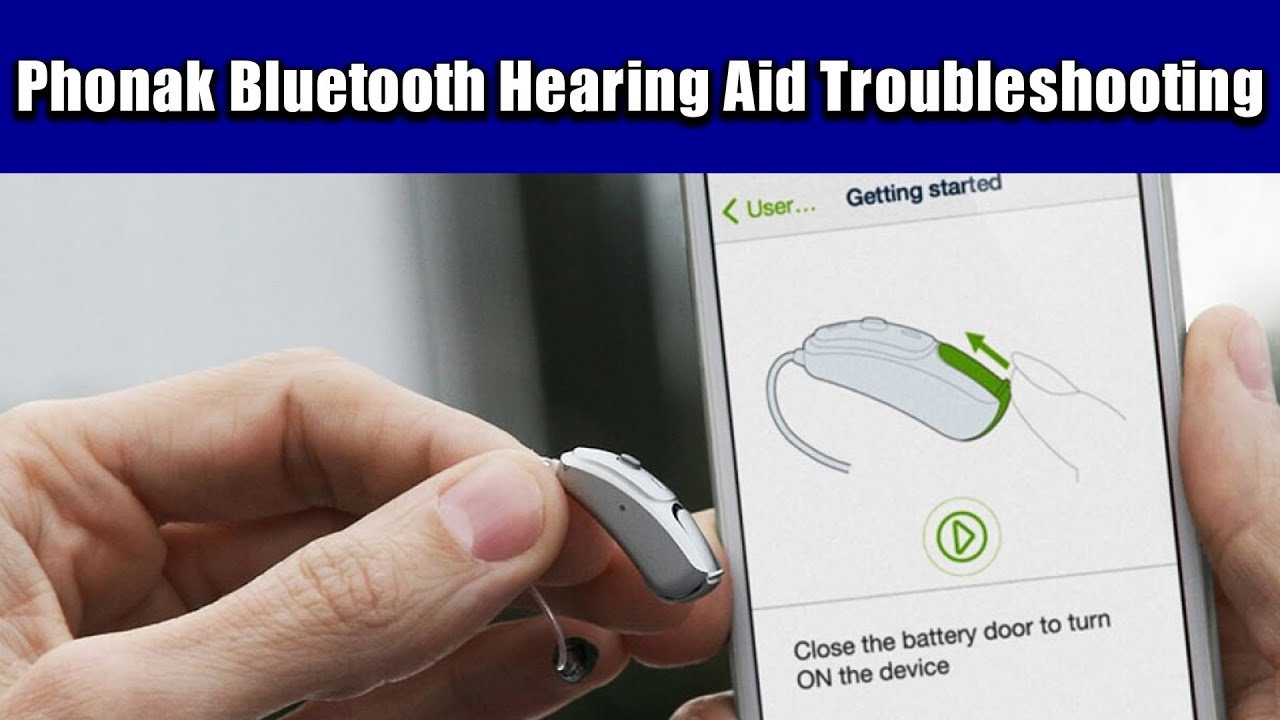
A soft reset is quick and simple. It restarts the hearing aid without erasing settings. To do this, open the battery door fully. Wait about 5 seconds, then close the door. The device powers off and on again. This can fix freezing or sound problems. For rechargeable models, place the aid in the charger. Remove it after a few seconds to restart. Soft resets do not affect your personal settings.
Executing A Factory Reset
A factory reset clears all custom settings and data. Use this only if other fixes fail. To factory reset, you need the myPhonak app or a Phonak remote control. In the myPhonak app, go to device settings. Select the option to reset to factory defaults. Confirm your choice to begin the reset. The hearing aid will erase all personalized programs. After reset, you must re-pair Bluetooth devices. You also need to set up your hearing preferences again. Factory reset is a last resort for stubborn problems.
Tips For Rechargeable Models
Rechargeable Phonak hearing aids offer convenience and ease of use. Proper care helps them work well longer. Simple steps keep your device charged and clear. These tips help avoid common issues with rechargeable models.
Following these easy practices supports better performance every day. Keep your hearing aids ready and reliable for clear sound.
Maintaining Speaker Cleanliness
Speaker openings can collect earwax and dirt. This blocks sound and reduces clarity. Check your hearing aid daily for buildup. Use a soft, dry brush to clean gently. Avoid water or cleaning fluids on the speaker.
Replace wax guards often to prevent clogging. A clean speaker ensures clear, strong sound. Regular cleaning avoids service visits and repairs.
Managing Battery Health
Rechargeable batteries need proper charging habits. Always place your hearing aids fully into the charger. Avoid leaving them in the charger all day after reaching full charge. Remove them once charged to preserve battery life.
Keep charger contacts clean with a dry cloth. Dirty contacts can stop charging. Use the original charger and power source. Avoid extreme temperatures to protect battery health.
Troubleshooting Non-rechargeable Models
Troubleshooting non-rechargeable Phonak hearing aids requires careful attention. These models rely on disposable batteries and regular maintenance. Issues often arise from battery problems or earwax buildup. A simple cleaning or battery change can restore performance quickly. Follow the steps below to keep your device working well.
Speaker And Earpiece Care
Clean the speaker opening gently to remove earwax or debris. Use a soft brush or a special cleaning tool. Avoid using sharp objects that could damage the delicate parts. Check the wax guard and replace it if clogged. A blocked speaker reduces sound quality and volume. Regular cleaning prevents long-term damage and ensures clear sound.
Battery Replacement Guidelines
Use fresh, high-quality disposable batteries for best results. Open the battery door fully to turn off the device before replacing the battery. Insert the new battery with the flat “+” side facing up. Close the door gently to avoid damage. Remove the battery if you won’t use the hearing aid for a long time. Dispose of old batteries properly to protect the environment.
When To Seek Professional Help
Knowing when to seek professional help for your Phonak hearing aids saves time and frustration. Some problems require expert tools and knowledge. Ignoring persistent issues can worsen hearing aid performance. Professionals can diagnose and fix complex faults safely. Here are signs that indicate it is time to get expert support.
Identifying Persistent Issues
Repeated problems that do not improve after basic troubleshooting need attention. Examples include no sound, constant feedback, or irregular battery life. If cleaning and resetting fail, the issue might be internal. Sudden changes in sound quality or discomfort also require professional checks. Persistent Bluetooth or app connection failures can point to deeper software or hardware faults.
Providing Model And Problem Details
Before visiting a specialist, gather detailed information about your hearing aids. Note the exact Phonak model, such as Marvel or Paradise. Specify whether your device uses rechargeable or disposable batteries. Describe the problem clearly—when it started, how often it happens, and what you have tried. This helps technicians diagnose faster and suggest the right solution.
Frequently Asked Questions
What Are Common Phonak Hearing Aid Problems?
Common Phonak hearing aid problems include no sound or weak output, blocked earpieces, dead batteries, Bluetooth connection issues, and charging failures. Cleaning wax guards, replacing batteries, resetting Bluetooth, and ensuring proper charging often solve these issues quickly.
How Do I Reset A Phonak Hearing Aid?
To reset a Phonak hearing aid, open and close the battery door or place it in the charger. For Bluetooth reset, forget the device in your phone’s settings and re-pair it. Clean wax guards and ensure the battery is fresh for proper function.
What Is The Average Life Of A Phonak Hearing Aid?
Phonak hearing aids typically last 3 to 7 years with proper care and regular maintenance. Battery type and usage affect lifespan.
Why Is One Of Myphonak Hearing Aids Not Working?
Check the battery or charging status first. Clean wax or debris from the speaker and replace wax guards. Restart and re-pair Bluetooth if needed. Contact support with your Phonak model and issue for further help.
What Are Common Problems With Phonak Hearing Aids?
Common issues include no sound, weak output, Bluetooth connection trouble, and charging problems. Earwax blockage and dead batteries are frequent causes. Simple cleaning and battery checks often solve these problems.
Conclusion
Troubleshooting your Phonak hearing aids can be simple and quick. Start by checking the battery, cleaning wax filters, and ensuring proper Bluetooth connections. Small fixes often solve common issues like weak sound or charging problems. Keep your hearing aids clean and fully charged for best results.
If problems persist, note your model and issue before seeking expert help. Staying patient and following these steps helps you enjoy clearer hearing every day.