Is your printer acting up just when you need it most? You’re not alone, and the frustration is real.
But before you give up or call for expensive repairs, there are simple steps you can take to fix common printer problems quickly. You’ll discover easy, effective troubleshooting tips that save you time, money, and stress. Keep reading to get your printer back on track and printing smoothly again.
Common Printer Problems
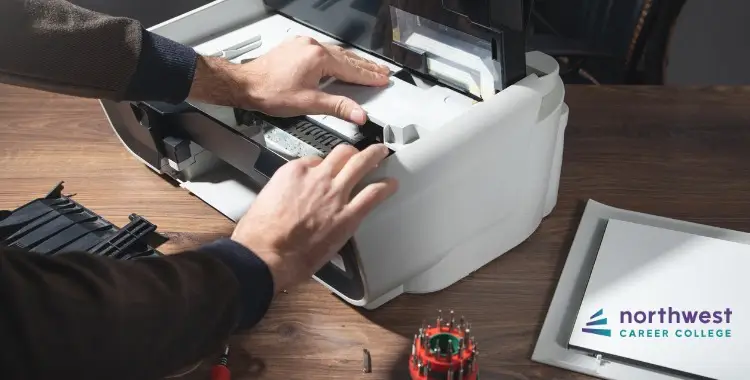
Printers can be very useful but sometimes cause problems. These issues can slow down work or stop it completely. Knowing common printer problems helps fix them fast. This saves time and avoids frustration.
Paper Jams
Paper jams happen when paper gets stuck inside the printer. This can happen if paper is wrinkled or too thick. Clear jams carefully to avoid damage. Use clean, smooth paper to reduce jams.
Poor Print Quality
Prints that look faded or blurry show poor print quality. Low ink or toner levels often cause this. Dirty print heads also affect quality. Regular cleaning and replacing ink help keep prints sharp.
Printer Not Responding
Sometimes, the printer does not respond to commands. This can be due to power or connection issues. Restart the printer and check cables. Updating printer drivers can also solve this problem.
Connectivity Issues
Printers need a good connection to work properly. Wireless or wired connections can fail. Check if the printer is on the right network. Restart routers and reconnect cables to fix this.
Slow Printing
Printing slowly can waste time and reduce productivity. Large files or high print quality settings cause slow printing. Reducing file size or print quality speeds up the process. Regular maintenance keeps printers running fast.
Quick Fixes For Paper Jams
Paper jams are a common problem with printers. They stop your work and cause frustration. Quick fixes can save time and get your printer working again. Understanding how to clear jams safely and prevent future ones helps keep your printer running smoothly.
Clearing The Jam Safely
Turn off the printer before touching any paper inside. Open all doors and trays carefully. Gently pull the jammed paper in the direction it normally moves. Avoid tearing the paper to prevent small pieces from being stuck. Use both hands to pull the paper evenly. Check for any scraps left inside the printer. Close all doors securely before turning the printer back on.
Preventing Future Jams
Use the right type of paper recommended for your printer. Fan the paper stack before loading it to avoid sticking. Do not overload the paper tray. Keep the printer clean and dust-free. Remove any small pieces of paper from the trays. Regularly check and replace worn rollers. Proper care reduces paper jams and improves print quality.
Improving Print Quality
Print quality can affect the look of your documents and photos. Poor print quality wastes paper and ink. Fixing it saves time and money. Simple steps often improve print results quickly.
Cleaning Print Heads
Print heads can get clogged with dried ink. This causes streaks or missing colors. Most printers have a cleaning option in settings. Run the cleaning cycle to clear blockages. Repeat if the problem stays. Manual cleaning may be needed for tough clogs.
Replacing Cartridges
Empty or old cartridges cause faded prints. Check ink levels regularly. Replace cartridges that are low or expired. Use cartridges that match your printer model. Avoid mixing brands to prevent damage. Proper cartridges keep colors bright and sharp.
Adjusting Print Settings
Print settings affect output quality. Choose the correct paper type in settings. Select higher print quality for photos or important documents. Lower settings use less ink but reduce detail. Adjust color balance or brightness if colors look off. Experiment with settings to find the best result.
Resolving Printer Connectivity
Resolving printer connectivity issues is key to smooth printing tasks. A printer that won’t connect wastes time and causes frustration. Knowing how to fix common connection problems helps keep your workflow steady. This section covers simple steps to restore your printer’s connection quickly.
Wired Connection Tips
Check the USB or Ethernet cable for damage. Replace the cable if it looks worn or broken. Make sure the cable is firmly plugged into both the printer and the computer. Try using a different port on your computer. Restart both the printer and the computer to refresh the connection. Avoid long cables that can weaken the signal.
Wireless Network Troubleshooting
Confirm the printer is connected to the correct Wi-Fi network. Restart the router to fix network glitches. Move the printer closer to the router for a stronger signal. Check if other devices can access the Wi-Fi. Disable any firewall or antivirus settings that block printer access. Use the printer’s control panel to run a wireless test.
Driver And Software Updates
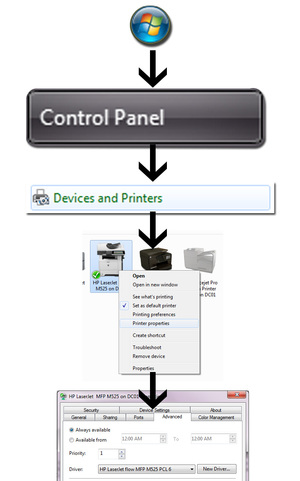
Outdated drivers can cause connection problems. Visit the printer manufacturer’s website for the latest drivers. Download and install updates that match your printer model. Restart your computer after updating the drivers. Use the printer software to check for firmware updates. Updated software ensures better compatibility and fewer errors.
Speeding Up Printing
Printing speed can affect your daily tasks and work flow. Slow printing delays projects and wastes time. You can take steps to make your printer work faster. Simple changes improve efficiency and reduce waiting times.
Optimizing Print Jobs
Choose draft mode for less important prints. It uses less ink and prints faster. Avoid printing large images or high-resolution files unless necessary. Convert documents to PDF to keep file size smaller. Remove unnecessary pages before printing. Adjust print quality settings to balance speed and clarity.
Managing Printer Queue
Check the printer queue regularly. Cancel stuck or old print jobs to clear the line. Pause or reorder jobs to print urgent documents first. Restart the printer if it freezes or slows down. Keep the queue clean to avoid delays and errors.
Upgrading Hardware
Older printers often print slower than newer models. Consider upgrading to a printer with faster speed ratings. Use a wired connection instead of wireless to reduce lag. Add more memory to the printer if possible. Replace old or worn-out parts to keep the printer running smoothly.
Advanced Troubleshooting Steps
Advanced troubleshooting steps help fix printer issues that basic fixes cannot solve. These steps dive deeper into the printer’s settings and software. They often solve errors that stop your printer from working well.
Resetting The Printer
Resetting the printer can clear many hidden errors. Turn off the printer and unplug it from power. Wait for about one minute. Plug it back in and turn it on. This process refreshes the printer’s internal memory. It can fix issues like paper jams or print jobs stuck in the queue.
Checking For Firmware Updates
Firmware controls how the printer works with your computer. Outdated firmware can cause printing problems. Visit the printer manufacturer’s website to find the latest firmware version. Download and install any available updates. Updated firmware improves printer performance and adds new features.
Consulting Support Resources
Many manufacturers provide online support resources. These include user manuals, FAQs, and troubleshooting guides. Search for your printer model on the support page. You may also find forums where users share solutions. These resources offer helpful tips for solving complex problems.
Frequently Asked Questions
Why Is My Printer Not Printing Any Pages?
Check if the printer is turned on and properly connected. Make sure there is enough paper and ink or toner. Restarting the printer can also fix many issues.
How Can I Fix Paper Jams In My Printer?
Open the printer cover gently and remove stuck paper carefully. Avoid tearing the paper inside. Regularly clean the rollers to prevent jams.
What To Do If My Printer Shows Offline Status?
Ensure the printer is connected to the same network as your device. Restart both the printer and your computer. Check printer settings for offline mode.
Why Is My Printer Printing Blurry Or Faded Documents?
Low ink or toner levels often cause poor print quality. Clean the print heads using the printer’s maintenance menu. Use the correct paper type for best results.
How Do I Update Printer Drivers For Better Performance?
Visit the printer manufacturer’s website to download the latest drivers. Installing updated drivers can fix bugs and improve compatibility. Restart your computer after installation.
Conclusion
Printer problems can be frustrating, but most have simple fixes. Check cables, restart devices, and clear print queues first. Use the printer’s manual for specific error codes. Keep your printer drivers updated to avoid issues. Regular cleaning helps prevent paper jams and poor print quality.
Don’t hesitate to ask for help if needed. Small steps often solve big problems. Stay calm and patient to keep your printer working well.