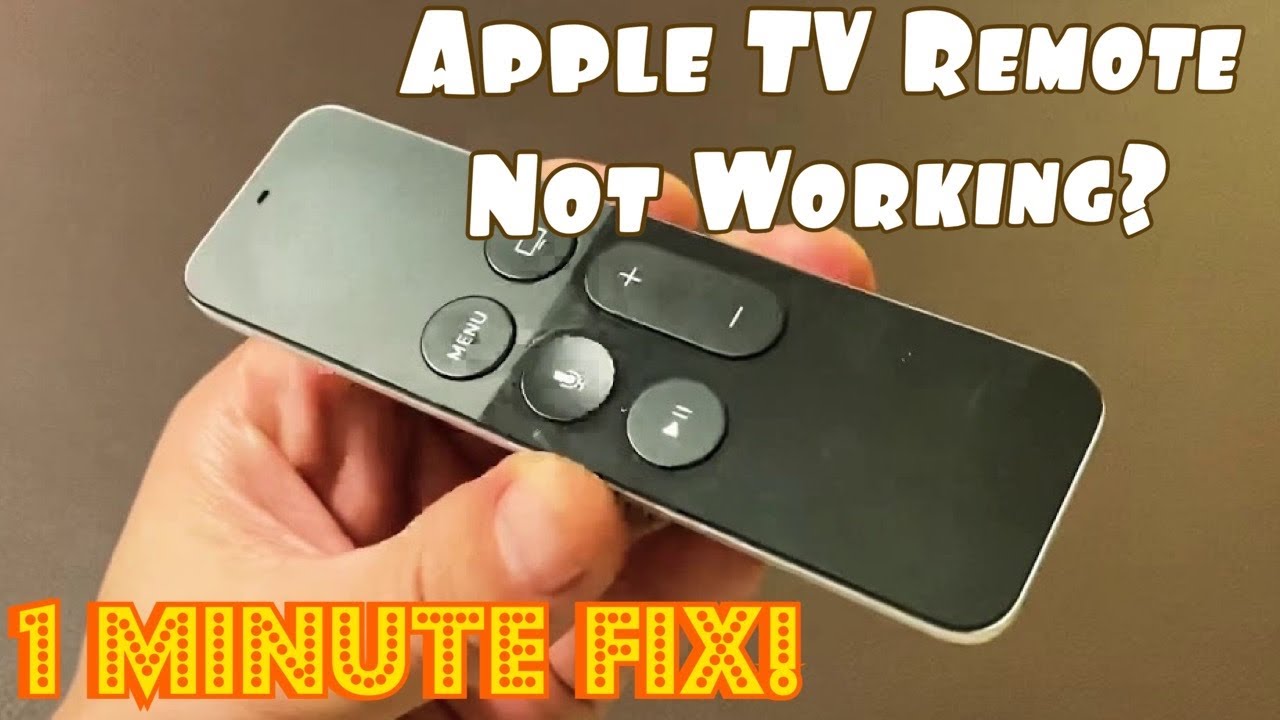
Is your Apple TV remote acting up just when you want to relax and watch your favorite show? It’s frustrating when the remote doesn’t respond or stops working altogether.
But don’t worry—you’re not alone, and fixing it might be easier than you think. You’ll discover simple, step-by-step troubleshooting tips that can get your Apple TV remote back in action fast. Keep reading, and you’ll be controlling your entertainment without missing a beat.

Common Apple Tv Remote Issues
Apple TV remotes are simple devices but can face common problems. These issues can stop your remote from working well. Knowing these problems helps you fix the remote fast. Here are the frequent Apple TV remote problems and what causes them.
Unresponsive Remote
Sometimes the Apple TV remote stops working suddenly. Pressing buttons shows no effect on the screen. The remote might not connect to the Apple TV properly. Dirt or damage on the remote can also cause this issue. Restarting the Apple TV or resetting the remote can help.
Bluetooth Connection Problems
The Apple TV remote uses Bluetooth to connect. If Bluetooth has issues, the remote will not control the TV. This can happen if the remote is too far away. Other Bluetooth devices can cause interference. Turning Bluetooth off and on again might fix the problem.
Battery And Charging Issues
Low battery is a common reason for remote trouble. A weak battery causes the remote to lose power quickly. Some Apple TV remotes need charging with a cable. Using the wrong charger or cable can slow charging. Check the battery status in the Apple TV settings.
Button Malfunctions
Buttons on the remote can stop working or get stuck. Dirt, dust, or spills may block button movement. Continuous pressing can wear out buttons over time. Cleaning the remote carefully can restore button function. In some cases, the remote needs replacement.
Basic Troubleshooting Steps
Troubles with the Apple TV remote can stop your streaming fun quickly. Basic troubleshooting helps fix common problems fast. Follow these simple steps to get your remote working again. Each step targets a different issue to cover most problems.
Restarting Your Apple Tv
Restarting the Apple TV refreshes its system. This can solve many remote issues. To restart, press and hold the Menu and Home buttons together. Release them when the light on the Apple TV blinks. Wait for the device to turn back on. Check if the remote works now.
Resetting The Remote
Resetting the remote clears any glitches inside it. Hold the Menu and Volume Up buttons for five seconds. Then, place the remote close to the Apple TV. Wait for a message on the screen confirming the reset. Try using the remote after this step.
Checking Battery Levels
Low battery power can stop the remote from working well. Charge the remote using the Lightning cable for at least 30 minutes. For older remotes, replace the batteries with fresh ones. Test the remote after charging or replacing batteries.
Ensuring Proper Pairing
The remote must be paired to the Apple TV to work. If it disconnects, pairing fixes it. Point the remote at the Apple TV and press the Menu and Volume Up buttons. Hold until you see a message on the screen. This means the remote is paired again.
Advanced Fixes
Advanced fixes help solve tricky Apple TV remote problems. These steps go beyond basic checks and fixes. They require more time but often solve persistent issues. Follow these methods carefully to restore your remote’s function.
Updating Apple Tv Software
Outdated software can cause remote issues. Check for updates in Apple TV settings. Go to System > Software Updates. Select Update Software and wait for the process to finish. Updated software improves remote compatibility and fixes bugs.
Using The Remote App
The Apple TV Remote app can control your TV. Download it from the App Store on your iPhone or iPad. Connect the app to your Apple TV using the same Wi-Fi network. This app works as a backup remote for navigation and typing.
Re-pairing The Remote
Re-pairing reconnects the remote to your Apple TV. Hold the remote close to the Apple TV. Press and hold the Menu and Volume Up buttons together for five seconds. Wait for the pairing confirmation on screen. This often fixes connection problems.
Factory Resetting Apple Tv
Factory reset erases all settings and data. Use this as a last resort. Go to Settings > System > Reset. Choose Reset to erase and restore default settings. After reset, set up your Apple TV and remote again. This can fix deep software issues.

Tips To Prevent Remote Issues
Preventing Apple TV remote issues saves time and frustration. Simple care steps keep the remote working well. These tips help avoid common problems and extend the remote’s life.
Regular Battery Maintenance
Check the battery level often. Replace batteries before they run out. Use good quality batteries for longer life. Remove batteries if you won’t use the remote for a long time. This stops battery leaks and damage.
Keeping Remote Clean
Wipe the remote with a soft cloth regularly. Avoid using water or harsh cleaners. Dust and dirt can block buttons. Clean buttons help the remote respond better. Keep the remote dry to prevent damage.
Avoiding Signal Interference
Keep the remote away from other electronics. Devices like routers and microwaves can block signals. Use the remote within clear sight of the Apple TV. Avoid thick walls or metal objects between remote and device.
Safe Storage Practices
Store the remote in a safe, dry place. Avoid dropping or throwing the remote. Keep it away from children and pets. Use a dedicated spot to avoid losing it. Safe storage reduces the risk of damage.
When To Contact Apple Support
Knowing when to contact Apple Support can save you time and hassle. Sometimes, troubleshooting steps do not fix the Apple TV remote. At that point, professional help is necessary. Apple Support has the tools and knowledge to solve tough problems. They offer advice, repairs, and replacement options. Understanding when to reach out helps you get the best service fast.
Hardware Damage
Physical damage often causes remote issues. Dropping the remote or spilling liquid on it can break internal parts. Signs include unresponsive buttons or a cracked case. If your remote looks damaged or does not work after basic fixes, contact Apple Support. They can check the hardware and suggest repairs or replacements.
Persistent Connectivity Problems
Connectivity issues can affect your remote’s performance. Sometimes, Bluetooth or infrared signals fail to connect properly. If you reset and re-pair the remote but still face problems, Apple Support should help. Persistent connection problems need expert diagnosis. They can guide you through advanced fixes or service options.
Replacement Options
Apple Support can guide you on remote replacement. If your remote is old or damaged beyond repair, replacement may be the best choice. Apple offers genuine remotes and authorized service options. Contacting support ensures you get the correct model and avoids compatibility problems. They also provide warranty and purchase advice.
Frequently Asked Questions
Why Is My Apple Tv Remote Not Responding?
Check if the remote’s battery is low or dead. Restart your Apple TV to refresh the connection. Clean the remote sensor for better communication.
How Do I Reset My Apple Tv Remote?
Press and hold the Menu and Volume Up buttons for five seconds. Wait until the remote’s light flashes to confirm reset. Then, try pairing it again with your Apple TV.
Can Bluetooth Issues Cause Apple Tv Remote Problems?
Yes, Bluetooth interference can disrupt the remote’s signal. Keep other devices away and restart both your remote and Apple TV to fix this.
How To Fix Apple Tv Remote Not Pairing?
Make sure your remote is close to Apple TV during pairing. Restart both devices and try pairing again. Remove other Bluetooth devices that may interfere.
What Should I Do If Apple Tv Remote Buttons Stop Working?
Try restarting the remote by removing and reinserting the battery if possible. Restart Apple TV and check for software updates. Clean the remote to remove dirt under the buttons.
Conclusion
Troubles with your Apple TV remote can be fixed with simple steps. Check the batteries and clean the remote’s sensor area. Restart your Apple TV for a quick reset. Keep the remote close to the device while using it. Try these easy tips before calling for help.
Small problems often have easy answers. Stay patient and follow the steps carefully. This will save time and keep your viewing smooth. Enjoy your shows without interruption.