Is your Arris router acting up just when you need it the most? Slow internet, dropped connections, or confusing error messages can disrupt your day and leave you frustrated.
But don’t worry—this guide is here to help you fix those common issues quickly and easily. Whether you’re struggling with setup problems or unexpected outages, understanding how to troubleshoot your Arris router will save you time and stress. Keep reading, and you’ll discover simple steps to get your internet back on track without calling for expensive help.
Your smooth online experience is just a few clicks away!

Common Arris Router Issues
Arris routers are popular for home internet connections. They usually work well but can face some common problems. Understanding these issues helps fix them fast. This section explains typical problems with Arris routers.
Slow Internet Speeds
Slow internet is a usual complaint with Arris routers. The cause might be network congestion or outdated firmware. Sometimes, many devices connected at once reduce speed. Restarting the router often improves speed. Checking for firmware updates can also help.
Frequent Disconnections
Dropping internet connection often frustrates users. This issue can happen due to signal interference or router overheating. Placing the router in an open space reduces interference. Also, ensure the router has good ventilation. Updating the router firmware may fix disconnection problems.
Router Not Powering On
When the Arris router does not power on, it may be a power supply problem. Check the power cable and outlet first. Using a different power adapter can test this issue. If the router still won’t start, the internal hardware might be faulty. Professional repair or replacement may be needed.
Wi-fi Signal Drops
Wi-Fi signal dropping causes slow or lost connections on devices. Thick walls and distance from the router weaken signals. Moving closer to the router often restores signal strength. Changing the Wi-Fi channel on the router can reduce interference. Adding a Wi-Fi extender helps in larger homes.
Basic Troubleshooting Steps
Basic troubleshooting steps help fix common Arris router issues fast. These steps work for most simple problems. They save time and avoid calling support. Start with easy checks before moving to advanced fixes.
Restarting The Router
Turn off your Arris router. Wait for 30 seconds. Turn it back on. Restarting clears temporary errors. It refreshes the connection. Many problems stop after a restart.
Checking Cable Connections
Check all cables linked to the router. Make sure each cable fits tight. Look for loose or damaged wires. Replace broken cables if found. Proper connections keep the internet stable.
Verifying Internet Service Status
Check if your internet provider has outages. Visit their website or call customer support. Service issues can cause loss of connection. Knowing this saves effort in fixing the router.
Advanced Fixes
Advanced fixes can solve many Arris router problems. These steps go beyond basic checks and help restore your router’s full function. They require careful action but bring better results.
Resetting To Factory Settings
Resetting your router erases all custom settings. It returns your device to the state it was when new. Press and hold the reset button for 10 seconds. Use a pin or paperclip to press the button. Wait for the router to reboot. After that, set it up again from scratch.
Updating Firmware
Firmware controls the router’s functions. Old firmware can cause slow speeds or drops. Check the Arris website for the latest version. Download and install updates carefully. Follow on-screen instructions to avoid errors. Updated firmware improves security and stability.
Changing Wireless Channels
Wireless interference can slow your connection. Other nearby networks may use the same channel. Log into your router’s admin page. Find the wireless settings section. Change the channel number to a less crowded one. Test your connection speed after each change. This can reduce interference and boost performance.
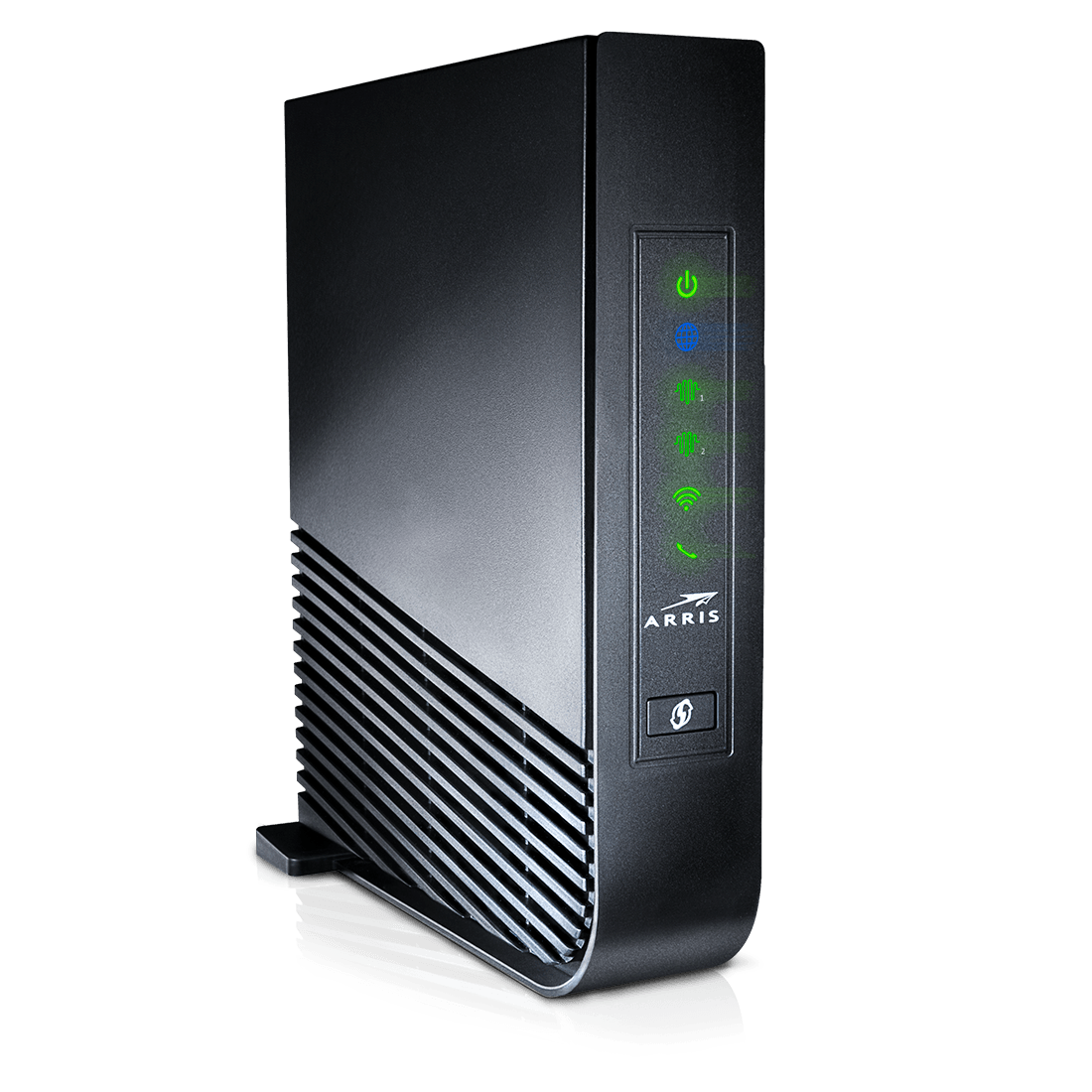
Optimizing Router Placement
Optimizing the placement of your Arris router can greatly improve your internet speed and coverage. Small changes in location help reduce dead spots in your home. Good placement ensures a stronger and more reliable Wi-Fi signal. Follow these tips to find the best spot for your router.
Best Locations For Signal Strength
Place your router in a central area of your home. Higher spots like shelves often work better than floors. Keep it away from thick walls and large metal objects. Open spaces allow signals to travel freely. Avoid corners or closed cabinets where signals weaken.
Avoiding Interference
Keep your router away from devices that cause interference. Microwaves, cordless phones, and baby monitors can disrupt Wi-Fi signals. Also, avoid placing routers near large electronics or thick furniture. Choose a location that minimizes these obstacles for a clear signal.
Using Extenders And Boosters
Extenders and boosters help reach far corners of your home. Place them halfway between your router and weak signal areas. Avoid placing extenders near thick walls or metal objects. Use these devices to fill in dead zones and improve overall coverage.
Security Settings Check
Checking the security settings on your Arris router is essential to protect your network. Weak security can lead to unauthorized access and slow internet speeds. Understanding the key security features helps keep your connection safe and private.
Securing Wi-fi Network
Start by enabling WPA3 or WPA2 encryption on your router. These protocols secure the data sent over your Wi-Fi network. Avoid using older options like WEP, as they are easy to break. Disable the WPS feature to prevent easy hacking attempts. Also, hide your network’s SSID to keep it less visible to outsiders.
Managing Connected Devices
Regularly check the list of devices connected to your router. Remove unknown or suspicious devices immediately. Use the router’s MAC address filtering to allow only trusted devices. Setting limits on the number of devices can reduce risks. Keep an eye on connection times and data usage for unusual activity.
Setting Strong Passwords
Create a strong password for your Wi-Fi network and router admin panel. Use a mix of letters, numbers, and symbols. Avoid common words, simple sequences, or personal information. Change passwords regularly to improve security. A strong password helps stop unauthorized users from accessing your network.
When To Contact Support
Knowing when to contact support for your Arris router saves time and frustration. Some problems require expert help beyond basic troubleshooting. Recognizing these signs early helps you get your internet back quickly.
Identifying Hardware Failures
Hardware failures often cause constant connection drops or no power at all. Look for unusual smells or visible damage on your router. If the router won’t turn on despite proper power supply, it likely needs professional attention. Blinking lights in strange patterns can also signal hardware issues. These problems rarely fix themselves and need expert diagnosis.
Warranty And Replacement Options
Check your router’s warranty before seeking help. Many Arris routers come with a limited warranty covering defects. If your device is still under warranty, you may get a free repair or replacement. Keep your purchase receipt and warranty details handy. This process is faster with support guidance and can save repair costs.
Professional Assistance
Support teams have tools to test and fix complex router problems. They can guide you through advanced steps or arrange repairs. Calling support avoids accidental damage from wrong fixes. Experts also provide updates on firmware and security patches. Contact support when your router shows signs of serious malfunction or if basic fixes fail repeatedly.

Frequently Asked Questions
How Do I Reset My Arris Router Safely?
Press and hold the reset button on the back for 10 seconds. This restores factory settings without harming the device. Use a paperclip for easy access.
Why Is My Arris Router Not Connecting To The Internet?
Check if cables are properly plugged in and the modem is on. Restarting the router often fixes connection problems quickly.
How Can I Update Firmware On My Arris Router?
Log into the router’s web page using its IP address. Look for the firmware section and follow instructions to update.
What Causes Slow Wi-fi On My Arris Router?
Too many devices or interference can slow Wi-Fi speed. Try moving the router to a central spot and limit active devices.
How Do I Change The Wi-fi Password On Arris Router?
Access the router’s settings page through a web browser. Find the wireless security section and enter a new password, then save.
Conclusion
Troubles with your Arris router can disrupt your internet use. Simple steps often fix common problems fast. Restart your router to clear minor glitches. Check cables and connections for any loose ends. Update the firmware to keep your router secure.
Reset settings only if other fixes fail. Keep your network safe by changing passwords regularly. These tips help keep your Arris router working well. Stay patient and follow these steps calmly. Internet troubles don’t have to last long.