Is your cash register acting up right when you need it most? You know how frustrating it is when your sales process slows down or stops because of unexpected glitches.
But don’t worry—this guide is here to help you quickly spot the problem and fix it without stress. By the end, you’ll feel confident handling common cash register issues and keep your business running smoothly. Ready to solve your cash register troubles once and for all?
Let’s dive in.
Power Problems
Power problems can stop your cash register from working. These issues cause delays and affect sales. Fixing power problems fast keeps your business running smoothly.
Check power issues carefully. Small problems like loose cables or dead batteries often cause the problem. Follow simple steps to find and fix these power troubles.
Checking Power Connections
Start by inspecting all power connections. Make sure the power cord is plugged firmly into the outlet. Check the connection at the back of the cash register. Look for any visible damage on cables or plugs. Replace any frayed or broken wires. Use a different outlet to test if the problem is with the socket. Tight connections help avoid power interruptions.
Replacing Fuses And Batteries
Some cash registers have fuses or backup batteries inside. Open the register’s fuse compartment carefully. Check if the fuse looks burnt or broken. Replace it with the same type and rating of fuse. For battery-powered registers, remove old batteries. Insert new batteries following the correct polarity. Use fresh batteries to ensure steady power supply. This step often solves power failure quickly.
Resetting The Cash Register
Resetting can clear minor power glitches. Turn off the cash register and unplug it. Wait for about 30 seconds to 1 minute. Plug the register back and turn it on. This resets the internal system and can restore power. Some models have a reset button. Press it gently with a small tool if available. Resetting helps the cash register start fresh and work properly again.

Display Issues
Cash register display issues can disrupt business operations. A clear and working screen is vital for smooth transactions. Many common problems cause the display to malfunction or go blank. Simple fixes often restore the display quickly. Understanding these issues helps reduce downtime and keep sales flowing.
Fixing Blank Screens
Blank screens are a frequent problem. First, check if the cash register is plugged in properly. Loose cables can cause no display. Restart the register to reset the system. If the screen stays blank, test the power outlet. Sometimes, the display backlight may be broken. This requires professional repair or replacement.
Adjusting Display Contrast
Low contrast makes the screen hard to read. Most cash registers have a contrast setting. Use the menu to find and adjust contrast levels. Increase contrast for better visibility under bright lights. Decrease it if the screen looks too dark. Small adjustments can improve readability significantly.
Replacing Display Components
Sometimes, parts inside the display wear out. Common parts include LCD screens and connectors. Replacing damaged parts restores display function. Use original or compatible replacement parts. Follow the manufacturer’s guide to avoid damage. If unsure, seek help from a technician. Proper replacement extends the register’s life.
Printer Malfunctions
Printer malfunctions are common issues with cash registers. They stop receipts from printing properly. This can slow down your business and confuse customers. Understanding how to fix these problems saves time and money. Here are simple ways to troubleshoot printer problems in cash registers.
Clearing Paper Jams
Paper jams block the printer from working. Turn off the cash register first. Open the printer cover carefully. Look for stuck paper inside. Gently pull the jammed paper out. Avoid tearing it to prevent more jams. Close the cover and turn the machine on. Test the printer to see if it works.
Replacing Printer Paper
Printer paper runs out often. Open the printer cover to check the paper roll. Remove the old paper roll completely. Place a new roll with the paper feeding from the bottom. Pull a small amount of paper out before closing. Close the cover tightly. Press the feed button to make sure paper moves well.
Aligning The Print Head
Print head alignment affects print quality. Misalignment causes blurred or uneven text. Turn off the cash register. Open the printer cover to access the print head. Gently move the print head to the center. Close the cover and turn on the printer. Print a test receipt to check the alignment. Adjust again if needed.
Keypad And Button Failures
Keypad and button failures cause many cash register problems. They stop the machine from working correctly. Buttons may stick, not respond, or fail completely. These issues slow down sales and frustrate staff. Fixing keypad problems helps keep business running smoothly.
Cleaning Sticky Keys
Sticky keys often cause buttons to jam. Dirt, dust, and spills can build up under keys. Clean the keypad with a soft cloth and mild cleaner. Avoid using too much liquid. Press each key while cleaning to remove grime. Dry the keys fully before testing them again.
Testing Button Responsiveness
Check each button to see if it works properly. Press every key and watch for a response. Unresponsive buttons may need deeper cleaning or repair. Use the cash register’s test mode if available. This helps find keys that do not send signals. Mark any faulty buttons for further action.
Replacing Faulty Keypads
Replace the keypad if cleaning and testing fail. Purchase a compatible keypad for your cash register model. Turn off the machine and unplug it before starting. Remove screws and disconnect the old keypad carefully. Connect the new keypad and secure it in place. Test all buttons to confirm the fix.
Software Glitches
Software glitches in cash registers cause slowdowns and errors. These problems disrupt sales and confuse cashiers. Troubleshooting software issues quickly helps keep your business running smoothly.
Most software glitches come from bugs or outdated programs. Simple steps can fix many issues without expert help. Start with easy fixes before moving to advanced solutions.
Restarting The System
Turning the cash register off and on clears temporary software errors. Restarting stops background processes that may cause glitches. This step refreshes the system and often resolves minor issues fast.
Wait a few seconds before powering back on. This ensures the system resets fully. If problems persist, try other troubleshooting methods.
Updating Register Software
Outdated software causes bugs and security risks. Check for updates regularly to keep the register running well. Most devices alert you when an update is available.
Download and install updates following the manufacturer’s instructions. Updated software improves performance and fixes known glitches. Avoid skipping updates to prevent future problems.
Restoring Factory Settings
Resetting to factory settings removes all custom data and fixes deep software issues. This step erases errors that other methods cannot fix. Back up important data before restoring.
Use the register’s menu or a physical reset button to start this process. After the reset, reconfigure the system for your business needs. This method often solves persistent software problems.
Connectivity Issues
Connectivity issues can stop a cash register from working properly. These problems often cause delays at the checkout counter. Fixing connection troubles quickly keeps sales running smooth. Understanding how to check and fix network and device links helps avoid downtime.
Checking Network Connections
Start by checking the network cables and Wi-Fi signal. Make sure all cables are plugged in tight. Look for damaged wires or loose connections. Test the internet speed to see if it is slow. Restart the router and the cash register to refresh the connection.
Troubleshooting Peripheral Devices
Peripheral devices include barcode scanners, receipt printers, and cash drawers. Check if these devices are powered on and connected. Disconnect and reconnect each device to reset its connection. Use device settings to run a self-test. Replace cables or devices that show errors or no response.
Configuring Communication Settings
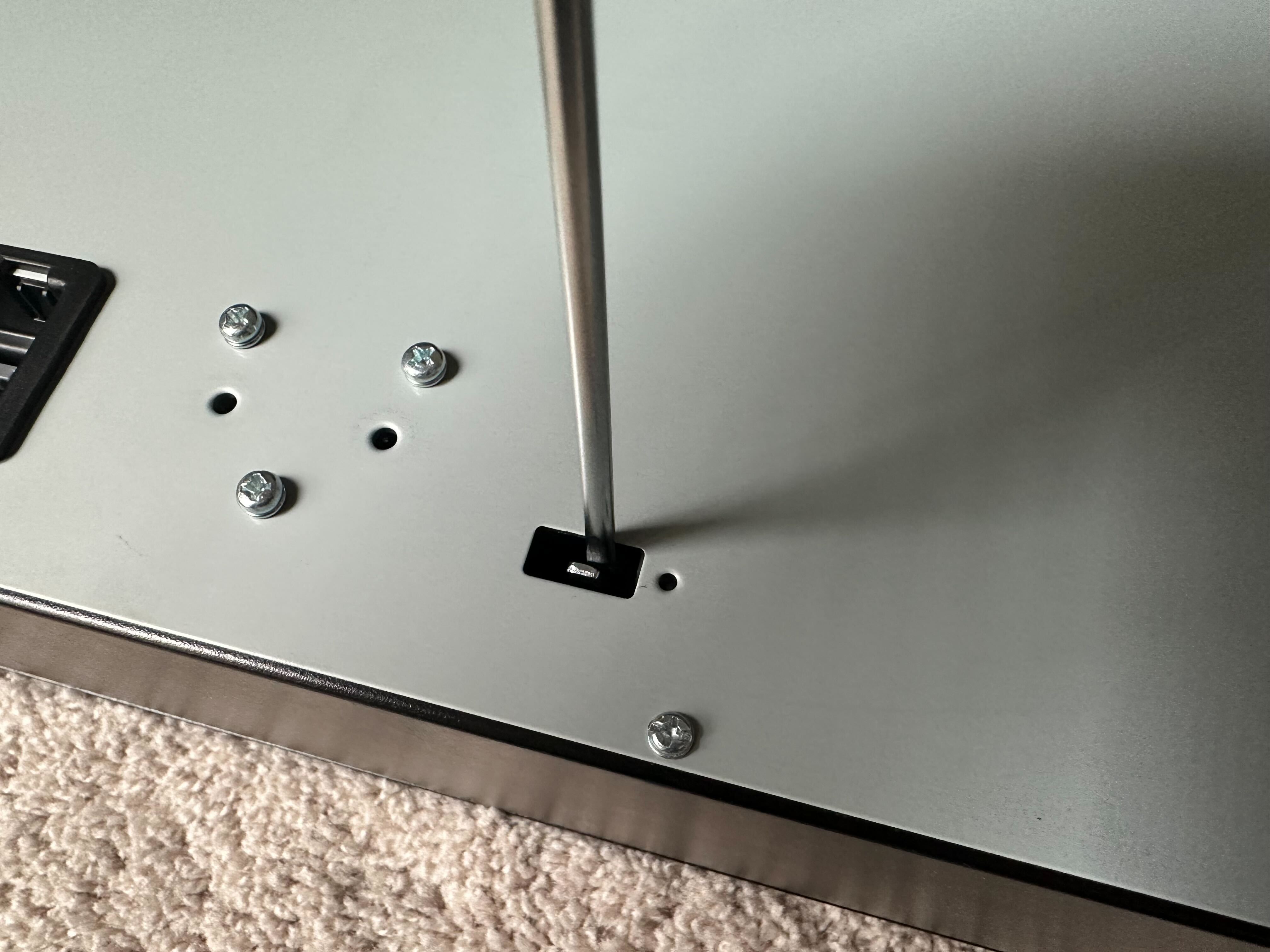
Open the cash register’s settings menu to check communication options. Verify the IP address and network mode are correct. Set the right port number for device communication. Save changes and restart the register to apply new settings. Correct settings ensure smooth data flow between devices.
Transaction Errors
Transaction errors can disrupt the flow of sales and confuse customers. These errors affect pricing, payments, and receipts. Fixing them quickly keeps your business running smoothly. Clear steps help solve these common issues without stress.
Correcting Pricing Mistakes
Pricing mistakes happen when the wrong price is entered. Check the item code or barcode carefully. Re-enter the correct price in the cash register. If the price is in the system, update it to match the sale. Always confirm the price before finalizing the transaction.
Handling Payment Failures
Payment failures occur due to card errors or system issues. Ask the customer to try swiping or inserting the card again. Use a different payment method if possible. Restart the cash register if the problem continues. Keep calm and explain the issue politely to customers.
Resolving Receipt Printing Errors
Receipt printing errors stop the customer from getting proof of purchase. Check if the receipt paper is loaded correctly. Clear any paper jams inside the printer. Replace the paper roll if it is empty. Test print a receipt to ensure the printer works well.
Frequently Asked Questions
How Do I Fix A Cash Register That Won’t Turn On?
Check the power connection and ensure the outlet works. Replace the fuse or battery if needed. Sometimes, a simple reset solves the issue.
Why Is My Cash Register Display Not Showing Numbers?
Clean the display screen gently and check for loose cables. A faulty screen or internal wiring may need professional repair.
How Can I Stop Cash Register Paper Jams?
Use the correct paper size and load it properly. Remove stuck paper carefully to avoid damaging the printer mechanism.
What Causes Cash Register Keys To Stick Or Not Work?
Dirt and debris under the keys often cause sticking. Cleaning the keys with a soft cloth and mild cleaner helps a lot.
How Do I Reset My Cash Register After An Error?
Turn off the register, wait a few seconds, then turn it back on. Consult the manual for specific reset instructions for your model.
Conclusion
Troubleshooting your cash register can save time and money. Small issues often have simple fixes. Always check basic connections and settings first. Regular cleaning helps prevent common problems. Keep a guide handy for quick reference. Don’t ignore error messages; they give useful clues.
If problems persist, contact a professional for help. Staying calm and patient makes the process easier. A working cash register keeps your business running smoothly. Keep these tips in mind to handle issues fast.