
To resolve connectivity or screen errors, the most effective way to start dragon touch photo frame troubleshooting is to power cycle the device by unplugging it for 60 seconds. Most issues arise from a frozen software state or a weak Wi-Fi signal. If the frame remains unresponsive after a restart, you should check your home network settings before looking into hardware resets.
Fixing a frozen Dragon Touch frame
Most users encounter problems because the internal software becomes stuck or the Wi-Fi connection drops during a sync. When a frame can’t reach the server, it often displays a blank screen or shows an error message about the network status. If the Wi-Fi signal is too far from the router, the frame will struggle to pull new photos from the cloud.
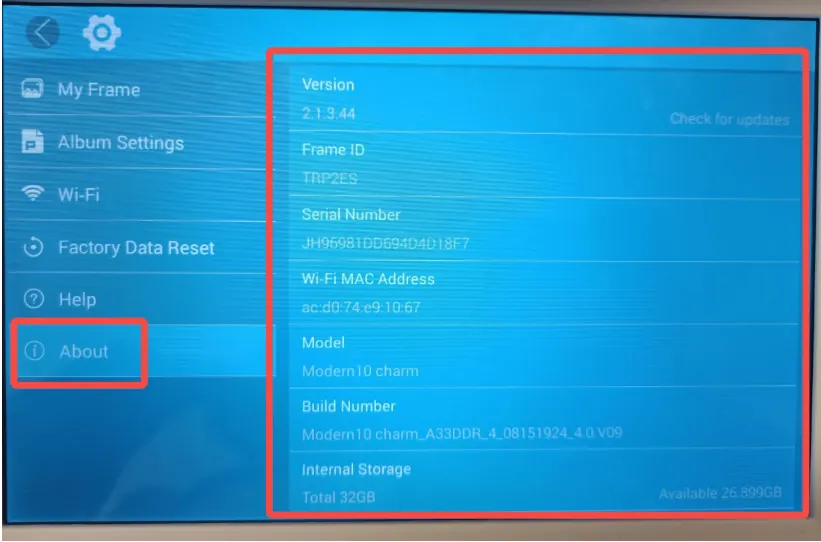
Another common cause is an outdated firmware version. These frames rely on regular updates to stay compatible with the mobile app. If your app is newer than the firmware on the frame, you might see sync errors or login failures. You can check the current version in the settings menu under “About” or “System Update” to see if a newer file is waiting to install.
Power supply issues also play a role. If you use a non-original power adapter, the frame may not receive the steady voltage required to stay on. A frame that flickers or shuts down randomly often points to an underpowered cable.
Always use the manufacturer-provided cable to ensure the Dragon Touch device specifications are met. If the frame is hot to the touch, it might be in a poorly ventilated area, causing the internal processor to throttle or shut down to protect itself.
Perform a factory reset
A factory reset is the best way to fix persistent software bugs. This process deletes all local data and returns the frame to its original state. You should only use this if basic restarts fail to resolve screen freezing or app connection issues.
To start, navigate to the settings menu on the frame’s touch screen. Look for “System” or “General” and select the option for “Factory Data Reset.” The system will ask you to confirm this action because it removes all stored photos and Wi-Fi credentials. Once you confirm, the frame will reboot and show the initial setup screen.
This fix isn’t for users who haven’t backed up their photos elsewhere, as all files on the device will be lost. If you aren’t sure if your photos are saved in the app cloud, check your account on the mobile app before you proceed.
After the reset, you’ll need to re-enter your Wi-Fi password and re-link your frame to your account. If the screen remains black or unresponsive after this process, the issue is likely hardware-related, and you should contact the manufacturer’s support team for a potential warranty claim.
Update the app and firmware

Keeping your software current ensures that the frame communicates correctly with the server. If you notice that photos sent from your phone never appear on the frame, the mismatch between the app version and the frame firmware is the likely culprit.
Start by checking your smartphone’s app store for any updates to the frame’s companion app. Install the latest version available. Once the app is up to date, check the frame itself. Go to the settings menu on the frame and select “Check for Updates.” If an update is available, keep the frame plugged into power and ensure it has a strong internet connection. Don’t turn off the frame during the update process, as this could corrupt the system files.
This fix is intended for users with active Wi-Fi who are seeing sync errors. It isn’t for users with hardware damage, such as a cracked screen or a loose charging port. If the frame fails to download the update after three attempts, move the frame closer to your Wi-Fi router to rule out signal interference. If the update still fails, there may be an issue with the local network configuration blocking the frame’s access to the update server.
Check network signal strength
A weak signal often causes the frame to report that it’s offline or to show a spinning loading icon indefinitely. Because these frames stream images from the cloud, they require a stable, consistent connection.
If you have a large home, the frame might be in a dead zone. You can check the signal strength in the Wi-Fi settings menu on the frame. If the signal shows only one or two bars, consider moving the frame to a different location closer to your router. You can also try to restart your router to clear any temporary IP address conflicts that might be preventing the frame from connecting.
This is the right fix if the frame shows a “Network Error” message or if photos take a long time to load. If you still have trouble, check if other devices in the same room can access the internet easily.
If they cannot, your router is the source of the issue. If other devices work fine but the frame does not, the frame’s internal Wi-Fi antenna may be faulty. In that case, you should contact the support department for further diagnostic steps.
Common troubleshooting mistakes
Using a different power cable: Many users swap the original cord for a standard USB cable. These often lack the specific 5V/2A output required, causing the frame to reboot during high-load tasks like video playback. If the frame flickers or resets when you try to display a high-resolution file, your cable is the culprit.
Force-closing the app constantly: Manually killing the app on your phone doesn’t fix server-side sync issues. It only forces the handshake process to restart from scratch, which adds 30 to 60 seconds of unnecessary loading time.
Blocking the frame’s ventilation: Placing the frame in an enclosed cabinet traps heat. This triggers a thermal throttle, slowing the processor to a crawl. If the unit feels hot to the touch, move it to an open space with at least two inches of clearance on all sides.
Ignoring the “Offline” status: Pushing new photos while the frame is offline creates a massive queue. This backlog can crash the app once the connection returns. Check your Wi-Fi signal strength first; if it shows one bar, move the router closer.
Resetting without checking power: People often perform a factory reset when the device is simply underpowered. If the screen is dim or unresponsive, check the wall outlet before wiping your data.
How to optimize frame performance
If you find that the frame is slow or unresponsive, you can adjust how you manage your photo library to improve the overall speed.
| If you’re doing this | Do this instead | Why |
|---|---|---|
| Sending 50MB files | Resize photos to under 5MB | Large files take longer to load and fill the cache. |
| Leaving it on 24/7 | Set a sleep timer | Continuous operation wears out the screen and processor. |
| Keeping all files on local storage | Use cloud sync | Cloud storage prevents local memory from becoming full. |
| Placing near a microwave | Move away from appliances | Electronic interference disrupts the Wi-Fi signal. |
Most users mistakenly assume that high-resolution files improve display quality. In reality, the frame downscales images to fit its native resolution, meaning files exceeding 5MB only consume extra processing power without visual gain.
If your frame stutters during transitions, check your internal storage usage. If you have less than 10% of total capacity remaining, the system will struggle to buffer the next image in the queue.
To determine if your Wi-Fi is the bottleneck, look for a spinning icon before each photo. If it appears, move the frame closer to your router or switch to a 5GHz band. If the frame remains sluggish after these changes, perform a factory reset to clear corrupted cache files that accumulate over time.
Frequently asked questions
Can I use the frame without Wi-Fi?
Yes, you can use the frame without Wi-Fi by loading photos directly via an SD card or USB drive. This method allows the frame to function as a standalone digital gallery. Note that you’ll lose the ability to receive photos remotely through the mobile app.
Why is my frame showing a black screen?
A black screen is usually caused by a power issue or a failed software update. First, verify the power cable is firmly connected to both the outlet and the frame. If the light is on but the screen remains black, hold the power button for 10 seconds to force a restart.
How long does a factory reset take?
A factory reset typically takes between 2 to 5 minutes to complete. During this process, the frame will restart multiple times and display the logo. Don’t unplug the power cord during this time, as interrupting the process can damage the internal memory.
Is it safe to leave the frame on all day?
Yes, it’s safe to leave the frame on for long periods if it’s placed in an area with good air circulation. The frame is designed for daily use, but it generates heat during operation. If the back feels hot, use the automatic sleep timer to let the device cool down.
What happens if I lose my Wi-Fi password?
If you lose your Wi-Fi password, you must re-enter the correct credentials manually in the frame’s settings. The frame can’t retrieve a forgotten password on its own. You’ll need to update these settings whenever you change your network name or password to bring the device back online.
How do I stop the frame from lagging?
To stop the frame from lagging, delete old photos and clear the cache in the device settings. A full memory often slows down the operating system by limiting the space available to buffer new images. If the lag persists, check for a firmware update to improve performance.
Conclusion
If your display still won’t cooperate, don’t hesitate to reach out to the manufacturer’s support team directly. They’ve got access to specific firmware updates that can’t be found online. Sending them a quick message today should help you get your favorite memories back on the screen in no time at all.