If your power station isn’t charging or providing power, effective ecoflow delta pro troubleshooting involves checking the input source, verifying cable connections, and updating the unit’s firmware. Most issues stem from a simple communication error between the battery and the app or an incorrect setting in the input range. You can usually resolve these problems by resetting the device or adjusting the charge speed. If the unit shows an error code or remains unresponsive after a hard reset, you must contact professional support for an internal inspection.
Troubleshooting common EcoFlow Delta Pro issues
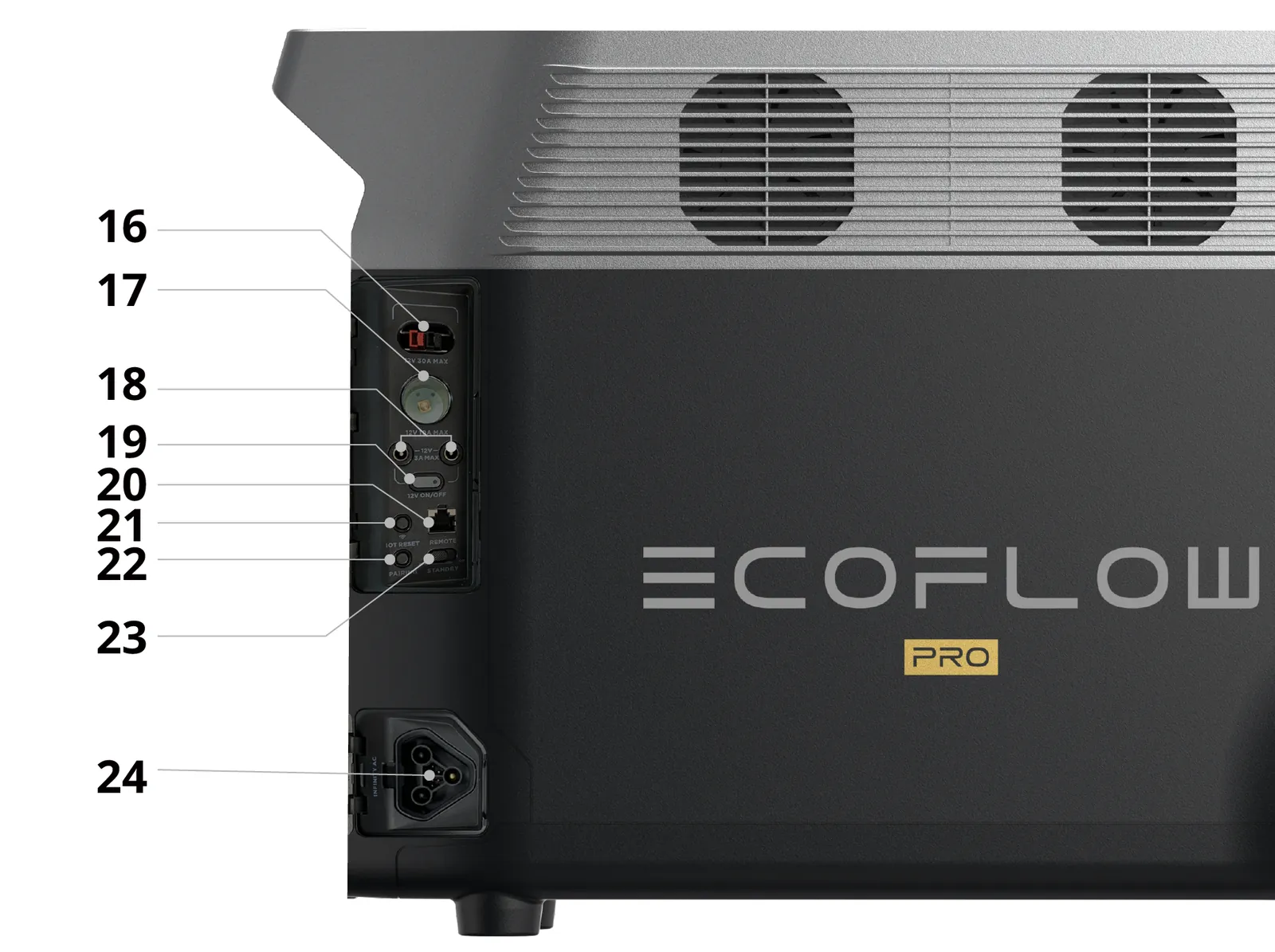
When your unit stops working, the first step is to isolate whether the problem is with the battery, the input source, or the external device. Most users find that the unit is simply in a protection mode, which is a safety feature designed to prevent damage during extreme temperatures or short circuits. You should always check the LCD screen for specific error codes before attempting any manual reset.
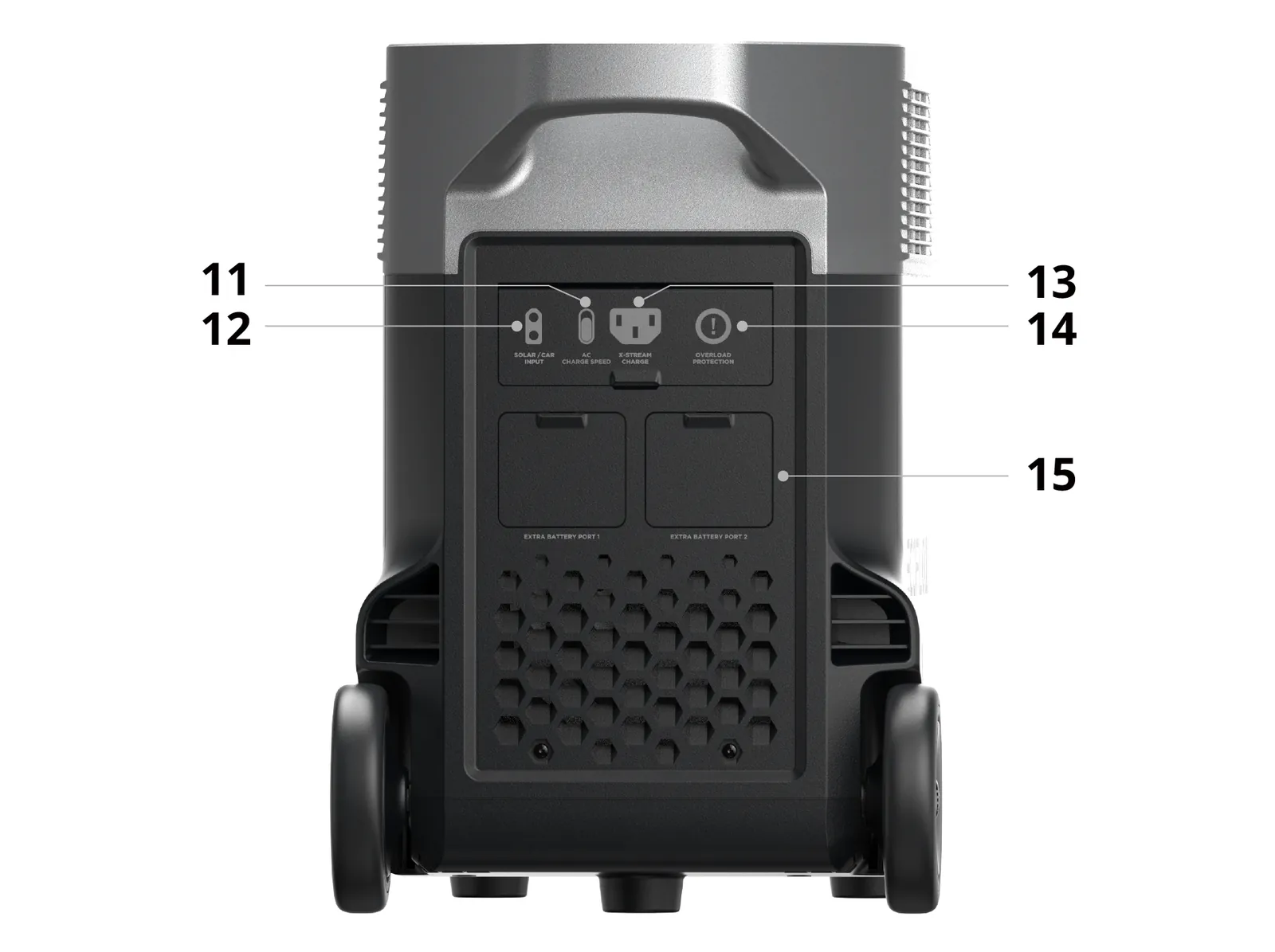
If the screen is blank, the battery might be fully depleted. Plug the unit into a wall outlet and wait at least 30 minutes to see if the display wakes up. If it remains dark, ensure the AC cable is pushed firmly into both the wall and the unit. A loose connection is the most common cause of charging failure.
If you use a solar panel, confirm the voltage and wattage are within the unit’s supported range. Using panels that exceed the maximum input voltage can cause permanent damage to the unit’s internal MPPT controller.
Distinguish between a “low battery” state and a “fault” state by checking the fan. If the fan runs at full speed while the screen is black, the unit has likely suffered an internal component failure rather than a simple power drain. In this case, stop all charging attempts to prevent further damage.
If the unit is silent and cold, it’s likely a deep discharge issue requiring a long-duration charge cycle. Always prioritize wall charging over solar during troubleshooting to eliminate variable input issues.
Resetting the unit power settings
A full system reset often clears temporary software glitches that prevent the unit from outputting power. To perform this, press and hold the power button for 10 seconds until the screen flashes or turns off completely. This forces the internal management system to restart and re-sync with the connected components.
If you have multiple batteries connected, disconnect them all and try to power the main unit alone. This helps you determine if one of the expansion batteries is causing a communication fault.
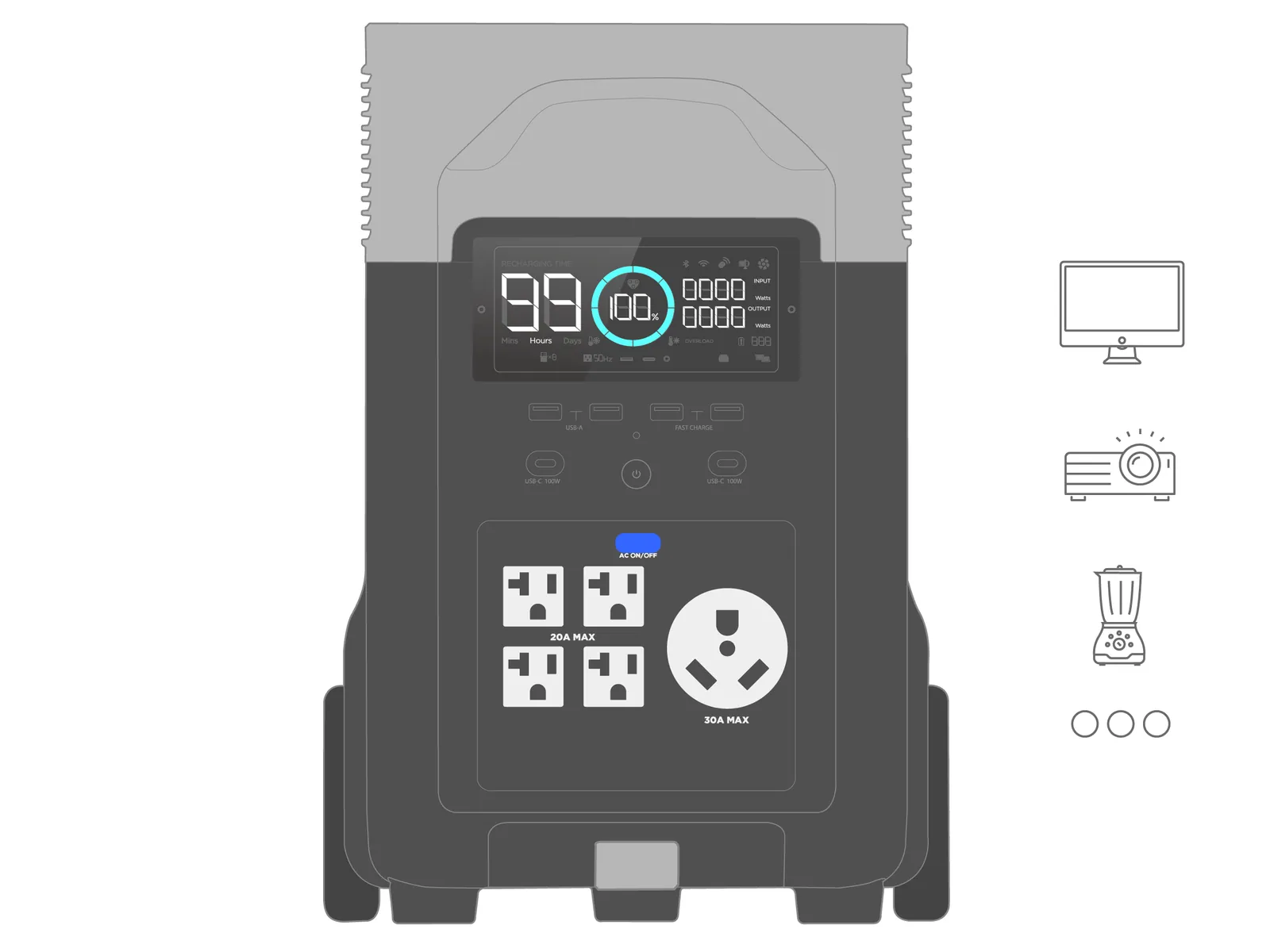
This fix is for users whose screens are active but whose ports are failing to provide power. If the AC output is off, ensure the AC power button is actually pressed and the green indicator light is on.
If the light blinks, it indicates a short circuit or an overload, and you should unplug the device you’re trying to power. If the unit shuts down during high-load use, it’s likely protecting itself from an over-temperature condition. Wait for the fan to stop and the unit to cool down to room temperature before trying again.
Updating firmware via the application
Software bugs can sometimes stop the unit from recognizing input sources or managing the battery cycles properly. Connect your device to the EcoFlow app using Wi-Fi or Bluetooth to check for available updates. Manufacturers release these updates to improve charging efficiency and fix known bugs in the battery management system.
You must have a stable internet connection and at least 30% battery life to finish the update process safely. Don’t turn off the unit or disconnect it from power while the update is running.
This process is for those who experience random shutdowns or strange behavior during standard operation. If the app can’t find your unit, move your phone within three feet of the device and ensure Bluetooth is enabled. A common mistake is attempting the update while the unit is under a heavy load, which can cause the internal processor to hang. Stop any active AC or DC output before starting the download.
If the update fails repeatedly, it may indicate a deeper hardware fault that requires professional service. Don’t attempt to open the casing or touch internal components, as this voids your warranty and poses a risk of electrical shock. If you can’t complete the update after three attempts, contact the manufacturer’s support team for a diagnostic session. Provide your unit’s serial number and the specific error code displayed in the app to expedite the repair process.
Managing high-load device connections
Sometimes the unit works fine until you plug in a specific appliance. If the screen shows an overload icon, you’re likely drawing more than the rated output capacity of the unit.
The unit has a specific limit for AC output, which you can find in your product manual based on the surge rating. If you exceed this limit, the inverter will cut power to protect the circuitry. This isn’t a defect, but rather the system working exactly as intended to prevent permanent damage.
If you’re using a high-power device like a space heater or a large power tool, try using a different port or reducing the number of devices plugged in at once. If the unit trips even with very low-power devices, there might be a fault in the AC inverter.
In this case, you should stop using the AC output entirely and reach out to authorized repair centers. Using an overloaded unit repeatedly can lead to premature wear of the internal components and may result in a total loss of functionality over time.
Avoiding common user mistakes
Using thin extension cords: Plugging the unit into a cheap, thin-gauge extension cord creates voltage drop. This limits the current, causing the unit to misinterpret the wall power as unstable. Use a 12-gauge cable or thicker to ensure consistent power delivery.
Ignoring temperature warnings: Operating the unit in extreme heat or freezing cold forces the battery management system to trigger a hard shutdown. This protects the internal chemistry from permanent degradation. If the warning icon flashes, move the unit to a climate-controlled space immediately.
Leaving the unit empty: Storing a lithium battery at zero percent for long periods leads to irreversible capacity loss. Always maintain a charge of at least 20 percent during storage.
Overloading the inverter: Plugging in devices that exceed the unit’s peak surge rating triggers an immediate safety shutdown to protect the internal circuitry. Check the starting wattage of your appliances, not just the running wattage. If the unit clicks off, unplug the largest load and restart.
Correcting your charging habits
You can extend the life of your power station by changing how you manage the input and output. The way you store and charge the unit determines how long the battery cells remain healthy.
| If you’re doing this | Do this instead | Why |
|---|---|---|
| Leaving it plugged in 24/7 | Charge only when needed | Constant trickle-charging degrades cells |
| Storing in a hot garage | Store in a cool room | Heat speeds up battery aging |
| Draining to 0% often | Recharge at 20% | Deep discharges stress the chemistry |
| Using any random cable | Use original cables | Proper gauge ensures stable voltage |
Most users mistakenly believe that keeping a unit at 100% capacity is ideal for readiness. This habit actually forces the lithium-ion chemistry to remain in a high-voltage state, which accelerates internal resistance. If you plan to store the unit for more than two weeks, discharge it to 60% first. This specific percentage balances chemical stability with enough power for immediate use.
Avoid the common error of using third-party fast chargers that exceed the unit’s rated input wattage. Always check the label on your power brick to ensure it matches the manufacturer’s original output specifications. If your unit feels hot to the touch during charging, unplug it immediately until the temperature stabilizes.
Frequently asked questions
Why is my unit not accepting a charge?
The unit is likely rejecting input due to unstable voltage or an excessively high charge speed setting. Lower the AC charge speed in the app to a standard or slow setting to resolve this. If the issue persists, try plugging the unit into a different wall outlet on a separate circuit.
How long does the battery take to charge?
AC wall charging typically takes 1.5 to 2 hours for a full cycle at maximum speed. Solar charging times vary significantly based on total panel wattage and sunlight intensity. Note that adding expansion batteries increases total capacity, which will require more time to reach a full charge.
Is it safe to leave the unit outside?
No, you should never leave the unit outside because it isn’t waterproof and moisture will cause internal corrosion. Exposure to temperature fluctuations can also damage battery cells and reduce their lifespan. Always store the unit in a dry, climate-controlled environment when it isn’t in use.
What happens if I use an incompatible solar panel?
Using a solar panel that exceeds the maximum voltage input will trigger the unit’s internal protection system and prevent power intake. Always verify the open-circuit voltage of your panels against the maximum input limit listed on your unit. Exceeding this limit risks blowing internal fuses or damaging the MPPT controller.
How often should I update the firmware?
You should check for firmware updates every few months or if you notice unusual behavior in the battery display. These updates often include patches that improve power management and app communication. If your unit is working perfectly and you have no connectivity issues, you don’t need to update immediately.
Conclusion
Proper maintenance of your power station ensures it remains a reliable backup during outages. Regularly checking your connections and keeping the firmware current helps you avoid the most common operational errors. If you ever notice burning smells, bulging, or persistent error codes that don’t clear after a hard reset, stop using the unit immediately and contact customer service for help.