If your power station isn’t working, performing basic ecoflow river troubleshooting usually involves checking the input cables and resetting the unit through the official mobile app. Most power issues stem from a low battery state or a tripped internal circuit breaker after an overload. If the unit doesn’t power on at all, ensure the charging cable is pushed firmly into the wall outlet and the device port. If it still fails to charge, try a different wall socket to rule out a house breaker issue.
Troubleshooting common EcoFlow River faults
When your device stops responding, the cause is often a simple communication error or a safety trigger. The most common cause is an overload event where the device pulled more watts than the inverter can handle, causing the system to shut down to protect its internal components. If you recently connected a high-power heater or motor, the unit likely tripped its self-protection mode.
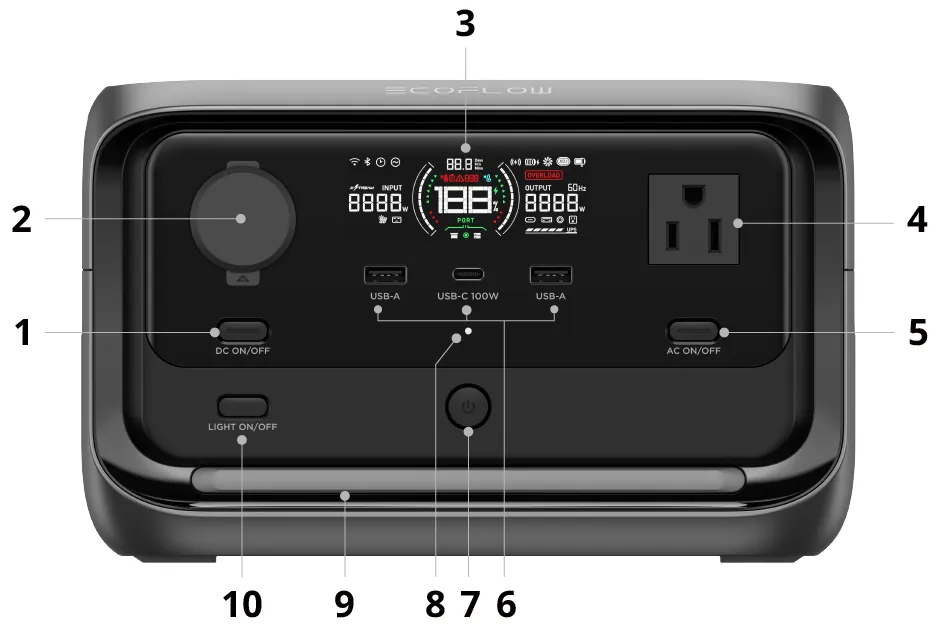
Another frequent cause is a software glitch within the battery management system. Like any modern electronics, the internal computer may need a power cycle to clear temporary errors. Check the LCD screen for any blinking icons or error codes; these symbols act as the primary diagnostic tool for the device. If the screen is completely blank, the internal battery might have entered a deep sleep mode due to a long period of inactivity.
You should also verify that the temperature is within the safe operating range. If the unit was stored in a hot car or a freezing garage, it will disable charging and output functions to prevent permanent damage to the lithium cells.
Official EcoFlow support documentation provides specific guides for interpreting the unique error codes shown on your display. If the device remains unresponsive after these checks, the internal hardware may have reached the end of its functional life or suffered a component failure that requires professional inspection.
Safety: Inside a mains-powered machine, the parts behind the outer cover can hold a dangerous electrical charge even after it has been unplugged — that’s why they sit behind a cover. Opening the housing, or testing or replacing anything behind it, is a job for a qualified technician, never a home repair.
Resetting The Battery Management System
If the screen is frozen or the unit won’t output power, a manual reset is the first step. To do this, hold the main power button down for at least 10 seconds until the screen flashes or goes dark. This process clears the current state of the inverter and forces the system to reboot its internal controller.
If you have the mobile app connected, use the settings menu to perform a firmware update if one is available. This often resolves communication bugs that cause the unit to report zero capacity despite being fully charged.
This fix is intended for users experiencing unresponsive buttons or incorrect screen readings. If you notice a burning smell or see physical bulging on the plastic casing, stop using the device immediately. Move the unit to a fire-safe area, such as a concrete floor away from flammable materials, and keep it there for 24 hours.
Don’t attempt to open the housing to repair the battery yourself. The high voltage stored inside can cause severe injury or death. If the reset doesn’t resolve the issue, contact the manufacturer’s customer service team for a warranty claim. When you call, have your serial number and the exact error code displayed on the screen ready to expedite the repair evaluation.
Checking Input And Output Settings
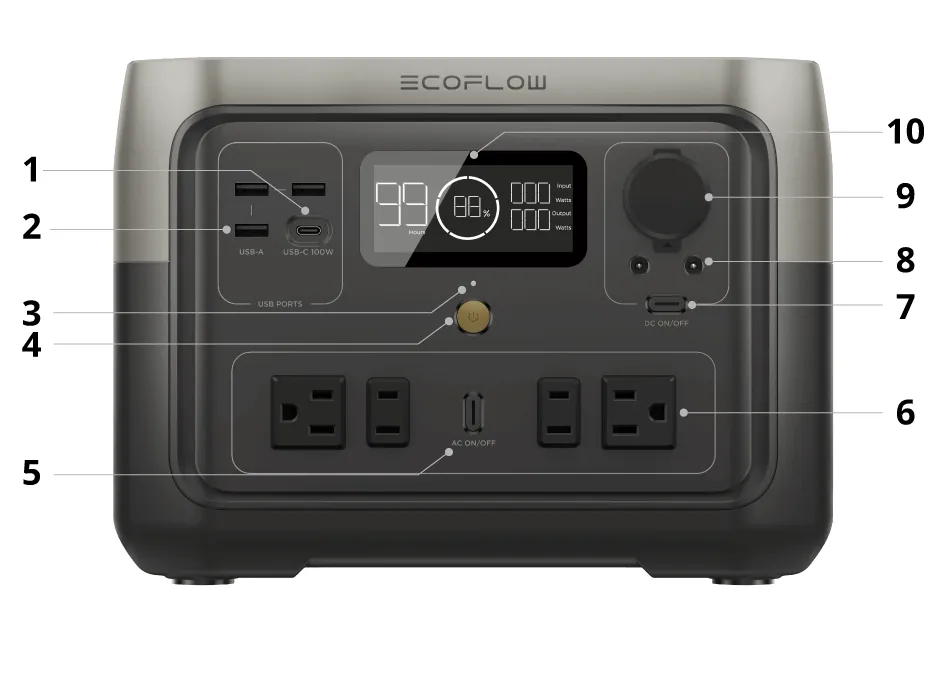
When the device refuses to accept a charge, your issue is likely related to the input source rather than the unit itself. Many users make the mistake of using a damaged charging cable or one that doesn’t match the required voltage. If you’re using a solar panel, ensure the open-circuit voltage matches the specifications listed on the back of your unit. Exceeding the maximum voltage rating will trigger a protection lock that prevents the unit from accepting any power.
If the unit remains unresponsive, check the input port for debris. A small piece of grit can prevent the metal pins from making a clean connection. Use a wooden toothpick to gently clear the port. If the charging indicator light flickers, you’re likely dealing with a loose connection rather than a hardware failure.
Check the AC output settings if your appliances aren’t turning on. Some devices require a specific frequency or a pure sine wave, which the unit provides, but if the inverter is in “Eco Mode,” it may shut off when it senses very low draw. Disable this mode in the settings to keep the AC ports active for low-power items.
If you’re using a car charger, ensure the cigarette lighter port in your vehicle is functioning correctly. Many older vehicle ports have blown fuses that prevent charging. If you suspect an issue with the power output, contact a qualified technician to test the port.
Resolving Overload And Temperature Errors
If you’re seeing an overload warning, you must reduce the load immediately. This happens when the total wattage of your plugged-in devices exceeds the rated limit of your specific model. While some units have a surge capacity for short bursts, they will shut down if that limit is sustained for more than a few seconds.
If you’re running multiple devices, unplug everything and try starting them one by one to see which item is causing the spike. A common mistake is assuming a device’s running wattage is its peak wattage; always check the startup draw, which can be three times higher than the steady-state power usage. If the total startup load exceeds your unit’s capacity, you must stagger the power-on sequence.
Temperature errors occur when the internal sensors detect that the unit is outside its safe operating range. If you see a thermometer icon, move the unit to a room-temperature environment and wait for it to stabilize naturally. Don’t place the unit in front of a space heater or inside a refrigerator to speed this up. Rapid temperature shifts can cause condensation inside the sensitive electronics, leading to permanent short circuits.
If the unit consistently reports a temperature error while sitting in a stable, cool room, the internal sensor is likely faulty. In this case, stop using the unit entirely, as the thermal protection circuit has failed and the device is a fire hazard. This requires a professional factory repair.
Avoid Common Troubleshooting Mistakes
Don’t attempt to open the outer shell or touch internal components. This voids your warranty immediately and introduces a lethal risk of electric shock from residual capacitor charges.
Avoid using third-party charging cables that fail to meet the manufacturer’s specific pin-out standards. Using non-compliant cables can fry the internal charging controller, a repair that often costs more than a replacement unit.
Never use water or liquid cleaners to wipe ports. Even a microscopic amount of moisture causes a short circuit on the motherboard, which is rarely covered under standard protection plans.
Don’t leave the unit plugged into a wall outlet for months. Lithium-ion batteries require regular discharge cycles to maintain capacity. If you plan to store the device, keep the charge between 40% and 60% to prevent permanent chemical degradation.
Avoid placing the unit on soft surfaces like carpets or blankets while running. This blocks intake vents, causing the processor to throttle performance or trigger an emergency thermal shutdown. Always use a hard, flat surface to ensure proper airflow.
Preventing Future Power Failures
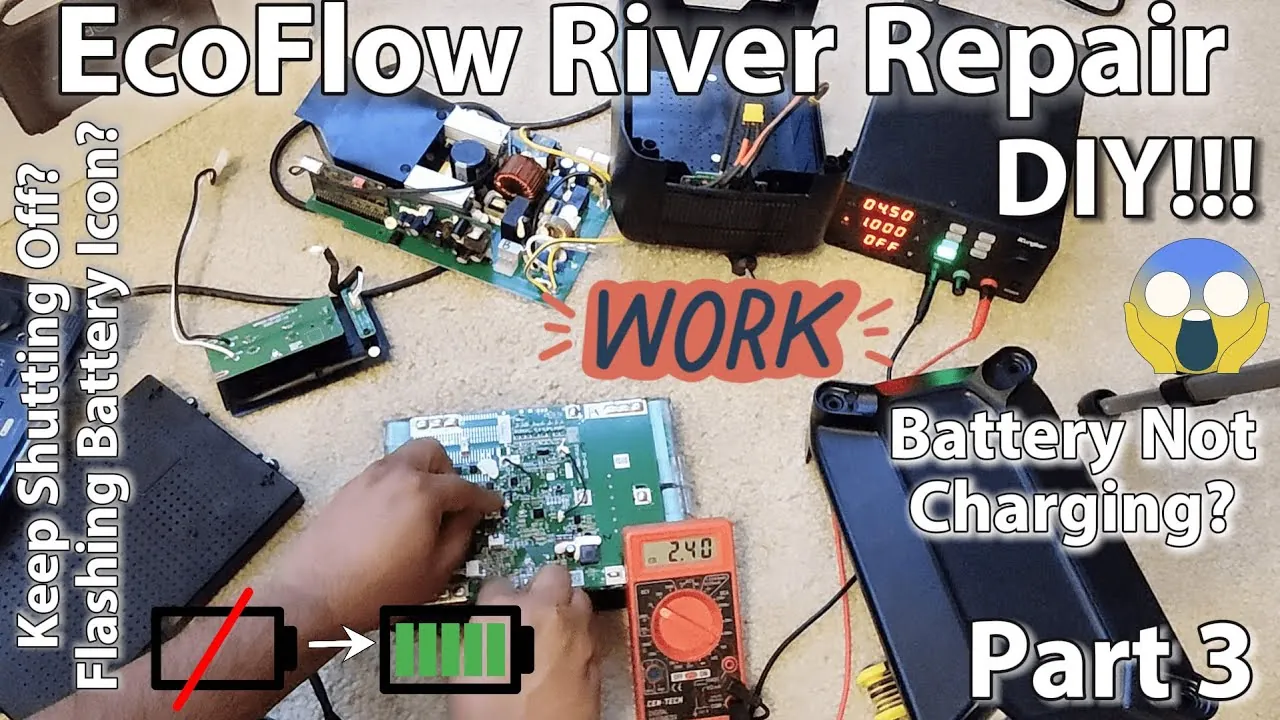
The best way to prevent issues is to keep the firmware updated and maintain the battery within its recommended percentage. If you’re doing this, you’ll have fewer problems with the system logic.
Most users fail by leaving the unit plugged into a wall indefinitely. This keeps the battery at 100% capacity, which accelerates chemical aging and permanently reduces your total runtime. If you plan to store the unit for more than a month, discharge it to 60% first.
| If you’re doing this | Do this instead | Why |
|---|---|---|
| Leaving it at 0% | Keep it at 50-80% | Deep discharge kills capacity |
| Using it in the sun | Shade the unit | Heat degrades lithium cells |
| Daisy-chaining power strips | Use one device per port | Prevents overload trips |
| Storing it in a shed | Store in climate control | Humidity ruins internal boards |
If the vents are clogged with dust, the system will trigger a thermal shutdown during high-draw events. Use compressed air to clear the intake ports to ensure longevity.
Frequently asked questions
How long should the unit take to charge?
The time depends on your specific model and the input method, but a standard wall charge usually takes between 1.5 to 3 hours for most portable units. If you’re using a slower solar input, this can extend to 8 hours or more depending on the panel wattage and current sunlight conditions. You can check your specific model’s manual for the exact expected charge rate based on the AC input wattage.
Is it safe to leave it plugged in all the time?
No, it isn’t recommended to leave the unit connected to a wall outlet indefinitely. While the internal system is designed to stop charging once full, keeping it at 100% for long periods can degrade the battery chemistry faster than intended. It’s better to charge it when you need it or to use a smart plug to cycle the power once a week if you must keep it ready for emergencies.
Why does my screen keep blinking?
A blinking screen usually indicates an active error code or an ongoing firmware update process. If the unit isn’t updating, look at the icons on the display to see which port or system is triggering the alert. Most blinking symbols point toward a specific fault like an overload, an input voltage issue, or a high-temperature warning that needs your immediate attention to resolve.
Can I use a generator to charge it?
Yes, you can use a generator, but only if it provides a stable pure sine wave output. If the generator has a dirty or fluctuating output, the internal charging controller may reject the power to protect the battery from damage. If the unit refuses to charge from your generator, the power quality is likely too unstable for the sensitive electronics inside the power station.
What happens if I drop the unit?
If the unit sustains a physical impact, it may suffer from internal connection damage or battery cell punctures that aren’t visible from the outside. Even if the screen turns on, the structural integrity of the internal battery frame might be compromised, which creates a fire risk. If you have dropped your unit, don’t plug it in and contact the manufacturer to see if a safety inspection is required.
How do I know if the battery is dead?
Your battery has reached the end of its life if it can no longer hold a charge or refuses to accept power after a reset. Internal cells lose capacity over time, causing rapid percentage drops or total power failure. If this occurs, the unit must be replaced.
Conclusion
If these quick fixes don’t restore your power, don’t worry. Reach out to the support team through the app or their website to start a warranty claim. They’ll help you figure out if there’s a deeper hardware fault, so you can get back to using your gear without any more stress.
Related guides